> ## Documentation Index
> Fetch the complete documentation index at: https://docs.sherpo.io/llms.txt
> Use this file to discover all available pages before exploring further.
# Certificates
> Create branded completion certificates for quizzes, control what appears on the PDF, and decide when learners can generate them.
Certificates let learners generate a downloadable, verifiable certificate after completing a quiz. Each certificate is linked to a **single quiz** and uses one template that you can edit anytime.
If you're looking for a guide about how to create **Quizzes**, you can find it here:
Create graded quizzes inside Courses using multiple choice, true or false, sliders, and open-ended questions, with built-in scoring and response analytics.
**Note**: you need a paid plan to add or edit certificates.
***
## Access and setup
* Certificates live under **Assessment** inside a **Course** product.
* To create a certificate, you must have **at least one quiz** in the product, and it must be linked to an existing lesson Page.
***
## Create a certificate
You can create a certificate in two ways:
* Click **Add Certificate** in **Assessment**.
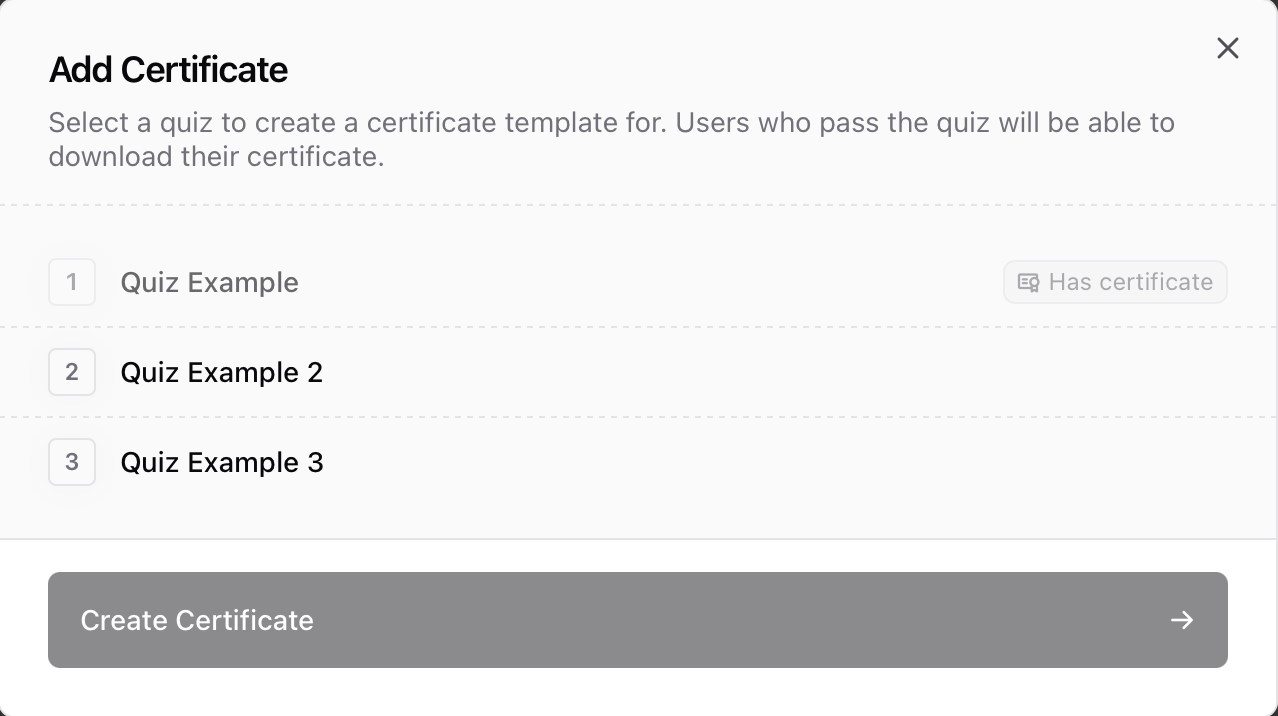 * Or open the quiz overflow menu (•••) and select **Issue Certificate**.
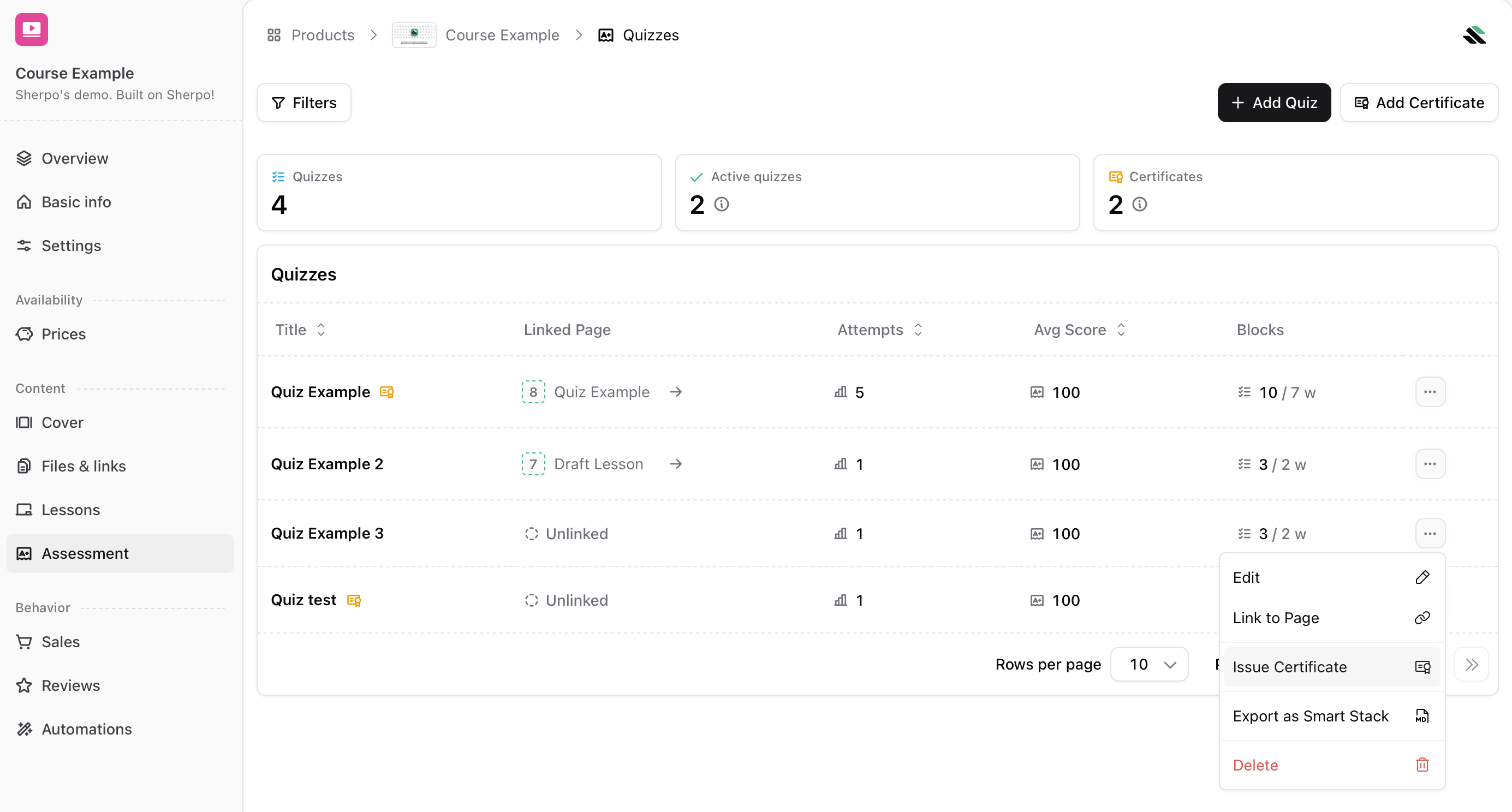 In your Course product, go to **Quizzes & certificates** and click **Add Certificate**.
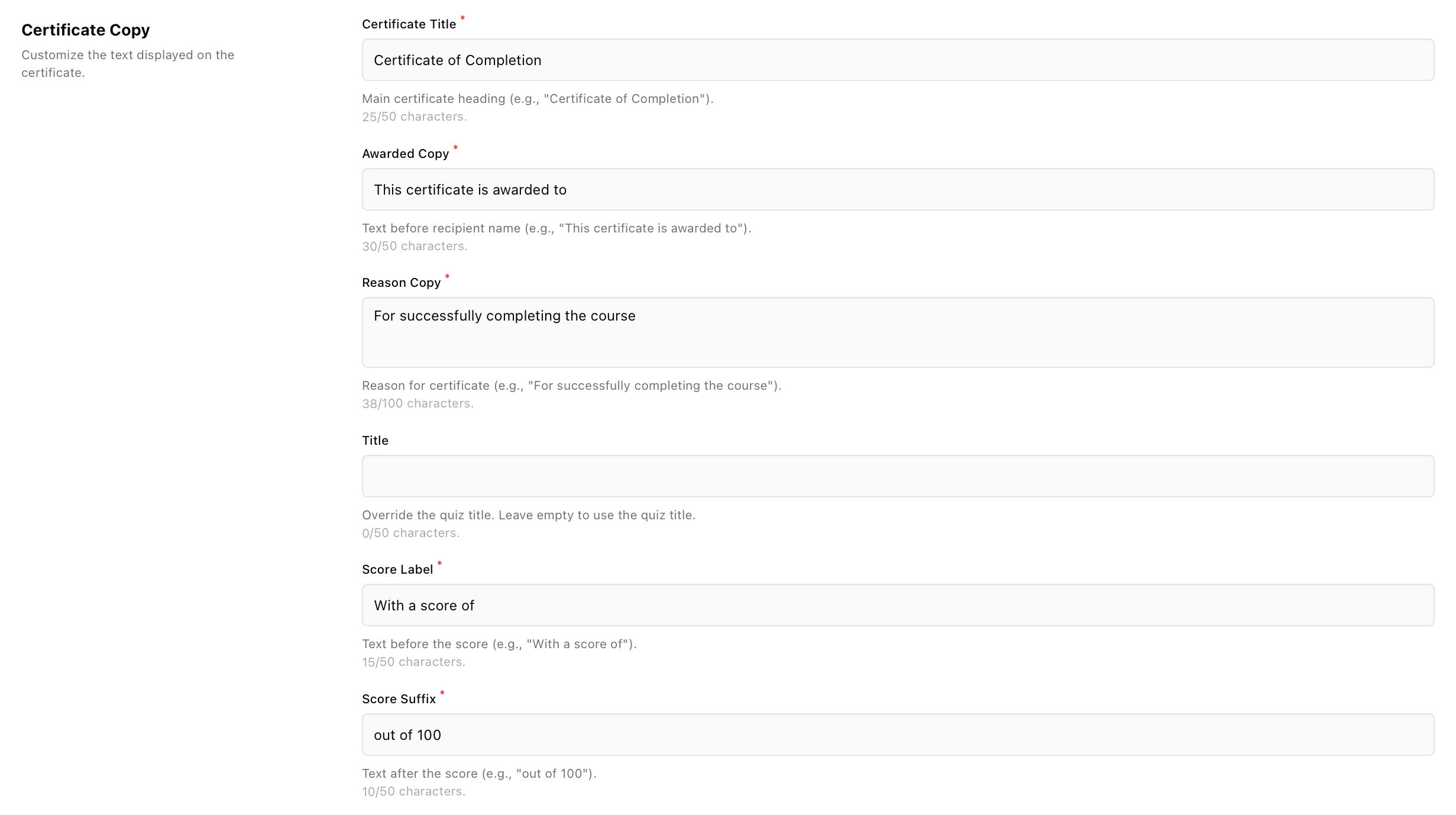
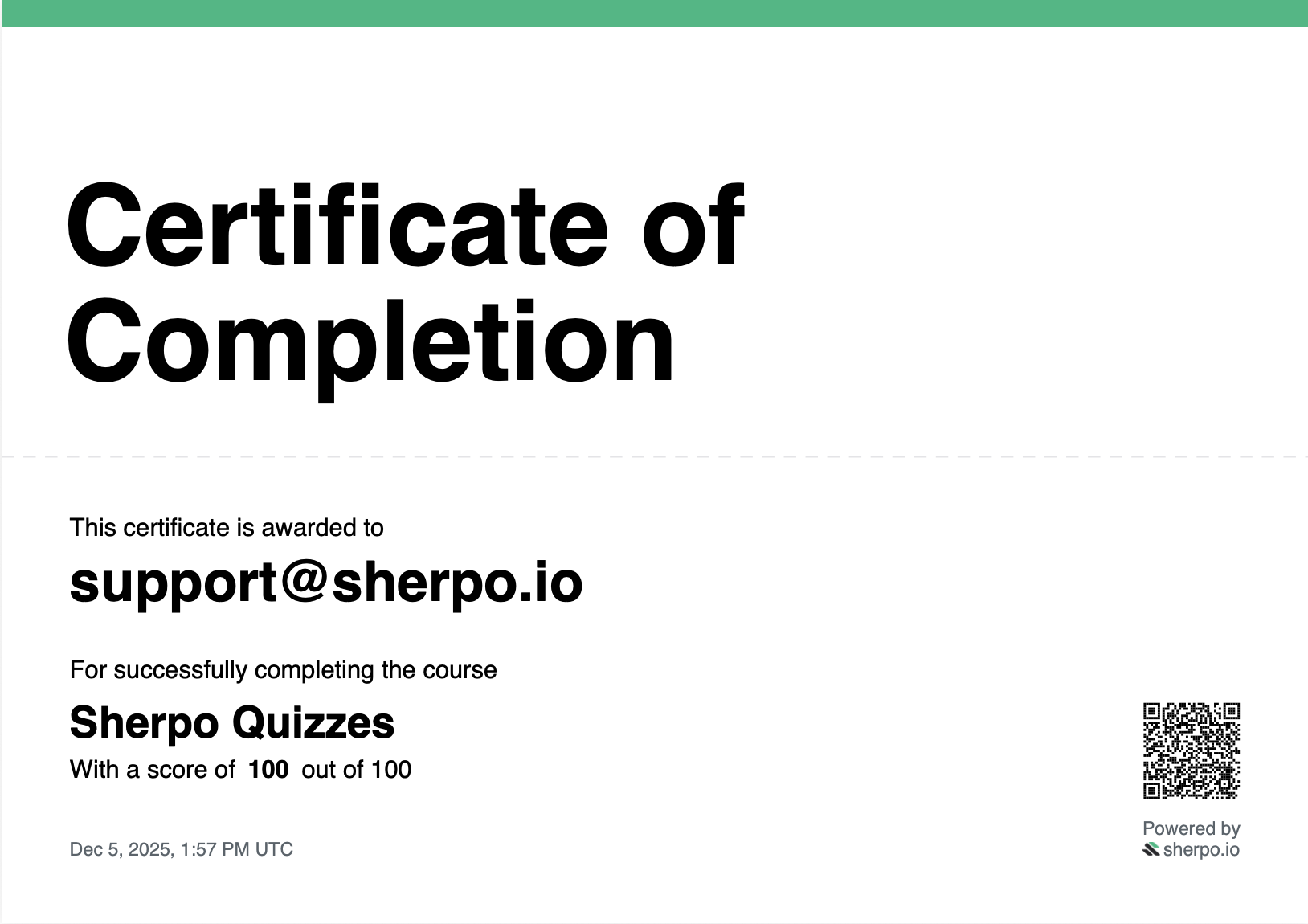
Customize the text that appears on the certificate:
* **Certificate Title**: the main heading (example: “Certificate of Completion”).
* **Awarded Copy**: the line shown before the recipient name (example: “This certificate is awarded to”).
* **Reason Copy**: the line shown before the quiz title (example: “For successfully completing the course”).
* **Title** (optional): overrides the quiz title shown on the certificate. Leave empty to use the quiz name.
* **Score Label** and **Score Suffix**: labels for the score line (example: “With a score of” and “out of 100”).
In your Course product, go to **Quizzes & certificates** and click **Add Certificate**.
Customize the text that appears on the certificate:
* **Certificate Title**: the main heading (example: “Certificate of Completion”).
* **Awarded Copy**: the line shown before the recipient name (example: “This certificate is awarded to”).
* **Reason Copy**: the line shown before the quiz title (example: “For successfully completing the course”).
* **Title** (optional): overrides the quiz title shown on the certificate. Leave empty to use the quiz name.
* **Score Label** and **Score Suffix**: labels for the score line (example: “With a score of” and “out of 100”).
 Configure what appears on the PDF and when certificates can be generated:
* **Show Score**: displays the learner’s score on the certificate (scores are normalized to 100).
* **Require passing score**: only allow certificate generation for scores **60 or higher**.
* **Show Completion Date**: displays when the certificate was earned.
* **Show QR Code**: adds a QR code that links to the certificate verification page.
Configure what appears on the PDF and when certificates can be generated:
* **Show Score**: displays the learner’s score on the certificate (scores are normalized to 100).
* **Require passing score**: only allow certificate generation for scores **60 or higher**.
* **Show Completion Date**: displays when the certificate was earned.
* **Show QR Code**: adds a QR code that links to the certificate verification page.
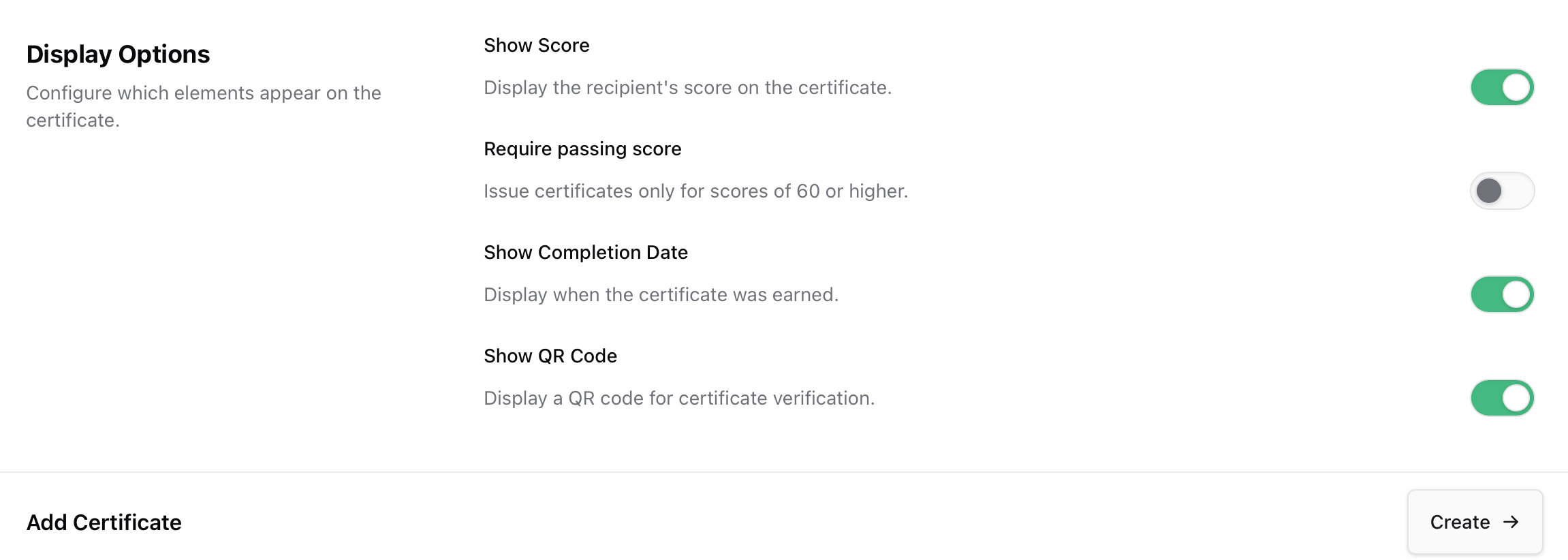 Click **Create** to save the certificate template.
***
## Certificate PDF
Certificates render as a clean PDF designed for sharing and printing.
Click **Create** to save the certificate template.
***
## Certificate PDF
Certificates render as a clean PDF designed for sharing and printing.
 ## Verification via QR code
If you enable **Show QR Code**, the certificate includes a QR code that leads to a verification page confirming authenticity and showing key details like recipient, score, course, issue date, and certificate ID.
## Verification via QR code
If you enable **Show QR Code**, the certificate includes a QR code that leads to a verification page confirming authenticity and showing key details like recipient, score, course, issue date, and certificate ID.
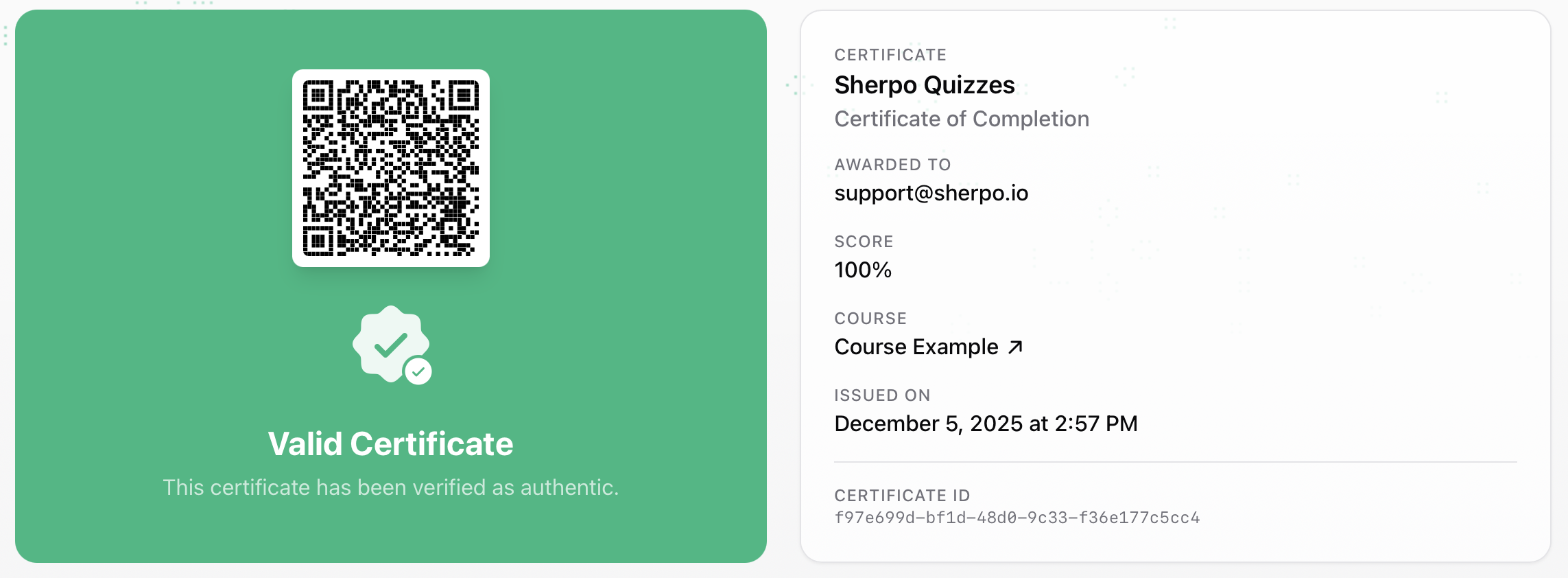 Take a [live look here](https://demo.sherpo.io/c/2xXteQfDHimnioOFvsghb/v/f97e699d-bf1d-48d0-9c33-f36e177c5cc4)!
***
## Editing and deletion behavior
* Editing a certificate updates the **template** used going forward.
* Previously generated certificates remain **valid and verifiable**, even if you later change the template.
* If you remove a certificate from a quiz (or delete the template link), learners will no longer be able to generate new certificates for that quiz, but **existing certificates still verify**.
***
## Best practices
* Keep headings and short labels concise for clean layouts (aim for 50 characters or fewer where possible).
* Turn on **Require passing score** for graded programs, and leave it off for participation certificates.
* Enable **Show QR Code** if learners will share certificates publicly or you need easy verification.
* If you run multiple quizzes with similar names, use the optional **Title** override to make the certificate unambiguous.
***
## FAQs
No. Each certificate template is linked to a single quiz.
If "Require passing score" has been enabled, learners will have to obtain a score of 60 or higher. Quiz scores are normalized to 100, and question weights can change how points are distributed.
No. Certificates that have already been generated remain valid and verifiable. Removing the template only affects future generation.
Turn off **Show Score** in the certificate settings. You can still keep **Require passing score** enabled.
The certificate records the learner’s best score at the time they generate it.
Take a [live look here](https://demo.sherpo.io/c/2xXteQfDHimnioOFvsghb/v/f97e699d-bf1d-48d0-9c33-f36e177c5cc4)!
***
## Editing and deletion behavior
* Editing a certificate updates the **template** used going forward.
* Previously generated certificates remain **valid and verifiable**, even if you later change the template.
* If you remove a certificate from a quiz (or delete the template link), learners will no longer be able to generate new certificates for that quiz, but **existing certificates still verify**.
***
## Best practices
* Keep headings and short labels concise for clean layouts (aim for 50 characters or fewer where possible).
* Turn on **Require passing score** for graded programs, and leave it off for participation certificates.
* Enable **Show QR Code** if learners will share certificates publicly or you need easy verification.
* If you run multiple quizzes with similar names, use the optional **Title** override to make the certificate unambiguous.
***
## FAQs
No. Each certificate template is linked to a single quiz.
If "Require passing score" has been enabled, learners will have to obtain a score of 60 or higher. Quiz scores are normalized to 100, and question weights can change how points are distributed.
No. Certificates that have already been generated remain valid and verifiable. Removing the template only affects future generation.
Turn off **Show Score** in the certificate settings. You can still keep **Require passing score** enabled.
The certificate records the learner’s best score at the time they generate it.