> ## Documentation Index
> Fetch the complete documentation index at: https://docs.sherpo.io/llms.txt
> Use this file to discover all available pages before exploring further.
# Discounts & Affiliates
> Boost sales with targeted coupon codes and affiliate commissions managed directly in Sherpo.
Under each product, Sherpo gives you two built-in growth tools, fully integrated inside your dashboard:
* **Discounts** — Create product or price-specific coupons with scheduling and usage controls.
* **Affiliates** — Track what partners earn from the sales they generate using their unique discount code.
Both tools live directly inside your Dashboard, so you can launch promotions without third-party services.
***
## Discounts
Discounts (coupons) let you apply percentage or fixed reductions to a product or a specific price. They are ideal for launches, seasonal campaigns, and limited-time offers.
Go to: **Products → \[Product] → Discounts**
***
## Discounts overview
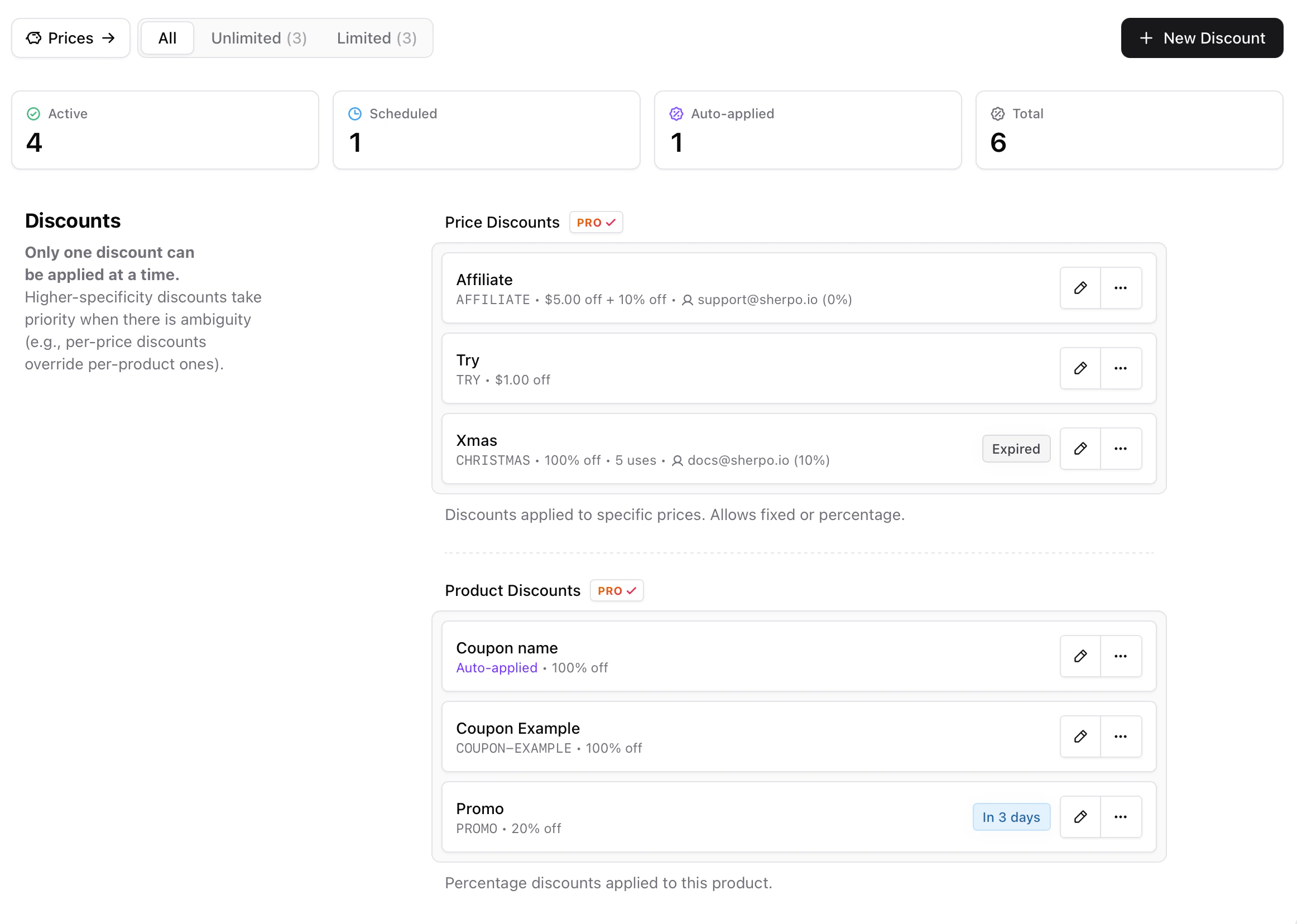
Inside the Discounts page, you will see summary cards: **Active, Scheduled, Auto-applied, Total.**
Discounts are grouped into two sections:
* **Price Discounts** — Apply to a specific price. Support percentage, fixed amount, or both combined.
* **Product Discounts** — Apply to the entire product. Support percentage discounts.
If there is ambiguity, higher specificity takes priority. Price-level discounts override product-level discounts. Only one discount can be applied at checkout at a time.
 ***
## Create a discount
Go to **Products → \[Product] → Discounts**.
Click **New Discount** in the top-right corner.
Configure your discount:
* **Name** — Internal name for the discount.
* **Coupon Code** — Code customers enter at checkout. Leave blank for an auto-applied discount.
* **Apply To** — Choose **Product** or **Price**.
* **Percentage (%)** — Percentage off (0–100).
* **Fixed amount (\$)** — Fixed discount amount (price discounts only).
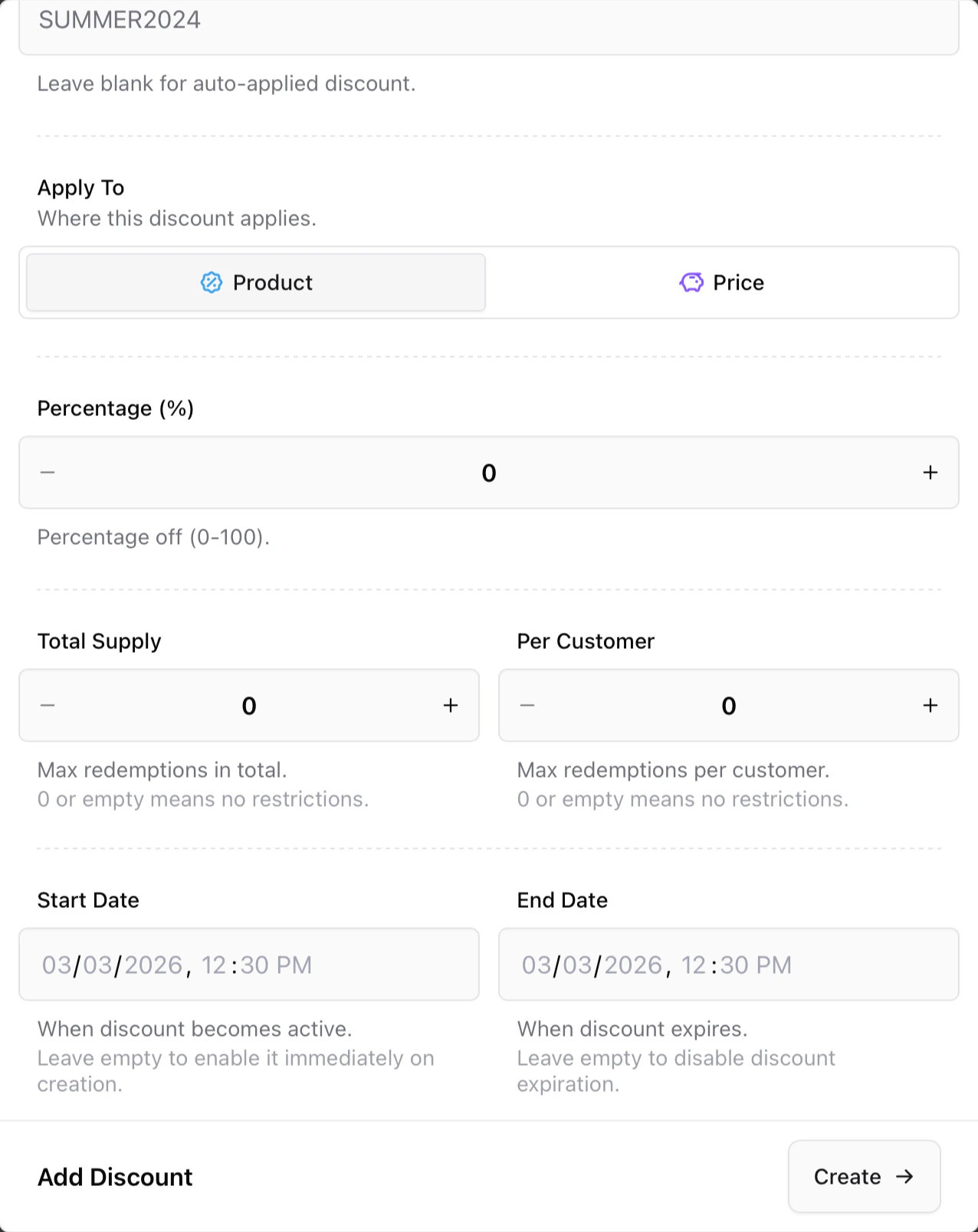
* **Total Supply** — Maximum total redemptions. Leave 0 for no limit.
* **Per Customer** — Maximum redemptions per customer. Leave 0 for no limit.
* **Start Date** — When the discount becomes active. Leave blank for immediate activation.
* **End Date** — When the discount expires. Leave blank for no expiration.
***
## Create a discount
Go to **Products → \[Product] → Discounts**.
Click **New Discount** in the top-right corner.
Configure your discount:
* **Name** — Internal name for the discount.
* **Coupon Code** — Code customers enter at checkout. Leave blank for an auto-applied discount.
* **Apply To** — Choose **Product** or **Price**.
* **Percentage (%)** — Percentage off (0–100).
* **Fixed amount (\$)** — Fixed discount amount (price discounts only).
* **Total Supply** — Maximum total redemptions. Leave 0 for no limit.
* **Per Customer** — Maximum redemptions per customer. Leave 0 for no limit.
* **Start Date** — When the discount becomes active. Leave blank for immediate activation.
* **End Date** — When the discount expires. Leave blank for no expiration.
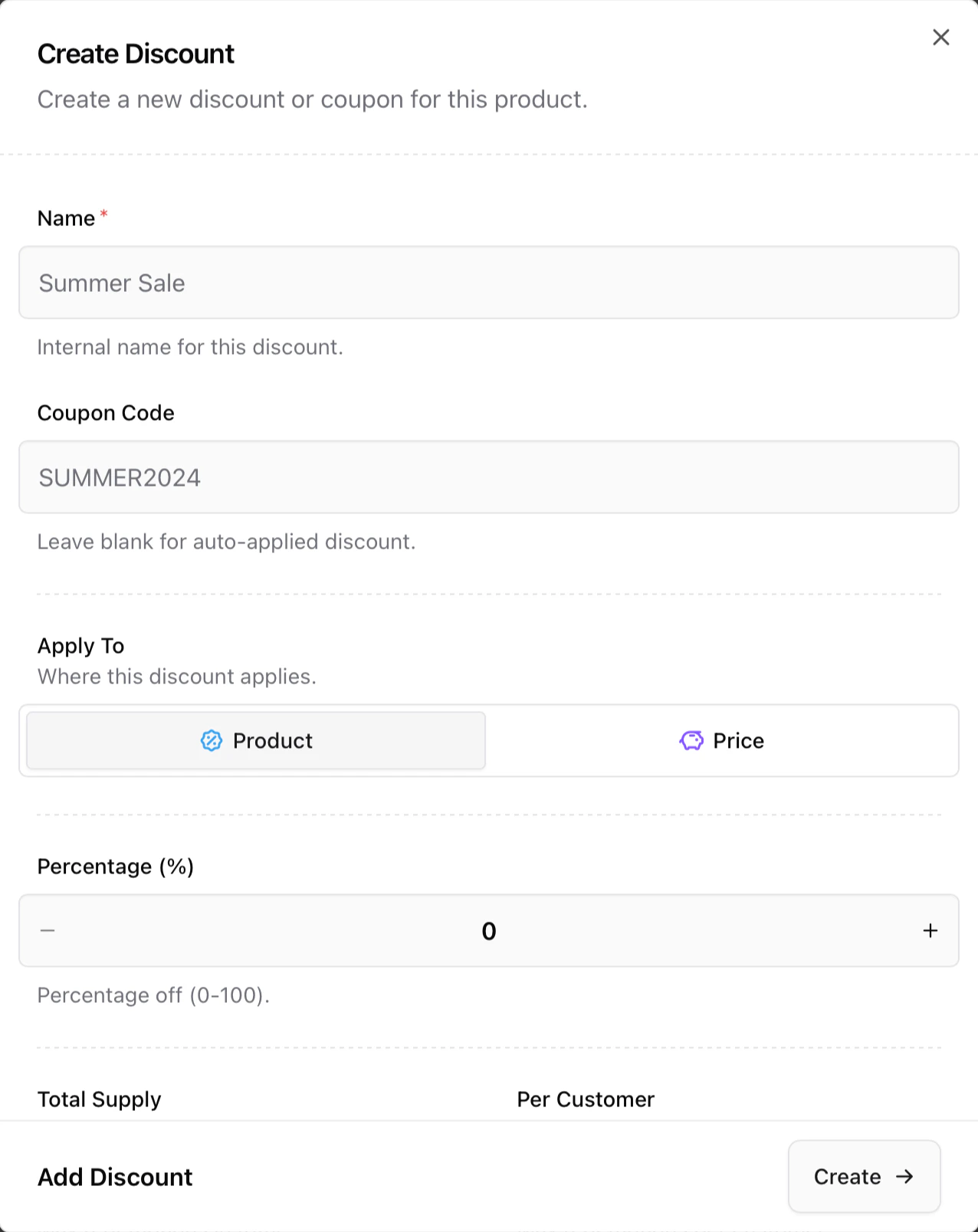 Click **Create** to save the discount.
 ***
### Auto-applied discounts
If you leave the **Coupon Code** field empty, the discount is automatically applied at checkout. Auto-applied discounts cannot be linked to affiliates.
### Scheduled discounts
If you set a future start date, the discount appears under **Scheduled** and activates automatically on that date.
### Expired discounts
If the end date passes or the total supply is reached, the discount automatically expires and can no longer be used.
### Important rules
* Only one discount can be applied per checkout.
* Price-level discounts override product-level discounts.
* Auto-applied discounts are not eligible for the affiliate program.
***
## Affiliates (Partner commissions)
Affiliates allow you to link a partner to a specific discount code. When customers use that code, Sherpo tracks the commission owed to the affiliate.
Go to: **Products → \[Product] → Affiliates**
***
## Affiliates overview
Inside the Affiliates page, you will see summary cards:
* **Affiliates**
* **Unpaid**
* **Paid**
* **Total Earned**
Each affiliate entry shows:
* Affiliate email
* Linked discount code
* Commission structure
Sherpo does not process affiliate payments. You are responsible for settling commissions directly with your affiliates.
***
### Auto-applied discounts
If you leave the **Coupon Code** field empty, the discount is automatically applied at checkout. Auto-applied discounts cannot be linked to affiliates.
### Scheduled discounts
If you set a future start date, the discount appears under **Scheduled** and activates automatically on that date.
### Expired discounts
If the end date passes or the total supply is reached, the discount automatically expires and can no longer be used.
### Important rules
* Only one discount can be applied per checkout.
* Price-level discounts override product-level discounts.
* Auto-applied discounts are not eligible for the affiliate program.
***
## Affiliates (Partner commissions)
Affiliates allow you to link a partner to a specific discount code. When customers use that code, Sherpo tracks the commission owed to the affiliate.
Go to: **Products → \[Product] → Affiliates**
***
## Affiliates overview
Inside the Affiliates page, you will see summary cards:
* **Affiliates**
* **Unpaid**
* **Paid**
* **Total Earned**
Each affiliate entry shows:
* Affiliate email
* Linked discount code
* Commission structure
Sherpo does not process affiliate payments. You are responsible for settling commissions directly with your affiliates.
 ***
## Add an affiliate
Go to **Products → \[Product] → Prices → Affiliates**.
Click **New Affiliate**.
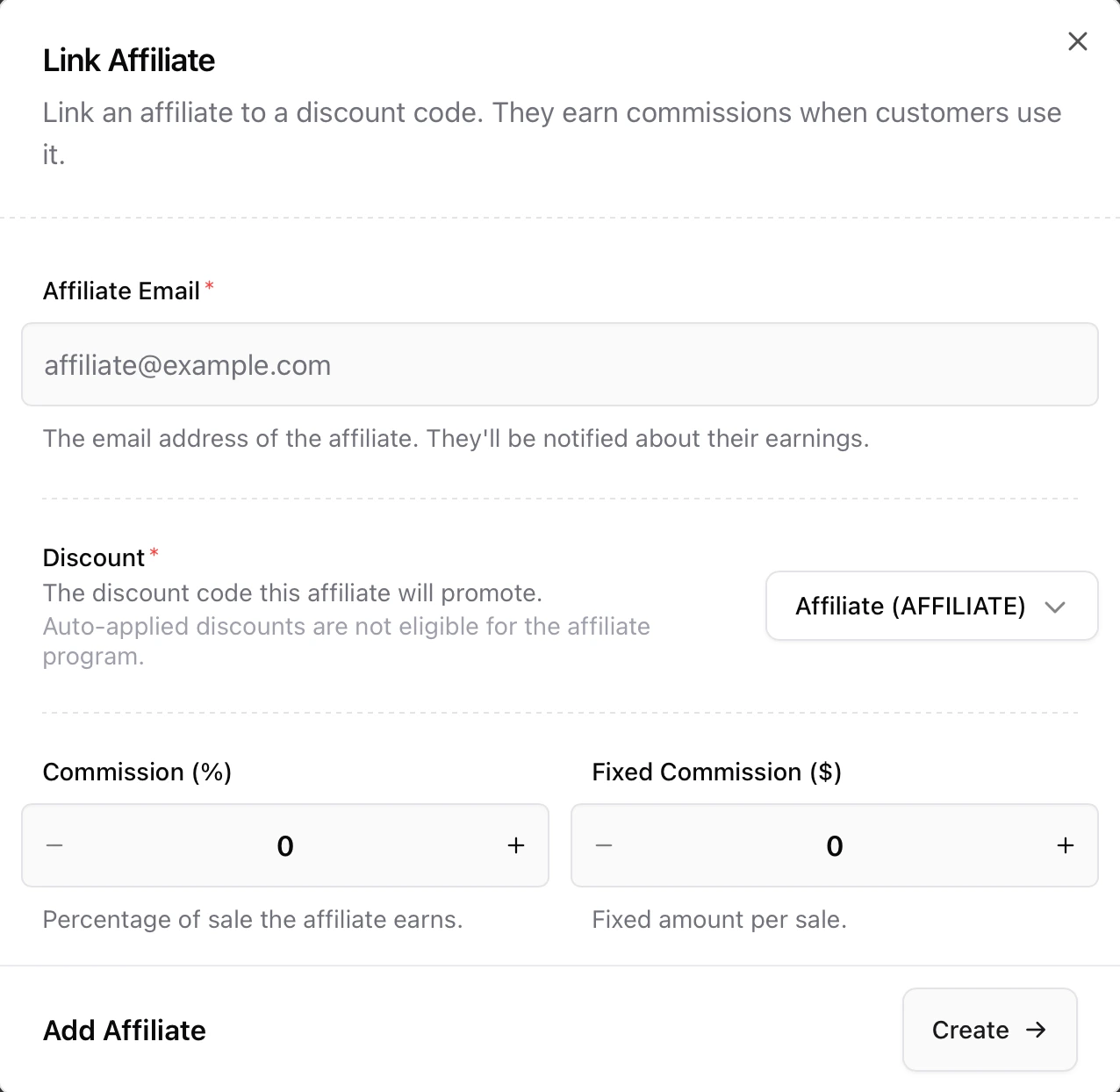
Fill in:
* **Affiliate Email** — Email address of the partner. They will be notified about their earnings.
* **Discount** — Select the discount code they will promote. Auto-applied discounts are not eligible.
* **Commission (%)** — Percentage of the sale the affiliate earns.
* **Fixed Commission (\$)** — Fixed amount earned per sale.
Click **Create** to link the affiliate.
***
## Add an affiliate
Go to **Products → \[Product] → Prices → Affiliates**.
Click **New Affiliate**.
Fill in:
* **Affiliate Email** — Email address of the partner. They will be notified about their earnings.
* **Discount** — Select the discount code they will promote. Auto-applied discounts are not eligible.
* **Commission (%)** — Percentage of the sale the affiliate earns.
* **Fixed Commission (\$)** — Fixed amount earned per sale.
Click **Create** to link the affiliate.
 You can set:
* Percentage commission
* Fixed commission
* Or both combined
***
## How it works
1. You create a discount.
2. You link an affiliate to that discount.
3. The affiliate shares their code.
4. A customer uses the code at checkout.
5. Sherpo calculates the commission automatically.
6. You manually pay the affiliate.
***
## When to use each
| Tool | Best for | Setup effort | Checkout behavior |
| ---------- | ------------------------------------ | ------------ | ------------------------------------------- |
| Discounts | Launches, promotions, limited offers | Low | Buyer enters code or receives auto discount |
| Affiliates | Influencer campaigns, partnerships | Medium | Buyer uses affiliate code, sale is tracked |
Use both together for stronger performance: affiliates drive traffic, discounts increase conversions, and Sherpo tracks everything in one place.
***
## FAQ
No. Only one discount can be applied at checkout.
No. Affiliates must be linked to a specific coupon code.
Yes. You can set both.
No. Sherpo tracks commissions, but you must settle payments manually.
The discount becomes inactive and can no longer be used at checkout.
You can set:
* Percentage commission
* Fixed commission
* Or both combined
***
## How it works
1. You create a discount.
2. You link an affiliate to that discount.
3. The affiliate shares their code.
4. A customer uses the code at checkout.
5. Sherpo calculates the commission automatically.
6. You manually pay the affiliate.
***
## When to use each
| Tool | Best for | Setup effort | Checkout behavior |
| ---------- | ------------------------------------ | ------------ | ------------------------------------------- |
| Discounts | Launches, promotions, limited offers | Low | Buyer enters code or receives auto discount |
| Affiliates | Influencer campaigns, partnerships | Medium | Buyer uses affiliate code, sale is tracked |
Use both together for stronger performance: affiliates drive traffic, discounts increase conversions, and Sherpo tracks everything in one place.
***
## FAQ
No. Only one discount can be applied at checkout.
No. Affiliates must be linked to a specific coupon code.
Yes. You can set both.
No. Sherpo tracks commissions, but you must settle payments manually.
The discount becomes inactive and can no longer be used at checkout.