> ## Documentation Index
> Fetch the complete documentation index at: https://docs.sherpo.io/llms.txt
> Use this file to discover all available pages before exploring further.
# Creation
> Learn how to create a new product on Sherpo.
Sherpo’s product creation flow lets you define what you’re selling, set a name and prepare content, pricing, and much more, all from a single workspace.
In this guide you will learn how to create a product after the initial setup of your Sherpo Organization. Then, you’ll land in the product dashboard, where each tab handles a different aspect: content, pricing, availability, and behavior.
***
## Creating a Product
Once inside your **Sherpo Dashboard**, open **Products** in the sidebar to see an overview of all your existing products.
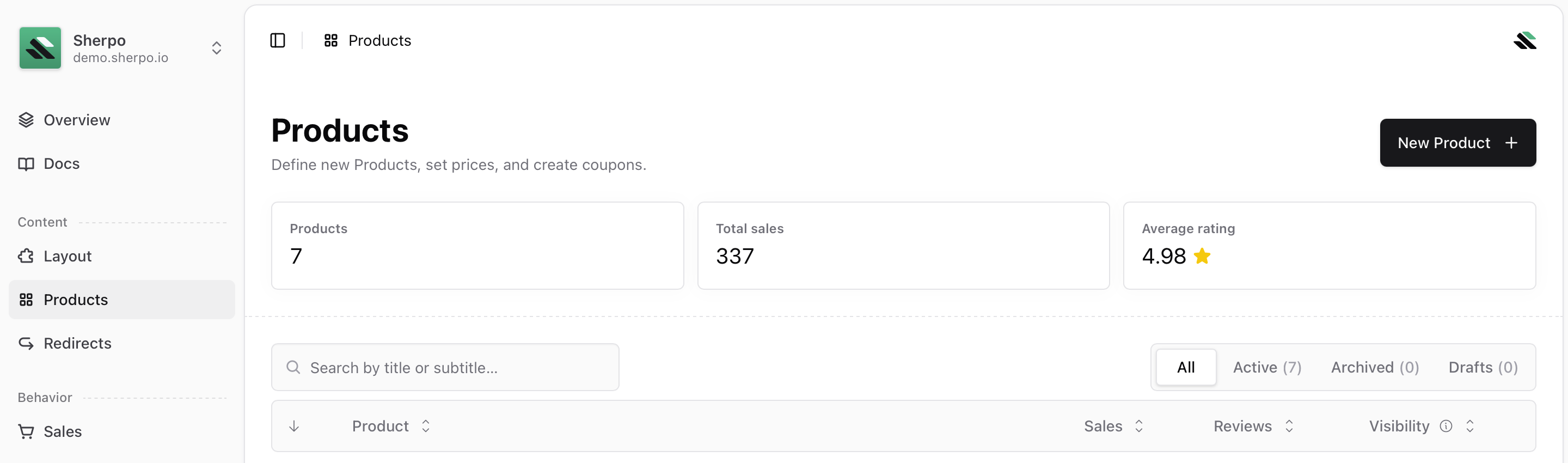 Click **New Product** in the top-right corner.
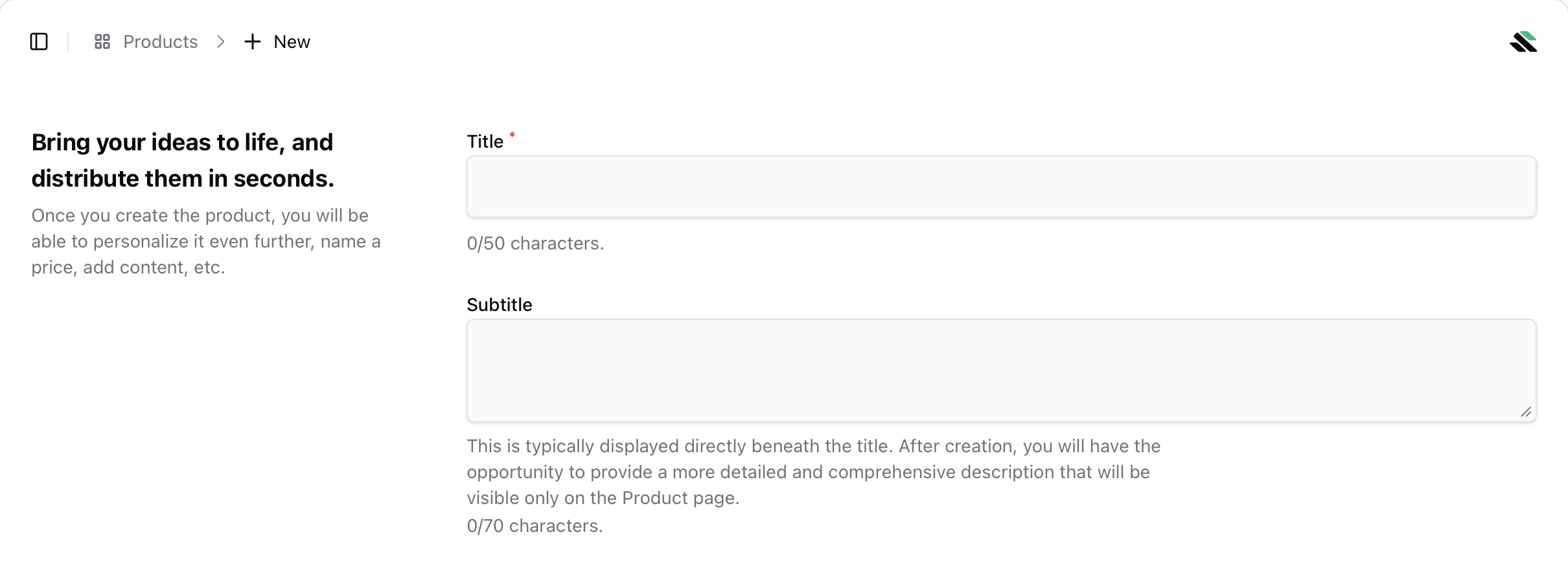
Add a title (required) and subtitle (optional). Sherpo automatically generates a product slug (e.g., `/p/{slug}`) from your title.
Click **New Product** in the top-right corner.
Add a title (required) and subtitle (optional). Sherpo automatically generates a product slug (e.g., `/p/{slug}`) from your title.
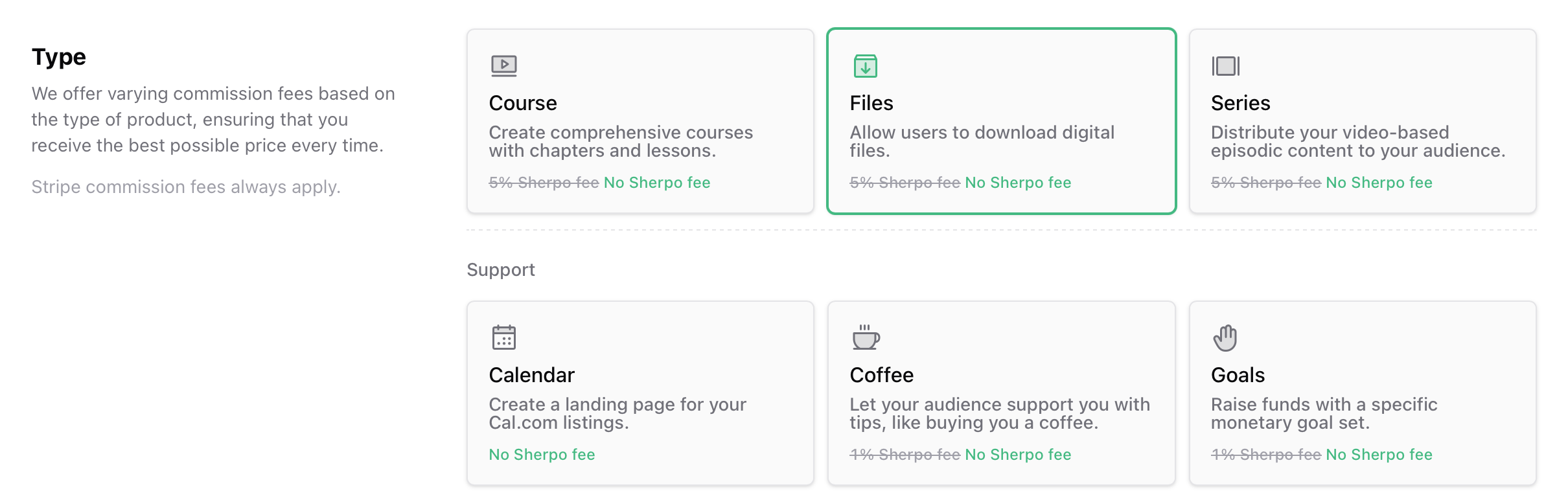
 Pick one of Sherpo’s available product types (e.g., **Files**, **Course**, **Series** etc.). Each type preconfigures features: for instance, Courses include lessons and course progression tracking (inside settings).
 Once you click **Create**, Sherpo provisions the new product and redirects you to the **Overview** tab. From here, you can continue to **Basic info**, **Settings**, and then add **Pages**, **Files**, **Prices**, or **Automations** as needed.
***
## Product Types
Here are the products you can currently create in Sherpo:
Create comprehensive courses with chapters and lessons.
Distribute your video-based episodic content to your audience.
Allow users to download digital files or get exclusive links.
Let your audience support you with tips, like buying you a coffee.
Run fundraising campaigns with real-time progress bars.
Create a landing page for your Cal.com listings.
***
## Best practices
* **Pick the right type upfront:** Switching product type later requires reconfiguration.
* **Keep titles short and clear:** They’ll appear in URLs, receipts, and customer dashboards.
* **Add a subtitle or short tagline:** It improves discoverability and context on your storefront.
* **Use drafts:** You can safely prepare a product before publishing it, by not setting a price or by setting pages as drafts (e.g., inside Courses).
* **Preview often:** Click “Visit live product” to see changes instantly in your hosted site.
***
## FAQ
No. Product types are locked after creation because each category has different internal features (e.g., Courses have lessons, Files don't; Series has episodes instead of lessons, and trailers instead of cover).
Sherpo automatically generates a unique slug for each product. If a conflict occurs, you’ll see a warning and can adjust the title or slug manually.
Yes. Newly created products are drafts by default until you add pricing.
Absolutely. You can create different product types (e.g., a Course, a Serie, a File, and a Coffee tip jar) under the same organization and site.
Yes. From the **Overview** tab, use the product menu (⋯) and select **Delete**. This action is irreversible.
Not yet. To duplicate an existing product you will have to recreate it.
* **Drafts**: Products in progress, not yet published.
* **Archived**: Published products you’ve taken offline: no longer visible to customers but retained for analytics and history.
Yes. Every product has a **Visit live product** button that opens a preview of the public page (even before making it available for purchase: you will be able to see it in Admin mode).
Once you click **Create**, Sherpo provisions the new product and redirects you to the **Overview** tab. From here, you can continue to **Basic info**, **Settings**, and then add **Pages**, **Files**, **Prices**, or **Automations** as needed.
***
## Product Types
Here are the products you can currently create in Sherpo:
Create comprehensive courses with chapters and lessons.
Distribute your video-based episodic content to your audience.
Allow users to download digital files or get exclusive links.
Let your audience support you with tips, like buying you a coffee.
Run fundraising campaigns with real-time progress bars.
Create a landing page for your Cal.com listings.
***
## Best practices
* **Pick the right type upfront:** Switching product type later requires reconfiguration.
* **Keep titles short and clear:** They’ll appear in URLs, receipts, and customer dashboards.
* **Add a subtitle or short tagline:** It improves discoverability and context on your storefront.
* **Use drafts:** You can safely prepare a product before publishing it, by not setting a price or by setting pages as drafts (e.g., inside Courses).
* **Preview often:** Click “Visit live product” to see changes instantly in your hosted site.
***
## FAQ
No. Product types are locked after creation because each category has different internal features (e.g., Courses have lessons, Files don't; Series has episodes instead of lessons, and trailers instead of cover).
Sherpo automatically generates a unique slug for each product. If a conflict occurs, you’ll see a warning and can adjust the title or slug manually.
Yes. Newly created products are drafts by default until you add pricing.
Absolutely. You can create different product types (e.g., a Course, a Serie, a File, and a Coffee tip jar) under the same organization and site.
Yes. From the **Overview** tab, use the product menu (⋯) and select **Delete**. This action is irreversible.
Not yet. To duplicate an existing product you will have to recreate it.
* **Drafts**: Products in progress, not yet published.
* **Archived**: Published products you’ve taken offline: no longer visible to customers but retained for analytics and history.
Yes. Every product has a **Visit live product** button that opens a preview of the public page (even before making it available for purchase: you will be able to see it in Admin mode).