> ## Documentation Index
> Fetch the complete documentation index at: https://docs.sherpo.io/llms.txt
> Use this file to discover all available pages before exploring further.
# Site builder
> Build and customize your pages by stacking and composing blocks. Powerful under the hood, simple to use.
Site builder is the visual editor that controls how your Sherpo **pages** (home page, landing pages, and product pages), along with your **header** and **footer**, are structured.
You do not design with code or fixed templates. Instead, you build your site by combining **blocks**, each representing a self-contained section.
Everything you see on a page is a block, ordered vertically from top to bottom. Reordering blocks changes the layout instantly.
***
## Open Site builder
* Sign in to [Sherpo Dash](https://dash.sherpo.io)
* Open your space
* Navigate to **Site → Site builder**
***
## Pages
In addition to your homepage, Sherpo lets you create dedicated pages such as **/pricing**, **/features**, **/courses**, or any custom page you need.
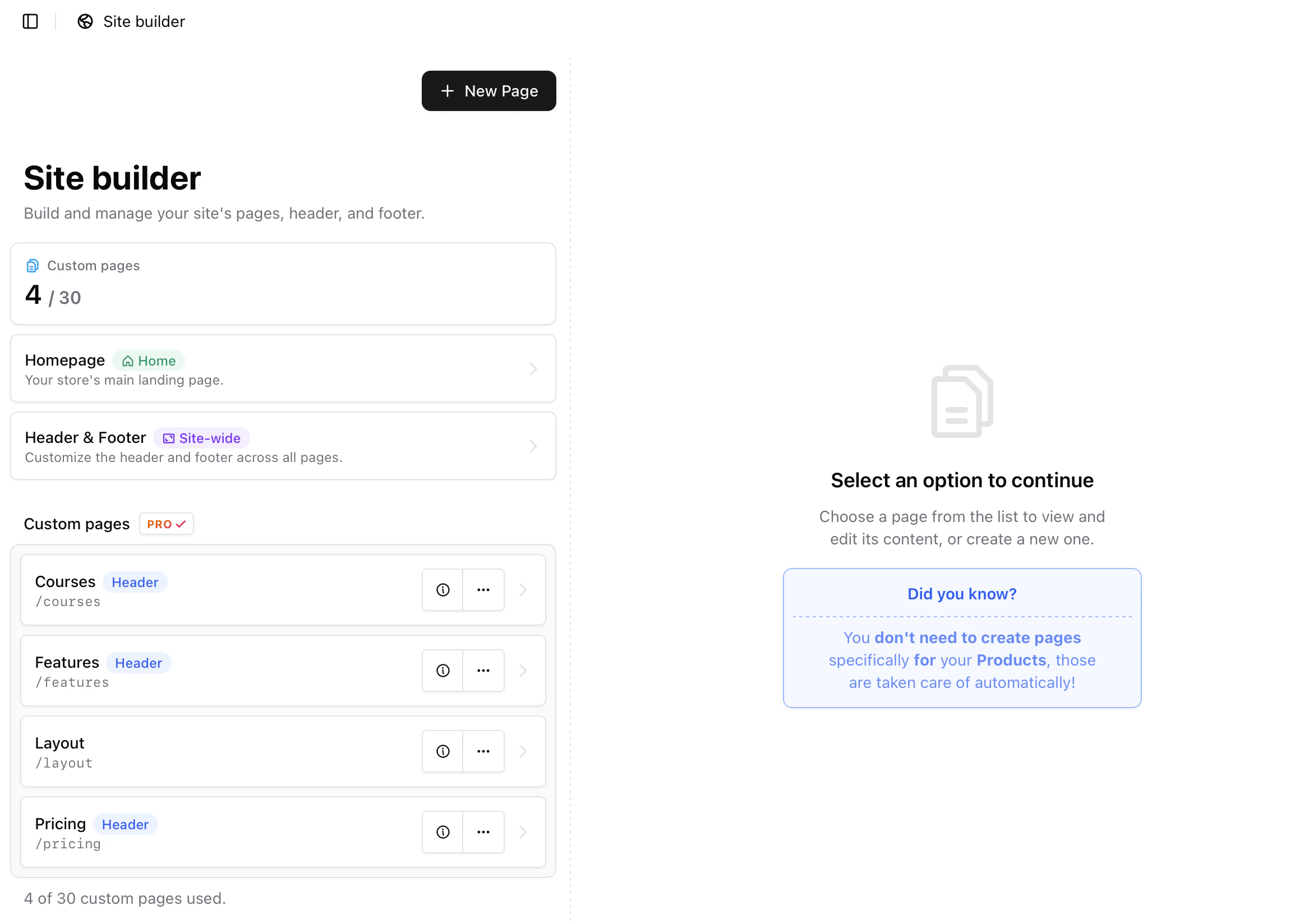 All **pages use the same block-based editor**, so you can design each page visually without writing code. Pages can also be **imported or exported between Sherpo spaces**.
### Create a new page
1. Navigate to **Site → Pages**
2. Click **New Page**
3. Enter a **Title** and **URL Slug**
4. (Optional) Add a **Description**
5. Optionally toggle **Add to header** to display the page in your top navigation (up to **3 pages** can appear in the header)
6. Click **Create Page**
***
## How Site builder works
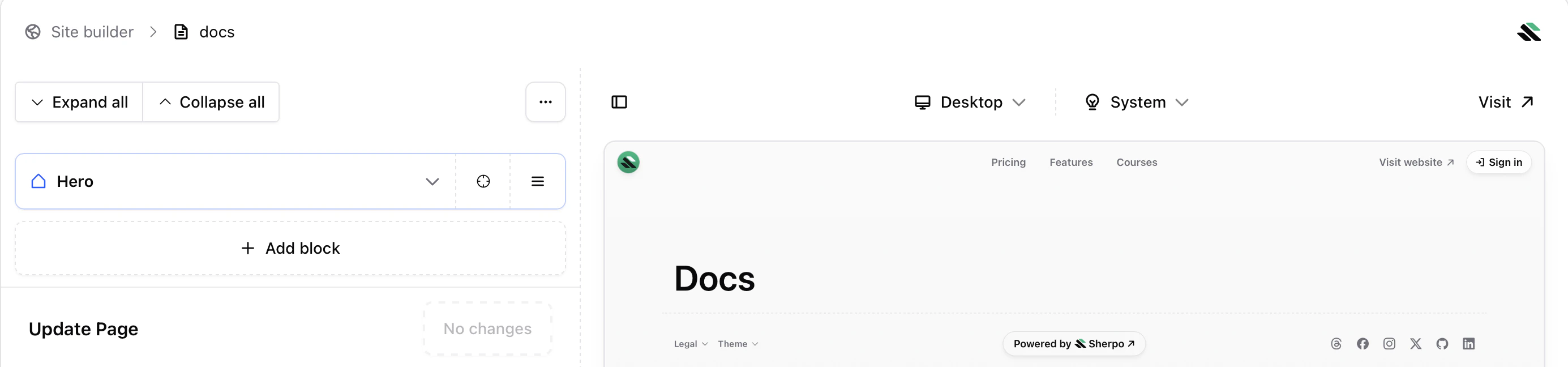
Inside each page you will see:
* A list of blocks on the left
* A live preview of your site on the right
* Device and theme toggles at the top of the preview
A Sherpo page is a **vertical stack of blocks**.
* Blocks render from top to bottom
* Each block is independent
* Reordering a block never breaks other blocks
* Header and footer are global sections
* Everything in between is fully customizable
Think of Site builder like a list. Changing the order of items changes the page, and changes are applied only after clicking **Update**.
All **pages use the same block-based editor**, so you can design each page visually without writing code. Pages can also be **imported or exported between Sherpo spaces**.
### Create a new page
1. Navigate to **Site → Pages**
2. Click **New Page**
3. Enter a **Title** and **URL Slug**
4. (Optional) Add a **Description**
5. Optionally toggle **Add to header** to display the page in your top navigation (up to **3 pages** can appear in the header)
6. Click **Create Page**
***
## How Site builder works
Inside each page you will see:
* A list of blocks on the left
* A live preview of your site on the right
* Device and theme toggles at the top of the preview
A Sherpo page is a **vertical stack of blocks**.
* Blocks render from top to bottom
* Each block is independent
* Reordering a block never breaks other blocks
* Header and footer are global sections
* Everything in between is fully customizable
Think of Site builder like a list. Changing the order of items changes the page, and changes are applied only after clicking **Update**.
 ***
### The editor and live preview
Site builder is split into two panels:
* **Left side:** block list and editing controls
* **Right side:** a **live preview** of your page that updates as you add, remove, hide, or reorder blocks
***
### The editor and live preview
Site builder is split into two panels:
* **Left side:** block list and editing controls
* **Right side:** a **live preview** of your page that updates as you add, remove, hide, or reorder blocks
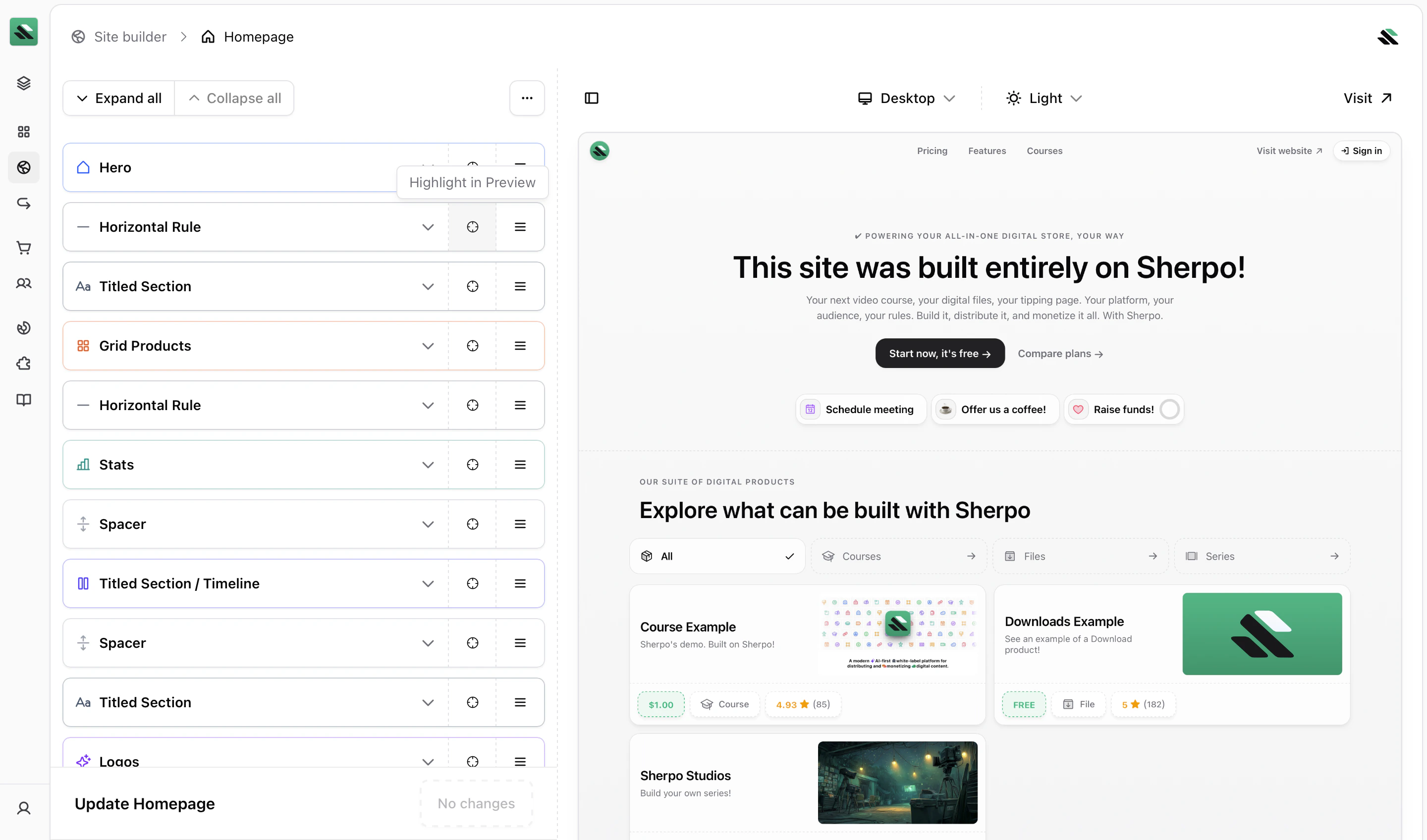 To find a block on the page, click **Highlight in Preview** on a block. Sherpo highlights the block in the preview (in blue) so you can quickly locate it in the layout.
At the top of the preview you can also:
* Toggle **Desktop**, **Tablet**, and **Mobile** to see how the page appears across devices
* Toggle **Light** and **Dark** mode to preview both themes
***
## Blocks explained
Blocks are the **building blocks** of your site. Each block represents a section of content such as text, images, videos, product listings, pricing tables, or FAQs.
All blocks share the same core behavior.
### What you can do with any block
For every block you can:
* Move it up or down
* Add a block before or after it
* Hide it (except global sections like the header and footer)
* Delete it (except protected blocks)
To find a block on the page, click **Highlight in Preview** on a block. Sherpo highlights the block in the preview (in blue) so you can quickly locate it in the layout.
At the top of the preview you can also:
* Toggle **Desktop**, **Tablet**, and **Mobile** to see how the page appears across devices
* Toggle **Light** and **Dark** mode to preview both themes
***
## Blocks explained
Blocks are the **building blocks** of your site. Each block represents a section of content such as text, images, videos, product listings, pricing tables, or FAQs.
All blocks share the same core behavior.
### What you can do with any block
For every block you can:
* Move it up or down
* Add a block before or after it
* Hide it (except global sections like the header and footer)
* Delete it (except protected blocks)
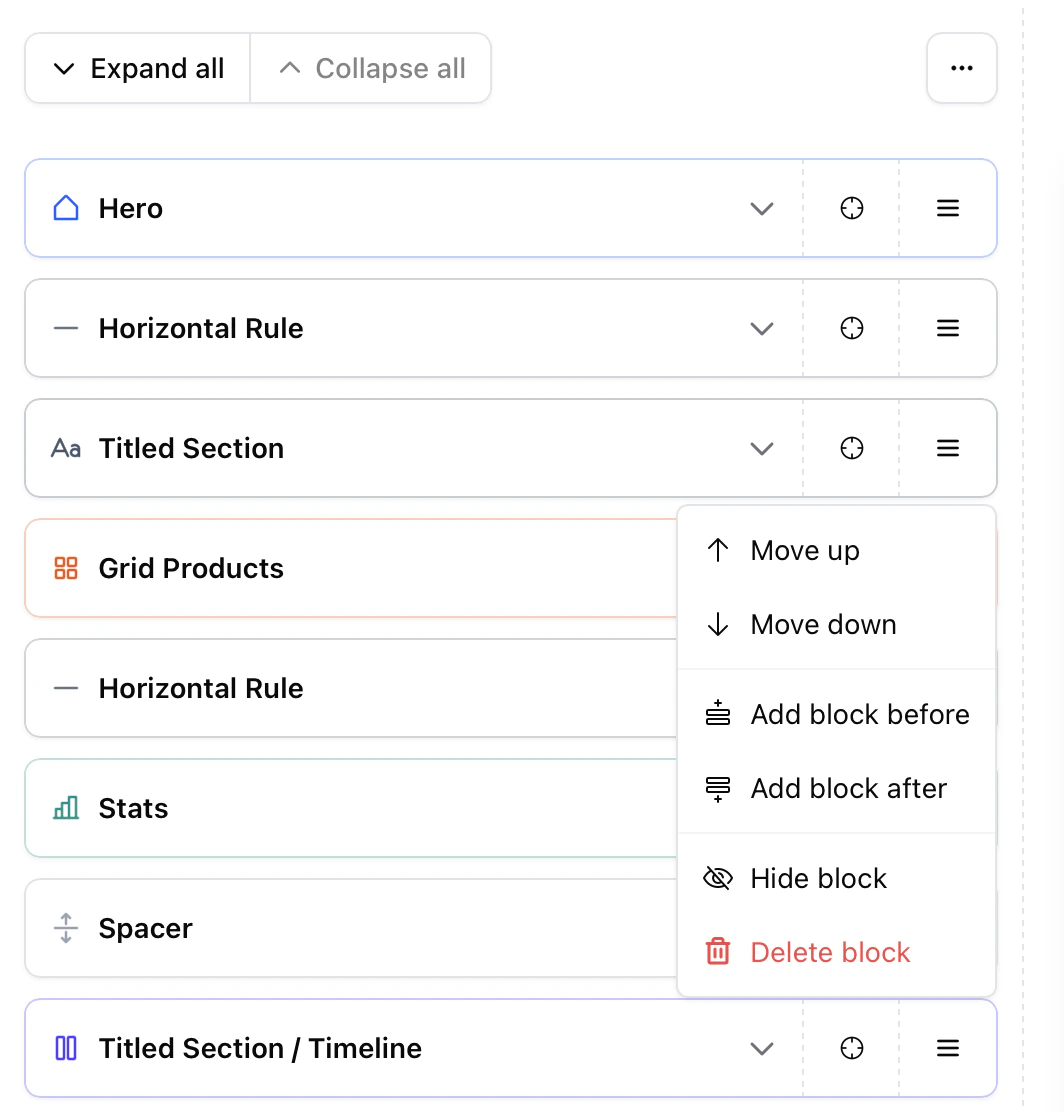 Hiding a block is useful for experimentation. Hidden blocks are not visible on your live site.
### Hero block
The **Hero block** is the first section of a page and is included by default in every layout.
It is designed to introduce the page with a clear headline and primary actions. While the Hero block cannot be deleted, it **can be hidden** if you prefer to begin your page with another section.
Inside the Hero block you can configure the titled section (eyebrow, title, subtitle, description, alignment) and add **Highlights**, which appear as short bullet points under the hero content, commonly used to emphasize benefits. The Hero block also supports **call-to-action buttons (CTAs)**. Each CTA includes:
* **Label** — Button text
* **URL** — Destination link
* **Style** — Primary or Ghost
* **Arrow** — Optional arrow icon indicator
You can add multiple CTAs and reorder them. A common pattern is:
* **Primary CTA** → main action (e.g. *Start now, it's free*)
* **Secondary CTA** → supporting action (e.g. *Compare plans*)
***
### Add a new block
Click **Add block** to insert a new block.
Blocks are grouped into categories:
* **Content**
* **Data**
* **Layout**
* **Products**
* **Utility**
***
## Block categories
Below is a quick overview of what each block type is best used for.
***
### Content blocks
Use Content blocks to add standalone elements.
Hiding a block is useful for experimentation. Hidden blocks are not visible on your live site.
### Hero block
The **Hero block** is the first section of a page and is included by default in every layout.
It is designed to introduce the page with a clear headline and primary actions. While the Hero block cannot be deleted, it **can be hidden** if you prefer to begin your page with another section.
Inside the Hero block you can configure the titled section (eyebrow, title, subtitle, description, alignment) and add **Highlights**, which appear as short bullet points under the hero content, commonly used to emphasize benefits. The Hero block also supports **call-to-action buttons (CTAs)**. Each CTA includes:
* **Label** — Button text
* **URL** — Destination link
* **Style** — Primary or Ghost
* **Arrow** — Optional arrow icon indicator
You can add multiple CTAs and reorder them. A common pattern is:
* **Primary CTA** → main action (e.g. *Start now, it's free*)
* **Secondary CTA** → supporting action (e.g. *Compare plans*)
***
### Add a new block
Click **Add block** to insert a new block.
Blocks are grouped into categories:
* **Content**
* **Data**
* **Layout**
* **Products**
* **Utility**
***
## Block categories
Below is a quick overview of what each block type is best used for.
***
### Content blocks
Use Content blocks to add standalone elements.
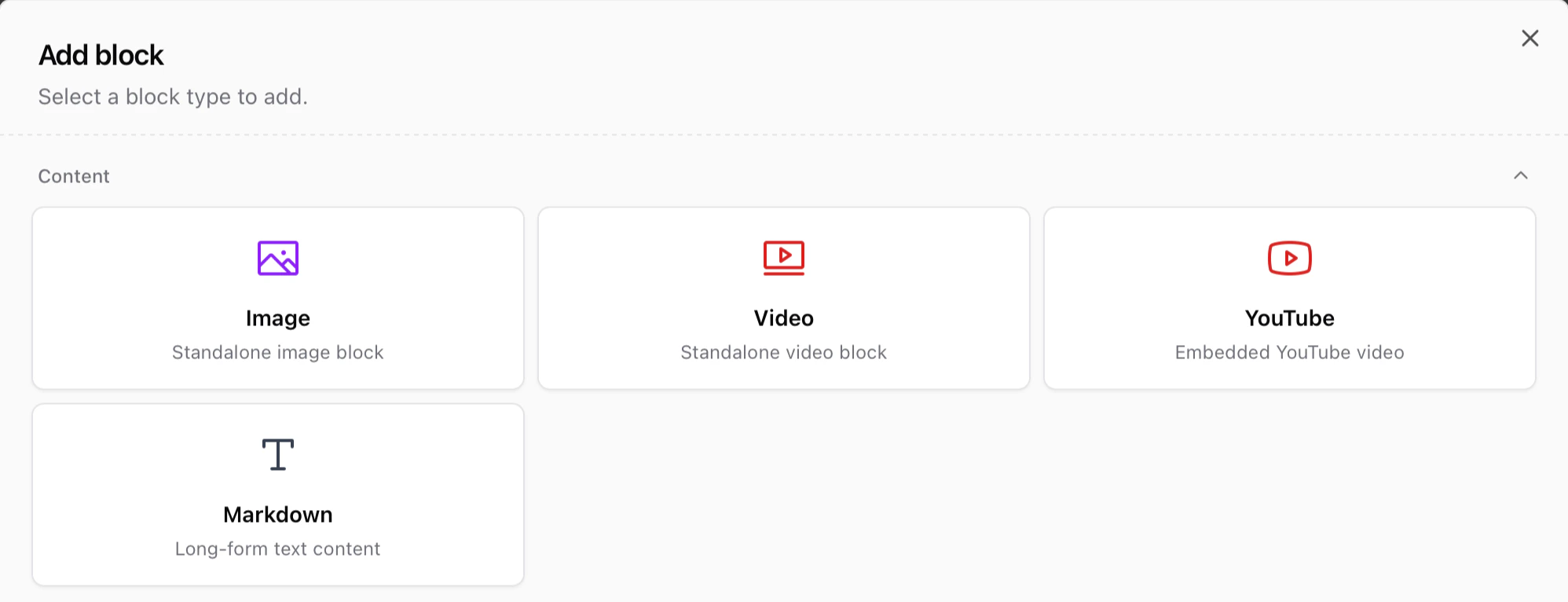 * **Image** — Add a standalone image for visuals, screenshots, or galleries
* **Video** — Upload a standalone video using Sherpo’s [custom video player](https://docs.sherpo.io/products/course#custom-player)
* **YouTube** — Embed a YouTube video
* **Markdown** — Write [long-form text](https://docs.sherpo.io/dashboard/markdown) such as landing page copy, policies, or explanations
For most landing pages, use a Markdown block for the main copy, then combine it with Image or Video blocks.
***
### Layout blocks
Layout blocks structure and organize other blocks.
* **Image** — Add a standalone image for visuals, screenshots, or galleries
* **Video** — Upload a standalone video using Sherpo’s [custom video player](https://docs.sherpo.io/products/course#custom-player)
* **YouTube** — Embed a YouTube video
* **Markdown** — Write [long-form text](https://docs.sherpo.io/dashboard/markdown) such as landing page copy, policies, or explanations
For most landing pages, use a Markdown block for the main copy, then combine it with Image or Video blocks.
***
### Layout blocks
Layout blocks structure and organize other blocks.
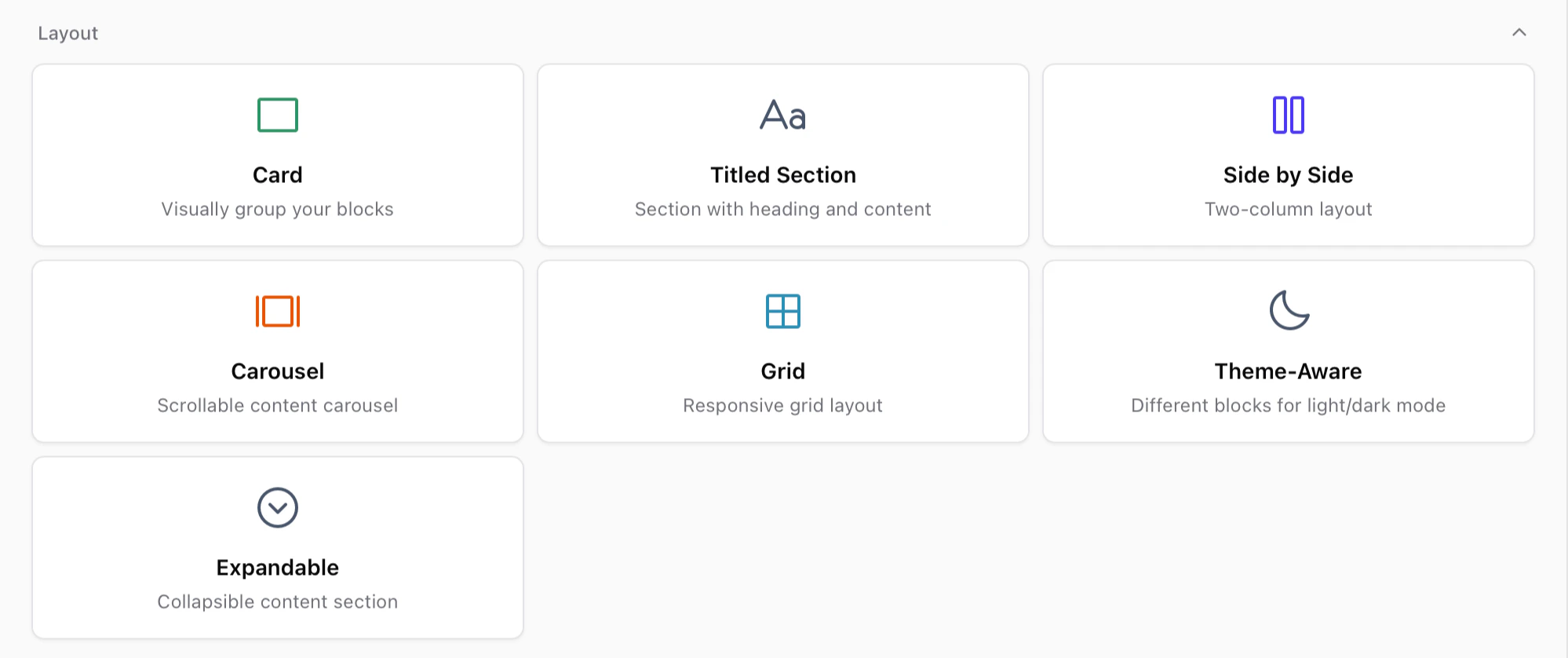 * **Card** — Wrap other blocks inside a styled container
* **Titled section** — Add eyebrow, title, subtitle, description, and nested content
* **Side by side** — Create a two-column layout
* **Carousel** — Display scrollable images or videos
* **Grid** — Create customizable column layouts responsive across devices
* **Theme-Aware** — Show different blocks depending on light or dark mode
* **Expandable** — Collapsible content sections
Layout blocks can contain other blocks. In most cases, blocks must be created inside the layout block rather than dragged into it.
***
### Products blocks
Products blocks display items from your Sherpo catalog.
* **Card** — Wrap other blocks inside a styled container
* **Titled section** — Add eyebrow, title, subtitle, description, and nested content
* **Side by side** — Create a two-column layout
* **Carousel** — Display scrollable images or videos
* **Grid** — Create customizable column layouts responsive across devices
* **Theme-Aware** — Show different blocks depending on light or dark mode
* **Expandable** — Collapsible content sections
Layout blocks can contain other blocks. In most cases, blocks must be created inside the layout block rather than dragged into it.
***
### Products blocks
Products blocks display items from your Sherpo catalog.
 * **Line Products** — Display all products with line visibility
* **Grid Products** — Display all products with grid visibility
* **Product Card** — Feature a single selected product
Product order and visibility are managed in **Products**, not in Site builder.
***
### Utility blocks
Utility blocks control spacing and layout helpers.
* **Line Products** — Display all products with line visibility
* **Grid Products** — Display all products with grid visibility
* **Product Card** — Feature a single selected product
Product order and visibility are managed in **Products**, not in Site builder.
***
### Utility blocks
Utility blocks control spacing and layout helpers.
 * **Horizontal rule** — Add a divider line (solid, dashed, or dotted)
* **Spacer** — Add adjustable vertical spacing
* **Background image** — Add a subtle full-page background image
***
### Data blocks
Data blocks display structured information.
* **Horizontal rule** — Add a divider line (solid, dashed, or dotted)
* **Spacer** — Add adjustable vertical spacing
* **Background image** — Add a subtle full-page background image
***
### Data blocks
Data blocks display structured information.
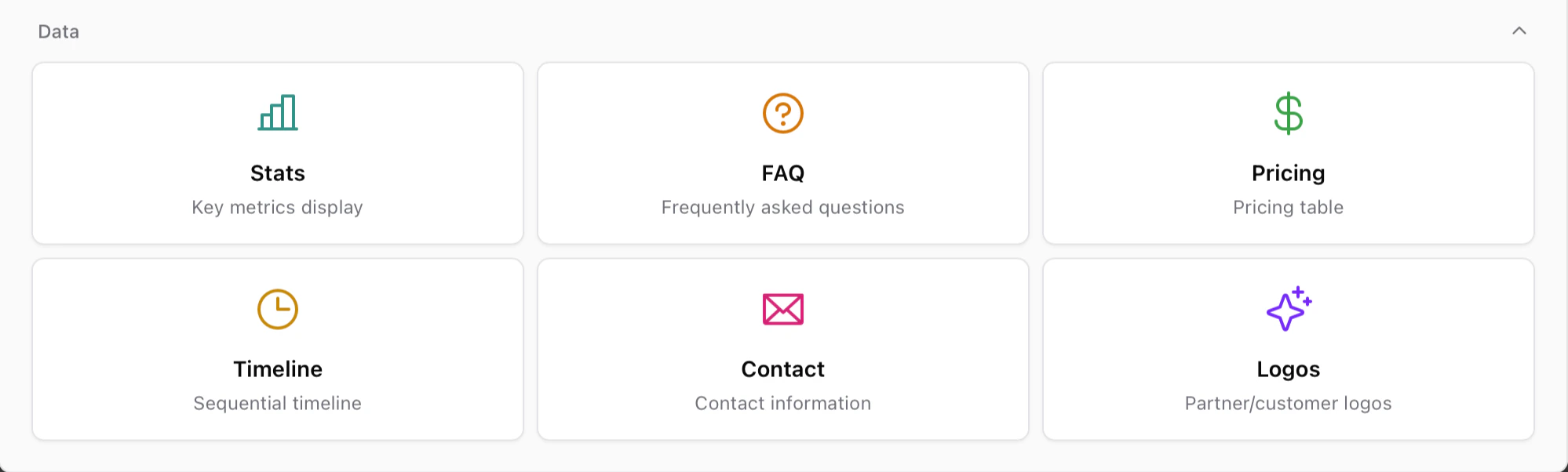 * **Stats** — Display metrics and key numbers
* **FAQ** — Collapsible frequently asked questions
* **Pricing** — Build SaaS-style pricing tables
* **Timeline** — Display sequential events or milestones
* **Contact** — Show contact information
* **Logos** — Display partner or customer logos
***
## Compose sections with blocks
Complex sections are created by combining simple blocks.
A common structure:
* Titled section
* Side by side layout
* Markdown content on the left
* Image or video on the right
* Spacer
* Pricing or FAQ
You are not configuring a single large component. You are composing **reusable blocks**, which makes pages easier to update later.
For inspiration, explore our [templates](https://docs.sherpo.io/dashboard/templates).
***
## Header and footer
The **header** appears at the top of every page and cannot be moved or deleted.
* **Stats** — Display metrics and key numbers
* **FAQ** — Collapsible frequently asked questions
* **Pricing** — Build SaaS-style pricing tables
* **Timeline** — Display sequential events or milestones
* **Contact** — Show contact information
* **Logos** — Display partner or customer logos
***
## Compose sections with blocks
Complex sections are created by combining simple blocks.
A common structure:
* Titled section
* Side by side layout
* Markdown content on the left
* Image or video on the right
* Spacer
* Pricing or FAQ
You are not configuring a single large component. You are composing **reusable blocks**, which makes pages easier to update later.
For inspiration, explore our [templates](https://docs.sherpo.io/dashboard/templates).
***
## Header and footer
The **header** appears at the top of every page and cannot be moved or deleted.
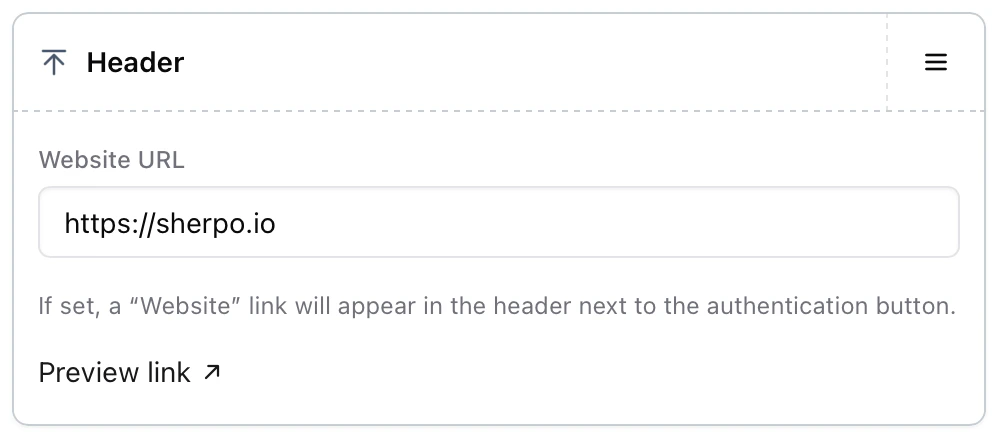 The **footer** contains legal links, theme toggles, social links, and the **Powered by Sherpo** badge.
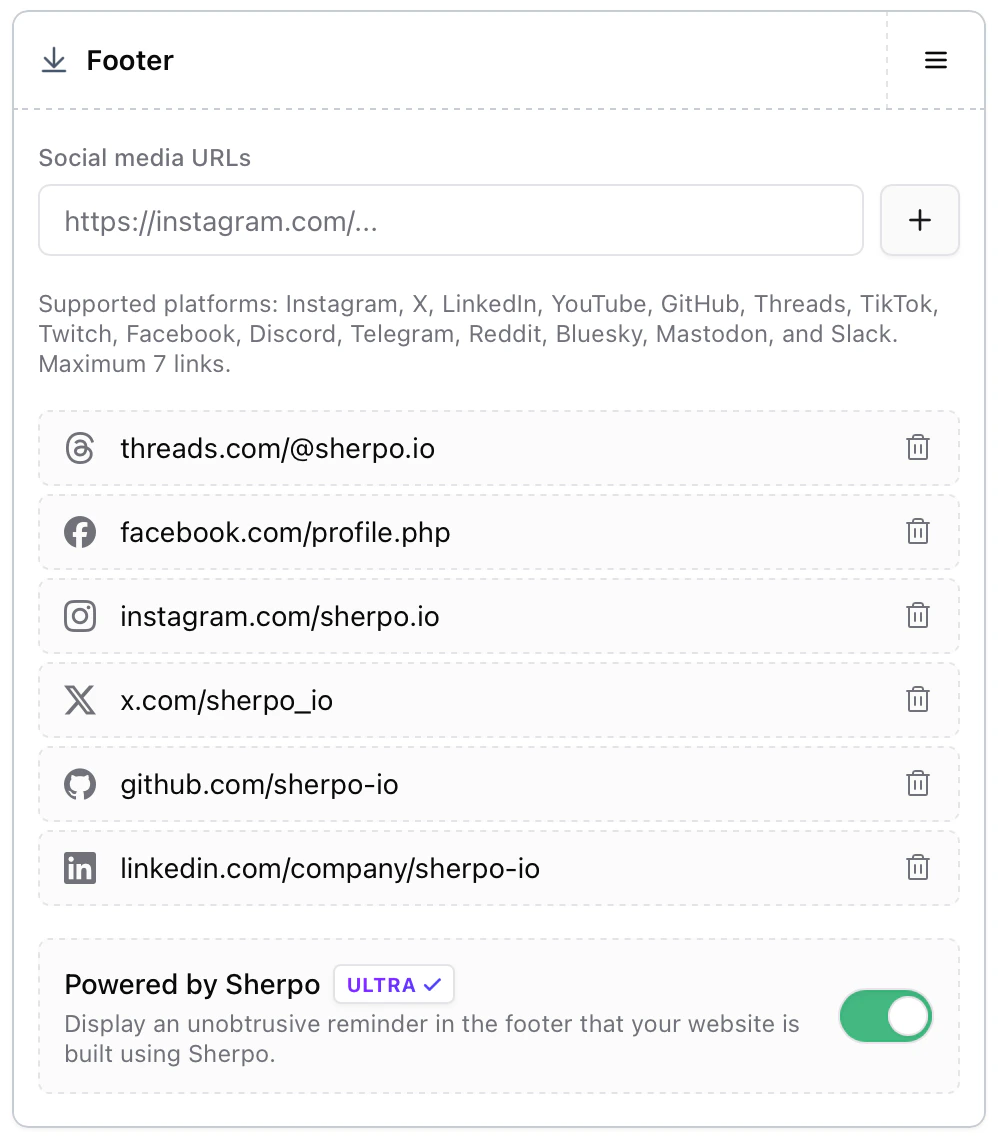 The **Powered by Sherpo** badge is enabled by default and can be disabled on the **Ultra plan**.
***
## Best practices for creators
* Start with one clear goal per page
* Pair explanations with visuals using Side-by-side sections
* Add social proof early using Logos or Stats
* Place FAQs near the bottom
* Keep pages scannable with clear headings and spacing
***
### Common mistakes
If your page does not look as expected, check these first.
* **A block is hidden:** Hidden blocks do not appear on your live site.
* **Changes are not live:** Changes appear on your site only after clicking **Update**. Creators on the **Start plan** can edit and preview pages, but changes appear on the live site only after upgrading.
* **Content was added to the wrong block:** Some layout blocks contain internal content areas. Ensure you are editing the correct block.
***
## Availability
Site builder availability depends on your plan.
* **Pro** and **Ultra** users can publish changes to their live site
* **Start** users can build and preview layouts, but publishing requires an upgrade
Start users can freely experiment. Any page you build will be ready to publish immediately after upgrading.
***
## FAQ
Pro and Ultra users can publish page changes to their live site. Start users can design and preview layouts but publishing requires an upgrade.
Yes. Blocks can be moved up or down at any time.
Click **Highlight in Preview** to locate the block in the page preview.
Yes. Use the toggles at the top of the preview to switch between devices and themes.
No. Hidden blocks keep their content and can be restored later.
Yes. Layout blocks such as Card, Titled section, Side by side, Carousel, Grid, Theme-Aware, and Expandable can contain other blocks.
The header and footer are global sections used across all pages.
No. You can disable it on the Ultra plan.
The **Powered by Sherpo** badge is enabled by default and can be disabled on the **Ultra plan**.
***
## Best practices for creators
* Start with one clear goal per page
* Pair explanations with visuals using Side-by-side sections
* Add social proof early using Logos or Stats
* Place FAQs near the bottom
* Keep pages scannable with clear headings and spacing
***
### Common mistakes
If your page does not look as expected, check these first.
* **A block is hidden:** Hidden blocks do not appear on your live site.
* **Changes are not live:** Changes appear on your site only after clicking **Update**. Creators on the **Start plan** can edit and preview pages, but changes appear on the live site only after upgrading.
* **Content was added to the wrong block:** Some layout blocks contain internal content areas. Ensure you are editing the correct block.
***
## Availability
Site builder availability depends on your plan.
* **Pro** and **Ultra** users can publish changes to their live site
* **Start** users can build and preview layouts, but publishing requires an upgrade
Start users can freely experiment. Any page you build will be ready to publish immediately after upgrading.
***
## FAQ
Pro and Ultra users can publish page changes to their live site. Start users can design and preview layouts but publishing requires an upgrade.
Yes. Blocks can be moved up or down at any time.
Click **Highlight in Preview** to locate the block in the page preview.
Yes. Use the toggles at the top of the preview to switch between devices and themes.
No. Hidden blocks keep their content and can be restored later.
Yes. Layout blocks such as Card, Titled section, Side by side, Carousel, Grid, Theme-Aware, and Expandable can contain other blocks.
The header and footer are global sections used across all pages.
No. You can disable it on the Ultra plan.