> ## Documentation Index
> Fetch the complete documentation index at: https://docs.sherpo.io/llms.txt
> Use this file to discover all available pages before exploring further.
# Markdown
> Write and structure content with headings, tables, FAQs, links, and AI tools.
Sherpo’s **Markdown** is used across lessons descriptions or as a block inside the site builder for landing pages and product pages. It is block-based and visual, so you can focus on writing instead of formatting or code.
Everything you see while editing is exactly how it will appear on your site.
***
## Writing basics
Start typing to create a paragraph. Use the toolbar to format text or insert new blocks.
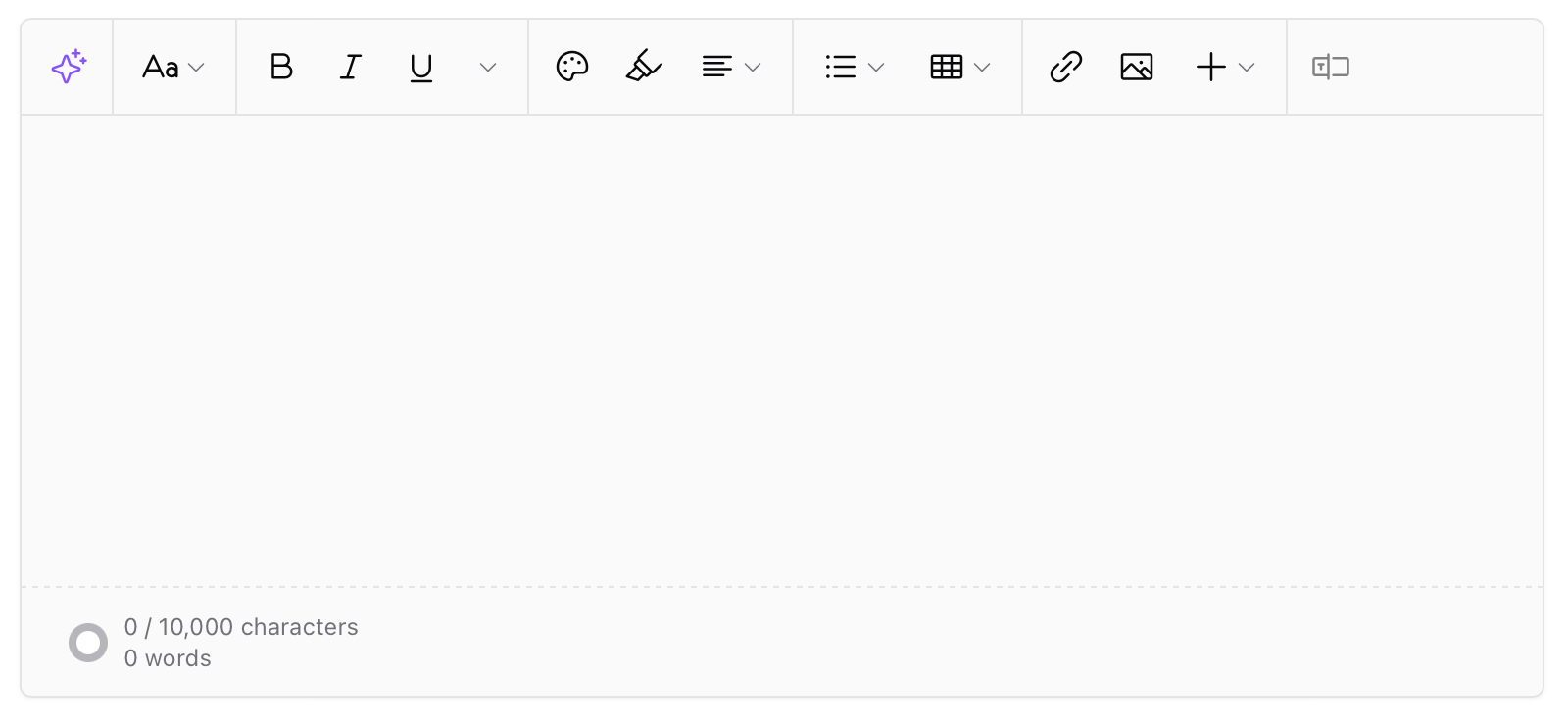 You can change text style using the **Aa** menu:
* **Title**
* **Heading**
* **Subheading**
* **Body**
Use these styles to structure long content and make it easier to scan.
***
## Text formatting and color
From the toolbar, you can apply:
* Bold, italic, underline
* Inline code
* Text color and highlight color
You can change text style using the **Aa** menu:
* **Title**
* **Heading**
* **Subheading**
* **Body**
Use these styles to structure long content and make it easier to scan.
***
## Text formatting and color
From the toolbar, you can apply:
* Bold, italic, underline
* Inline code
* Text color and highlight color
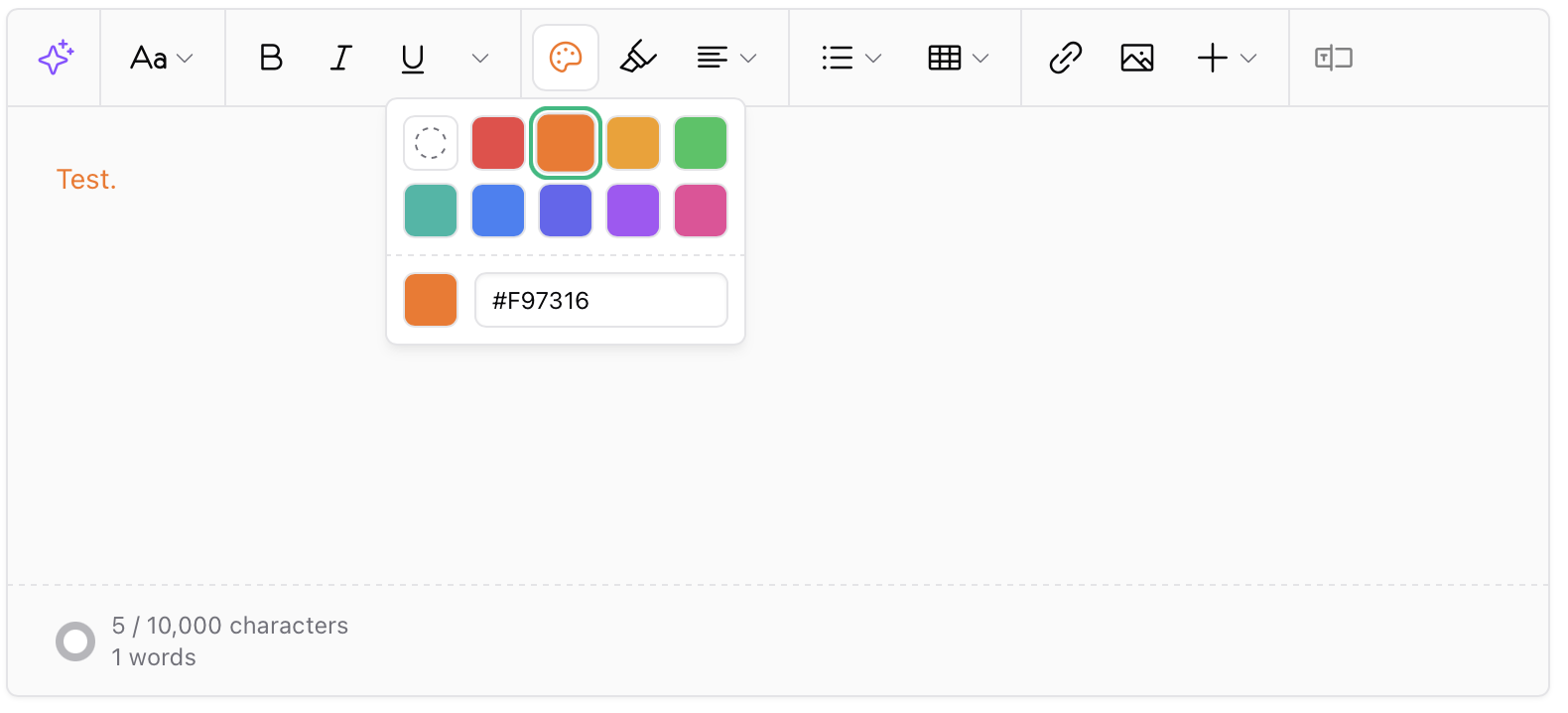 Use color sparingly to emphasize key points or warnings.
***
## Lists
You can turn any paragraph into a list:
* Numbered list
* Bullet list
* Task list with checkboxes
Task lists are useful for lessons, tutorials, or step-by-step instructions.
***
## Text alignment
You can control how text is aligned:
* Align left
* Align center
* Align right
* Justify
***
## Tables
Tables help you organize structured information like pricing, comparisons, or outlines.
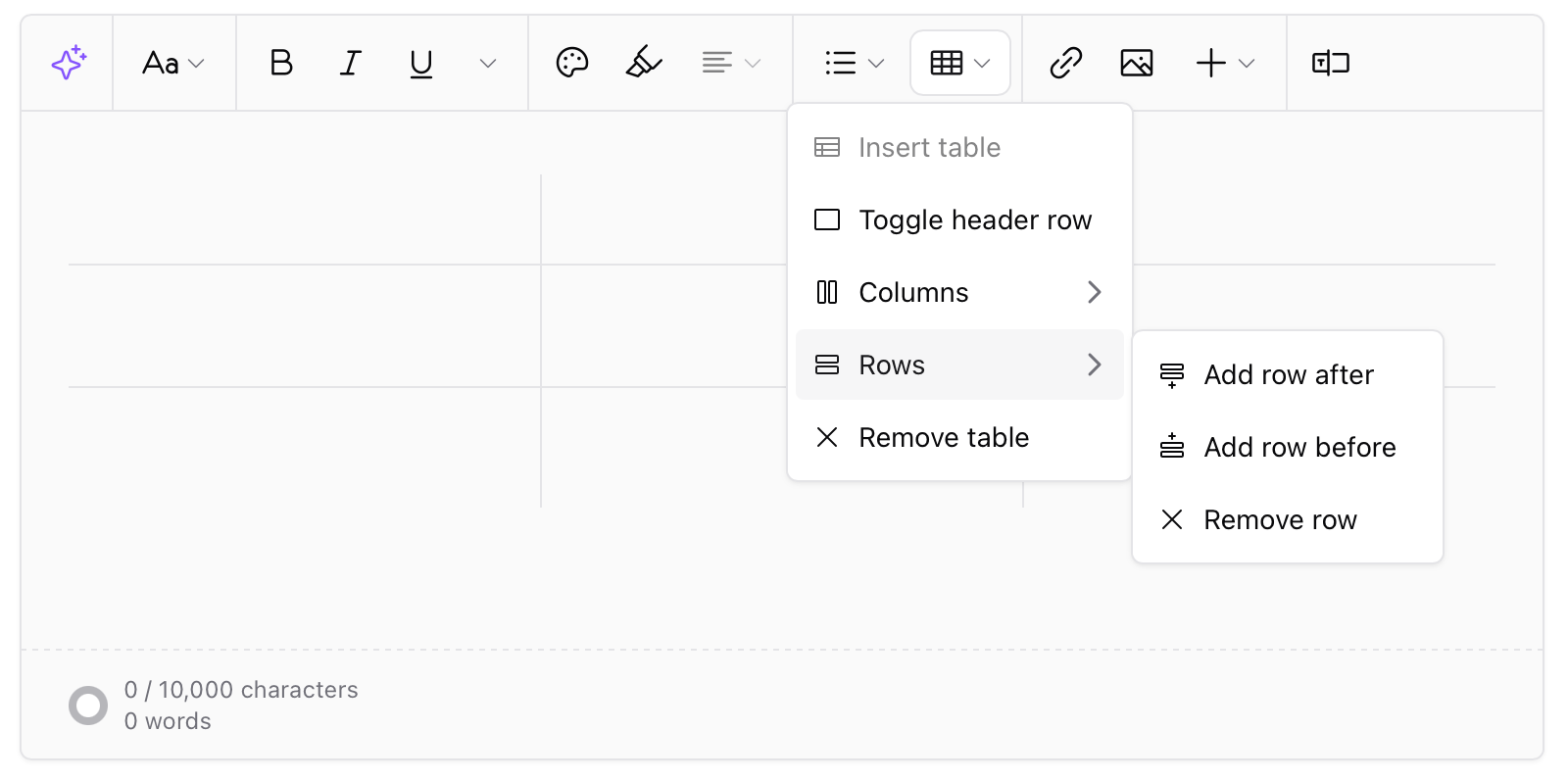
To add a table:
1. Click the **table** icon in the toolbar.
2. Select **Insert table**.
3. Choose the number of rows and columns.
Once inserted, you can:
* Add or remove rows
* Add or remove columns
* Toggle a header row
* Remove the table entirely
Use color sparingly to emphasize key points or warnings.
***
## Lists
You can turn any paragraph into a list:
* Numbered list
* Bullet list
* Task list with checkboxes
Task lists are useful for lessons, tutorials, or step-by-step instructions.
***
## Text alignment
You can control how text is aligned:
* Align left
* Align center
* Align right
* Justify
***
## Tables
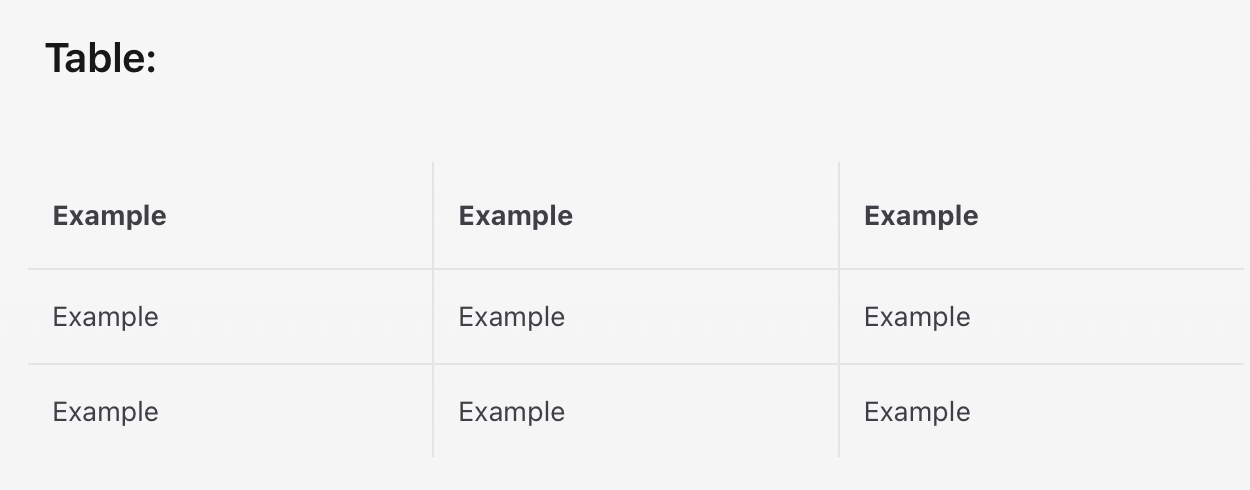
Tables help you organize structured information like pricing, comparisons, or outlines.
To add a table:
1. Click the **table** icon in the toolbar.
2. Select **Insert table**.
3. Choose the number of rows and columns.
Once inserted, you can:
* Add or remove rows
* Add or remove columns
* Toggle a header row
* Remove the table entirely
 Each cell behaves like a normal text block.
 ***
## Collapsible sections
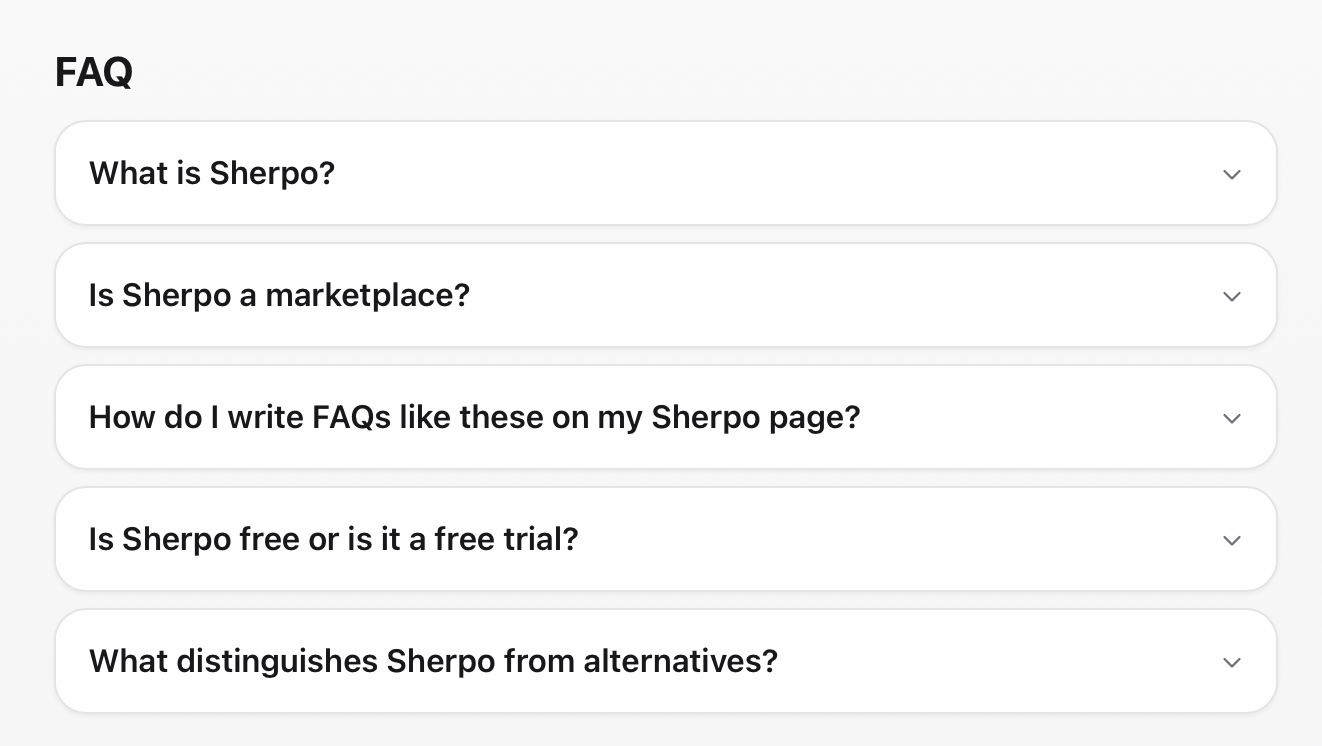
Use **Details** to create boxes with text inside. On your site, they appear as clickable dropdown rows.
***
## Collapsible sections
Use **Details** to create boxes with text inside. On your site, they appear as clickable dropdown rows.
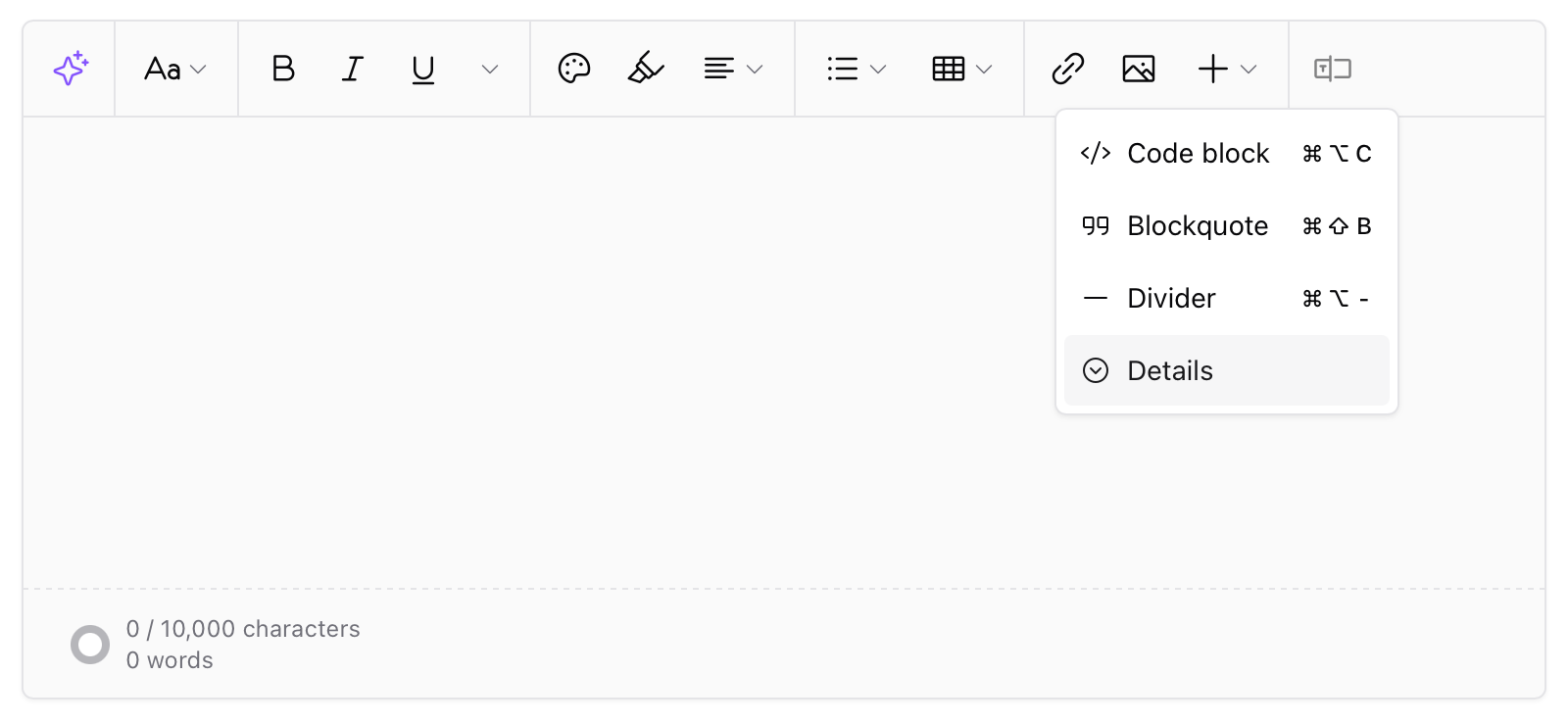
 To create these boxes in the editor, use **Details**.
1. Place the cursor where you want the box.
2. Click the **+** icon in the toolbar.
3. Select **Details**.
4. Write the **summary** (the question).
5. Write the **content** (the answer).
To create these boxes in the editor, use **Details**.
1. Place the cursor where you want the box.
2. Click the **+** icon in the toolbar.
3. Select **Details**.
4. Write the **summary** (the question).
5. Write the **content** (the answer).
 ***
## Links and images
You can insert links and images directly from the toolbar.
To add a link:
1. Select the text.
2. Click the **link** icon.
3. Enter the URL and optional display text.
4. Click **Save**.
***
## Links and images
You can insert links and images directly from the toolbar.
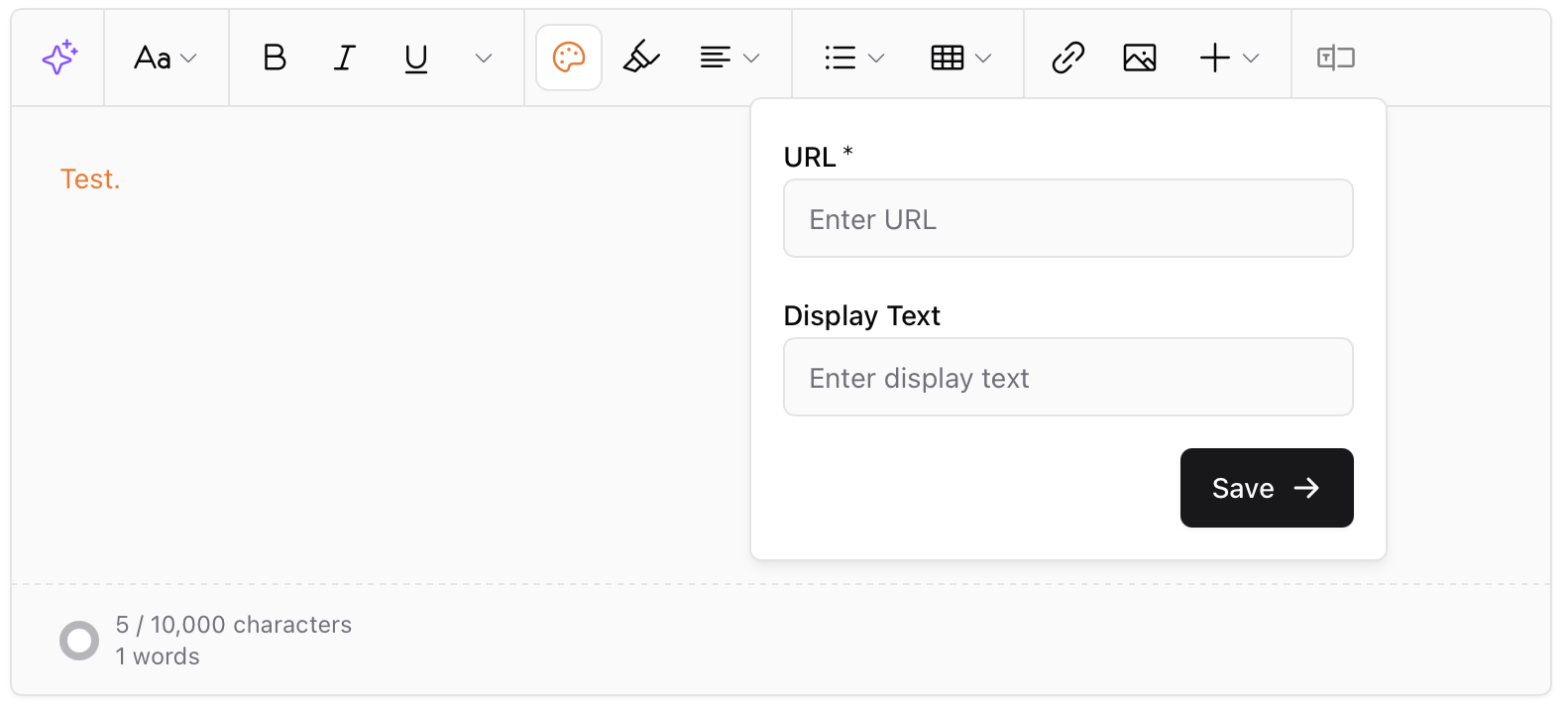
To add a link:
1. Select the text.
2. Click the **link** icon.
3. Enter the URL and optional display text.
4. Click **Save**.
 Images can be uploaded from your device and placed anywhere in the content.
***
## Other blocks
From the **+** menu, you can also add:
* Code blocks
* Blockquotes
* Dividers
* Details blocks
Dividers are useful to visually separate sections.
***
## AI assistance
You can use AI on any selected text.
1. Highlight text.
2. Click the **AI ✨** icon.
3. Choose an action:
* Proofread
* Summarize
* Elaborate
* Translate
AI edits appear instantly, and you can undo them at any time.
***
## Keyboard shortcuts
* `/` or `+` to open the block menu
* `Cmd/Ctrl + B` for bold
* `Cmd/Ctrl + I` for italic
* `Cmd/Ctrl + U` for underline
* `Cmd/Ctrl + K` to add a link
* `Cmd/Ctrl + Z` to undo
***
## Tips
* Use headings to break up long content.
* Use tables for comparisons or structured data.
* Use Details blocks for FAQs and expandable content.
* Preview often. What you see in the editor is what users see live.
***
## FAQ
Description text blocks support up to 10,000 characters, while "What you get" support up to 5,000 characters. The counter is shown at the bottom of the editor.
Yes. Any field using the rich text editor supports AI tools.
Yes. Use Cmd or Ctrl plus Z, or refresh the page before leaving.
No. Keep one block per level for clarity.
Images can be uploaded from your device and placed anywhere in the content.
***
## Other blocks
From the **+** menu, you can also add:
* Code blocks
* Blockquotes
* Dividers
* Details blocks
Dividers are useful to visually separate sections.
***
## AI assistance
You can use AI on any selected text.
1. Highlight text.
2. Click the **AI ✨** icon.
3. Choose an action:
* Proofread
* Summarize
* Elaborate
* Translate
AI edits appear instantly, and you can undo them at any time.
***
## Keyboard shortcuts
* `/` or `+` to open the block menu
* `Cmd/Ctrl + B` for bold
* `Cmd/Ctrl + I` for italic
* `Cmd/Ctrl + U` for underline
* `Cmd/Ctrl + K` to add a link
* `Cmd/Ctrl + Z` to undo
***
## Tips
* Use headings to break up long content.
* Use tables for comparisons or structured data.
* Use Details blocks for FAQs and expandable content.
* Preview often. What you see in the editor is what users see live.
***
## FAQ
Description text blocks support up to 10,000 characters, while "What you get" support up to 5,000 characters. The counter is shown at the bottom of the editor.
Yes. Any field using the rich text editor supports AI tools.
Yes. Use Cmd or Ctrl plus Z, or refresh the page before leaving.
No. Keep one block per level for clarity.