> ## Documentation Index
> Fetch the complete documentation index at: https://docs.sherpo.io/llms.txt
> Use this file to discover all available pages before exploring further.
# Organization
> Update your organization name, manage members, and control deletion settings.
Learn how to edit your organization details, invite teammates, and manage high-impact actions from the organization settings.
***
## Overview
Your organization settings are split into three tabs:
* **Info**: Update your organization’s name and description.
* **Members**: Invite people, manage access, and assign roles.
* **Danger Zone**: Permanently delete the organization with safeguards.
***
## Info
Use **Info** to control how your organization appears across the dashboard and, where applicable, on receipts and other touchpoints. You can edit:
* **Title**: The organization name. Minimum 3 characters, up to 100.
* **Description**: A short description. Up to 250 characters.
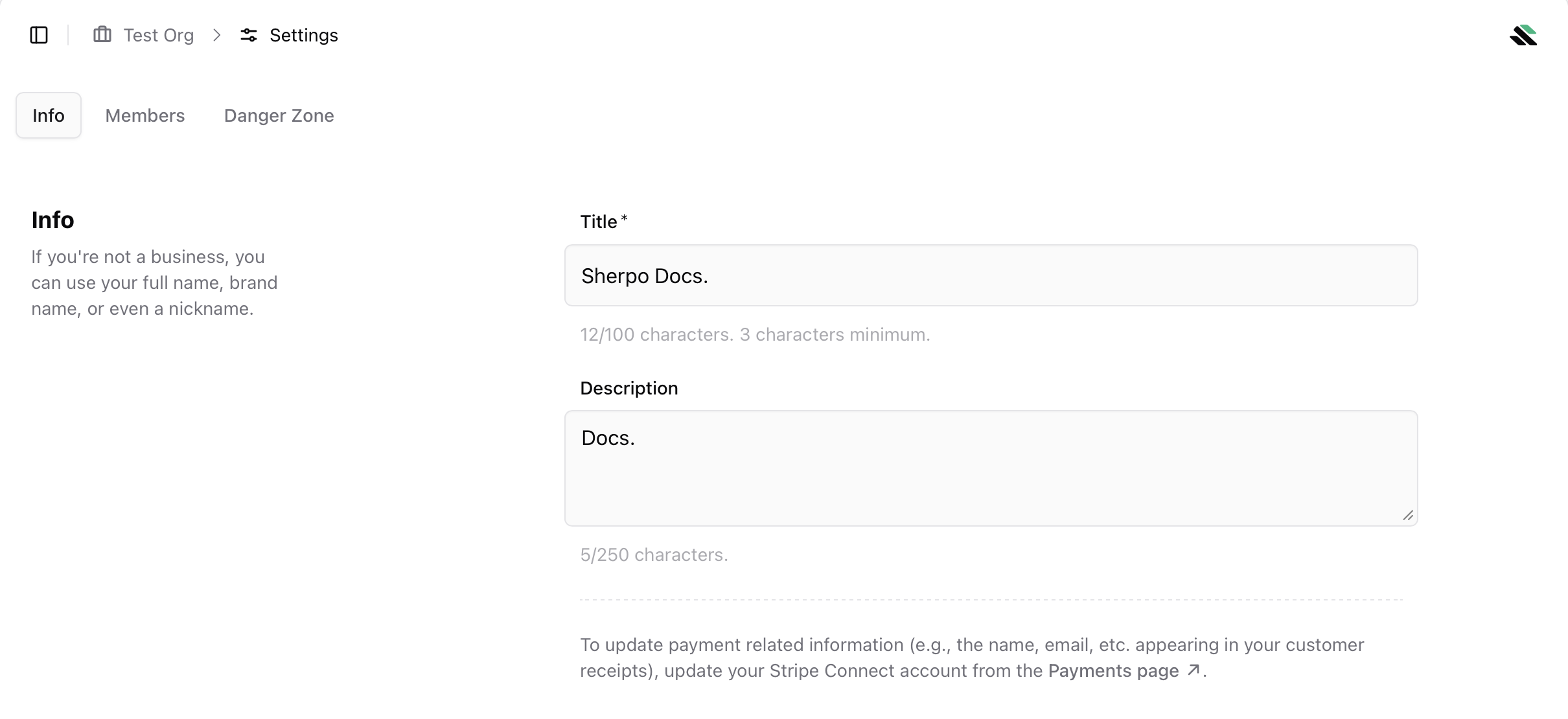 To update payment-related details that appear on customer receipts, such as legal name or email, use the **Payments** page and update your Stripe Connect account.
***
## Members
The **Members** tab lets you control who can access your organization.
To update payment-related details that appear on customer receipts, such as legal name or email, use the **Payments** page and update your Stripe Connect account.
***
## Members
The **Members** tab lets you control who can access your organization.
 ### Invite members
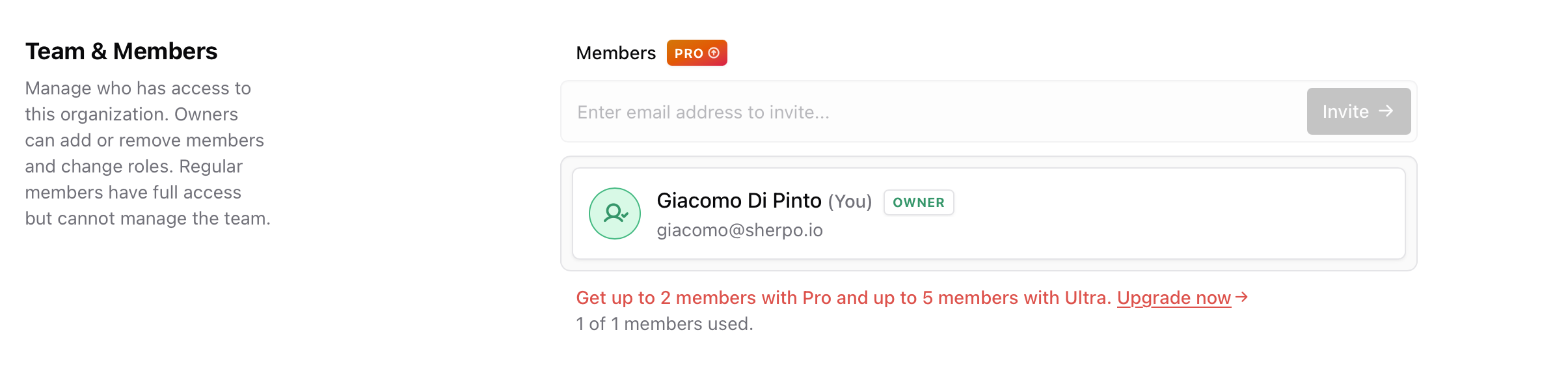
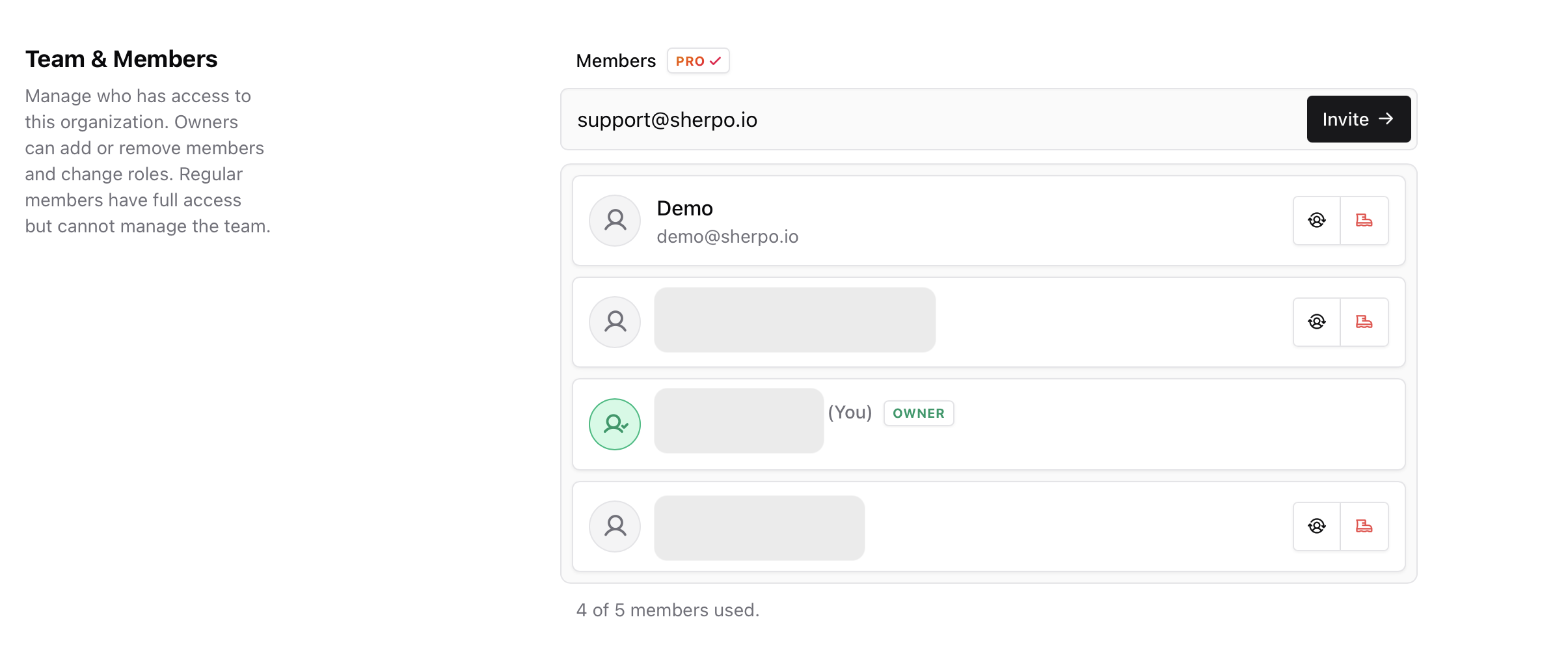
To invite someone:
1. Enter their email address.
2. Click **Invite**.
Invited users appear in the member list once they accept the invitation.
### Roles and permissions
Organizations support role-based access:
* **Owner**: Full access. Can manage members, change roles, and access deletion controls.
* **Regular member**: Full access to the organization, but cannot manage the team.
If you are the only member, you will still appear as **Owner** in the member list.
### Member limits
Member limits depend on your plan:
* **Pro** supports up to **2 members**.
* **Ultra** supports up to **5 members**.
If you reach the limit, you will be prompted to upgrade before adding more teammates.
### Invite members
To invite someone:
1. Enter their email address.
2. Click **Invite**.
Invited users appear in the member list once they accept the invitation.
### Roles and permissions
Organizations support role-based access:
* **Owner**: Full access. Can manage members, change roles, and access deletion controls.
* **Regular member**: Full access to the organization, but cannot manage the team.
If you are the only member, you will still appear as **Owner** in the member list.
### Member limits
Member limits depend on your plan:
* **Pro** supports up to **2 members**.
* **Ultra** supports up to **5 members**.
If you reach the limit, you will be prompted to upgrade before adding more teammates.
 ***
## Danger zone
The **Danger Zone** contains irreversible actions that affect the entire organization.
### Delete organization
Deleting an organization permanently removes it and all team members. This action cannot be undone.
***
## Danger zone
The **Danger Zone** contains irreversible actions that affect the entire organization.
### Delete organization
Deleting an organization permanently removes it and all team members. This action cannot be undone.
 When you click **Delete**, you will see a confirmation message explaining that a verification email will be sent to your email address.
This operation cannot be undone.
### Email confirmation
To prevent accidental or unauthorized deletions, organization deletion requires email confirmation.
After clicking **Delete**:
1. You receive an email titled **Confirm Organization Deletion**.
2. The email clearly states that the action is permanent and lists what will be removed, including stores, pages, products, team members, customer access, and transaction history.
3. Click **Confirm Deletion** in the email to proceed.
When you click **Delete**, you will see a confirmation message explaining that a verification email will be sent to your email address.
This operation cannot be undone.
### Email confirmation
To prevent accidental or unauthorized deletions, organization deletion requires email confirmation.
After clicking **Delete**:
1. You receive an email titled **Confirm Organization Deletion**.
2. The email clearly states that the action is permanent and lists what will be removed, including stores, pages, products, team members, customer access, and transaction history.
3. Click **Confirm Deletion** in the email to proceed.
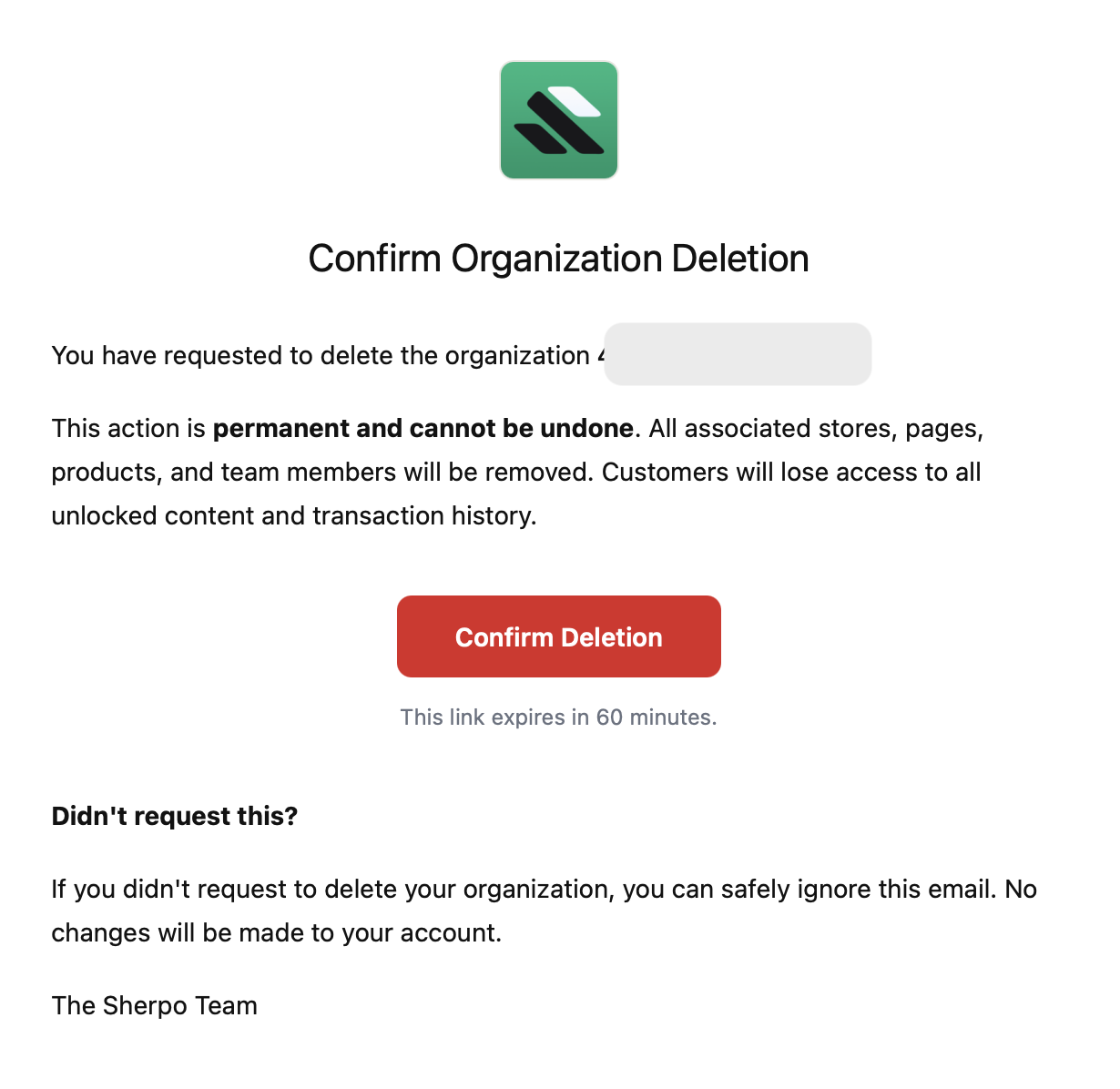 The confirmation link expires after **60 minutes**. If the link expires, you must restart the deletion process from the dashboard.
If you did not request the deletion, you can safely ignore the email. No changes will be made to your organization.
### Subscription requirement
If the organization has an active subscription, you must cancel it before deletion. The delete button will be disabled until the subscription is canceled.
The confirmation link expires after **60 minutes**. If the link expires, you must restart the deletion process from the dashboard.
If you did not request the deletion, you can safely ignore the email. No changes will be made to your organization.
### Subscription requirement
If the organization has an active subscription, you must cancel it before deletion. The delete button will be disabled until the subscription is canceled.
 ***
## FAQ
Yes. You can update the title and description at any time from the **Info** tab.
Owners can manage the team and access the Danger Zone. Regular members can use the organization but cannot manage members or roles.
You have reached your plan limit. Pro supports up to 2 members and Ultra supports up to 5. Upgrade your plan to add more.
The organization has an active subscription. You must cancel it before deleting the organization.
No. Deleting an organization is permanent. Make sure you export anything you need before proceeding.
Nothing. If you do not click the confirmation link within 60 minutes, the deletion request expires and your organization remains unchanged.
***
## FAQ
Yes. You can update the title and description at any time from the **Info** tab.
Owners can manage the team and access the Danger Zone. Regular members can use the organization but cannot manage members or roles.
You have reached your plan limit. Pro supports up to 2 members and Ultra supports up to 5. Upgrade your plan to add more.
The organization has an active subscription. You must cancel it before deleting the organization.
No. Deleting an organization is permanent. Make sure you export anything you need before proceeding.
Nothing. If you do not click the confirmation link within 60 minutes, the deletion request expires and your organization remains unchanged.