> ## Documentation Index
> Fetch the complete documentation index at: https://docs.sherpo.io/llms.txt
> Use this file to discover all available pages before exploring further.
# Downloads
> Package digital files or external resources as sellable downloads inside Sherpo.
The **Downloads** product lets you sell digital content directly from your Sherpo store, from ebooks and templates to spreadsheets and design packs.
Sherpo handles hosting, checkout, access protection, and file delivery automatically. You can bundle uploaded files and external links in one product, add descriptions, and enable security for supported file types.
If you want a guide about how **Downloads** work for customers, see:
Learn how users buy and unlock Download products.
***
## Create a Download product
1. Go to **Products → New product**.
2. Enter a title and short description.
3. Select the **Files** tile (download icon).
4. Click **Create product** to open the workspace.
From there, use **Basic info** to describe your product, list what’s included, and set a price in **Prices**. Downloads support the same pricing options as other Sherpo products. You can offer free or one-time paid products, create [coupons](/dashboard/coupons), configure [automations](/dashboard/automations), and [enable reviews](/dashboard/reviews).
For a guide on Overview and Settings tabs, see:
Edit your product’s info, description, and settings from the dashboard.
***
## Build your Download product page
Under **Page builder**, you can fully customize how your Downloads product page looks using Sherpo's powerful, lego-like builder.
### Download-specific blocks
Inside the Download Page builder, you will see a **Content block** where all files and links reside, alongside the "Get" and "Pages" blocks. Like in every other Sherpo product, these blocks are mandatory and cannot be deleted or hidden. If not populated, they will simply not render.
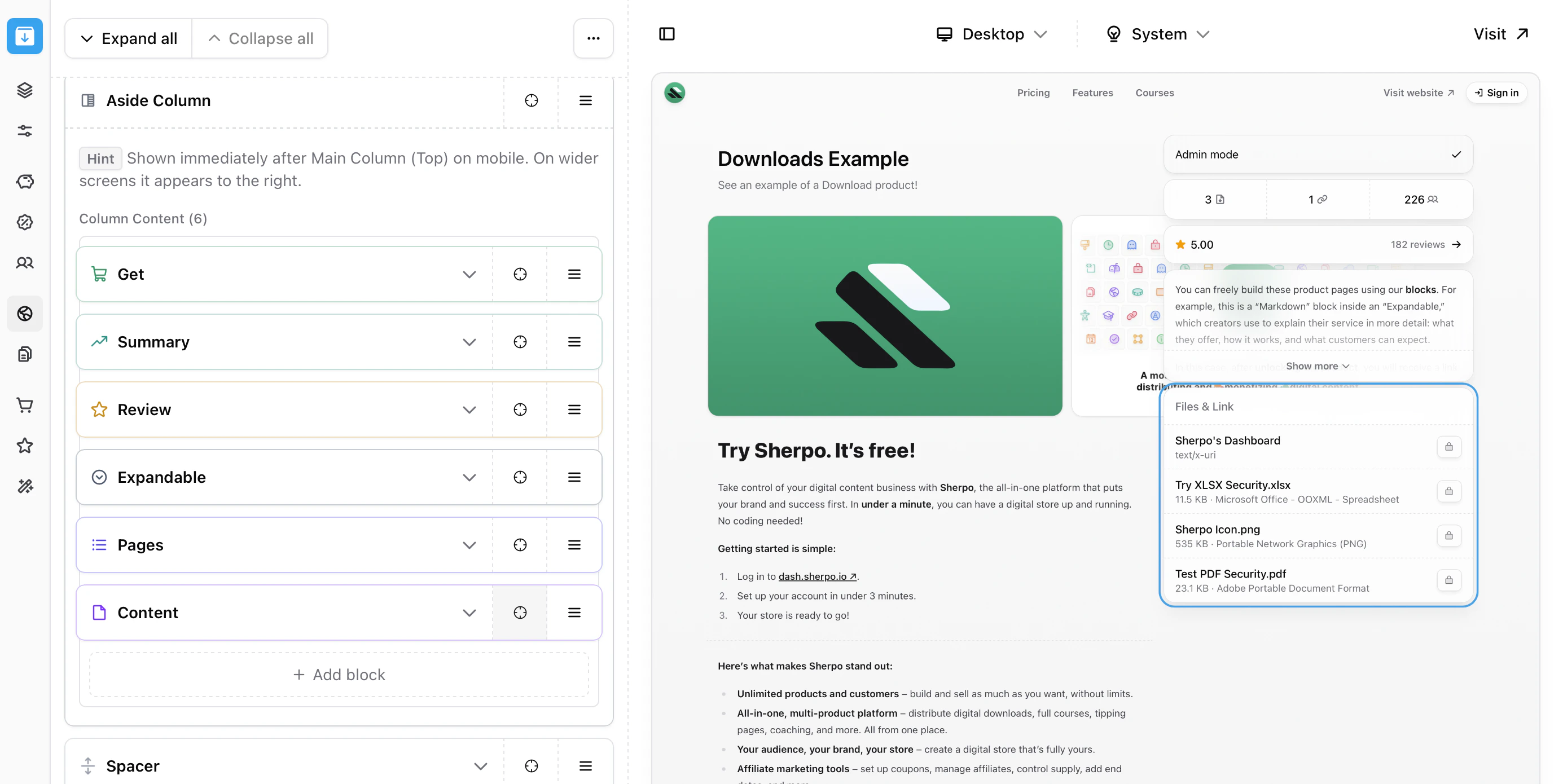 All of this is included by default in the **Aside Column**, which displays the blocks on the right. You are free to remove them from the column and position them wherever you prefer. Sherpo simply ensures that all mandatory blocks are present before allowing you to update the page.
### Product-specific blocks
All product Page Builders include an additional **Product** block category. These blocks are specific to the product type and power the core functionality of the page.
All of this is included by default in the **Aside Column**, which displays the blocks on the right. You are free to remove them from the column and position them wherever you prefer. Sherpo simply ensures that all mandatory blocks are present before allowing you to update the page.
### Product-specific blocks
All product Page Builders include an additional **Product** block category. These blocks are specific to the product type and power the core functionality of the page.
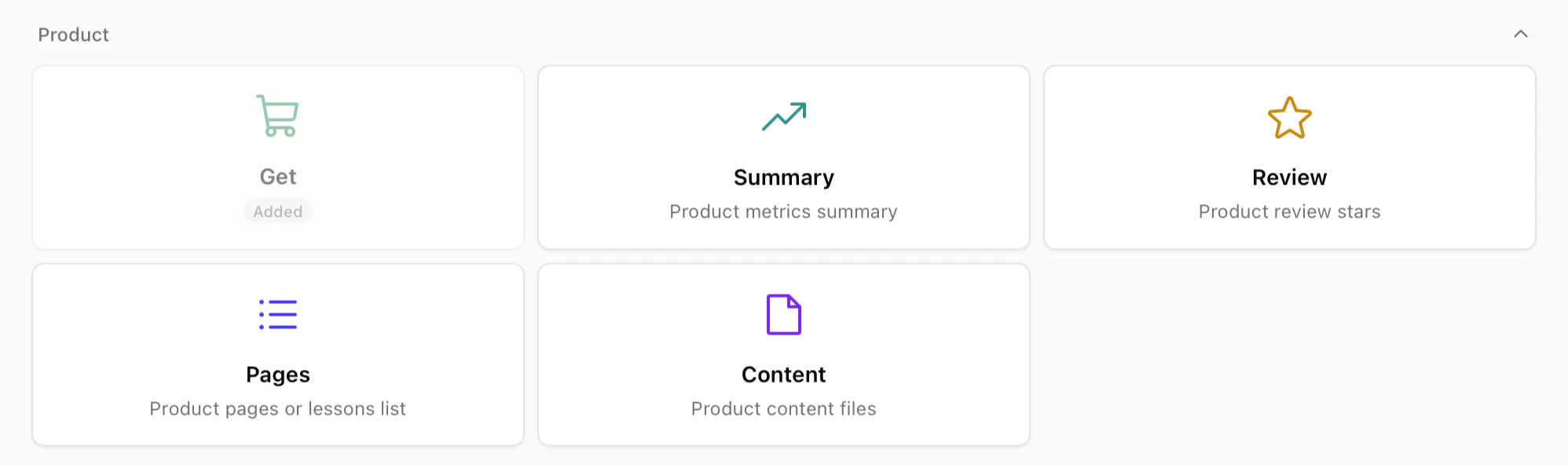 These blocks usually include:
* **Get** — The purchase or unlock interface for the product.
* **Summary** — A compact overview of product metrics or highlights.
* **Review** — Displays review ratings and feedback from customers.
* **Pages** — Lists internal pages such as lessons, episodes, or product sections.
* **Content** — Displays the files or content included in the product.
Like other mandatory blocks, some of these may already be included in your layout and cannot be deleted, but you are free to move them anywhere within your page.
### Page builder
The rest of the Page Builder behaves exactly like the Site Builder. If you want to discover more about our blocks and building pages, check this out.
Build and customize your page by stacking and composing blocks. Powerful under the hood, simple to use.
***
## Files & links
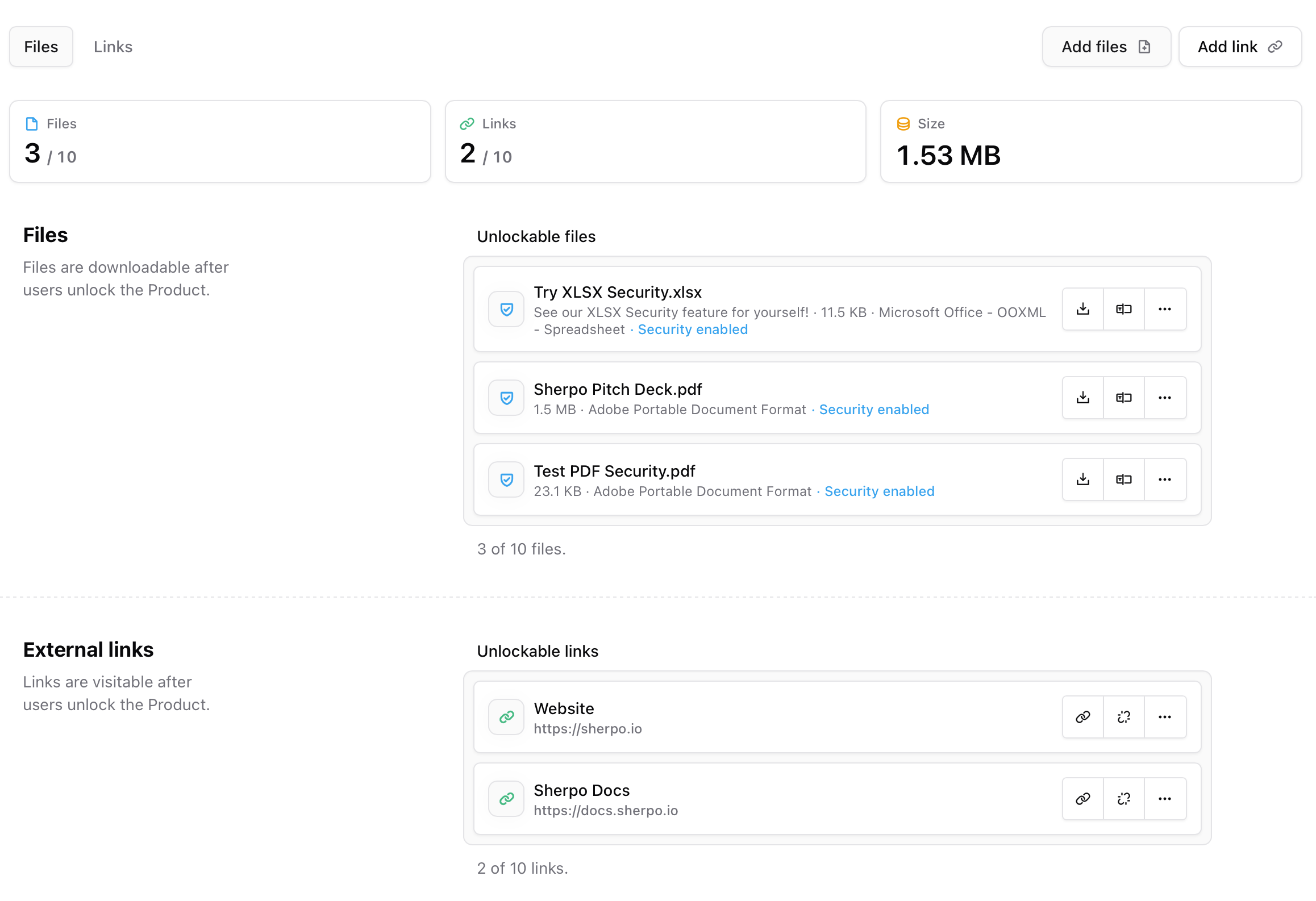
Files and links is where you can upload all the digital unlockable files and links, which require your customers to unlock the product to see. This is valid for Course and Download products.
These blocks usually include:
* **Get** — The purchase or unlock interface for the product.
* **Summary** — A compact overview of product metrics or highlights.
* **Review** — Displays review ratings and feedback from customers.
* **Pages** — Lists internal pages such as lessons, episodes, or product sections.
* **Content** — Displays the files or content included in the product.
Like other mandatory blocks, some of these may already be included in your layout and cannot be deleted, but you are free to move them anywhere within your page.
### Page builder
The rest of the Page Builder behaves exactly like the Site Builder. If you want to discover more about our blocks and building pages, check this out.
Build and customize your page by stacking and composing blocks. Powerful under the hood, simple to use.
***
## Files & links
Files and links is where you can upload all the digital unlockable files and links, which require your customers to unlock the product to see. This is valid for Course and Download products.
 ### Upload files
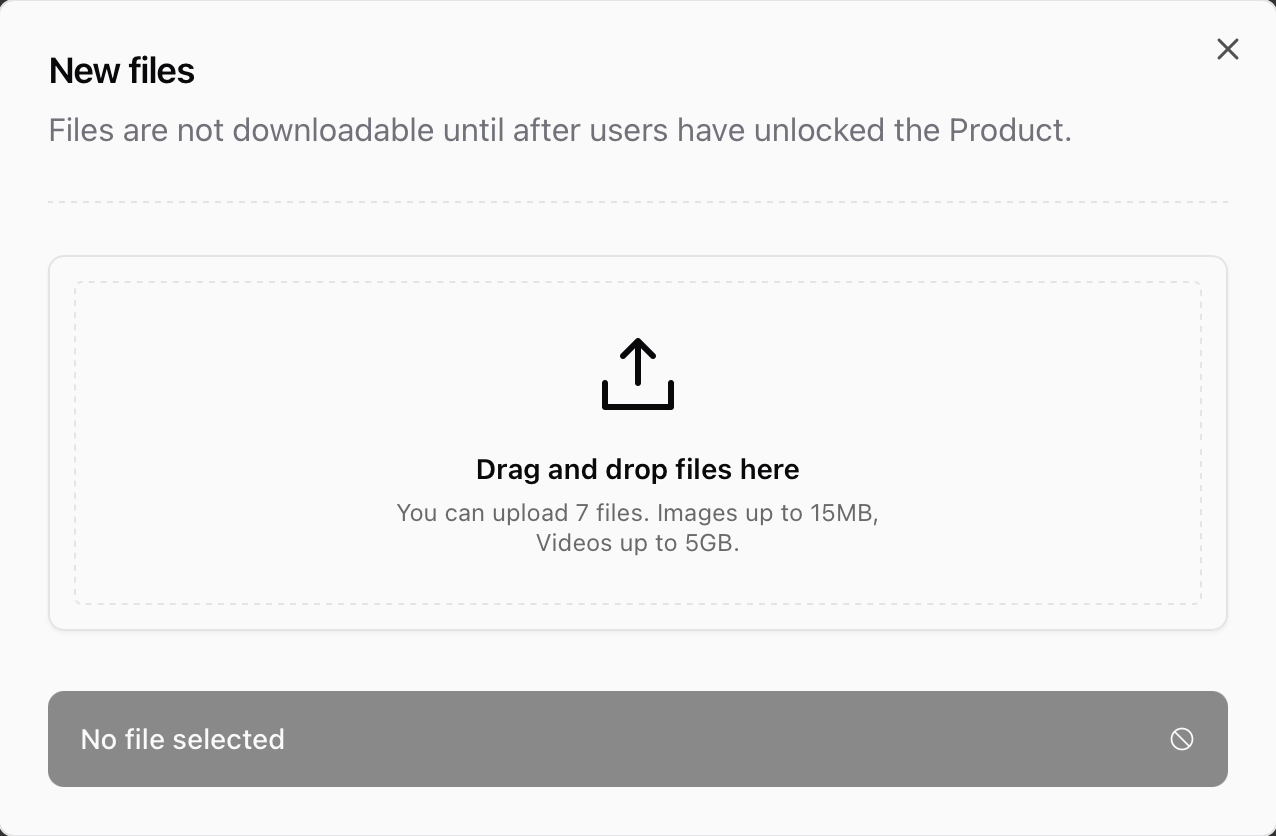
Use the **Files & links** tab to upload the files customers receive after they unlock the product.
* Click **Add files** to open the uploader.
* Drag and drop files, or click to browse.
* Wait for uploads to finish before leaving the page.
Files are not downloadable until the customer has unlocked the product.
### Upload files
Use the **Files & links** tab to upload the files customers receive after they unlock the product.
* Click **Add files** to open the uploader.
* Drag and drop files, or click to browse.
* Wait for uploads to finish before leaving the page.
Files are not downloadable until the customer has unlocked the product.
 Each uploaded file appears with its **name**, **size**, and **type**. You can also add a short description so customers know what they are downloading.
***
### Rename files
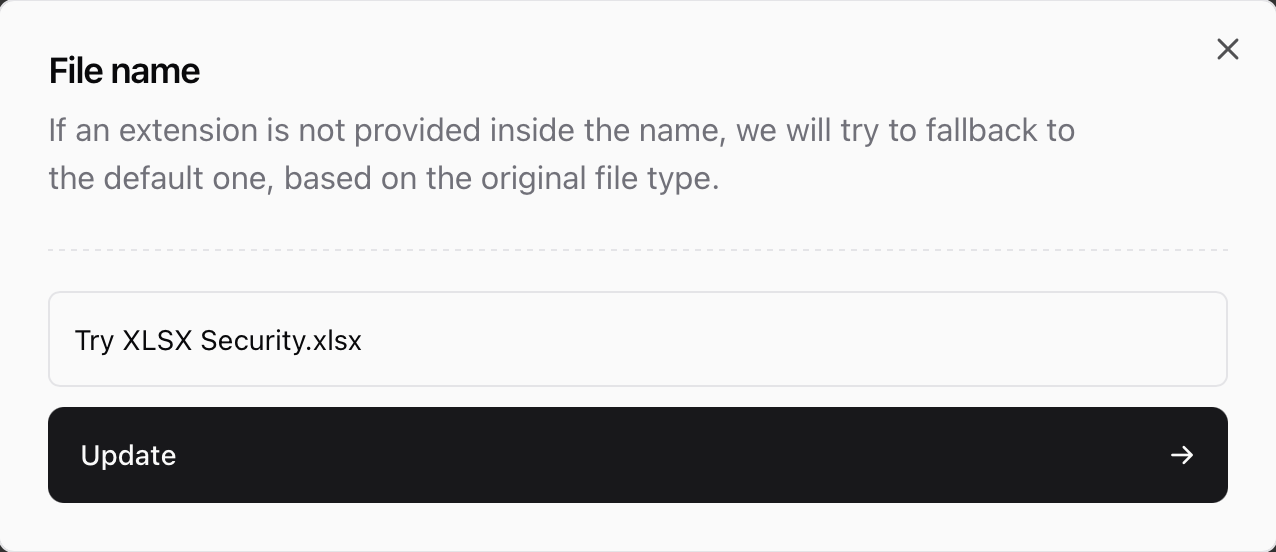
You can rename a file at any time. If you omit the extension, Sherpo will automatically keep the correct one based on the original file type.
Each uploaded file appears with its **name**, **size**, and **type**. You can also add a short description so customers know what they are downloading.
***
### Rename files
You can rename a file at any time. If you omit the extension, Sherpo will automatically keep the correct one based on the original file type.
 ***
### Add external links
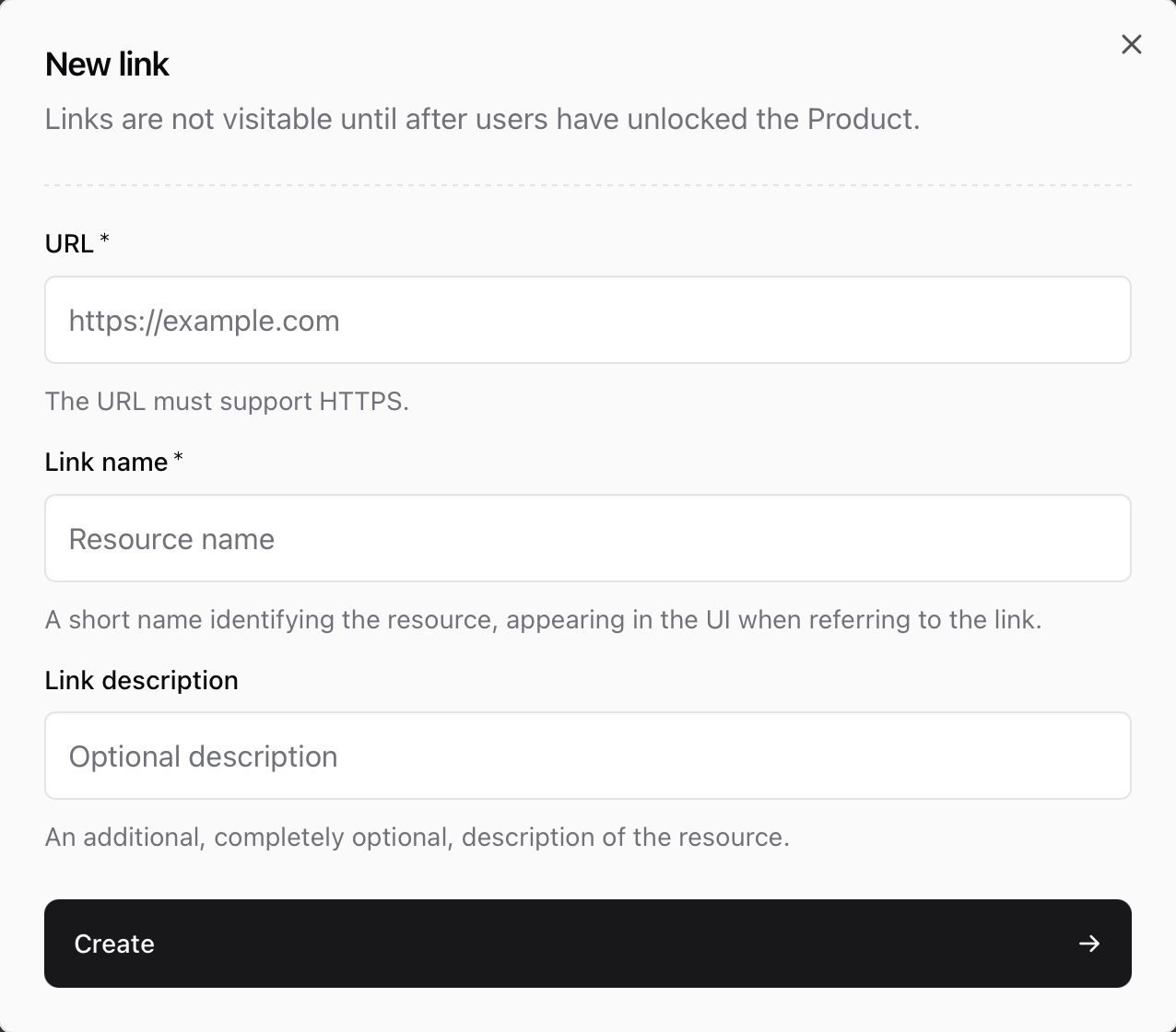
If your content lives elsewhere (for example Google Drive, Notion, or GitHub), use **Add link** to include it in the bundle. Links are only visible after customers unlock the product.
* Enter the **URL** (must support HTTPS).
* Add a **Link name** (required).
* Optionally add a **Link description**.
***
### Add external links
If your content lives elsewhere (for example Google Drive, Notion, or GitHub), use **Add link** to include it in the bundle. Links are only visible after customers unlock the product.
* Enter the **URL** (must support HTTPS).
* Add a **Link name** (required).
* Optionally add a **Link description**.
 ***
### Manage files and links
The **Files & links** list shows everything included in the product in one place. From each item’s menu, you can rename, update descriptions, enable security (when available), or delete.
***
### Manage files and links
The **Files & links** list shows everything included in the product in one place. From each item’s menu, you can rename, update descriptions, enable security (when available), or delete.
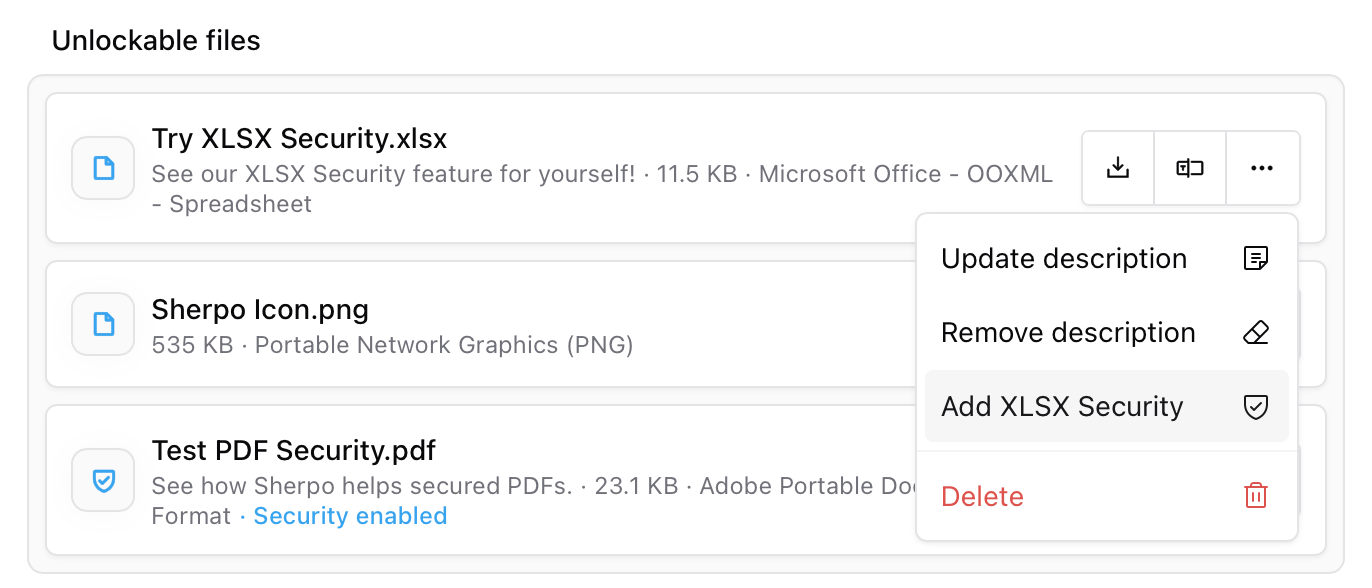 Uploaded files and external links remain locked until a customer unlocks the product through checkout or a manual grant.
***
### Secure PDFs and spreadsheets
For supported formats, you can enable file-level security from the item menu:
* **Add PDF Security** for `.pdf`
* **Add XLSX Security** for `.xlsx`
When security is enabled, the file shows a badge in the list (for example, **Security enabled**). You can remove security at any time from the same menu.
Other file types (ZIPs, images, videos) remain downloadable by design. If you need protection, export sensitive content as a secure PDF or XLSX when possible.
***
## Customer experience
Once published:
* Visitors can view your full product page.
* After checkout, customers unlock the full **Files & links** list.
* Each download is scoped to the customer’s account.
If you update a file, upload the new version and remove the outdated one so future customers download the latest content.
***
## Best practices
* Use clear filenames (`Design-Kit.zip`, `Guide-v3.pdf`).
* Add descriptions (with Markdown block) or FAQs to reduce support questions.
* Bundle related assets into a single ZIP to simplify delivery.
* Mix hosted files and tracked external links for hybrid delivery.
* Enable PDF/XLSX security for sensitive materials.
***
## FAQ
Yes. You can include multiple uploaded files and external links in the same product, up to the limit shown in the uploader.
No. Files and links remain locked until the customer unlocks the product.
Yes. Use **Add link** to include HTTPS URLs. They appear alongside hosted files after unlock.
Upload limits are shown in the uploader. In general, images can be up to 15 MB and videos up to 5 GB.
Yes. Upload the updated file and remove the outdated version so future customers receive the latest content.
It is removed from the product and cannot be recovered. Make sure you still have a copy saved elsewhere.
Security can be enabled per file for supported formats from the item menu. Secured files display a security badge, and you can remove security at any time.
Yes. Set the price to \$0 in **Prices**. Customers still complete the free checkout flow to unlock access.
Yes. Downloads support coupons and can trigger automations like other Sherpo product types.
Yes. All purchases and free unlocks appear under **Sales**, including the buyer’s email and timestamp.
Yes. You can archive or delete it anytime from the product’s **Settings** tab.
Uploaded files and external links remain locked until a customer unlocks the product through checkout or a manual grant.
***
### Secure PDFs and spreadsheets
For supported formats, you can enable file-level security from the item menu:
* **Add PDF Security** for `.pdf`
* **Add XLSX Security** for `.xlsx`
When security is enabled, the file shows a badge in the list (for example, **Security enabled**). You can remove security at any time from the same menu.
Other file types (ZIPs, images, videos) remain downloadable by design. If you need protection, export sensitive content as a secure PDF or XLSX when possible.
***
## Customer experience
Once published:
* Visitors can view your full product page.
* After checkout, customers unlock the full **Files & links** list.
* Each download is scoped to the customer’s account.
If you update a file, upload the new version and remove the outdated one so future customers download the latest content.
***
## Best practices
* Use clear filenames (`Design-Kit.zip`, `Guide-v3.pdf`).
* Add descriptions (with Markdown block) or FAQs to reduce support questions.
* Bundle related assets into a single ZIP to simplify delivery.
* Mix hosted files and tracked external links for hybrid delivery.
* Enable PDF/XLSX security for sensitive materials.
***
## FAQ
Yes. You can include multiple uploaded files and external links in the same product, up to the limit shown in the uploader.
No. Files and links remain locked until the customer unlocks the product.
Yes. Use **Add link** to include HTTPS URLs. They appear alongside hosted files after unlock.
Upload limits are shown in the uploader. In general, images can be up to 15 MB and videos up to 5 GB.
Yes. Upload the updated file and remove the outdated version so future customers receive the latest content.
It is removed from the product and cannot be recovered. Make sure you still have a copy saved elsewhere.
Security can be enabled per file for supported formats from the item menu. Secured files display a security badge, and you can remove security at any time.
Yes. Set the price to \$0 in **Prices**. Customers still complete the free checkout flow to unlock access.
Yes. Downloads support coupons and can trigger automations like other Sherpo product types.
Yes. All purchases and free unlocks appear under **Sales**, including the buyer’s email and timestamp.
Yes. You can archive or delete it anytime from the product’s **Settings** tab.