> ## Documentation Index
> Fetch the complete documentation index at: https://docs.sherpo.io/llms.txt
> Use this file to discover all available pages before exploring further.
# Series
> Build and sell episodic video with seasons and episodes: your own streaming channel on Sherpo.
The **Series** product lets you publish shows and episodic content in a Netflix-like format, organized into seasons and episodes.
Learn how users browse, unlock, and watch Series products.
***
## Create a Series product
1. Go to **Products → New product**.
2. Enter a **title**, **subtitle**, and **description**.
3. Select the **Series** tile (clapperboard icon).
4. Click **Create product** to open your workspace.
From there, use the **Basic info** tab to describe your product, list what’s included, and set a price in **Prices**. Series share the same **pricing** options as other Sherpo product types. You can offer free or one-time paid series, create [coupons](/dashboard/coupons), configure [automations](/dashboard/automations), and [enable reviews](/dashboard/reviews).
For a guide to the product’s Overview and Settings tabs, check this out:
Edit your product’s info, description, and settings from the dashboard.
***
## Build your Series product page
Under **Page Builder**, you can fully customize how your Series page looks using Sherpo's powerful, lego-like builder.
### Series-specific blocks
Inside your Series Page Builder, you will see a **Pages** block where all seasons and episodes appear, alongside the **Get** and **Content** blocks. Like in every other Sherpo product, these blocks are mandatory and cannot be deleted or hidden. If they are not populated, they simply will not render.
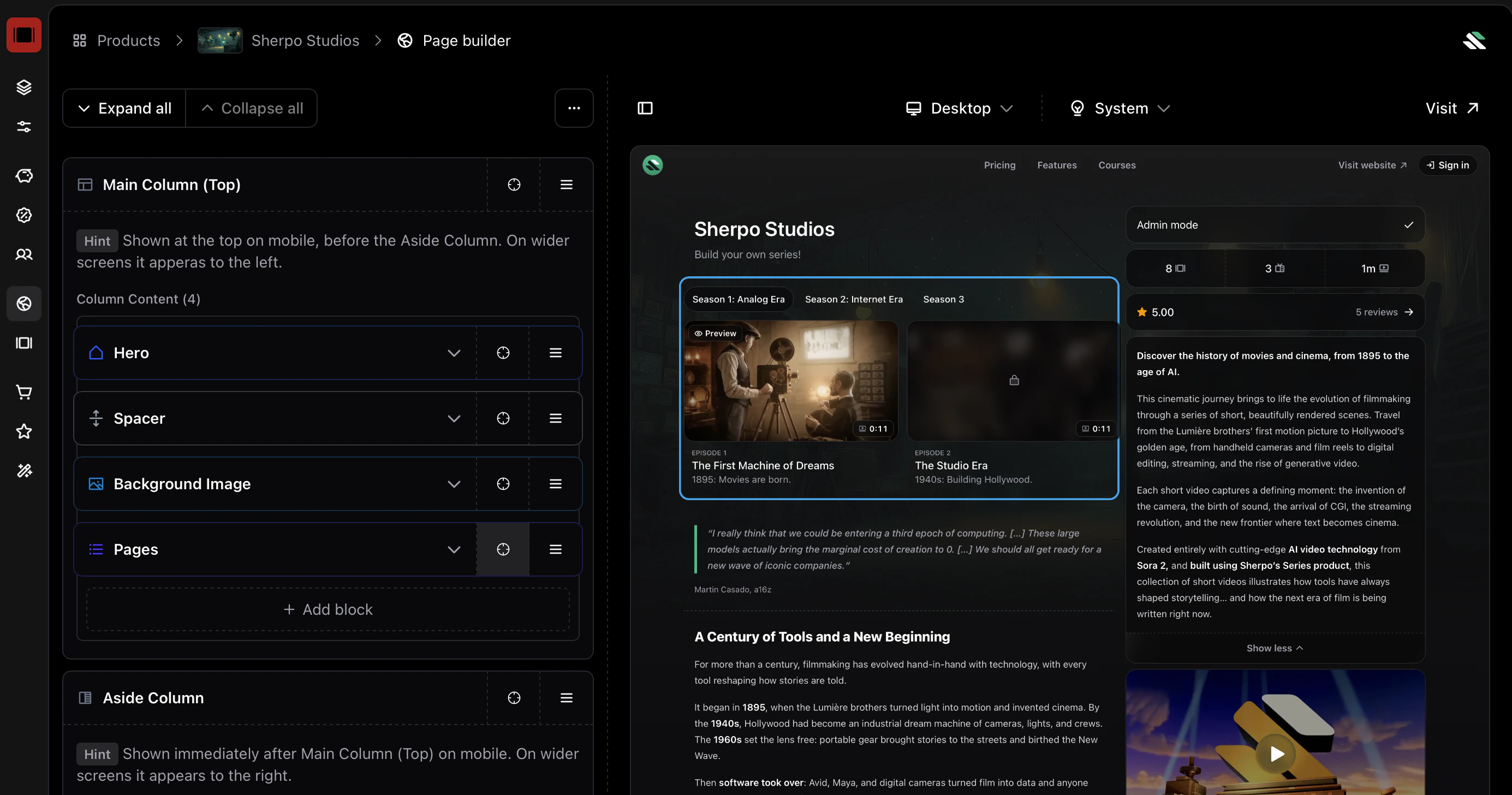 These blocks are included by default in the **Aside Column**, which displays them on the right. You can remove them from the column and position them anywhere in your layout. Sherpo simply ensures all mandatory blocks are present before allowing you to update the page.
### Product-specific blocks
All product Page Builders include an additional **Product** block category. These blocks are specific to the product type and power the core functionality of the page.
These blocks are included by default in the **Aside Column**, which displays them on the right. You can remove them from the column and position them anywhere in your layout. Sherpo simply ensures all mandatory blocks are present before allowing you to update the page.
### Product-specific blocks
All product Page Builders include an additional **Product** block category. These blocks are specific to the product type and power the core functionality of the page.
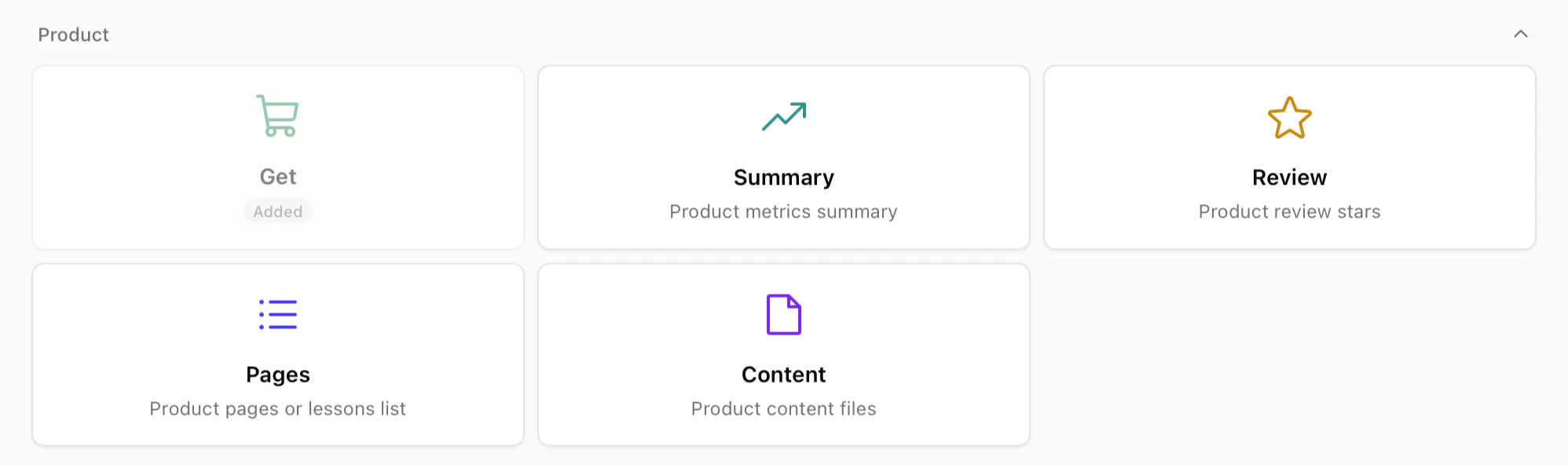 These blocks usually include:
* **Get** — The purchase or unlock interface for the product.
* **Summary** — A compact overview of product metrics or highlights.
* **Review** — Displays review ratings and feedback from customers.
* **Pages** — Lists internal pages such as lessons, episodes, or product sections.
* **Content** — Displays the files or content included in the product.
Like other mandatory blocks, some of these may already be included in your layout and cannot be deleted, but you are free to move them anywhere within your page.
### Page builder
The rest of the Page Builder behaves exactly like the Site Builder. If you want to discover more about our blocks and building pages, check this out.
Build and customize your page by stacking and composing blocks. Powerful under the hood, simple to use.
***
## Manage episodes and seasons
Open the **Episodes** tab to build your structure.
* **Add Season** creates a named container that groups related episodes.
* **Add Episode** creates a new episode inside a season.
If you add a **standalone episode**, Sherpo automatically places it in its own season (for example, Season 3 if it’s the third season you’ve created). If, for example, you want to include a free preview trailer without using the page builder, create a dedicated season named “Trailers” and place your trailer episodes there.
These blocks usually include:
* **Get** — The purchase or unlock interface for the product.
* **Summary** — A compact overview of product metrics or highlights.
* **Review** — Displays review ratings and feedback from customers.
* **Pages** — Lists internal pages such as lessons, episodes, or product sections.
* **Content** — Displays the files or content included in the product.
Like other mandatory blocks, some of these may already be included in your layout and cannot be deleted, but you are free to move them anywhere within your page.
### Page builder
The rest of the Page Builder behaves exactly like the Site Builder. If you want to discover more about our blocks and building pages, check this out.
Build and customize your page by stacking and composing blocks. Powerful under the hood, simple to use.
***
## Manage episodes and seasons
Open the **Episodes** tab to build your structure.
* **Add Season** creates a named container that groups related episodes.
* **Add Episode** creates a new episode inside a season.
If you add a **standalone episode**, Sherpo automatically places it in its own season (for example, Season 3 if it’s the third season you’ve created). If, for example, you want to include a free preview trailer without using the page builder, create a dedicated season named “Trailers” and place your trailer episodes there.
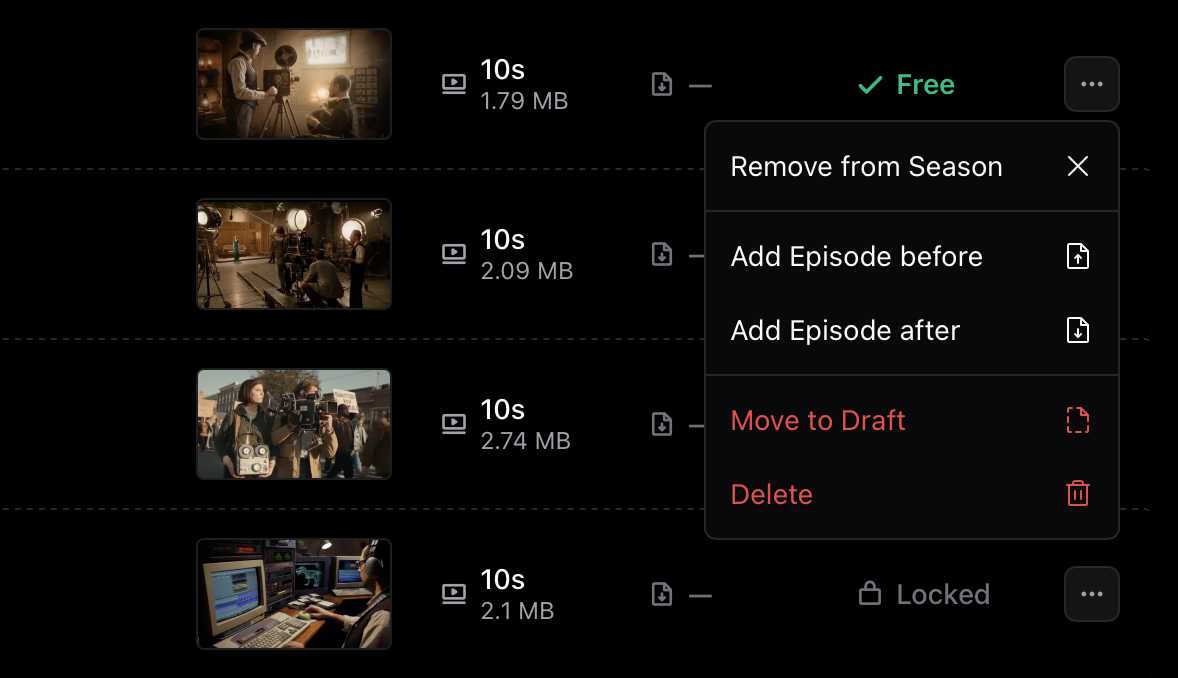
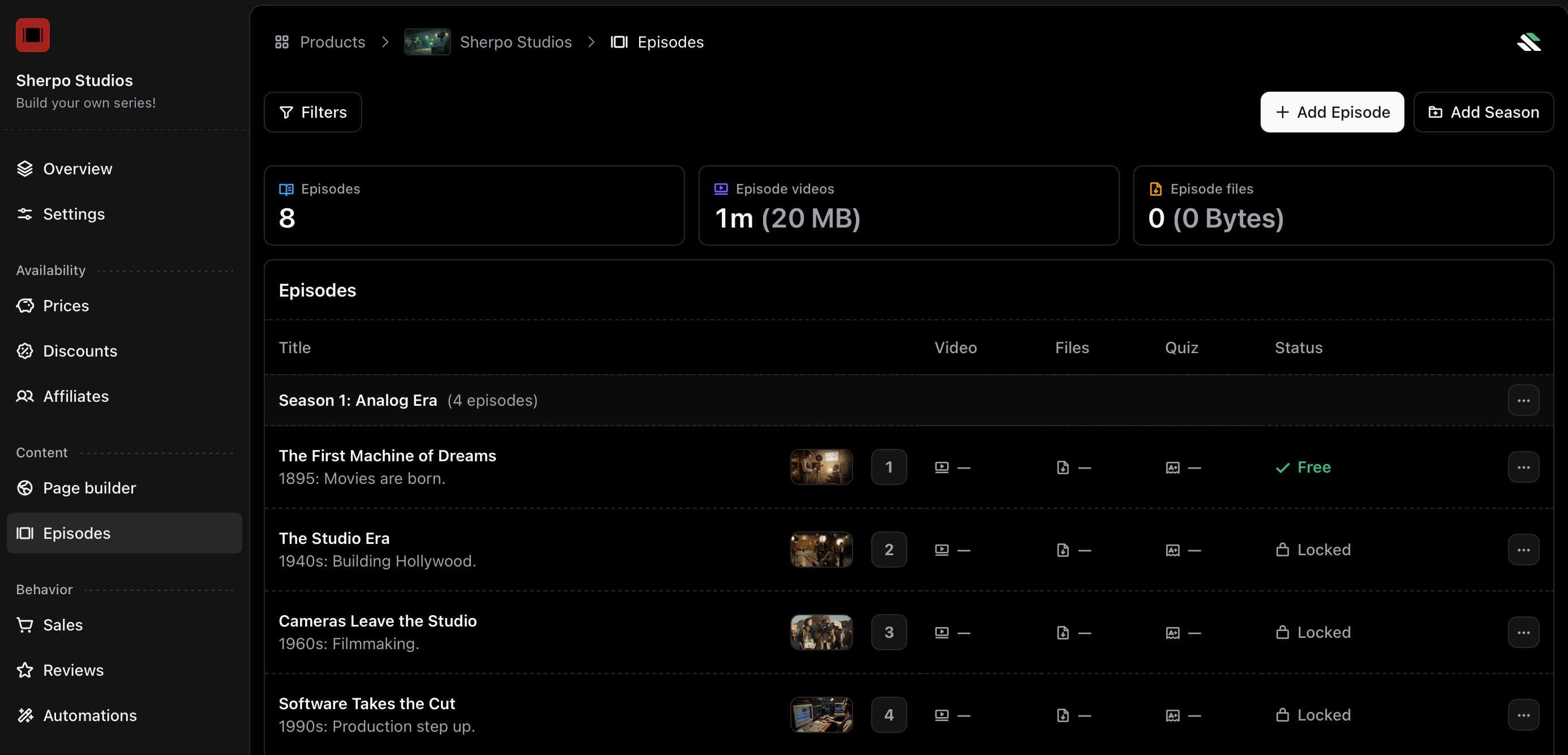 At a glance, you can see each episode’s title, video details, and status. You can rename or reorganize episodes at any time using the actions menu.
 ***
## Add a new episode
Click **Add Episode** to create a new episode inside your series.
***
## Add a new episode
Click **Add Episode** to create a new episode inside your series.
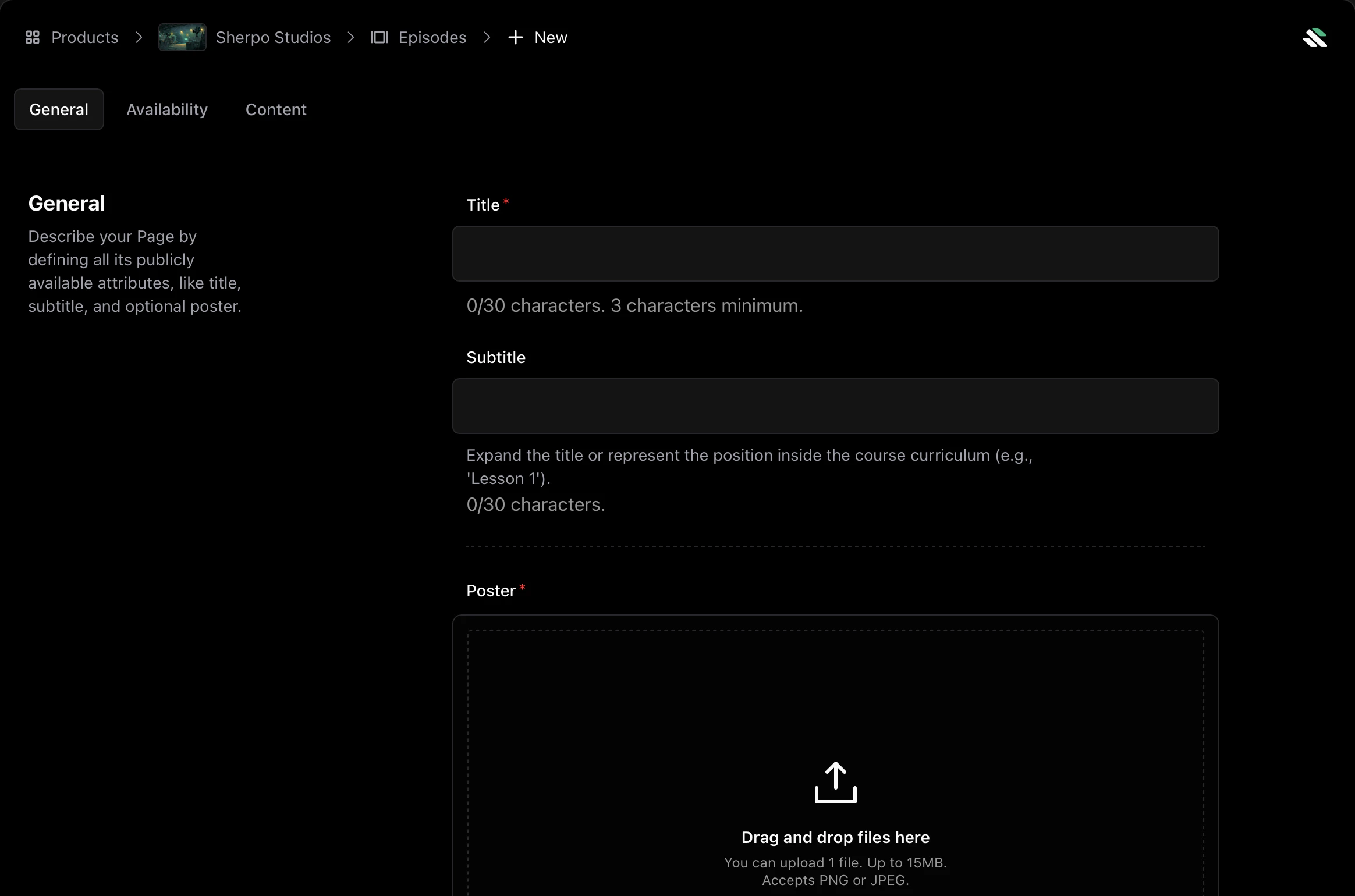 Each episode has the following tabs:
1. **General** — Title (required), subtitle (optional), poster (required)
2. **Availability** — Choose whether the episode is free to watch without unlocking the product
3. **Content** — Main video, optional slideshow, and description
***
### General tab
Use **General** to define the public-facing attributes of your episode.
* **Title** is required and must be at least 3 characters (max 30).
* **Subtitle** is optional (max 30).
* **Poster** is required. Upload a 16:9 image (PNG or JPEG) up to 15 MB. This thumbnail appears before playback.
Each episode has the following tabs:
1. **General** — Title (required), subtitle (optional), poster (required)
2. **Availability** — Choose whether the episode is free to watch without unlocking the product
3. **Content** — Main video, optional slideshow, and description
***
### General tab
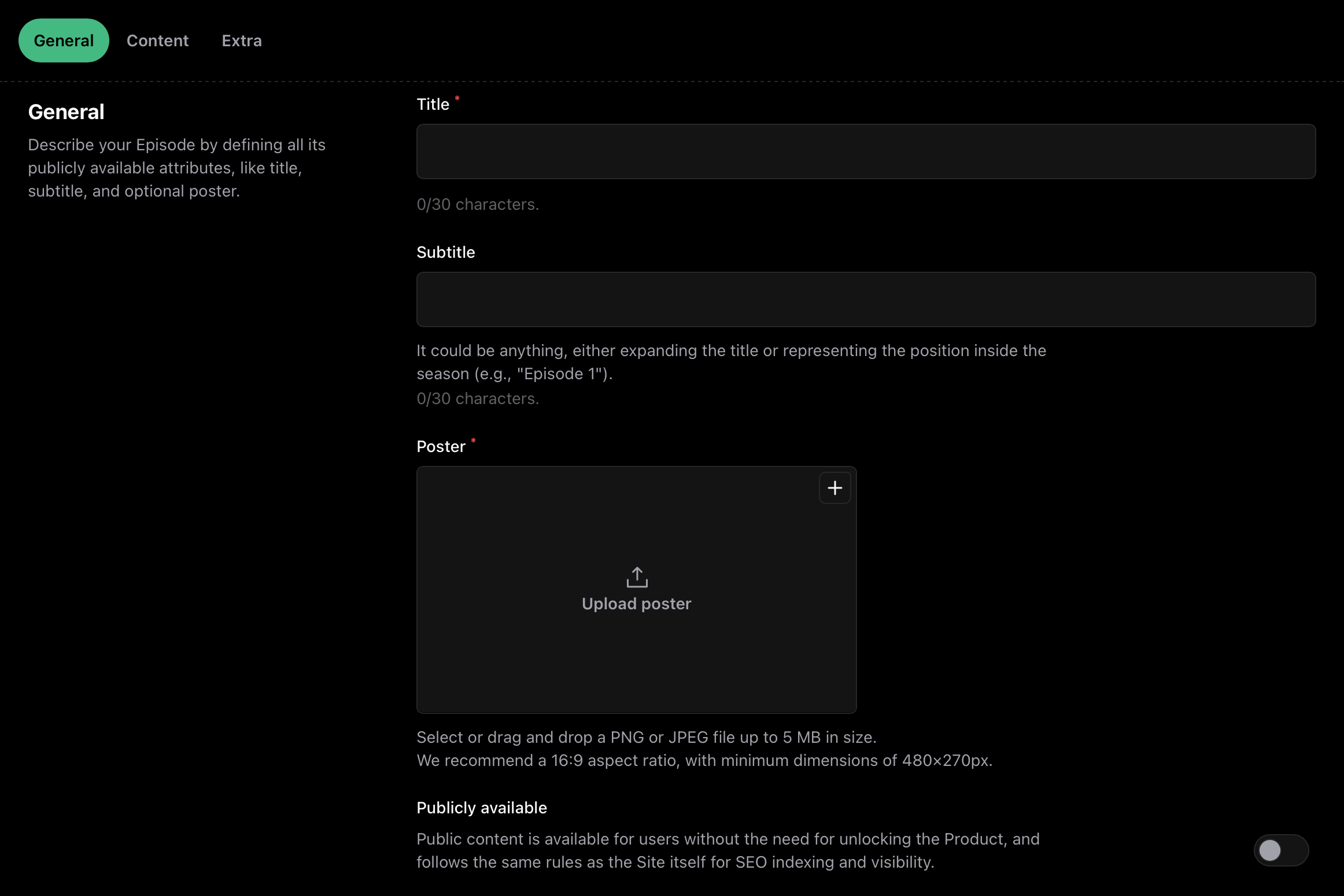
Use **General** to define the public-facing attributes of your episode.
* **Title** is required and must be at least 3 characters (max 30).
* **Subtitle** is optional (max 30).
* **Poster** is required. Upload a 16:9 image (PNG or JPEG) up to 15 MB. This thumbnail appears before playback.
 ***
### Availability
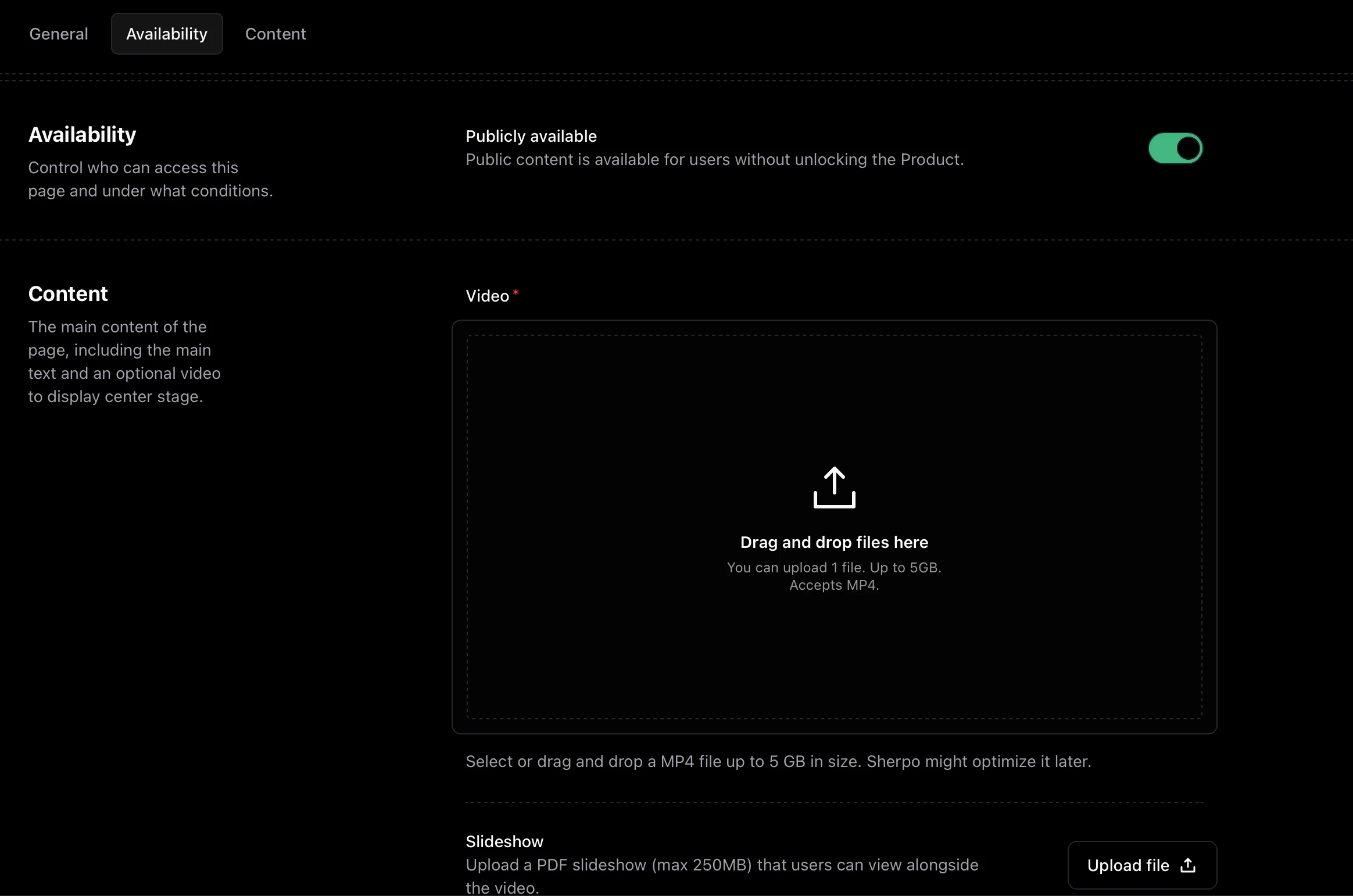
Under **Availability**, you can control who can access the episode.
* Enable **Publicly available** to let anyone watch the episode without unlocking the Series.
If you make an episode publicly available, anyone can access it and the video may be indexed by search engines.
***
### Content
In **Content**, upload the main content of your episode:
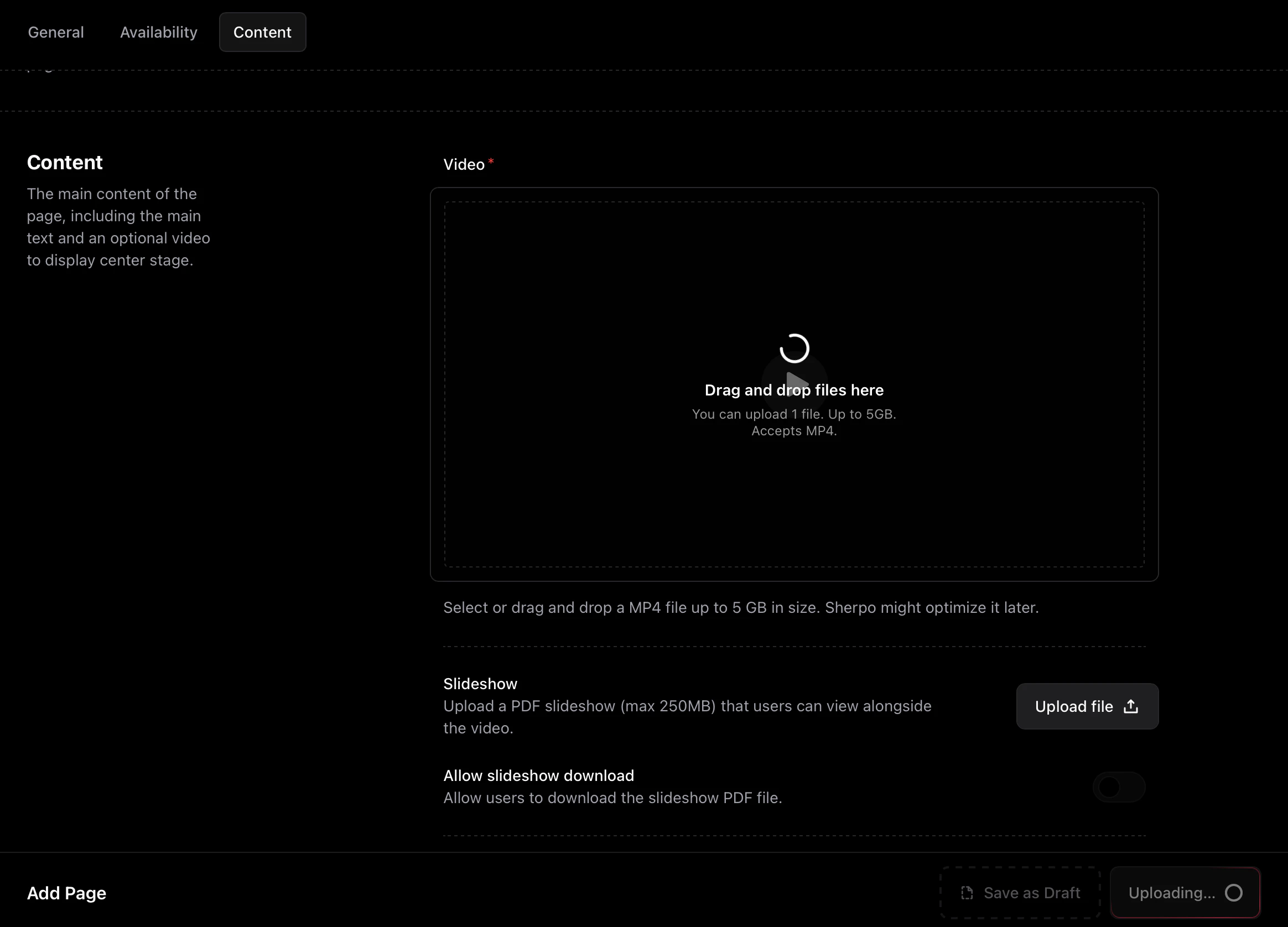
* **Video** — Upload a required `.mp4` file up to **5 GB**. Sherpo hosts and optimizes playback.
* **Slideshow** — Upload a `.pdf` slideshow (max **250 MB**) to display embedded slides alongside the video.
* **Allow slideshow download** — Optionally allow users to download the slideshow PDF.
* **Description** — Add notes, transcripts, links, and rich-formatted text.
***
### Availability
Under **Availability**, you can control who can access the episode.
* Enable **Publicly available** to let anyone watch the episode without unlocking the Series.
If you make an episode publicly available, anyone can access it and the video may be indexed by search engines.
***
### Content
In **Content**, upload the main content of your episode:
* **Video** — Upload a required `.mp4` file up to **5 GB**. Sherpo hosts and optimizes playback.
* **Slideshow** — Upload a `.pdf` slideshow (max **250 MB**) to display embedded slides alongside the video.
* **Allow slideshow download** — Optionally allow users to download the slideshow PDF.
* **Description** — Add notes, transcripts, links, and rich-formatted text.
 After clicking **Update**, wait for uploads to complete before continuing.
 ***
### Drafts and publishing
Episodes can be **Draft** or **Published**.
* **Draft** — Hidden from users (visible only to you).
* **Published** — Live inside the Series immediately.
***
### Drafts and publishing
Episodes can be **Draft** or **Published**.
* **Draft** — Hidden from users (visible only to you).
* **Published** — Live inside the Series immediately.
 You can publish or unpublish episodes at any time using the action menu or update buttons.
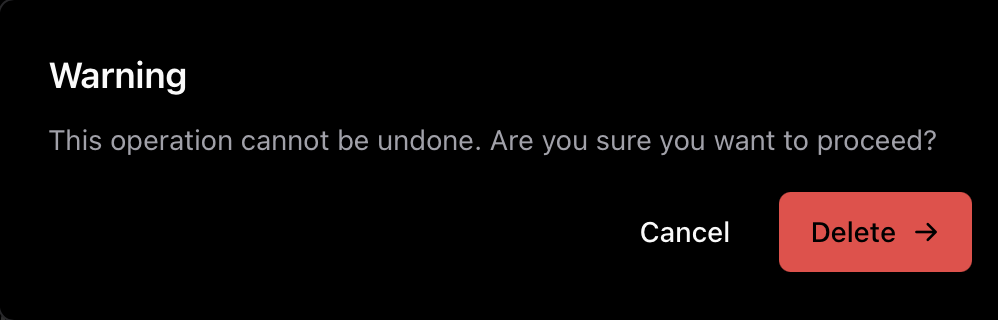
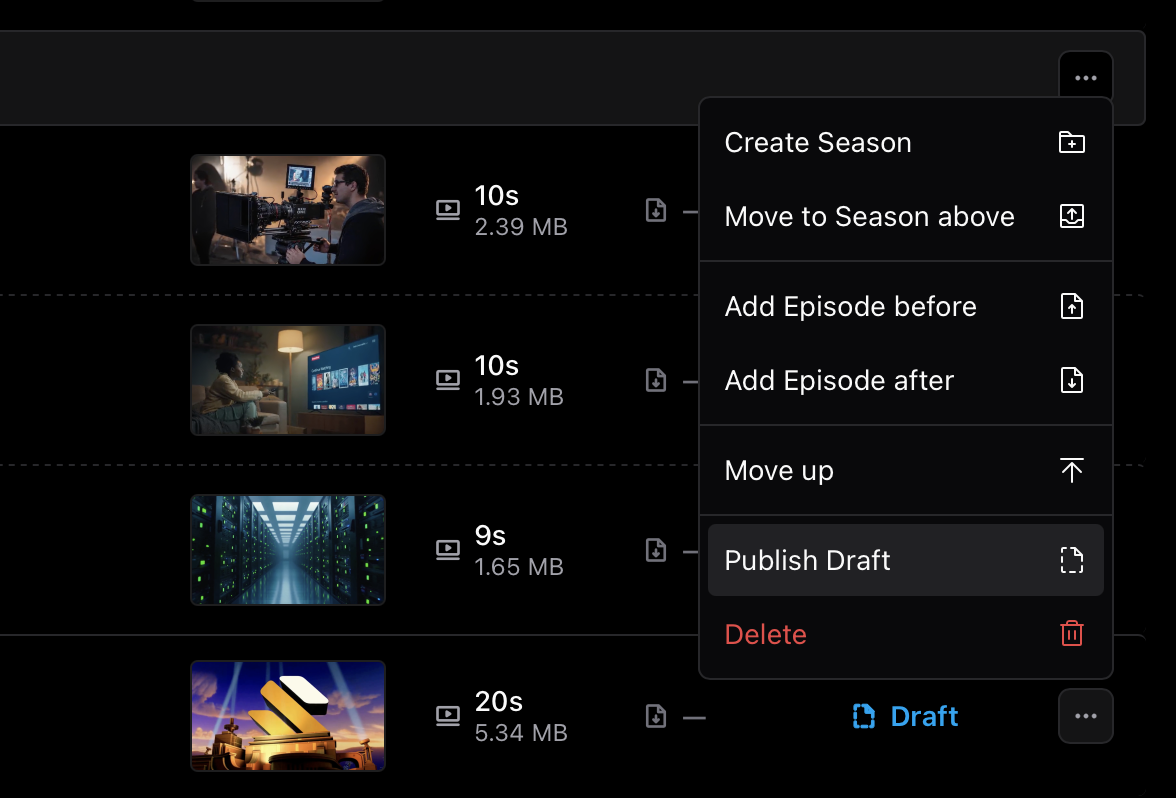 You can also delete episodes at any time. Deleting requires confirmation.
 ***
## Add a season
Use seasons to group related episodes into sections.
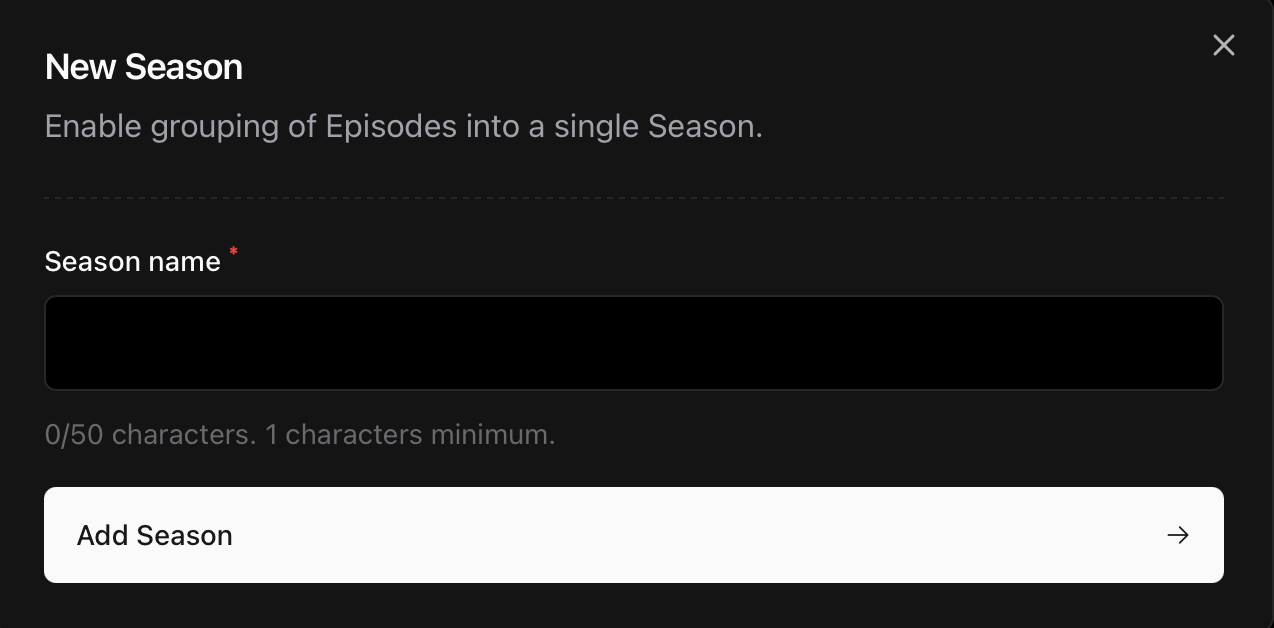
1. Click **Add Season**.
2. Enter a **season name**.
3. Click **Add Season** to create it, then start adding episodes.
***
## Add a season
Use seasons to group related episodes into sections.
1. Click **Add Season**.
2. Enter a **season name**.
3. Click **Add Season** to create it, then start adding episodes.
 Organization rules:
* You can **move episodes up** or **add episodes before or after** another episode.
* You can move episodes between seasons by selecting **Move to Season above** or **Move to Season below**. This works for the first and last episodes within each season.
***
## Series settings
### Series-specific behavior
In Series products, episodes automatically mark as completed when a video finishes. This behavior is fixed and cannot be changed.
***
## Video security
Videos uploaded to Sherpo are protected by default.
### Core protections
* **Paywall enforcement** restricts video access to users who have unlocked the series.
* **Tokenized playback** uses short-lived, session-bound URLs that cannot be reused.
* **Domain restrictions** ensure videos play only on your Sherpo site or verified custom domain.
These protections keep your content accessible only to legitimate customers.
***
## Publish and sell
When your series is ready:
1. Set all episodes to **Published**.
2. Configure pricing in **Prices** and add coupons if needed.
3. Click **Publish** under **Settings**.
Once published:
* Visitors can browse your description, seasons, and episodes.
* Purchasers instantly unlock all published episodes and seasons.
* Progress and sales sync automatically.
***
## Best practices
* Release public (free) episodes as teasers to drive conversions.
* Create multiple seasons and keep episode counts balanced.
* Include one or more trailers using the video block for better discoverability.
***
## FAQ
The Series Page Builder works exactly like the Site Builder. You can stack, reorder, and customize blocks to design your product page. Mandatory blocks such as "Pages", "Get", and "Content" cannot be removed, but you can position them anywhere within your layout. If a mandatory block is empty, it will not render on the live page.
Each episode supports one main video. To include multiple clips, merge them into one file or split them across separate episodes.
Yes. You can move episodes up, add new ones before or after another episode, and move standalone episodes into seasons. Changes apply instantly.
Yes. Mark specific episodes as **Publicly available** in the Availability tab to make them free previews.
Yes. You can move episodes to **Draft** or delete them entirely at any time. Deletions are permanent.
No. Series are not intended to be used as Courses. For that functionality, use the dedicated **Course** product type.
Not directly. However, you can create automations that unlock other Sherpo products for customers when they unlock your series or leave a review.
You can, but it is not the recommended setup. We strongly recommend using the **Course** product type to distribute structured learning content.
Organization rules:
* You can **move episodes up** or **add episodes before or after** another episode.
* You can move episodes between seasons by selecting **Move to Season above** or **Move to Season below**. This works for the first and last episodes within each season.
***
## Series settings
### Series-specific behavior
In Series products, episodes automatically mark as completed when a video finishes. This behavior is fixed and cannot be changed.
***
## Video security
Videos uploaded to Sherpo are protected by default.
### Core protections
* **Paywall enforcement** restricts video access to users who have unlocked the series.
* **Tokenized playback** uses short-lived, session-bound URLs that cannot be reused.
* **Domain restrictions** ensure videos play only on your Sherpo site or verified custom domain.
These protections keep your content accessible only to legitimate customers.
***
## Publish and sell
When your series is ready:
1. Set all episodes to **Published**.
2. Configure pricing in **Prices** and add coupons if needed.
3. Click **Publish** under **Settings**.
Once published:
* Visitors can browse your description, seasons, and episodes.
* Purchasers instantly unlock all published episodes and seasons.
* Progress and sales sync automatically.
***
## Best practices
* Release public (free) episodes as teasers to drive conversions.
* Create multiple seasons and keep episode counts balanced.
* Include one or more trailers using the video block for better discoverability.
***
## FAQ
The Series Page Builder works exactly like the Site Builder. You can stack, reorder, and customize blocks to design your product page. Mandatory blocks such as "Pages", "Get", and "Content" cannot be removed, but you can position them anywhere within your layout. If a mandatory block is empty, it will not render on the live page.
Each episode supports one main video. To include multiple clips, merge them into one file or split them across separate episodes.
Yes. You can move episodes up, add new ones before or after another episode, and move standalone episodes into seasons. Changes apply instantly.
Yes. Mark specific episodes as **Publicly available** in the Availability tab to make them free previews.
Yes. You can move episodes to **Draft** or delete them entirely at any time. Deletions are permanent.
No. Series are not intended to be used as Courses. For that functionality, use the dedicated **Course** product type.
Not directly. However, you can create automations that unlock other Sherpo products for customers when they unlock your series or leave a review.
You can, but it is not the recommended setup. We strongly recommend using the **Course** product type to distribute structured learning content.