> ## Documentation Index
> Fetch the complete documentation index at: https://docs.sherpo.io/llms.txt
> Use this file to discover all available pages before exploring further.
# Quizzes
> Create graded quizzes inside Courses using multiple choice, true or false, sliders, and open-ended questions, with built-in scoring and response analytics.
Quizzes let you test learners directly inside a **Course** product. This guide explains how to create quizzes, build question blocks, link a quiz to a lesson page, and monitor results.
**Note**: you need a paid plan to add or edit quizzes.
***
## Access and setup
Quizzes live inside each Course workspace and only become visible to customers when placed on a lesson page.
* Find them under **Assessment** in a Course product.
* A quiz appears to customers only after you **link it to a lesson page**.
* To preview a quiz without publishing it publicly, link it to a **draft lesson** and open it in your website, using **Admin mode** by logging in to your site with your Sherpo's account email.
***
## Create a quiz
Open a Course product in your dashboard.
Go to **Assessment**.
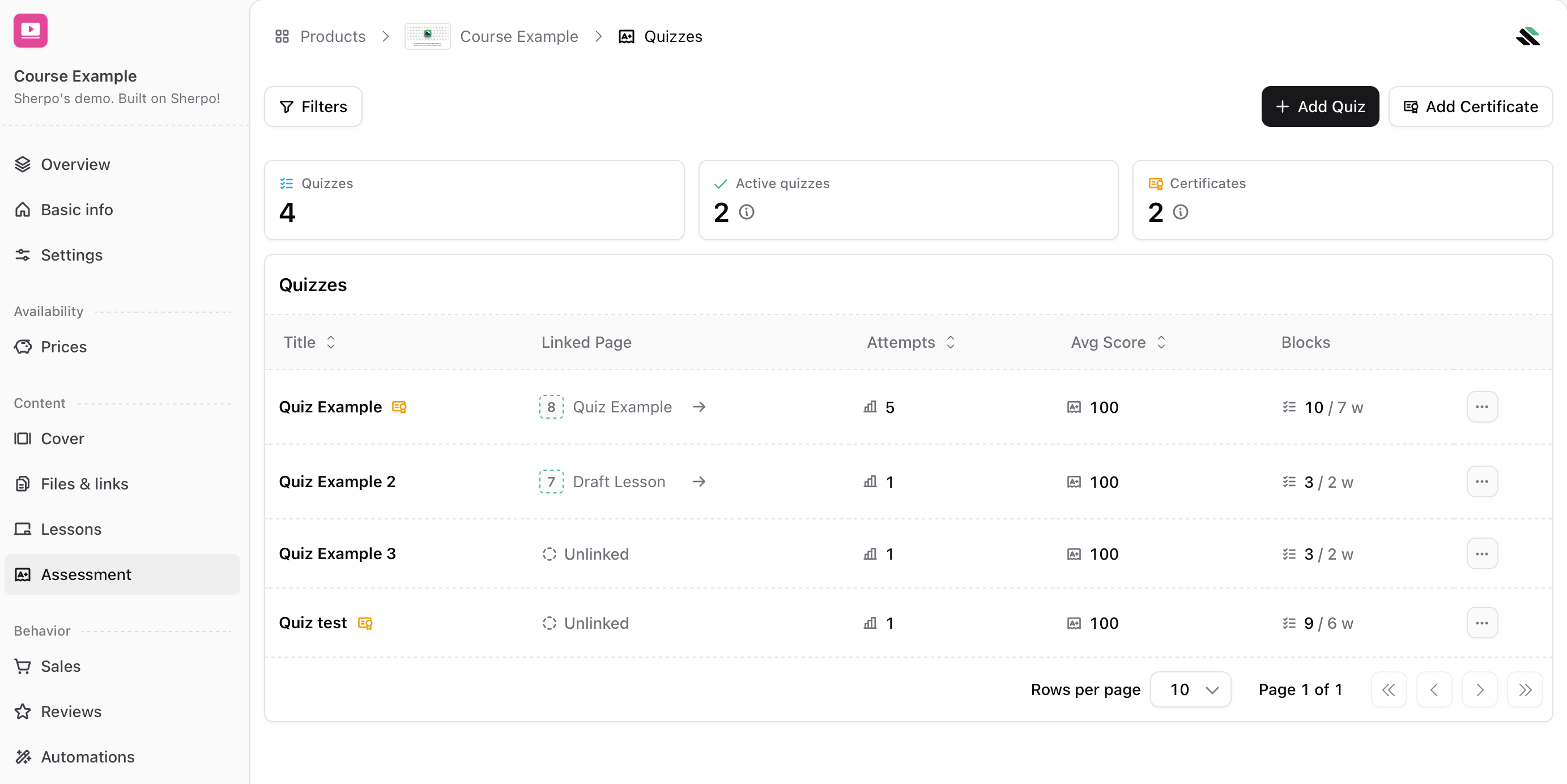 Click **Add Quiz**.
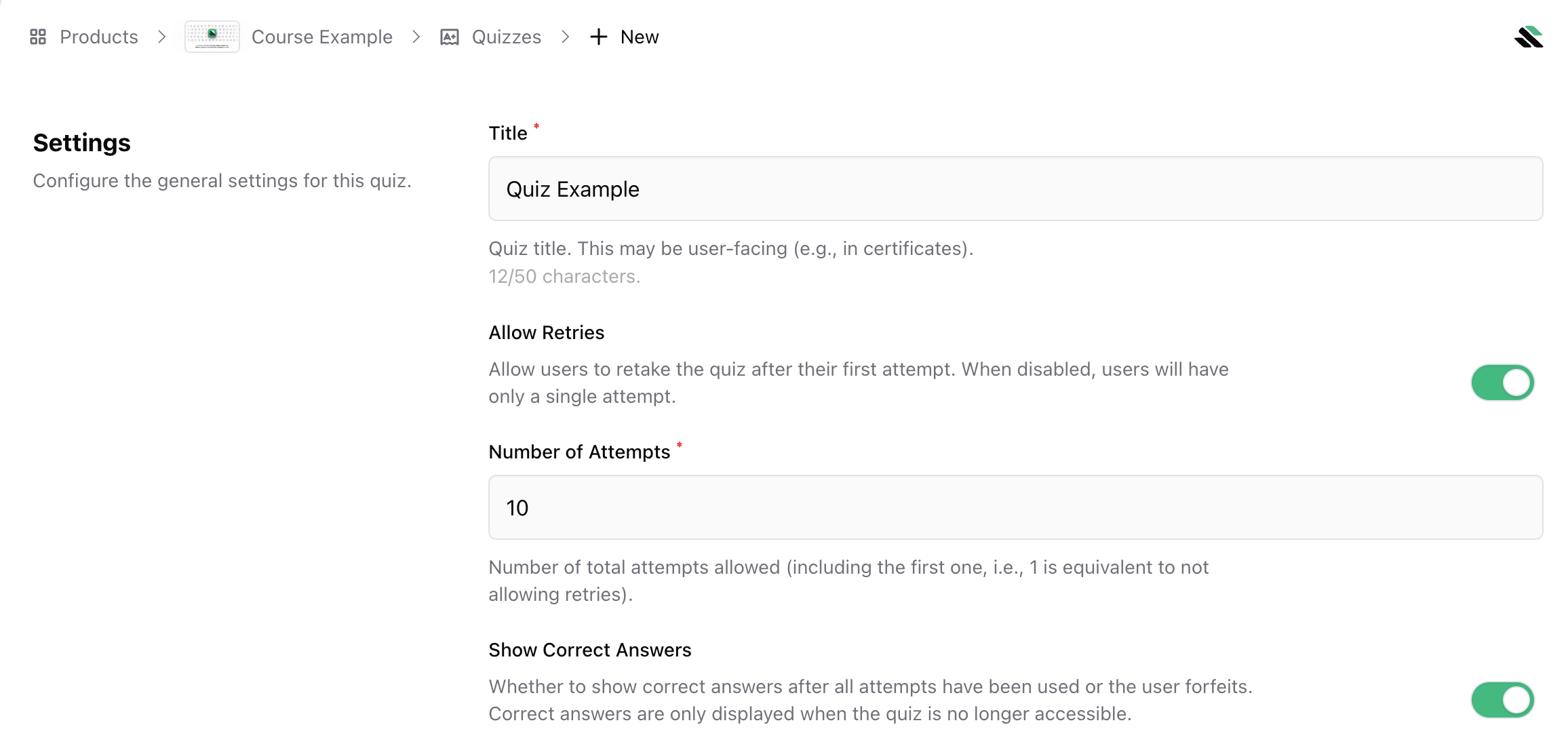
Name the quiz (up to 50 characters) and configure availability settings:
* **Retries**: keep disabled for a single attempt, or enable and set **1–100** retries.
* **Show correct answers**: keep enabled to show answers after the quiz is no longer accessible, or disable for blind grading.
Click **Add Quiz**.
Name the quiz (up to 50 characters) and configure availability settings:
* **Retries**: keep disabled for a single attempt, or enable and set **1–100** retries.
* **Show correct answers**: keep enabled to show answers after the quiz is no longer accessible, or disable for blind grading.
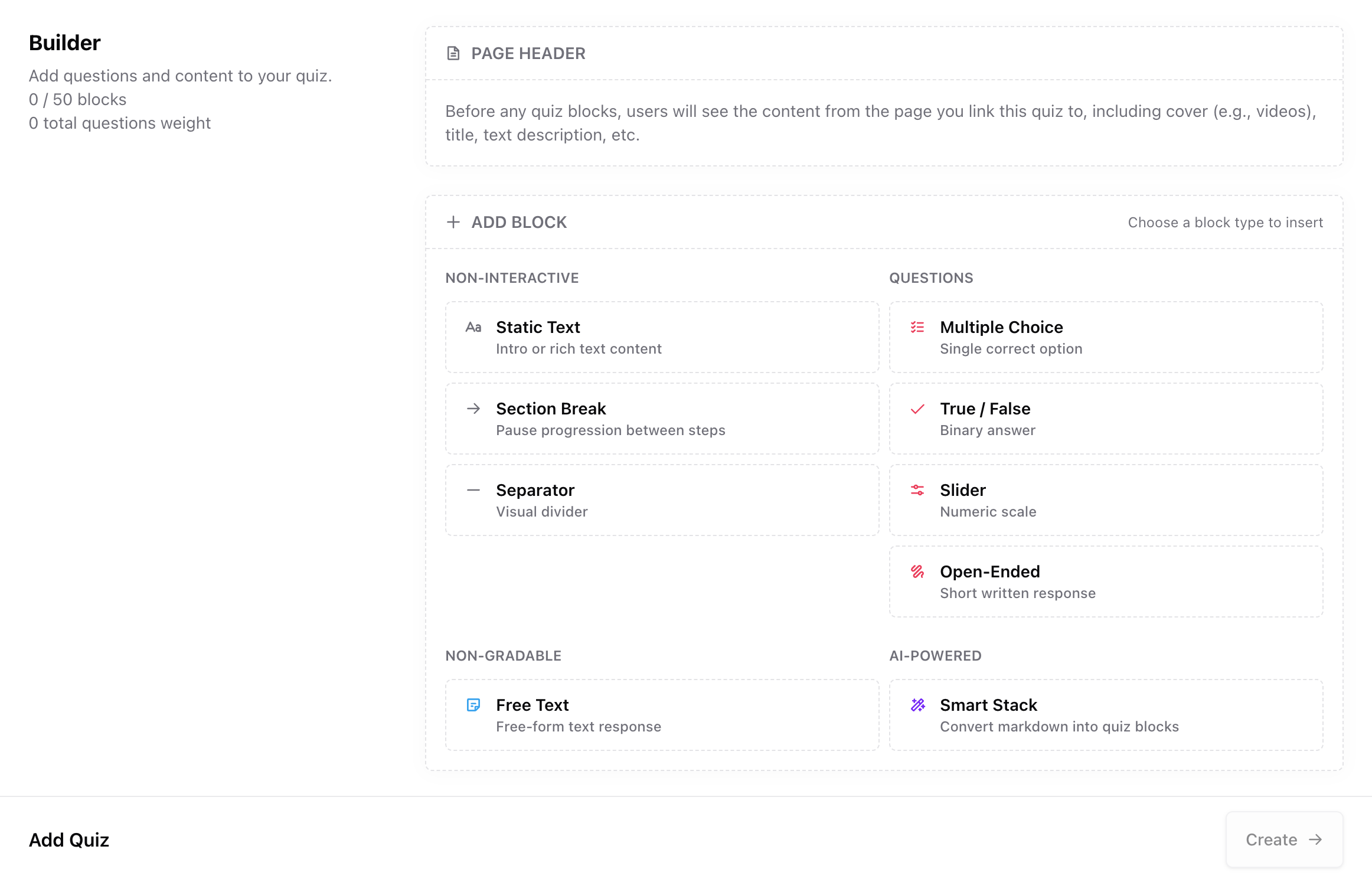
 Build your quiz using blocks (up to **50** total).
Click **Create** to publish the quiz to your account. Then **link the quiz to a lesson page** so students can see it.
***
## Build questions with blocks
Quizzes are built using blocks. Some are for structure, others are graded question types.
Build your quiz using blocks (up to **50** total).
Click **Create** to publish the quiz to your account. Then **link the quiz to a lesson page** so students can see it.
***
## Build questions with blocks
Quizzes are built using blocks. Some are for structure, others are graded question types.
 ### Non-interactive blocks
Use these for layout and guidance. They do not affect scoring.
* `Static text` for introductions, instructions, or context
* `Section break` to split questions into sections. Learners move forward using the button in the bottom-right, and can still navigate back. This is useful for grouping questions by topic.
* `Separator` for visual dividers between parts
### Auto-graded questions
These blocks contribute to the final score.
* `Multiple choice` (one correct option, default weight = 1)
### Non-interactive blocks
Use these for layout and guidance. They do not affect scoring.
* `Static text` for introductions, instructions, or context
* `Section break` to split questions into sections. Learners move forward using the button in the bottom-right, and can still navigate back. This is useful for grouping questions by topic.
* `Separator` for visual dividers between parts
### Auto-graded questions
These blocks contribute to the final score.
* `Multiple choice` (one correct option, default weight = 1)
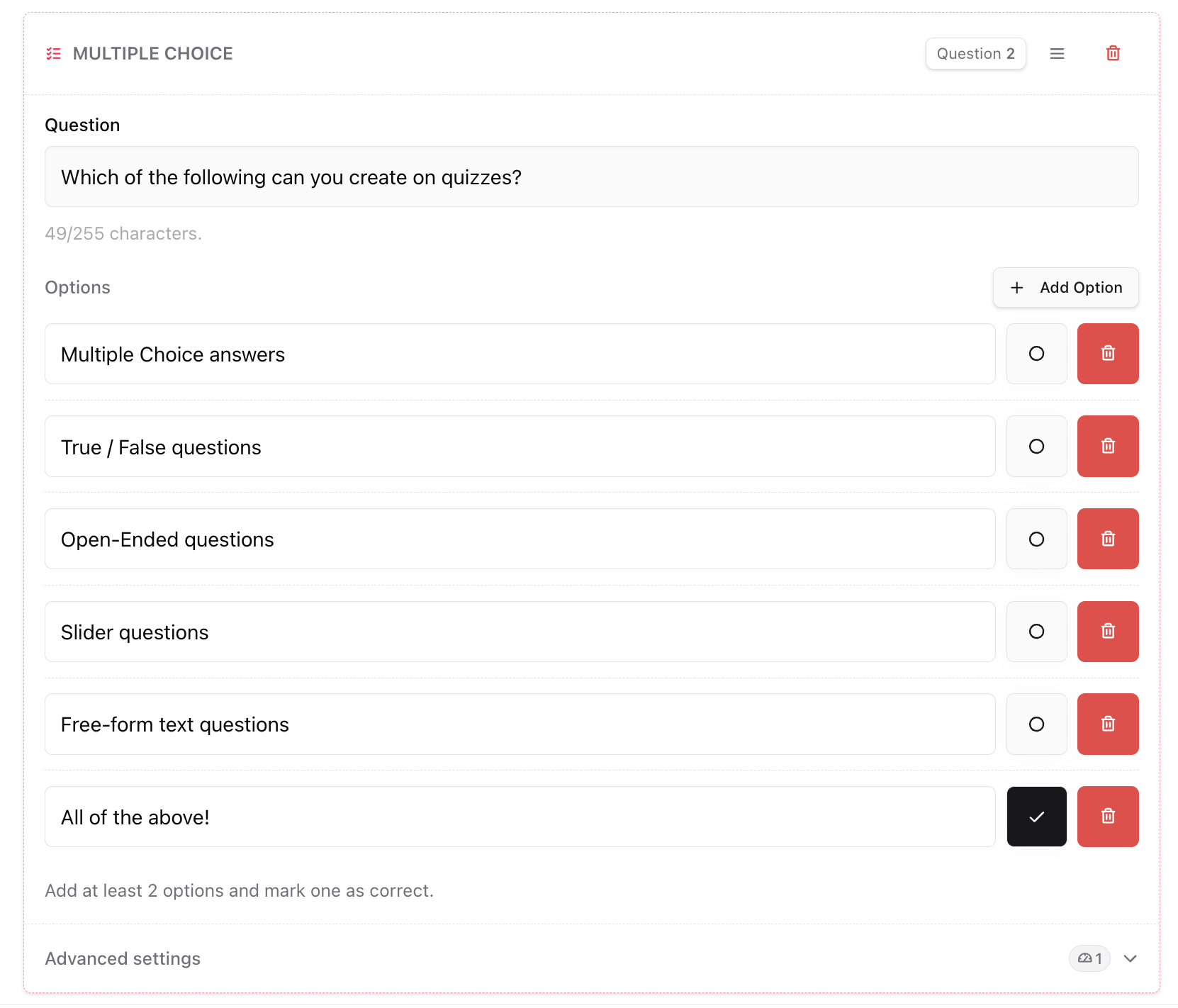 * `True/False` (choose the correct boolean)
 * `Slider` (set **min**, **correct value**, and **max**)
* `Open-ended` (provide accepted answers, matched case-insensitively)
You can adjust importance using **Weight**. Final scores are normalized to **100**.
### Feedback-only (not graded)
* `Free text` collects written responses and does not affect the score.
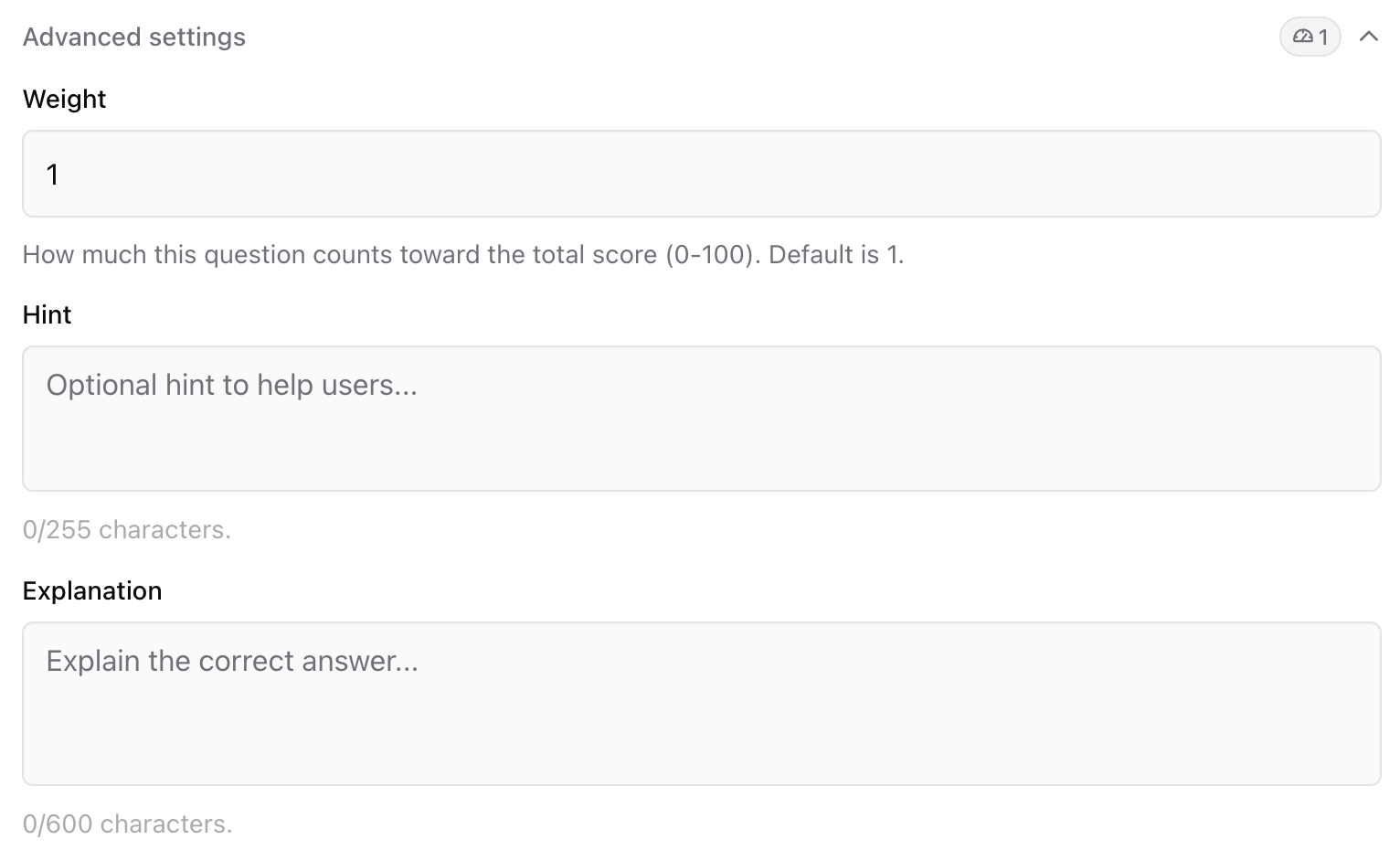
### Advanced settings (weight, hints, explanations)
Use advanced settings to control how questions score and what learners see after submitting.
* **Weight** changes how much a question counts relative to others.
* **Hint** and **Explanation** can be added per question. Explanations are shown only when **Show correct answers** is enabled for the quiz. They will appear to customers only once they get a 100%, complete the final attempt, or forfeit the quiz.
* `Slider` (set **min**, **correct value**, and **max**)
* `Open-ended` (provide accepted answers, matched case-insensitively)
You can adjust importance using **Weight**. Final scores are normalized to **100**.
### Feedback-only (not graded)
* `Free text` collects written responses and does not affect the score.
### Advanced settings (weight, hints, explanations)
Use advanced settings to control how questions score and what learners see after submitting.
* **Weight** changes how much a question counts relative to others.
* **Hint** and **Explanation** can be added per question. Explanations are shown only when **Show correct answers** is enabled for the quiz. They will appear to customers only once they get a 100%, complete the final attempt, or forfeit the quiz.
 ***
## Smart Stack
Smart Stack converts pasted Markdown into quiz blocks automatically, which is useful for fast drafting and AI-assisted quiz creation.
A fast workflow is to give your written quiz and the prompt below to an AI assistant, then paste the AI output into Smart Stack (you can copy this prompt straight from the dashboard too!).
Use markdown to generate quiz blocks. Trim separators/section breaks from the very start and end.
* '---' creates a Separator.
Example: `---`
* '-->' creates a Section Break.
Example: `-->`
* Paragraphs/markdown become Static Text.
Example:
```
Welcome to the quiz!
**Good luck.**
```
* Single checklist item ( - \[ ] ) becomes True/False; checked = true.
Example:
`- [x] This is a true statement`
`- [ ] This is a false statement`
* List item with nested checklist becomes Multiple Choice; checked option is correct.
Example:
```
- Question?
- [x] Correct
- [ ] Wrong
```
* List item with unordered nested list becomes Open-Ended accepted answers.
Example:
```
- Capital of France?
- Paris
- PARIS
```
* List item with ordered nested list of exactly 3 numbers sets a Slider: min, correct, max.
Example:
```
- Rate our service
1. 1
2. 5
3. 10
```
* List item without a sublist becomes a Free-Text question.
Example: `- Tell us about yourself`
Return markdown following these rules.
***
## Link the quiz to a lesson Page
A quiz is not visible to students until you place it on a lesson Page.
* In **Assessment**, open the quiz overflow menu and select **Link to Page**.
* Choose the Lesson where the quiz should appear. The picker will show all your lessons in order, so you can confirm placement.
* You can always unlink later. Unlinked quizzes remain saved but won’t render for customers.
***
## Quiz example
Want to give a try to a live quiz? [Check out our sample quiz here!](https://demo.sherpo.io/p/sherpo-course/quiz-example)
***
## Monitor responses and scoring
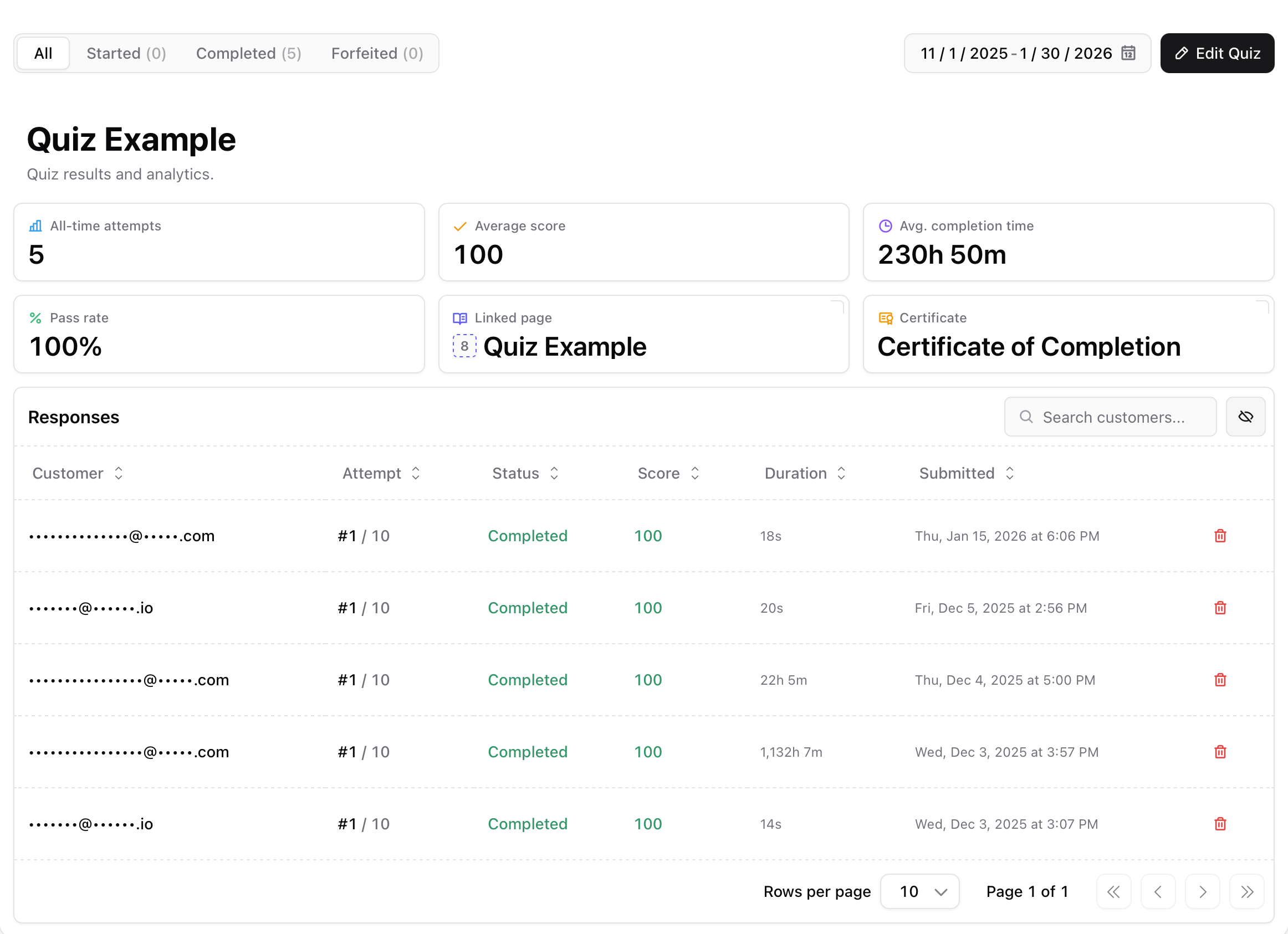
Open a quiz and go to **Responses** to review performance and attempt-level detail.
Top metrics include:
* **Committed attempts** (completed or forfeited)
* **Average score**
* **Average completion time**
* **Pass rate** (attempts scoring **60%+**)
The responses table includes:
* Status (in progress, completed, forfeited)
* Attempt number
* Score (normalized to 100)
* Duration
* Timestamp
You can also delete individual attempts from the table. Summary metrics update automatically.
***
## Smart Stack
Smart Stack converts pasted Markdown into quiz blocks automatically, which is useful for fast drafting and AI-assisted quiz creation.
A fast workflow is to give your written quiz and the prompt below to an AI assistant, then paste the AI output into Smart Stack (you can copy this prompt straight from the dashboard too!).
Use markdown to generate quiz blocks. Trim separators/section breaks from the very start and end.
* '---' creates a Separator.
Example: `---`
* '-->' creates a Section Break.
Example: `-->`
* Paragraphs/markdown become Static Text.
Example:
```
Welcome to the quiz!
**Good luck.**
```
* Single checklist item ( - \[ ] ) becomes True/False; checked = true.
Example:
`- [x] This is a true statement`
`- [ ] This is a false statement`
* List item with nested checklist becomes Multiple Choice; checked option is correct.
Example:
```
- Question?
- [x] Correct
- [ ] Wrong
```
* List item with unordered nested list becomes Open-Ended accepted answers.
Example:
```
- Capital of France?
- Paris
- PARIS
```
* List item with ordered nested list of exactly 3 numbers sets a Slider: min, correct, max.
Example:
```
- Rate our service
1. 1
2. 5
3. 10
```
* List item without a sublist becomes a Free-Text question.
Example: `- Tell us about yourself`
Return markdown following these rules.
***
## Link the quiz to a lesson Page
A quiz is not visible to students until you place it on a lesson Page.
* In **Assessment**, open the quiz overflow menu and select **Link to Page**.
* Choose the Lesson where the quiz should appear. The picker will show all your lessons in order, so you can confirm placement.
* You can always unlink later. Unlinked quizzes remain saved but won’t render for customers.
***
## Quiz example
Want to give a try to a live quiz? [Check out our sample quiz here!](https://demo.sherpo.io/p/sherpo-course/quiz-example)
***
## Monitor responses and scoring
Open a quiz and go to **Responses** to review performance and attempt-level detail.
Top metrics include:
* **Committed attempts** (completed or forfeited)
* **Average score**
* **Average completion time**
* **Pass rate** (attempts scoring **60%+**)
The responses table includes:
* Status (in progress, completed, forfeited)
* Attempt number
* Score (normalized to 100)
* Duration
* Timestamp
You can also delete individual attempts from the table. Summary metrics update automatically.
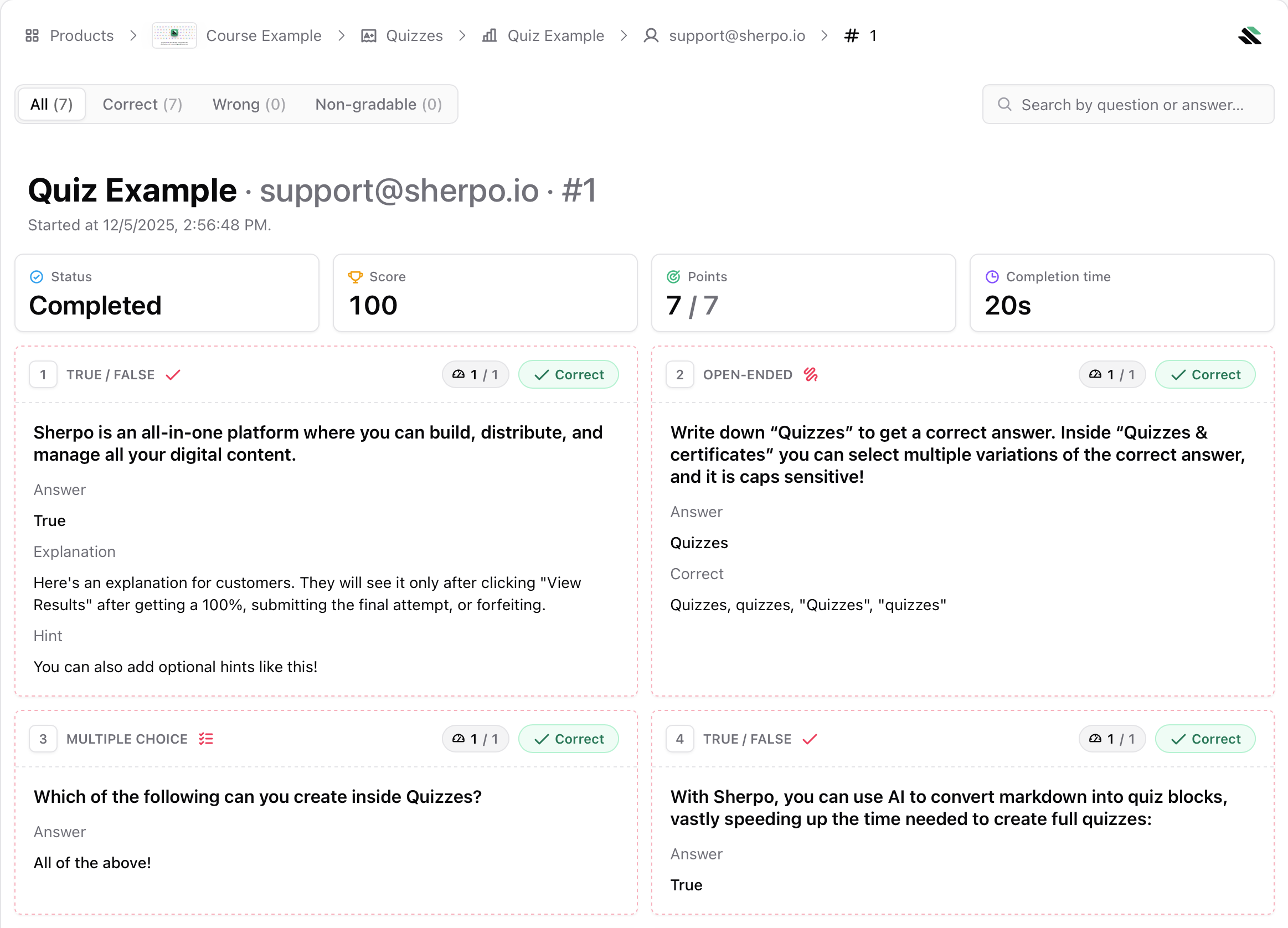
 And you can also review each student’s responses in depth, filtering by correct, wrong, or ungradable, with a search bar to find the question or answer you’re looking for.
 ***
If you're looking for a guide about how to create **Certificates**, you can find it here:
Create branded completion certificates for quizzes, control what appears on the PDF, and decide when students can generate them.
***
## FAQs
Correct answers contribute their assigned weight. Sherpo normalizes the final total to 100. Pass rate includes attempts scoring 60% or higher.
Yes. Enable **Allow retries** and set the maximum number of attempts. If retries are disabled, students only get one try.
You have two options: increase the allowed attempts (even temporarily) or delete the student’s attempt from the quiz responses table.
No. Free text is feedback-only and excluded from grading.
The quiz must be linked to a Page. Unlinked quizzes never render for customers.
Deleting a quiz removes it from any linked pages and deletes its configuration. Previously recorded attempts may no longer be accessible from the quiz.
***
If you're looking for a guide about how to create **Certificates**, you can find it here:
Create branded completion certificates for quizzes, control what appears on the PDF, and decide when students can generate them.
***
## FAQs
Correct answers contribute their assigned weight. Sherpo normalizes the final total to 100. Pass rate includes attempts scoring 60% or higher.
Yes. Enable **Allow retries** and set the maximum number of attempts. If retries are disabled, students only get one try.
You have two options: increase the allowed attempts (even temporarily) or delete the student’s attempt from the quiz responses table.
No. Free text is feedback-only and excluded from grading.
The quiz must be linked to a Page. Unlinked quizzes never render for customers.
Deleting a quiz removes it from any linked pages and deletes its configuration. Previously recorded attempts may no longer be accessible from the quiz.