> ## Documentation Index
> Fetch the complete documentation index at: https://docs.sherpo.io/llms.txt
> Use this file to discover all available pages before exploring further.
# Templates
> Start from a complete, pre-designed layout and customize it block by block.
Templates let you quickly set up your homepage using a proven structure. They are ideal if you want a strong starting point without building everything from scratch.
A template is simply a **Layout preset** built using standard blocks. Once applied, it behaves exactly like a layout you built yourself.
***
## Availability
Templates are part of **Layout**.
* **Pro** and **Ultra** users can apply templates and publish updates to their live site.
* **Start** users can build and preview a template-driven layout in the editor, but clicking **Update layout** will not update their live website. To publish layout changes, they will need to upgrade.
You can experiment freely on Start. Upgrading later will allow you to publish the layout you already built.
***
## What templates are
Templates are full-page layouts designed for common use cases, such as:
* Product-first e-commerce stores
* SaaS landing pages
* Brand showcases
* Content-heavy or educational platforms
Each template is composed of regular blocks like Hero, Products, Pricing, FAQ, and layout blocks. Nothing is locked or special after applying it: you can always customize a template afterwards, and they are very useful to get kickstarted!
Templates do not introduce new block types. They only pre-arrange existing ones.
***
## Opening the Template Library
You can access templates directly from the Layout editor.
* Open **Site → Layout**
* Click the **•••** menu in the top-right corner
* Select **Template Library**
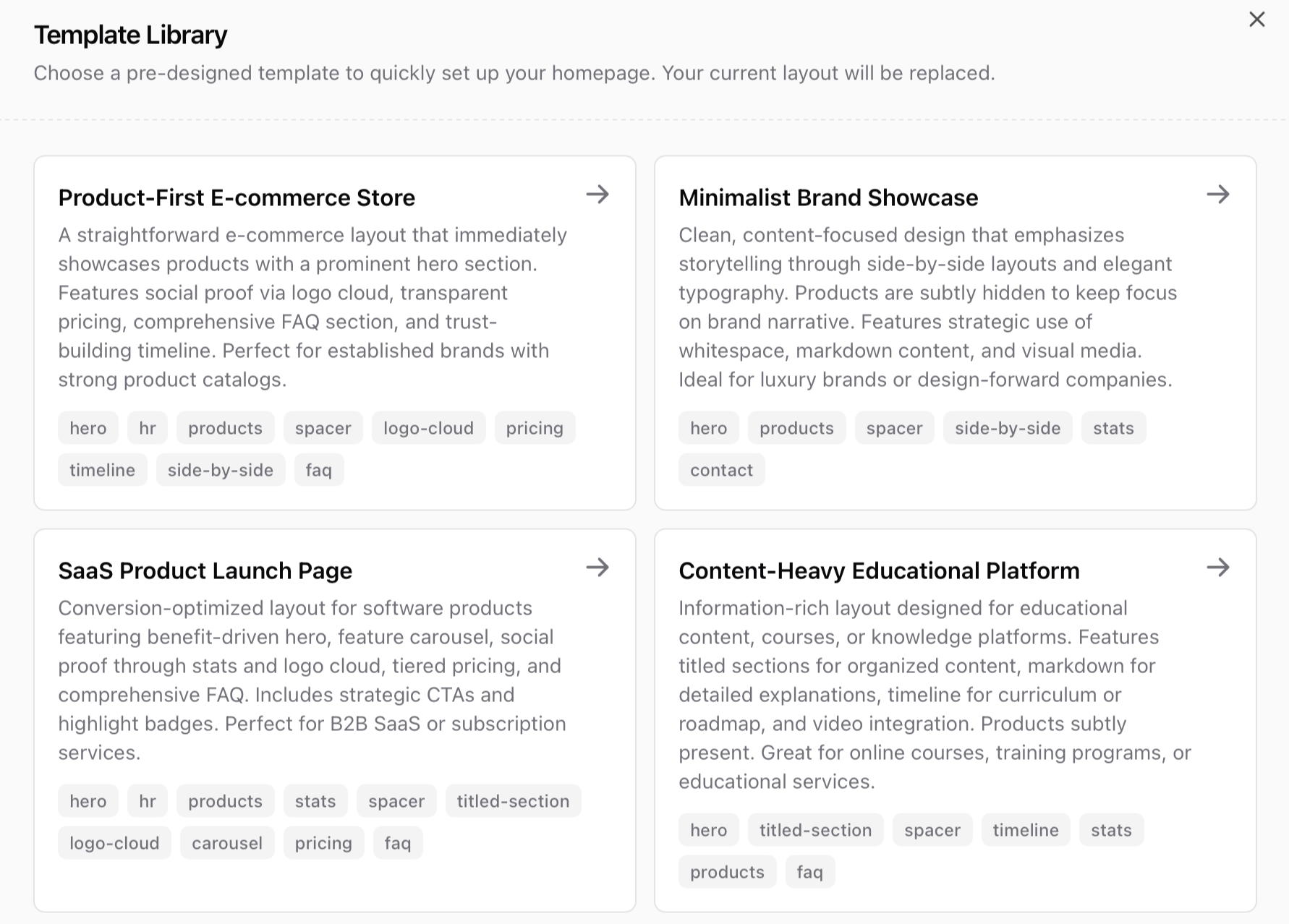 This opens a modal with all available templates.
***
## Browsing templates
Each template card shows:
* The template name
* A short description of its purpose
* The main blocks used in the layout
Templates are designed to be opinionated but **flexible**. They showcase common layout patterns you can adapt to your needs.
***
## Applying a template
When you select a template, your current layout is replaced.
This means:
* Existing blocks are removed
* The new template structure is applied
* You can immediately edit, move, or delete any block
Applying a template replaces your current layout. If you want to keep your existing structure, export it first. If you click a template by mistake, just press revert.
After applying a template, you remain in the Layout editor and can start customizing right away.
***
## Customizing a template
Once a template is applied, it behaves like any other layout.
You can:
* Reorder blocks
* Edit content inside blocks
* Remove sections you do not need
* Add new blocks anywhere
* Hide blocks temporarily while iterating
Templates are not meant to be perfect out of the box. Most users remove or rearrange blocks to match their brand.
***
## Exporting and importing layouts
You can save your own layouts and reuse them across spaces. From the Layout editor:
* Click the **•••** menu
* Select **Export** to download your layout
* Use **Import** to restore or reuse it later
This is useful if you:
* Experiment with different designs
* Reuse layouts across spaces
* Share layouts within a team
Note: Layouts are in a .sherpo format which only Sherpo can read!
***
## FAQ
Start users can build and preview layouts in the editor, but clicking Update layout will not update their live site. To publish layout changes, upgrade to Pro or Ultra.
Yes, you can revert, as long as you haven't pressed update. If you want to restore a previous layout, export it before applying a template and re-import it later.
Yes. Every block in a template (aside from header and footer) can be edited, moved, or hidden. Blocks such as hero and products cannot be deleted.
Templates only affect layout structure. Your products, files, and content remain unchanged.
You can export any layout and reuse it later by importing it into another space.
This opens a modal with all available templates.
***
## Browsing templates
Each template card shows:
* The template name
* A short description of its purpose
* The main blocks used in the layout
Templates are designed to be opinionated but **flexible**. They showcase common layout patterns you can adapt to your needs.
***
## Applying a template
When you select a template, your current layout is replaced.
This means:
* Existing blocks are removed
* The new template structure is applied
* You can immediately edit, move, or delete any block
Applying a template replaces your current layout. If you want to keep your existing structure, export it first. If you click a template by mistake, just press revert.
After applying a template, you remain in the Layout editor and can start customizing right away.
***
## Customizing a template
Once a template is applied, it behaves like any other layout.
You can:
* Reorder blocks
* Edit content inside blocks
* Remove sections you do not need
* Add new blocks anywhere
* Hide blocks temporarily while iterating
Templates are not meant to be perfect out of the box. Most users remove or rearrange blocks to match their brand.
***
## Exporting and importing layouts
You can save your own layouts and reuse them across spaces. From the Layout editor:
* Click the **•••** menu
* Select **Export** to download your layout
* Use **Import** to restore or reuse it later
This is useful if you:
* Experiment with different designs
* Reuse layouts across spaces
* Share layouts within a team
Note: Layouts are in a .sherpo format which only Sherpo can read!
***
## FAQ
Start users can build and preview layouts in the editor, but clicking Update layout will not update their live site. To publish layout changes, upgrade to Pro or Ultra.
Yes, you can revert, as long as you haven't pressed update. If you want to restore a previous layout, export it before applying a template and re-import it later.
Yes. Every block in a template (aside from header and footer) can be edited, moved, or hidden. Blocks such as hero and products cannot be deleted.
Templates only affect layout structure. Your products, files, and content remain unchanged.
You can export any layout and reuse it later by importing it into another space.