> ## Documentation Index
> Fetch the complete documentation index at: https://docs.sherpo.io/llms.txt
> Use this file to discover all available pages before exploring further.
# Calendar
> Embed your Cal.com availability on a Sherpo-hosted page so clients can book meetings in minutes.
**Calendar** products let you host beautiful booking pages directly on your Sherpo site, synced with your **Cal.com** account. Clients can browse your real-time availability, pick a timeslot, and confirm a meeting without ever leaving your Sherpo page.
Sherpo integrates natively with **Cal.com**, supporting Google Calendar, Outlook, iCloud, Exchange, and more, so your bookings always stay synced and you avoid double scheduling.
If you're looking for a guide about how to **create** Calendar products and connect your Cal.com account, you can find it here:
Create a landing page for your Cal.com listings.
***
## Where Calendar appears
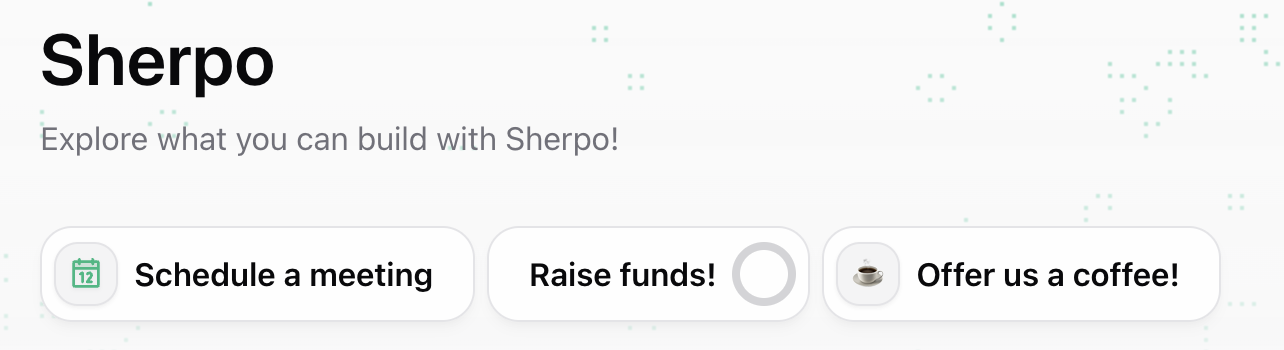
When you publish a Calendar product, it automatically appears on your **homepage** alongside other interactive "Line" products, typically **Coffee** and **Goals**, but it can always be moved to the Product Grid from the product's [Settings](https://docs.sherpo.io/dashboard/overview).
 ***
## How visitors book a meeting
The booking flow is fully embedded on your Sherpo page and powered by Cal.com behind the scenes. Visitors can explore your events, pick one, and confirm a time: all in a few clicks.
### 1. Select an event type
If you’ve created multiple Calendar products and events (like discovery calls or demos), they appear side by side. Visitors simply pick which one they want to book.
***
## How visitors book a meeting
The booking flow is fully embedded on your Sherpo page and powered by Cal.com behind the scenes. Visitors can explore your events, pick one, and confirm a time: all in a few clicks.
### 1. Select an event type
If you’ve created multiple Calendar products and events (like discovery calls or demos), they appear side by side. Visitors simply pick which one they want to book.
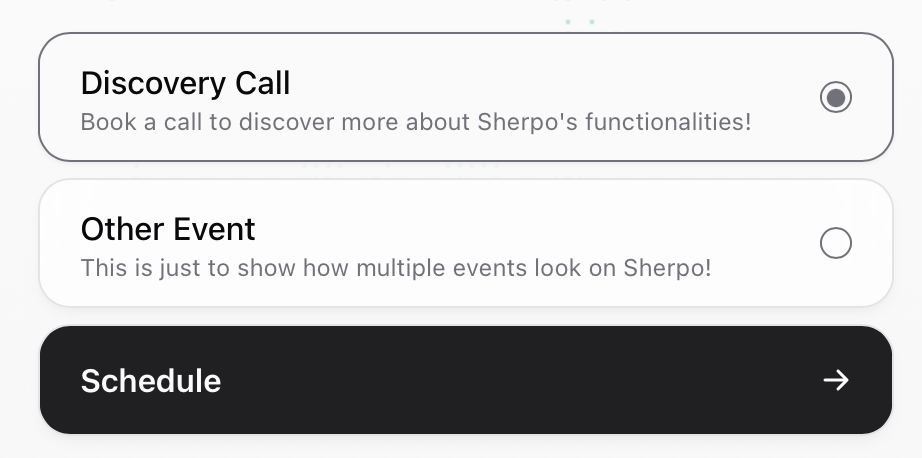 If you only have a single Calendar product, customers will just see "Schedule".
### 2. Choose a timeslot
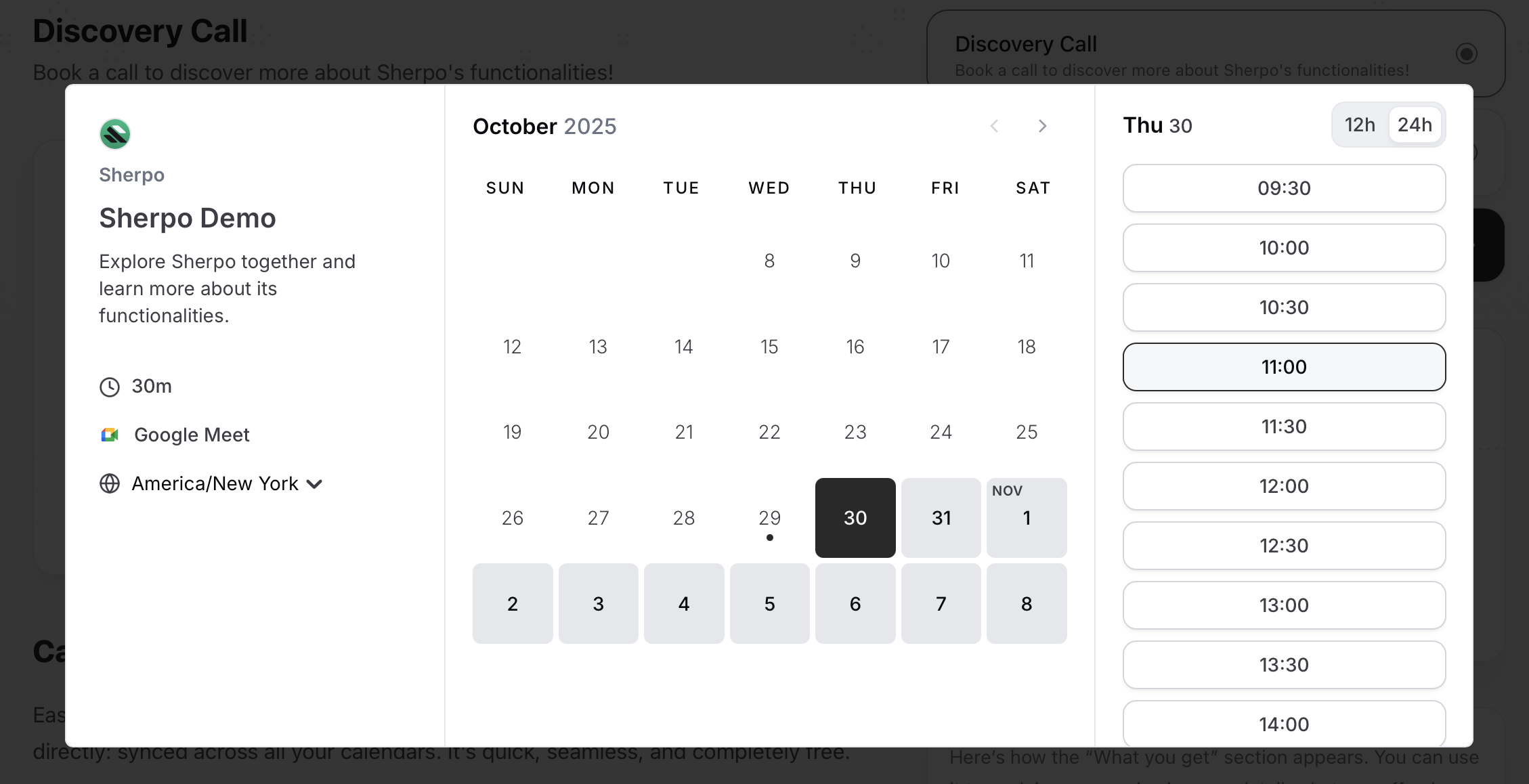
Once an event is selected, your live Cal.com availability appears directly within Sherpo, in your chosen timezone. Visitors can scroll through your calendar and choose a date and time that fits.
If you only have a single Calendar product, customers will just see "Schedule".
### 2. Choose a timeslot
Once an event is selected, your live Cal.com availability appears directly within Sherpo, in your chosen timezone. Visitors can scroll through your calendar and choose a date and time that fits.
 ### 3. Enter booking details
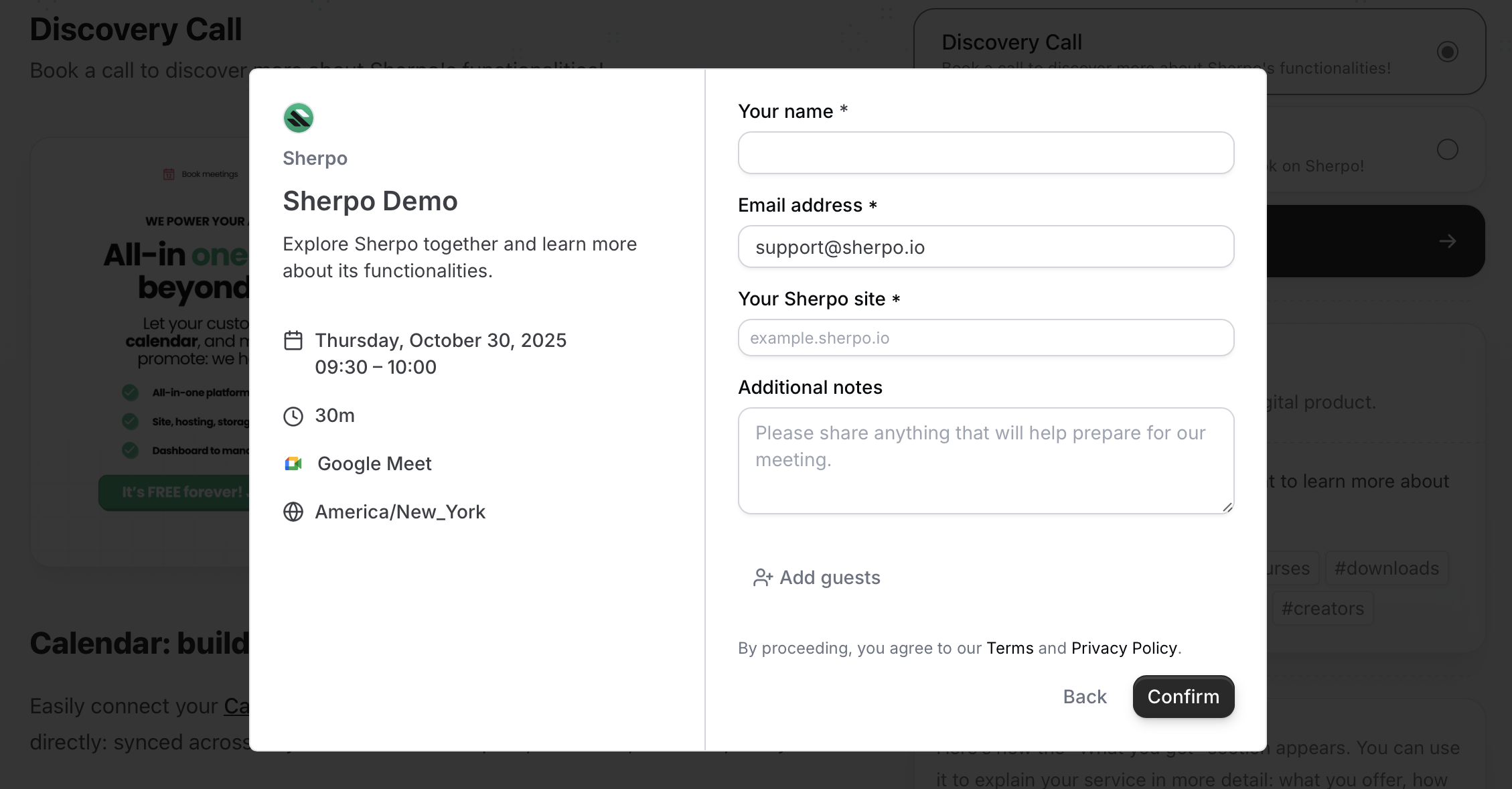
After choosing a slot, users enter their **name**, **email**, and any extra details or notes you request (you can deeply customize this from Cal.com!). If enabled, for example, they can also **add guests** to the event.
### 3. Enter booking details
After choosing a slot, users enter their **name**, **email**, and any extra details or notes you request (you can deeply customize this from Cal.com!). If enabled, for example, they can also **add guests** to the event.
 ### 4. Confirm the meeting
Once confirmed, Cal.com automatically sends meeting invites (e.g., Google Meet, Zoom), links, and reminders to both you and the customer. Sherpo handles the product page and design: Cal.com manages the scheduling.
***
## Host & presentation
Each Calendar page features a **host section**, showing your name, title, and short bio, helping clients understand who they’re booking with.
### 4. Confirm the meeting
Once confirmed, Cal.com automatically sends meeting invites (e.g., Google Meet, Zoom), links, and reminders to both you and the customer. Sherpo handles the product page and design: Cal.com manages the scheduling.
***
## Host & presentation
Each Calendar page features a **host section**, showing your name, title, and short bio, helping clients understand who they’re booking with.
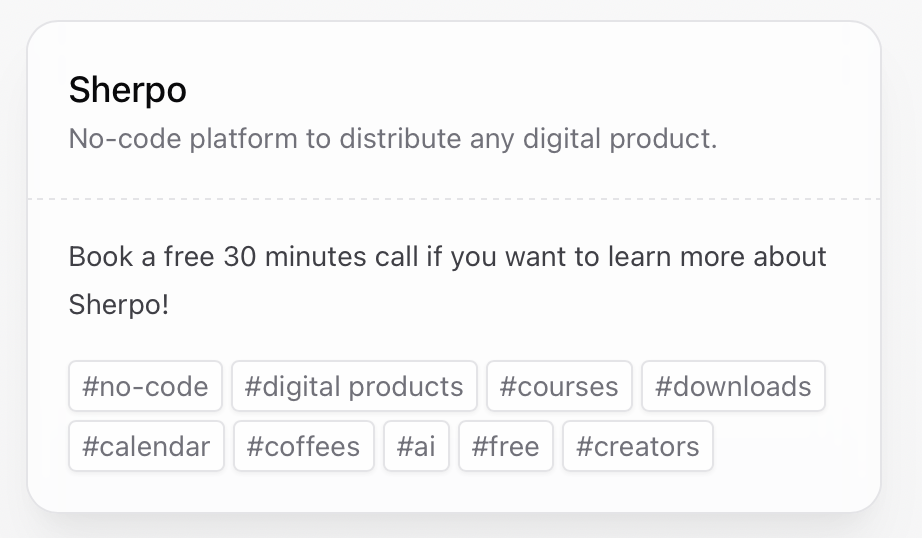 You can customize your **host name**, **description**, and **tags** directly from the **Event** section of your product dashboard.
***
## Calendar example
Here’s how a complete Calendar booking flow looks in action, from selection to confirmation.
You can customize your **host name**, **description**, and **tags** directly from the **Event** section of your product dashboard.
***
## Calendar example
Here’s how a complete Calendar booking flow looks in action, from selection to confirmation.
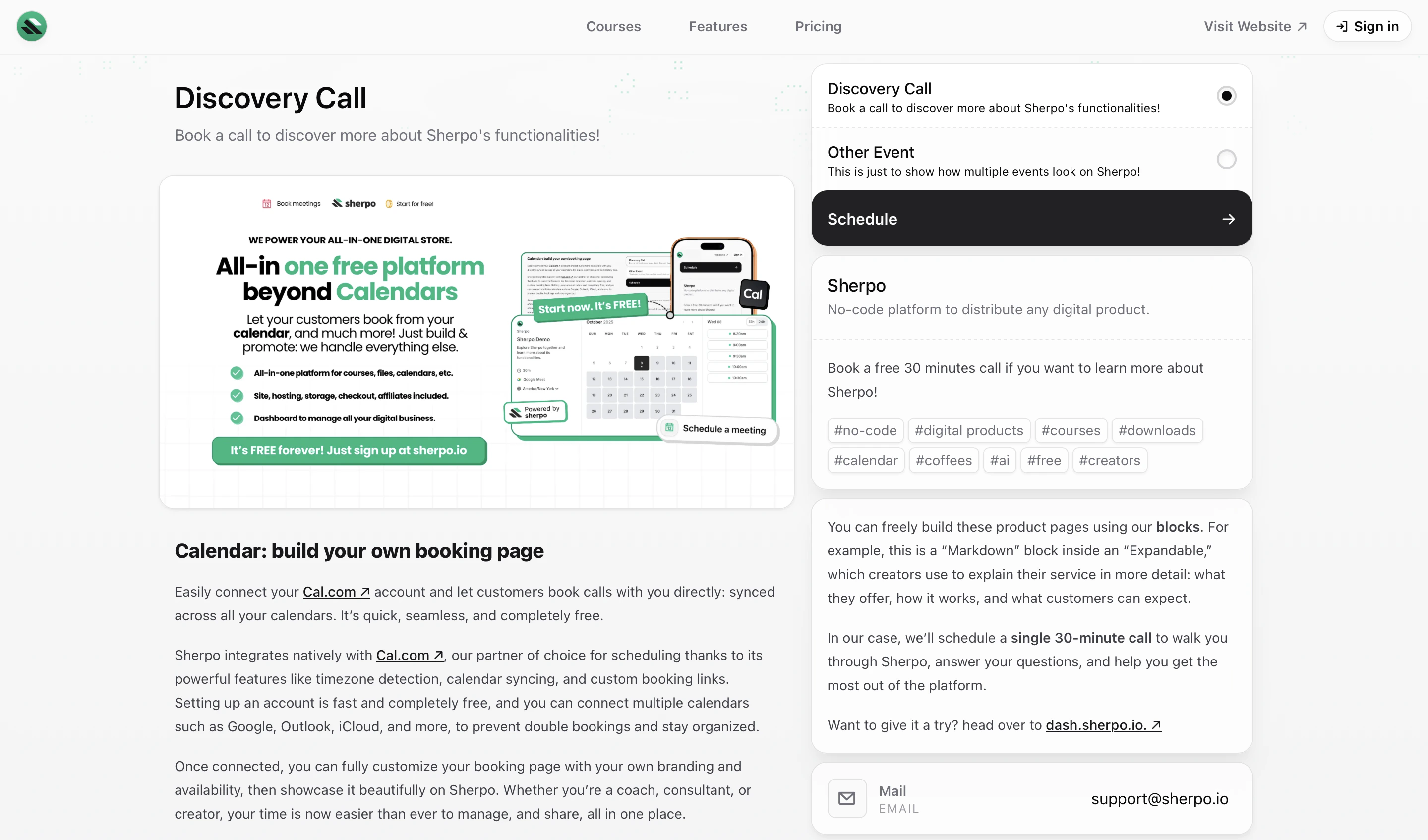 Try it yourself on the [Discovery Call demo page](https://demo.sherpo.io/p/discovery-call).
***
## FAQ
Yes. Sherpo integrates directly with Cal.com: you’ll connect your account during setup. It’s free and only takes a few minutes.
Yes. Cal.com supports multiple providers like Google, Outlook, iCloud, and Exchange, syncing all of them automatically.
Yes. You can display multiple event types (like calls, demos, or sessions) within the same Calendar product.
Once a visitor books, Cal.com sends the confirmation email, meeting invite, and any reminders automatically.
Yes. If you’ve enabled the ‘Add guests’ option, visitors can invite others by email when confirming their booking.
No. Bookings work seamlessly without login: visitors just provide their name and email.
Not yet. Calendar bookings are free for visitors. You can pair them with Coffee or Download products for paid offerings.
Yes. Through your Cal.com dashboard, you can edit event titles, descriptions, duration, and form fields: changes sync automatically with Sherpo.
Cal.com automatically detects the visitor’s timezone and displays availability accordingly.
Yes. Cal.com supports both: simply connect them inside your Cal.com settings, and they’ll appear automatically in confirmations.
Try it yourself on the [Discovery Call demo page](https://demo.sherpo.io/p/discovery-call).
***
## FAQ
Yes. Sherpo integrates directly with Cal.com: you’ll connect your account during setup. It’s free and only takes a few minutes.
Yes. Cal.com supports multiple providers like Google, Outlook, iCloud, and Exchange, syncing all of them automatically.
Yes. You can display multiple event types (like calls, demos, or sessions) within the same Calendar product.
Once a visitor books, Cal.com sends the confirmation email, meeting invite, and any reminders automatically.
Yes. If you’ve enabled the ‘Add guests’ option, visitors can invite others by email when confirming their booking.
No. Bookings work seamlessly without login: visitors just provide their name and email.
Not yet. Calendar bookings are free for visitors. You can pair them with Coffee or Download products for paid offerings.
Yes. Through your Cal.com dashboard, you can edit event titles, descriptions, duration, and form fields: changes sync automatically with Sherpo.
Cal.com automatically detects the visitor’s timezone and displays availability accordingly.
Yes. Cal.com supports both: simply connect them inside your Cal.com settings, and they’ll appear automatically in confirmations.