> ## Documentation Index
> Fetch the complete documentation index at: https://docs.sherpo.io/llms.txt
> Use this file to discover all available pages before exploring further.
# Courses
> Explore how Course products look and work for users: lessons, progress tracking, and checkout experience.
**Course** products bundle videos, slides, downloads, and written lessons into a guided experience. Each course lives on your site and can be free or paid. This page shows how Courses appear to your users and what happens after they unlock one.
If you're looking for a guide on how to **create** Course products, you can find it here:
Create comprehensive courses with chapters and lessons.
***
## Where Courses appear
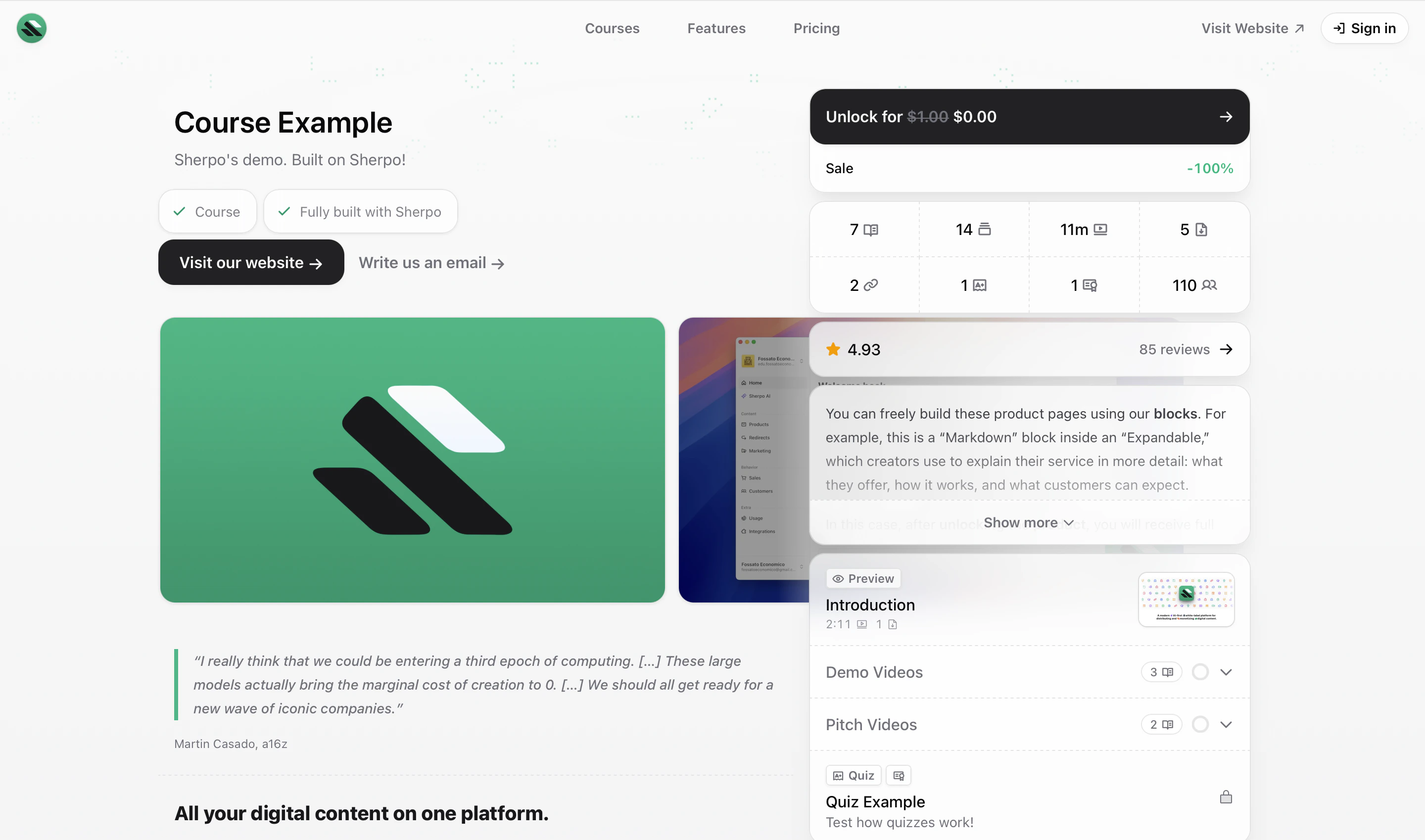
When you publish a Course product, it automatically appears on your **homepage** alongside other "Grid" products, like [Downloads](https://docs.sherpo.io/products/download), but it can always be moved to Line products from the product's [Settings](https://docs.sherpo.io/dashboard/overview).
Your visitors can browse the syllabus ("Pages"), preview free lessons, check the total duration (if you include it) and lesson count, and unlock the full course, all from the same landing page.
 ### What users see
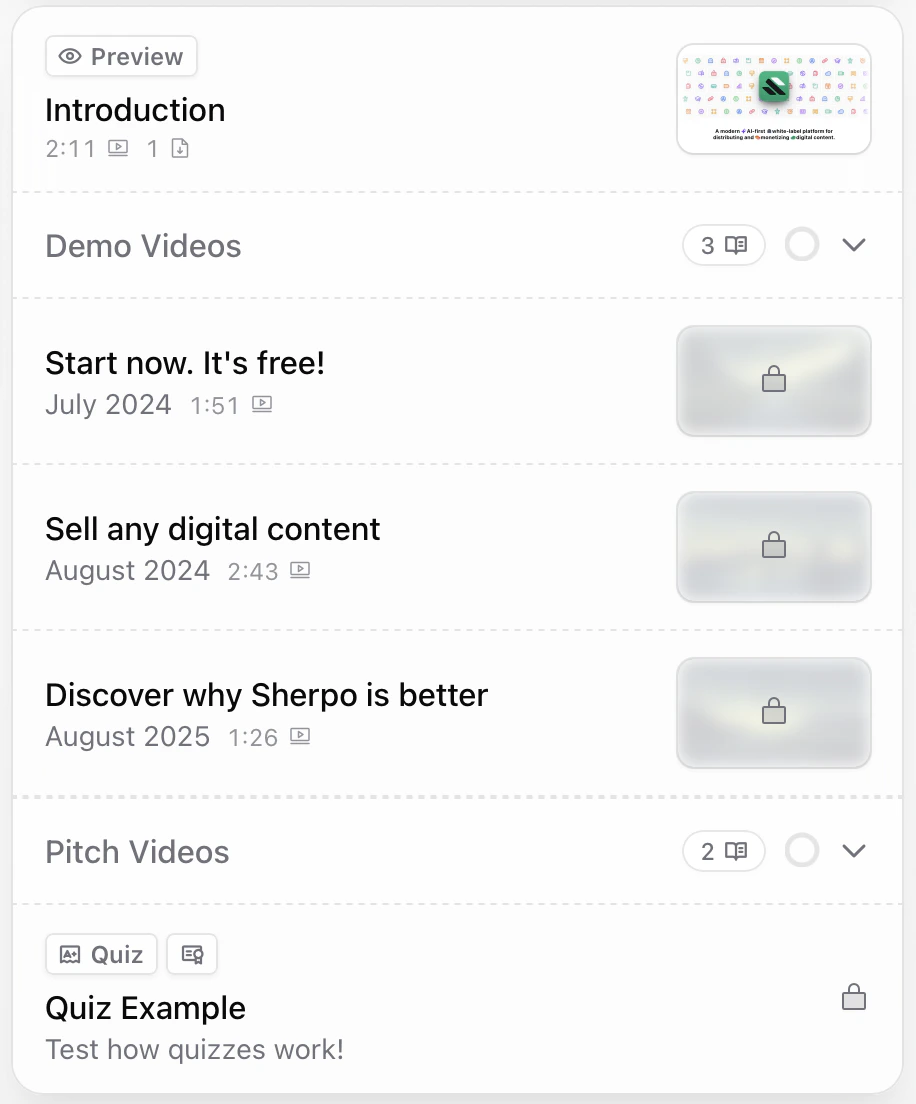
Each Course lesson you upload appears inside the "Pages" block, either as a right-side **syllabus** showing chapters and lessons when placed inside an "Aside Column":
### What users see
Each Course lesson you upload appears inside the "Pages" block, either as a right-side **syllabus** showing chapters and lessons when placed inside an "Aside Column":
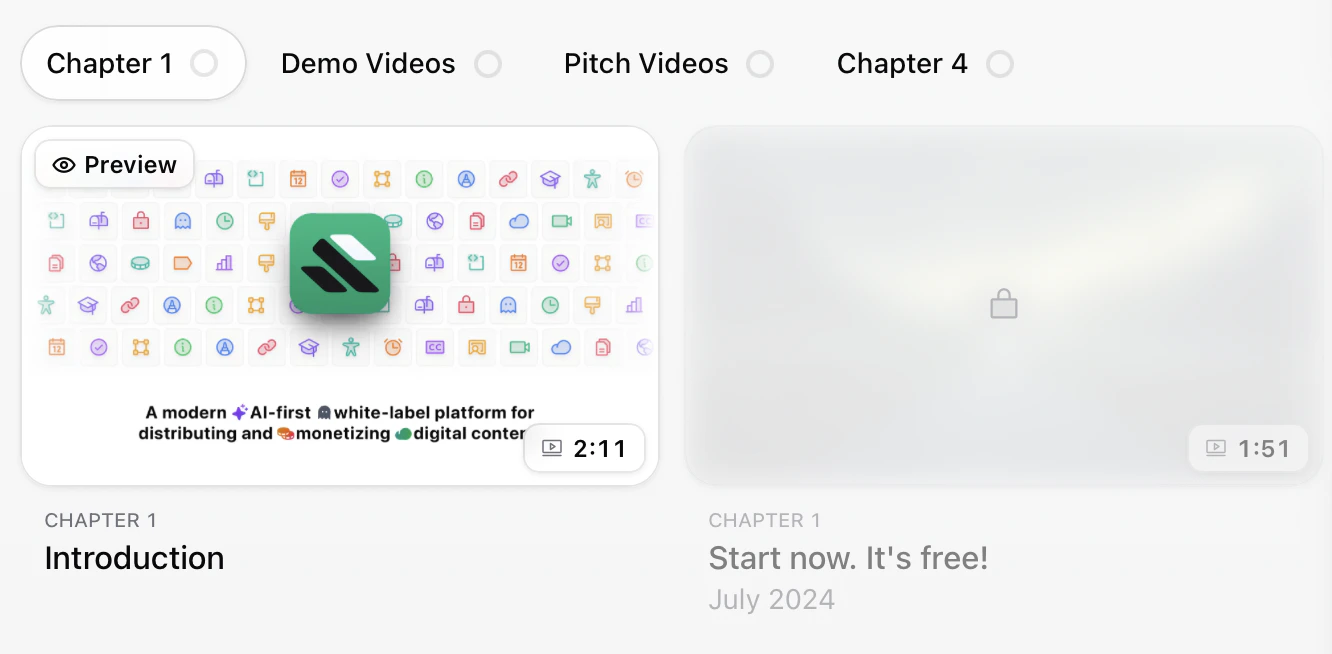
 Or as a horizontal scrollable block if the block is not inside the "Aside Column":
 Locked lessons display a small lock icon. Free lessons ("publicly available" ones) are clearly labeled as **Preview**. If the Course includes extra materials, such as files or links, users will find them under **You also get**.
Files & Links [work exactly the same as in Downloads products](/products/download) and appear under the "Content" block.
Locked lessons display a small lock icon. Free lessons ("publicly available" ones) are clearly labeled as **Preview**. If the Course includes extra materials, such as files or links, users will find them under **You also get**.
Files & Links [work exactly the same as in Downloads products](/products/download) and appear under the "Content" block.

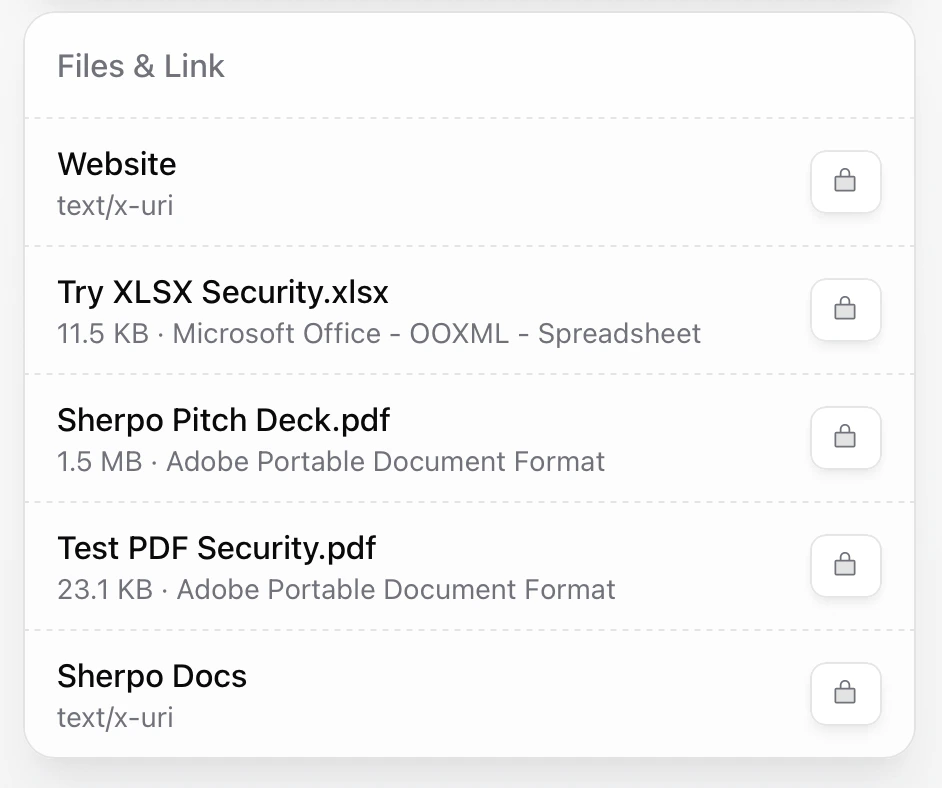 PDFs and XLSX files can also be secured. All files and links are locked for customers who haven't unlocked the product and unlock immediately after purchase.
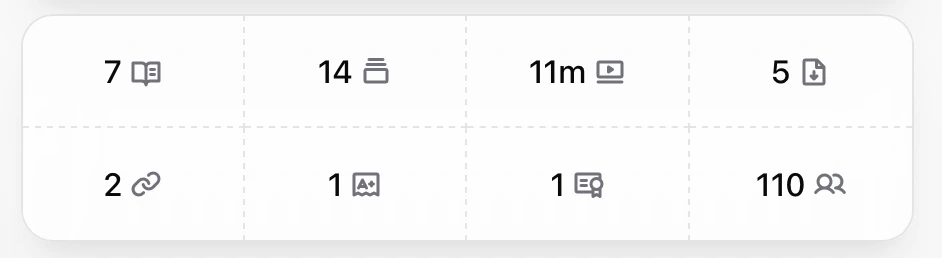
For courses, Sherpo automatically calculates **total video duration**, **number of lessons/pages**, the total number of **downloadable items**, number of links, number of quizzes, number of certificates, number of slides, and number of customers (which can be hidden), displaying these metrics to users inside the "Summary" block.
PDFs and XLSX files can also be secured. All files and links are locked for customers who haven't unlocked the product and unlock immediately after purchase.
For courses, Sherpo automatically calculates **total video duration**, **number of lessons/pages**, the total number of **downloadable items**, number of links, number of quizzes, number of certificates, number of slides, and number of customers (which can be hidden), displaying these metrics to users inside the "Summary" block.
 ***
## Lesson player
### Custom player
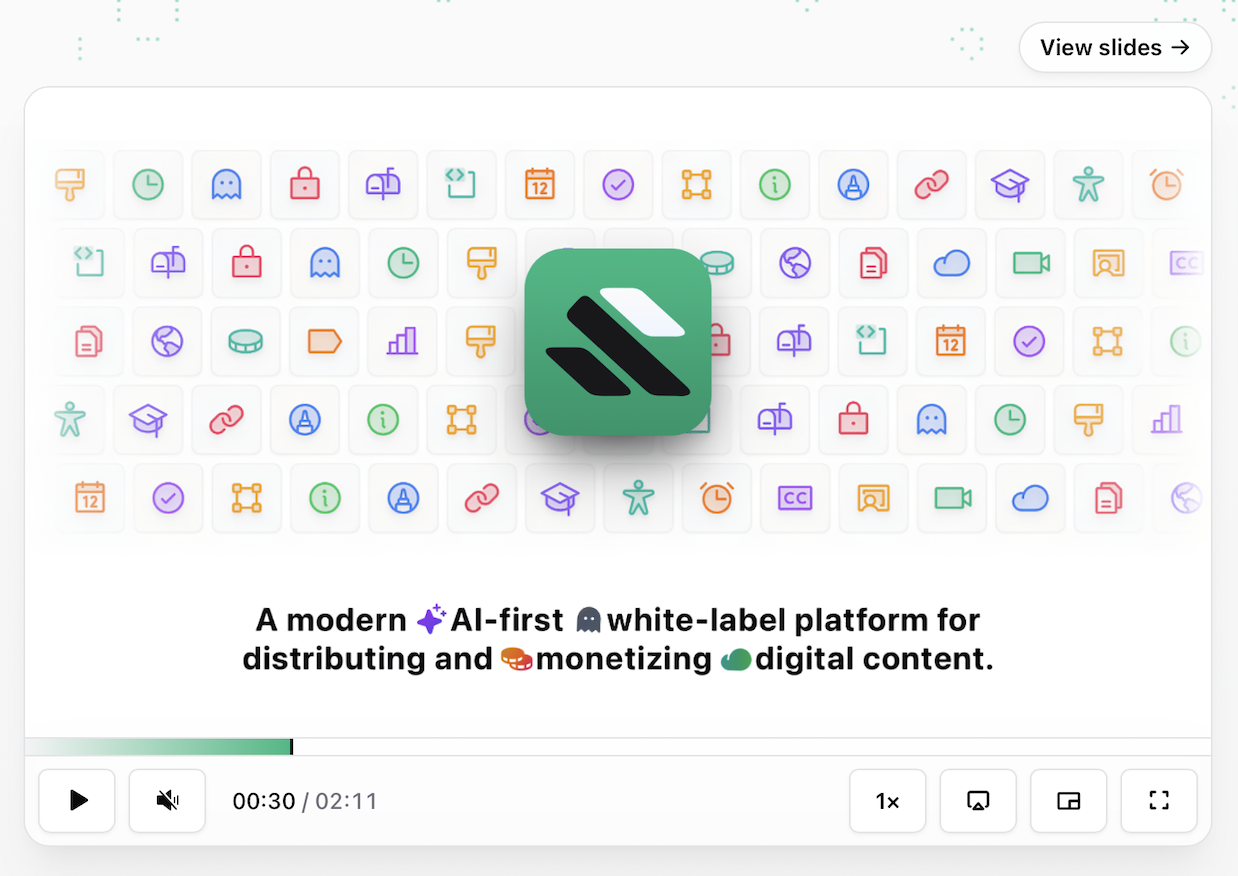
Inside each lesson, uploaded videos play directly through **Sherpo’s custom player**, hosted securely on Sherpo. The player adapts to your brand color and supports both light and dark mode.
***
## Lesson player
### Custom player
Inside each lesson, uploaded videos play directly through **Sherpo’s custom player**, hosted securely on Sherpo. The player adapts to your brand color and supports both light and dark mode.
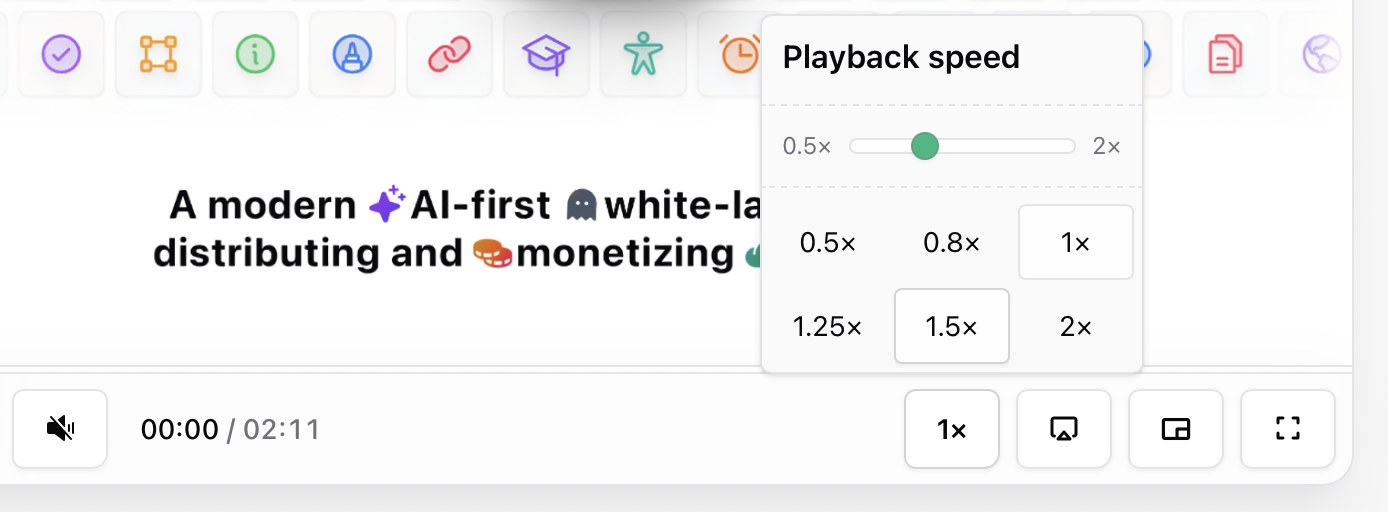
 Users can adjust playback speed from **0.5× to 2.0×** in 0.05× increments, pop the video out into a mini-player, or switch to full-screen mode. The setting persists between videos.
 ### Full-screen mode
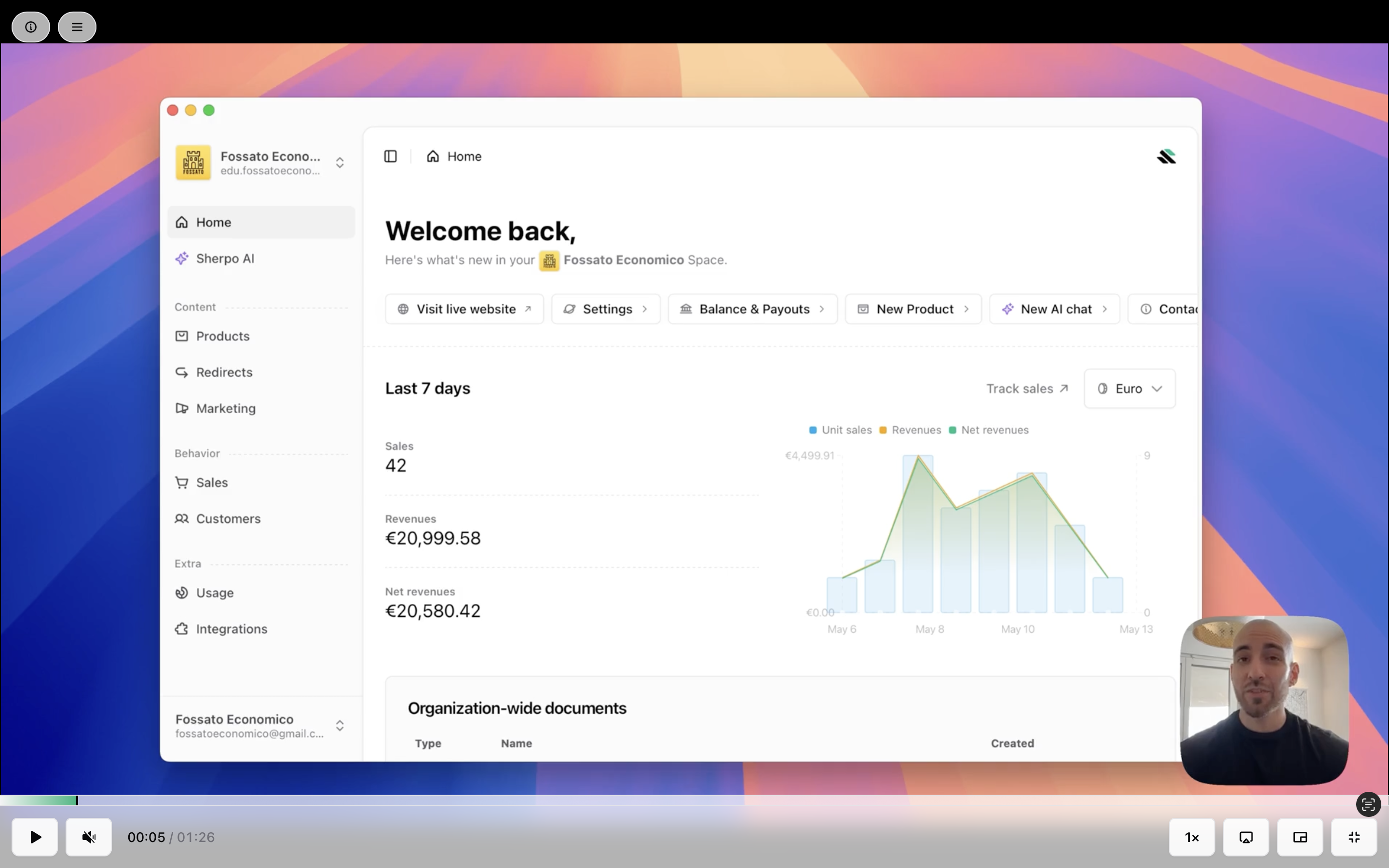
Full-screen mode provides a clean, focused viewing experience.
### Full-screen mode
Full-screen mode provides a clean, focused viewing experience.
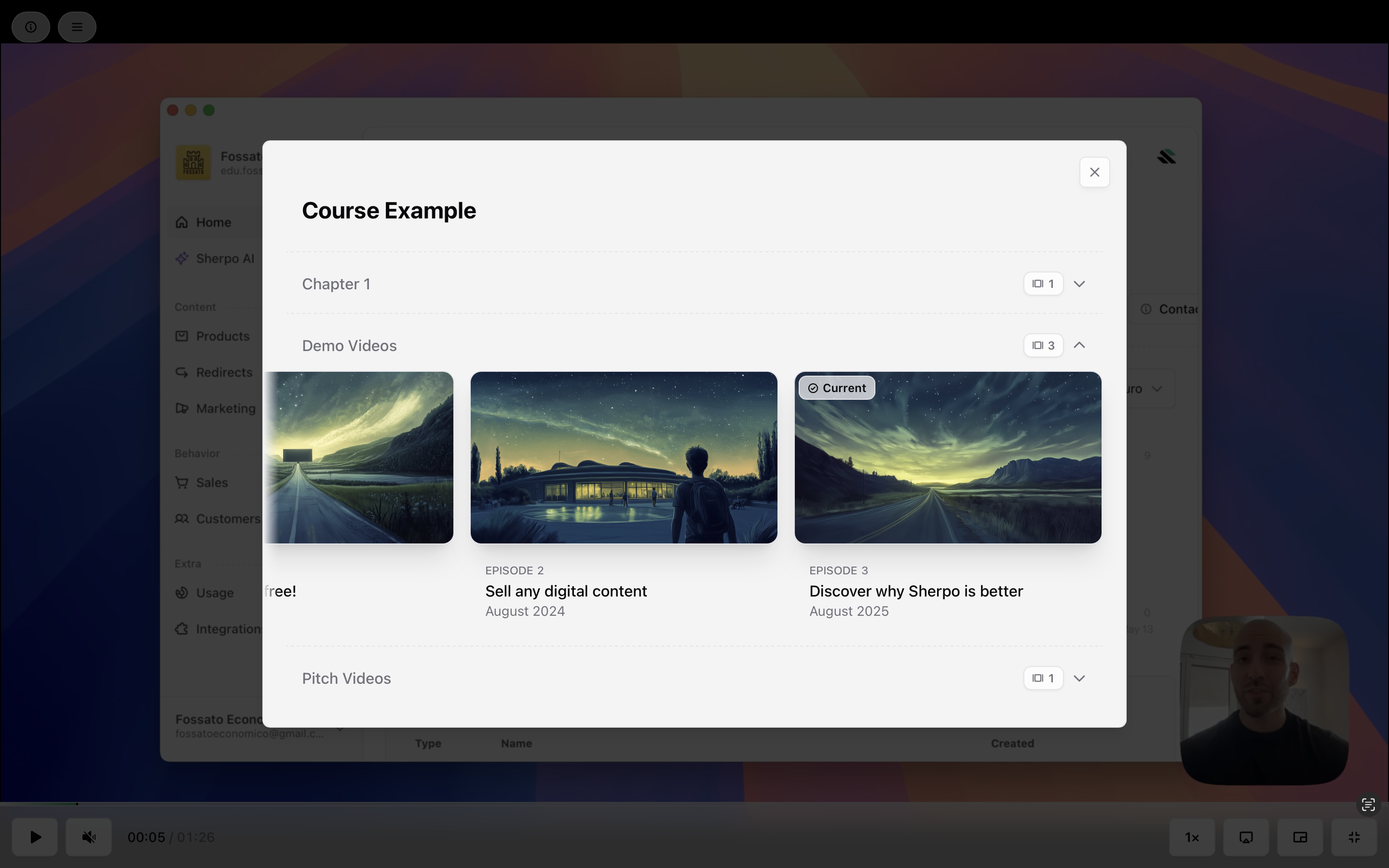
 Users can also open the **Chapters panel** from within the player. In this view, chapters scroll horizontally, unlike the standard right-side syllabus inside Pages, where lessons scroll vertically.
 ### Description
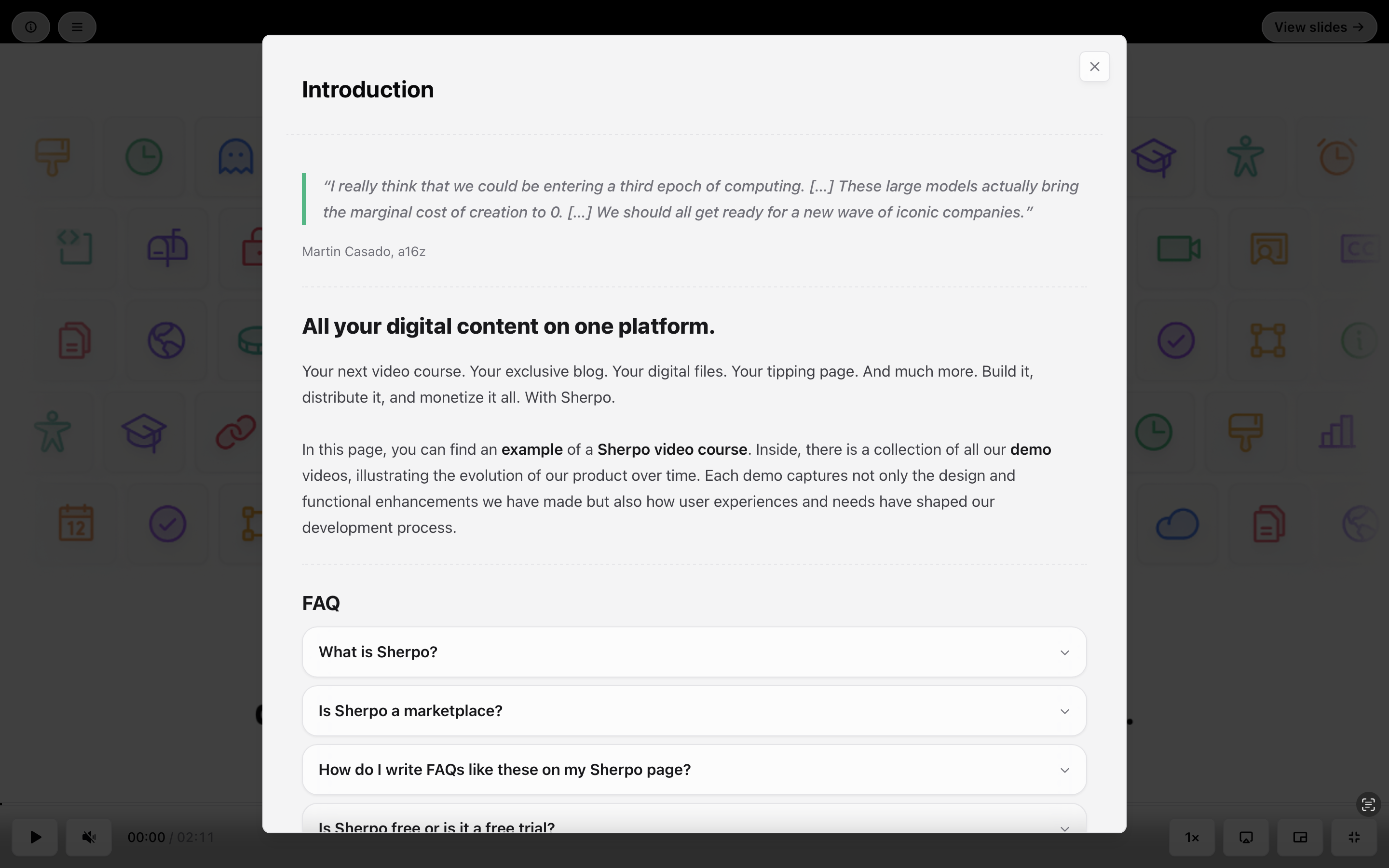
If a lesson includes a written **description**, transcript, or extra resources, they appear below the video or, in full-screen mode, in the top-left corner by clicking the "info" (ⓘ) icon:
### Description
If a lesson includes a written **description**, transcript, or extra resources, they appear below the video or, in full-screen mode, in the top-left corner by clicking the "info" (ⓘ) icon:
 ***
## Progress and completion
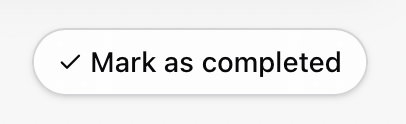
Depending on your Course Progession tracking settings, users can **mark lessons as completed**, or lessons will automatically be marked as completed after finishing videos or slides. Progress is saved automatically and synced across devices.
***
## Progress and completion
Depending on your Course Progession tracking settings, users can **mark lessons as completed**, or lessons will automatically be marked as completed after finishing videos or slides. Progress is saved automatically and synced across devices.
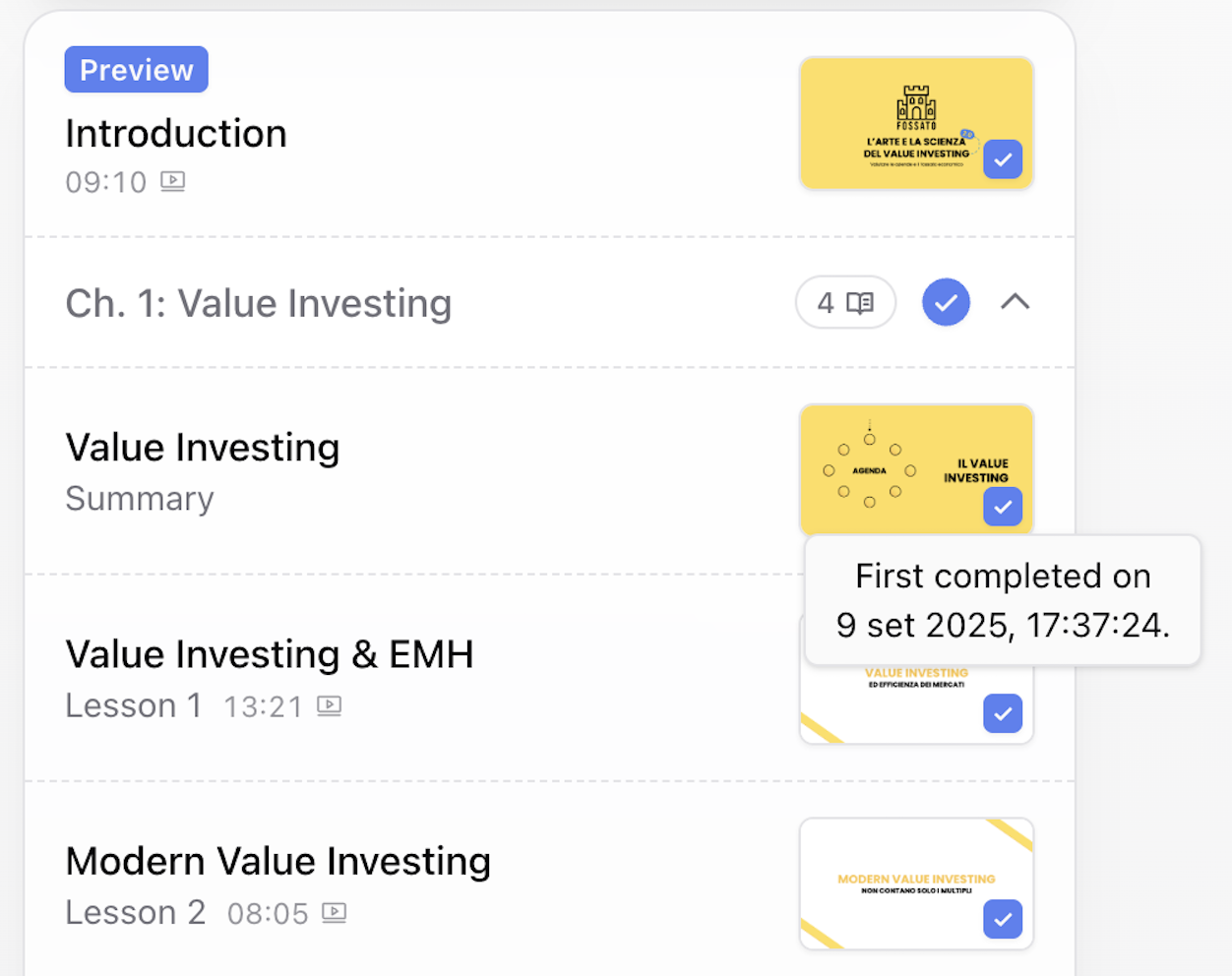
 Once completed, lessons show a badge.
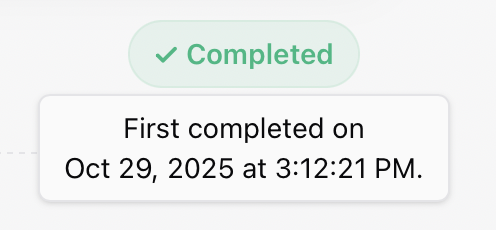 When hovered over, a timestamp also appears:
 ***
## Embedded slides
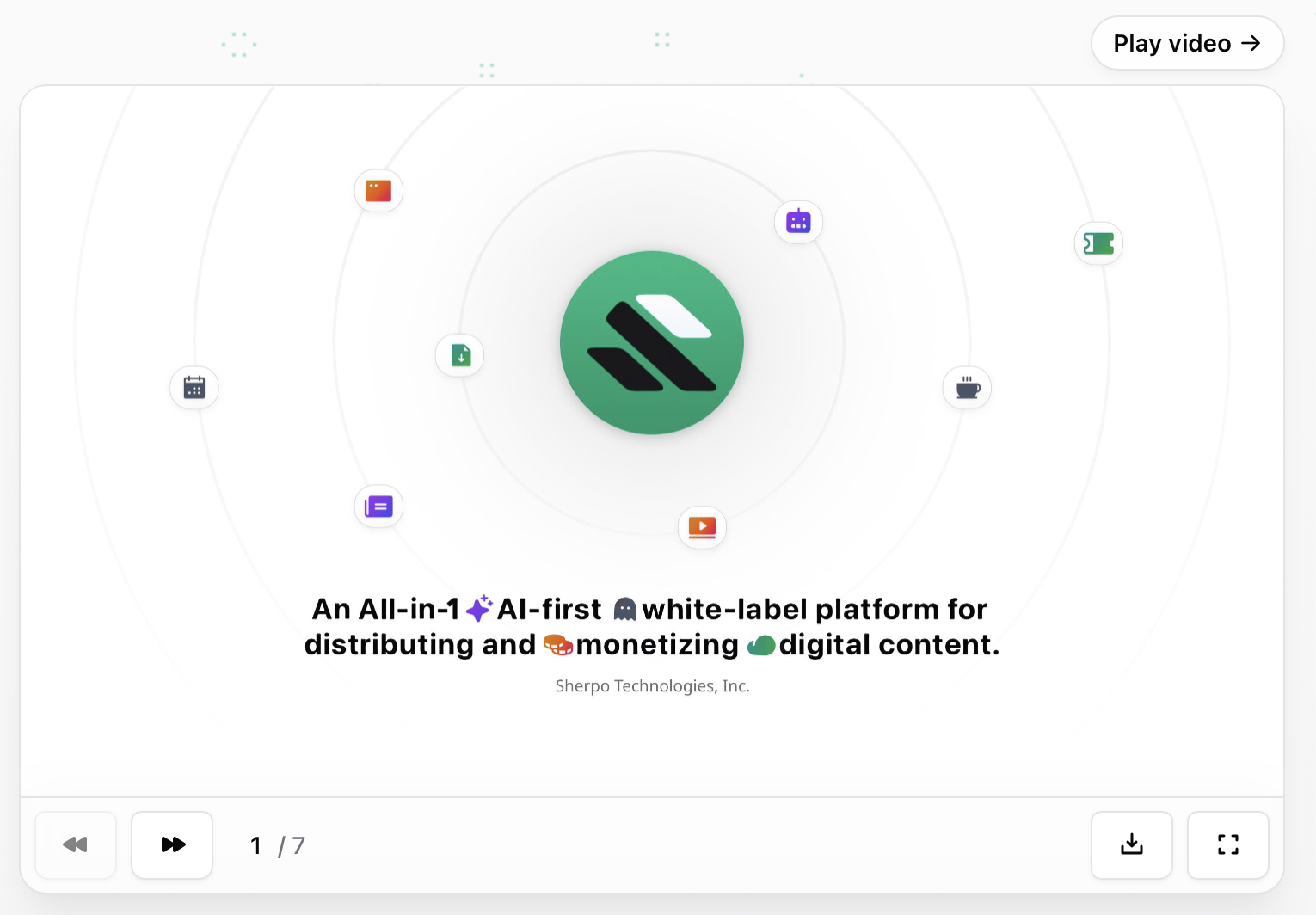
Lessons can include **interactive slides** directly in the player. Users can scroll through them, zoom in, and select slide numbers from any device. Full-screen mode is not available on mobile. Optionally, slides can also be made downloadable for users.
***
## Embedded slides
Lessons can include **interactive slides** directly in the player. Users can scroll through them, zoom in, and select slide numbers from any device. Full-screen mode is not available on mobile. Optionally, slides can also be made downloadable for users.
 ***
## Checkout
The Course checkout flow mirrors other Sherpo products: fast, secure, and Stripe-powered.
Discover how Checkout works on Sherpo.
***
## Quizzes (what customers see)
When a learner opens a lesson that contains a quiz, they can start the quiz from the page.
***
## Checkout
The Course checkout flow mirrors other Sherpo products: fast, secure, and Stripe-powered.
Discover how Checkout works on Sherpo.
***
## Quizzes (what customers see)
When a learner opens a lesson that contains a quiz, they can start the quiz from the page.
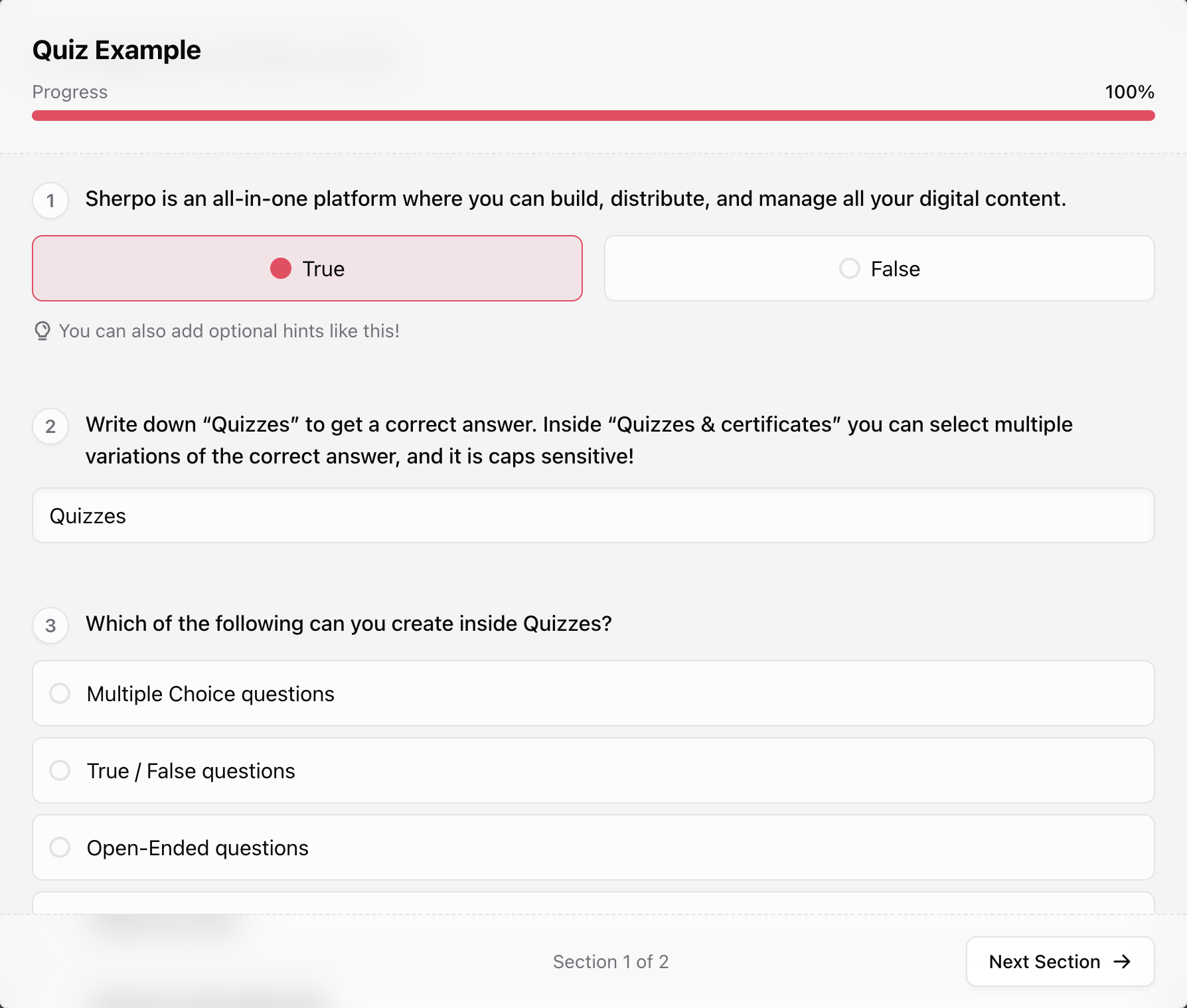
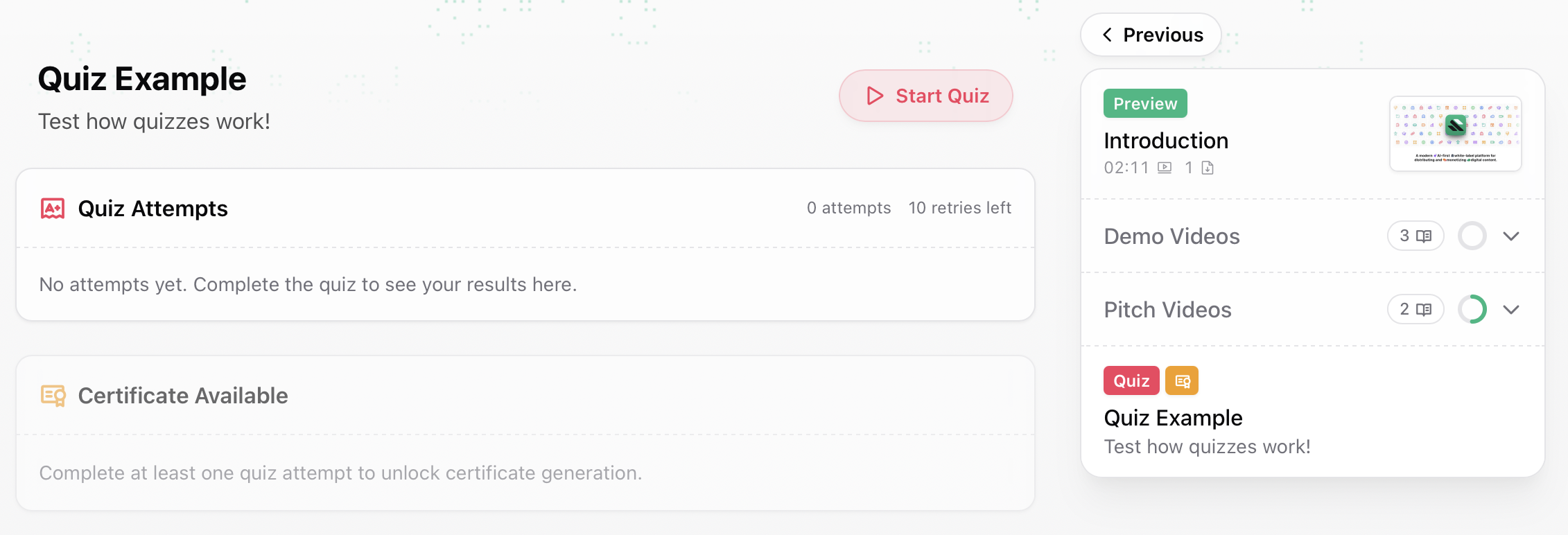 Sherpo tracks progress, attempts, and results automatically. Sherpo also starts a timer when a learner begins the quiz and uses it to calculate completion time in your quiz analytics. If a learner starts a quiz and comes back later, the timer continues running.
 ***
## Certificates (what customers see)
If a certificate is available for the quiz, learners will see a **Certificate available** panel on the lesson page. Clicking **Generate** prompts them to confirm.
* The certificate records the learner’s **best score** for that quiz.
* Generating a certificate is **irreversible**.
***
## Certificates (what customers see)
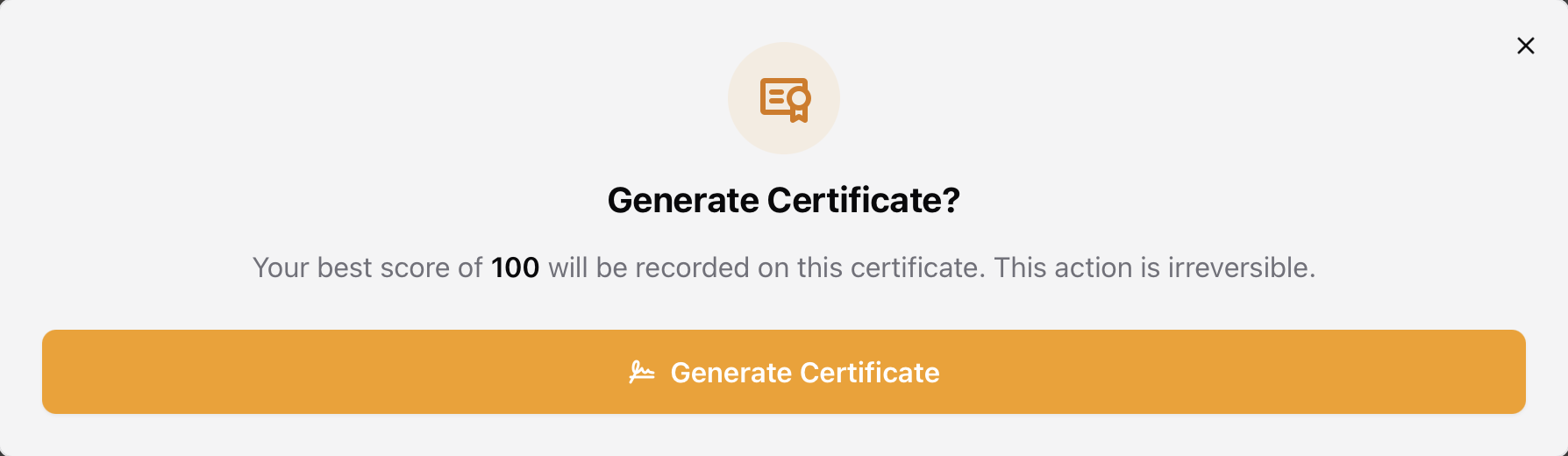
If a certificate is available for the quiz, learners will see a **Certificate available** panel on the lesson page. Clicking **Generate** prompts them to confirm.
* The certificate records the learner’s **best score** for that quiz.
* Generating a certificate is **irreversible**.
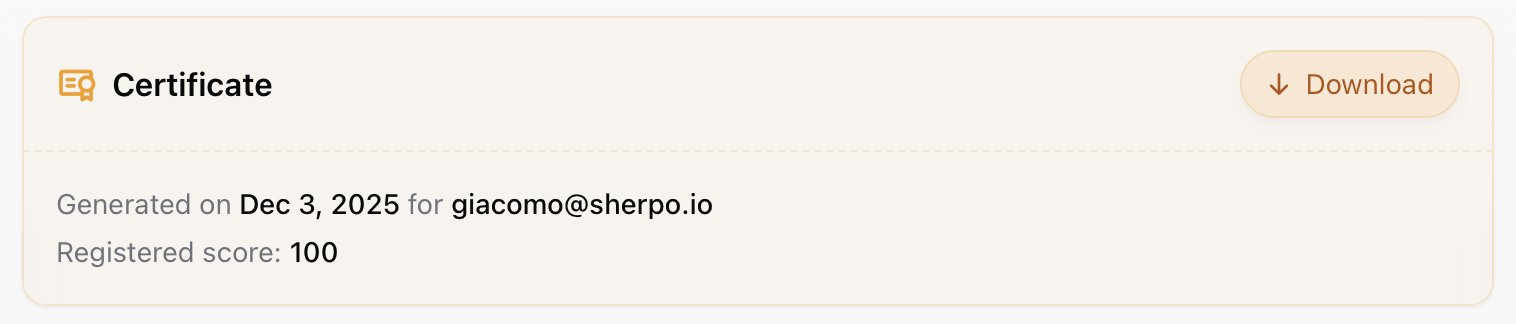 Once generated, learners can download the certificate from the same panel.
 ***
## Course example
[Click here to see how a full Course product appears.](https://demo.sherpo.io/course)
***
## FAQ
Yes, unless you set lessons as publicly available, which will display "Preview". Logging in keeps their progress, lessons, and access synced across devices.
Yes. Once unlocked, users can revisit it anytime as long as you keep it published.
Yes. Using the built-in speed slider in the player, users can adjust from 0.5× to 2×. The setting persists between videos.
No. Videos stream securely through Sherpo’s player and are not downloadable.
Any additional materials appear in the "Content" block, which you can place wherever you like, or inside the relevant lesson.
Depending on your progress tracking configuration under Settings, whether users mark lessons as completed manually or Sherpo does so automatically upon lesson opening or completion, Sherpo saves their progress to their account.
Through Stripe Connect, Sherpo supports most major payment methods, including cards, Google Pay, Apple Pay, Link, Amazon Pay, Klarna, and Afterpay.
Yes. If you offer one, users can apply it during checkout before paying.
They will be redirected to your unlocked course and receive a confirmation email, plus a receipt for paid purchases.
Yes. Free courses can be unlocked instantly. Users just need to confirm their email to save access.
Yes, but only if you create one under "Quizzes & Certificates".
***
## Course example
[Click here to see how a full Course product appears.](https://demo.sherpo.io/course)
***
## FAQ
Yes, unless you set lessons as publicly available, which will display "Preview". Logging in keeps their progress, lessons, and access synced across devices.
Yes. Once unlocked, users can revisit it anytime as long as you keep it published.
Yes. Using the built-in speed slider in the player, users can adjust from 0.5× to 2×. The setting persists between videos.
No. Videos stream securely through Sherpo’s player and are not downloadable.
Any additional materials appear in the "Content" block, which you can place wherever you like, or inside the relevant lesson.
Depending on your progress tracking configuration under Settings, whether users mark lessons as completed manually or Sherpo does so automatically upon lesson opening or completion, Sherpo saves their progress to their account.
Through Stripe Connect, Sherpo supports most major payment methods, including cards, Google Pay, Apple Pay, Link, Amazon Pay, Klarna, and Afterpay.
Yes. If you offer one, users can apply it during checkout before paying.
They will be redirected to your unlocked course and receive a confirmation email, plus a receipt for paid purchases.
Yes. Free courses can be unlocked instantly. Users just need to confirm their email to save access.
Yes, but only if you create one under "Quizzes & Certificates".