Analytics, first in the Sales group of the store sidebar, shows your store’s traffic and how it turns into orders, across every channel your customers use: your storefront, your own front end through the customer API, AI assistants through the customer MCP server, and feeds. Your store counts visits without cookies and without keeping any address or visitor id, so it needs no consent banner.
You see Analytics when your permissions let you view orders. Without them, the page and the overview’s Traffic row are hidden.
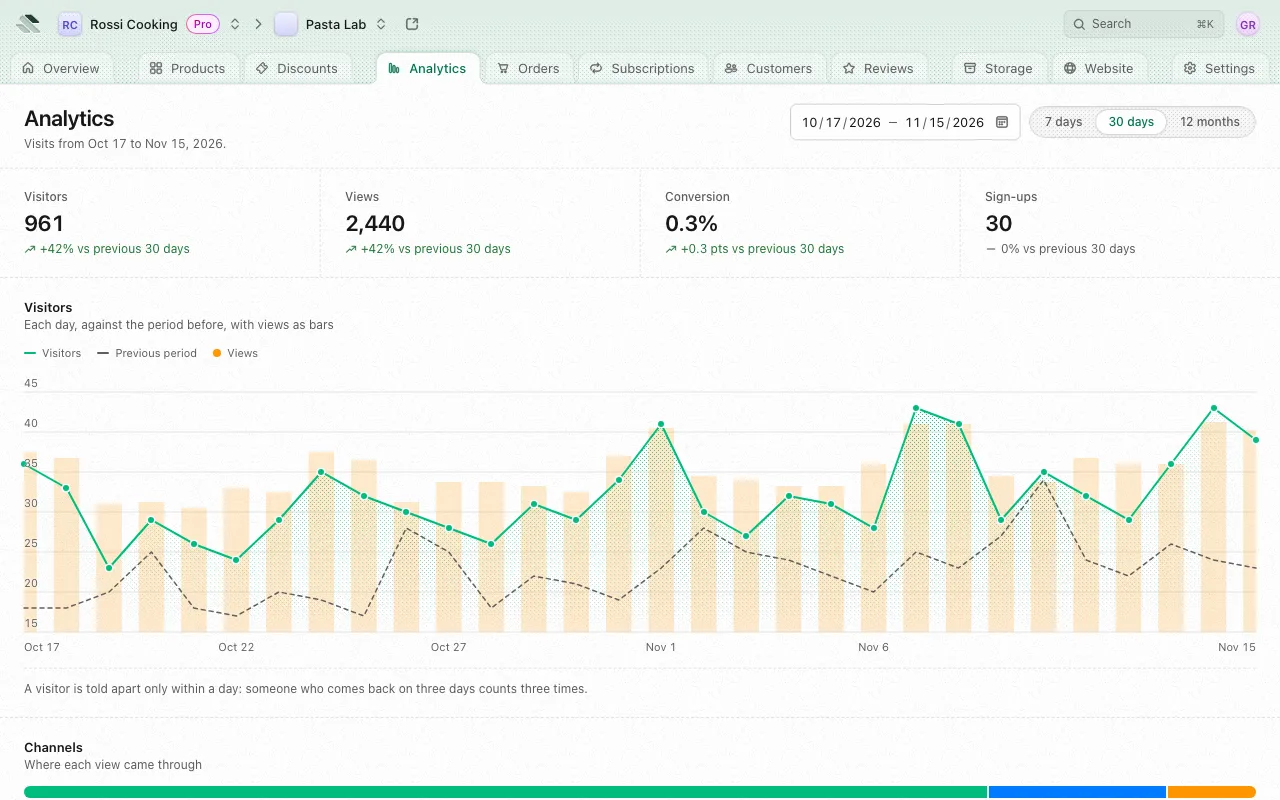
Period
Visits are added up once a day, after each of your store’s days ends, so a visit today shows tomorrow. The period picker in the header sets the days the page covers:
- 7 days, 30 days (the default) or 12 months, each ending on the last day counted.
- Pick days opens a calendar to choose your own range, of at most 366 days.
The header then reads “Visits from” one day to another. Each figure compares with the period just before it, for example “+12% vs previous 30 days”. Visits are kept for 13 months, so 12 months has no period before it to compare with and says so. When counting started during the period, the page says when, shows nothing for the days before, and compares nothing until a whole period before it is counted.
Figures
| Figure | What it counts |
|---|---|
| Visitors | Each day’s unique visitors, added up over the period. |
| Views | Pages, products and lessons or episodes shown. |
| Conversion | Orders as a share of product views, with its change in percentage points. |
| Sign-ups | Customers who signed in for the first time. |
A visitor is told apart only within a day, and never followed to the next, so someone who comes back on three days counts three times.
Below the figures:
- Visitors charts visitors each day or each week against the period before, with views as bars.
- Channels splits views between Storefront, API, MCP and Feeds, with each channel’s visitors, views, orders and conversion. A channel’s orders are the purchases completed through it, so they need not add up to your store’s orders.
- Conversion follows product views to checkouts started to orders, each step as a share of the one before. Orders here are the ones placed through your store’s checkout; renewals and orders you record yourself are left out.
- Countries lists where your visitors are.
- Devices splits visits between Mobile, Desktop and tablet and Unknown, for a visit whose browser didn’t say. Tablets count with computers, as many report themselves as one.
- Referrers lists the sites visits came from. Direct is a visit typed in, bookmarked or opened from an app.
- Campaigns lists the campaign links visits came from, read from the
utmandrefparameters in your links. - Top products lists your most viewed products with their checkouts, orders and conversion. By conversion ranks the most viewed products with at least 50 product views by their conversion instead.
- Apps lists the apps your customers use to reach your store over the API and MCP, with how many calls each made. An app’s name shows when your permissions let you view API clients.
Estimates
On a very busy store, visits are counted from a sample and scaled back up. The page then says so, marks each section counted this way Estimated, and puts ~ before its figures. Orders in the Conversion funnel and in Top products are always exact; a channel’s orders come from the counts, so they may be estimated too.
On the overview
For the 7 days, 30 days, 12 months and days you pick there, Overview shows a Traffic row under its figures, with visitors, views and conversion over the same days counted, and View analytics to open this page. It appears once your store has a counted day.
Merchant API and MCP clients read the same figures; see Read your traffic.