Everyone who signs in to your store or buys from it becomes a customer of that store. Customers in the store sidebar lists them, and Reviews collects what they say about your products.
The Customers page
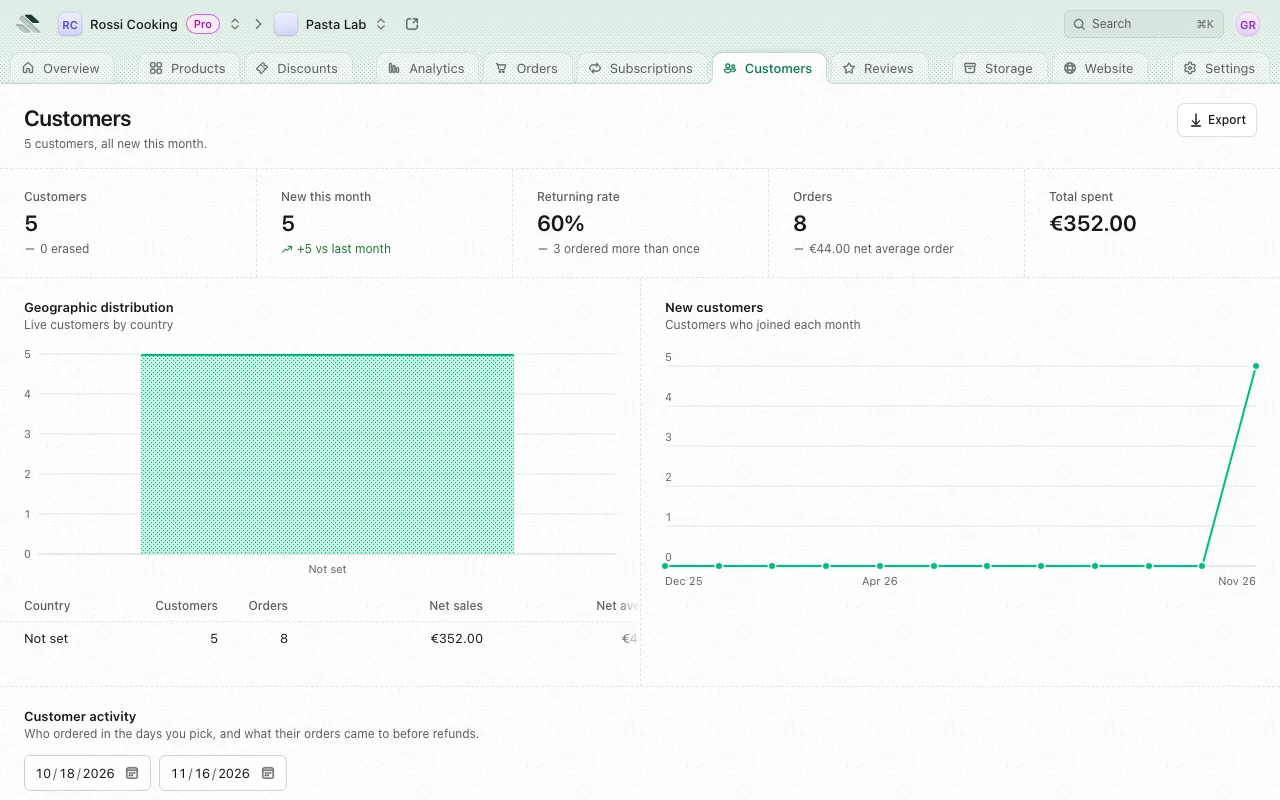
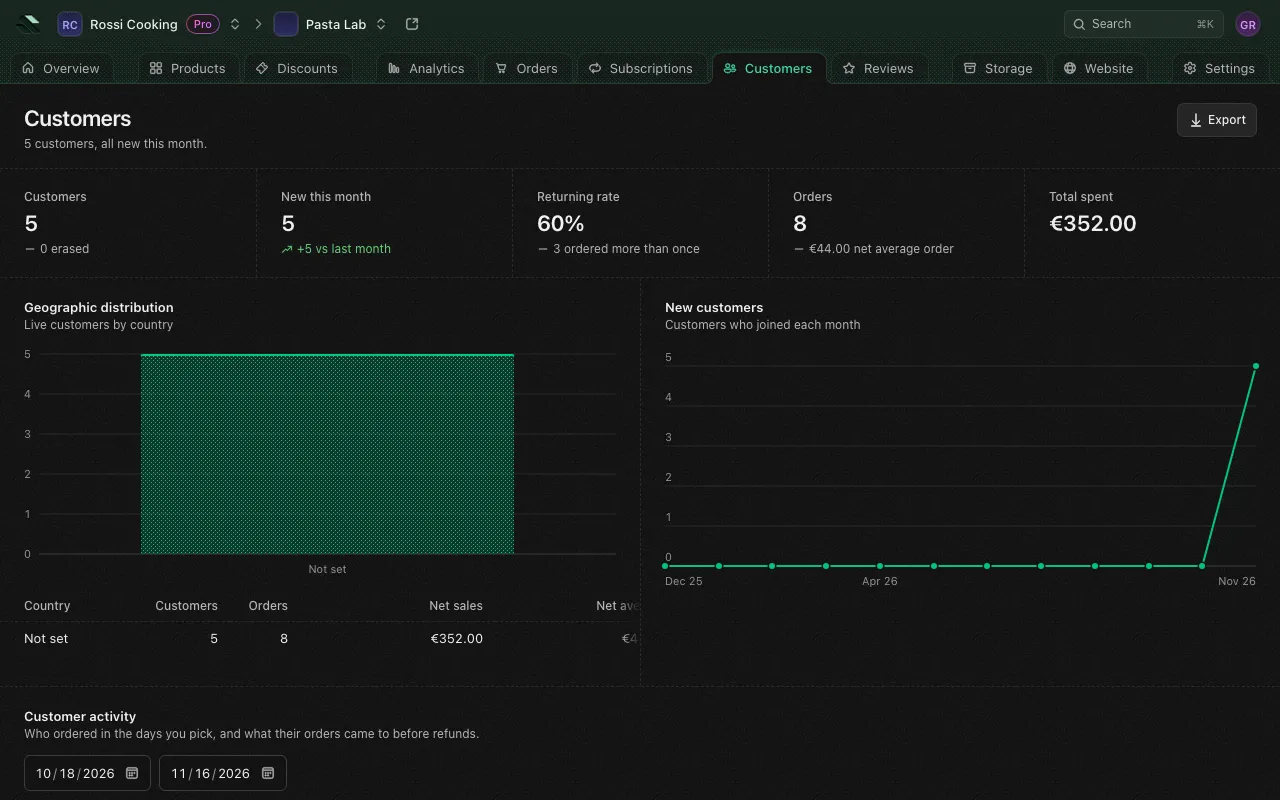
The top of the page sums up the store’s customers:
| Figure | What it counts |
|---|---|
| Customers | Every customer, with how many were erased. |
| New this month | Customers who joined this month, compared with last month. |
| Returning rate | The share of customers who ordered more than once. |
| Orders | Every order, with the net average order. |
| Total spent | What customers spent net of refunds, in your main currency, plus any other currencies. |
Under the figures:
- Geographic distribution shows live customers by country, with a table of each country’s customers, orders, Net sales and Net average.
- New customers charts how many customers joined each month.
- Customer activity lists who ordered between the From and To days you pick, in the Currency you pick, with their orders, Gross sales, Gross average and Last order. Gross means before refunds. Days run in the store’s time zone.
Money figures only show to members whose role lets them see revenue.
All customers
The All customers list has these columns:
| Column | What it shows |
|---|---|
| Customer | Name, else email, else phone. An Invited tag means you granted access to an email and nobody has signed in with it yet. An Erased tag marks an erased customer. |
| Contact | Their emails and phone numbers. |
| Country | The country they gave, or Not set. |
| Orders | How many orders they placed. |
| Total spent | What they spent net of refunds, in each currency. |
| Joined | When they became a customer. |
Sort by Customer or Joined from the column headers. Select a row to open the customer’s page.
Search and filters
- Search customers matches a name, an email, a phone number or a customer ID. A phone number finds a customer by its digits, however it is written.
- Status narrows the list to Live or Erased customers.
- The country menu (All countries by default) offers the countries your customers gave.
A filter that arrives with a link, such as invited customers only, shows as a chip under Filters. Remove a chip to drop that filter. When nothing matches, Clear filters brings back every customer.
Hide customer emails
To share your screen without showing addresses, open your account menu at the top right and turn on Hide customer emails. Every email on the store’s pages is masked (for example ••••@•••••.com), including names that fall back to an email and page titles. The app remembers the choice in this browser until you turn it off.
Export customers
Export downloads the list as a CSV file named customers-<day>.csv. It holds the customers the list shows right now, with the same search, filters and sort. The button is off while the list is empty.
The file has these columns: Name, Email, Phone, Country, Orders, one Spent (CUR) column per currency your customers paid in (for example Spent (EUR)), Joined and Erased (Yes for an erased customer). Amounts are left blank if your role can’t see revenue.
An export holds at most 20,000 customers. Past that, the app asks you to narrow the list with a filter or a search, then export again.
The customer cap
Each plan sets how many customers each store can have:
| Plan | Customers per store |
|---|---|
| Lite | 2,500 |
| Pro | No limit |
| Sherpo One | No limit |
Going past the limit doesn’t remove anyone or take away access. Once a store is past it:
- A notice at the top of the Customers page says how many customers the store has against the limit.
- You have up to 7 days to get back under the limit or move to a plan with room. While the countdown runs, the notice and Plan & usage in the store settings show the day new purchases and unlocks pause.
- If the store is still over on that day, new purchases and unlocks pause until it gets back under or upgrades. Customers keep the access they already have. After 14 days over, the business’s stores go offline until it’s back within its limits. They’re never deleted while your plan is paid. See What each plan allows.
Getting back under stops the countdown but keeps the days already counted, so going over again picks it up where it stopped. Moving to a plan with room clears it.
Members who can manage billing see an Upgrade button on the notice. Plan & usage shows the store’s customers against the limit at any time, and flags the row as the store nears it. See Plans for everything each plan includes.
A customer’s page
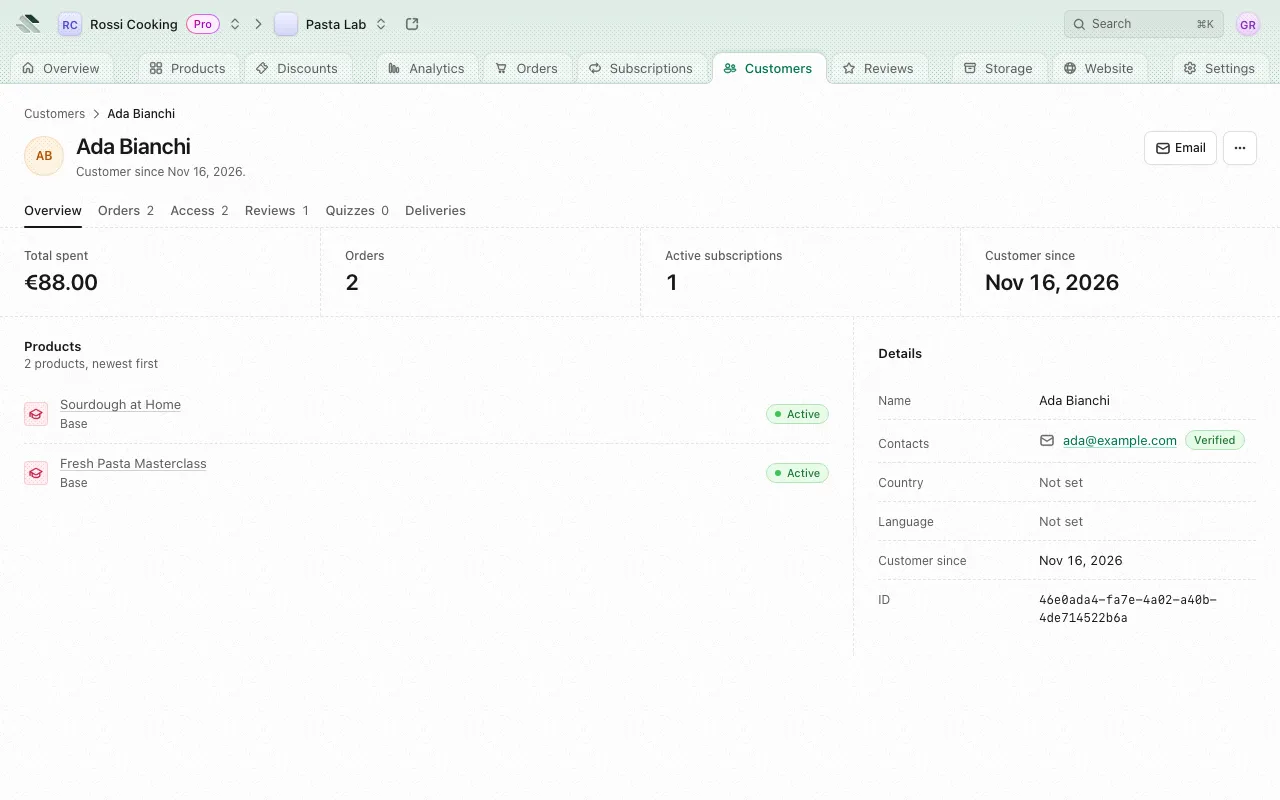
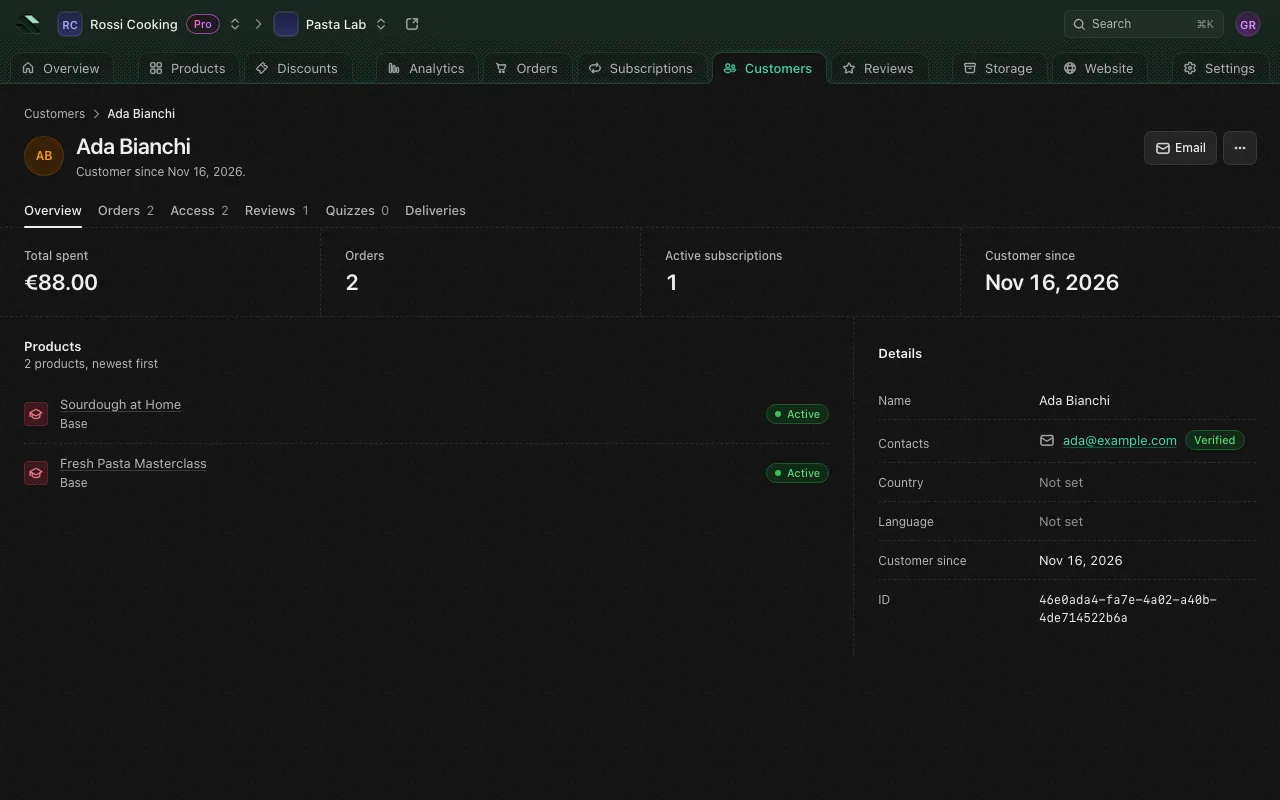
The header shows the customer’s name, since when they are a customer and their country. Email opens a new message to their address in your mail app. The page has these tabs, each with a count where it applies:
- Figures: Total spent, Orders, Active subscriptions and Customer since.
- Products: what they hold, with its tier and whether it’s Active, runs Until a day, Starts on a day or Ended.
- Answers: what they answered at checkout to each product’s questions, under the product’s name, when they answered any.
- Details: Name, Contacts (each email and phone tagged Verified or Unverified), Country, Language, Customer since, Invited and Erased where they apply, and the customer’s ID.
Their latest orders with Order, Date, Source, Method, Coupon, Discount and Total. View all orders opens the Orders list filtered to this customer. See Orders and subscriptions.
- Subscriptions: each subscription with its plan, when it started and ended, and the reason it ended. View all subscriptions opens the Subscriptions list filtered to this customer.
- Grants: every grant of access, with Product, Tier, Source (such as Checkout, Subscription, Automation, Granted by hand or API), From, Ends and Reason. A grant that still lets them in offers Revoke for cause to members whose role lets them change orders. See Granting and removing access.
- Private feeds: each private feed of a blog, podcast or event the customer got, with whether it’s live or why it stopped, how many readers it served in the last 30 days against its limit, and when it was made. A feed reader, podcast app or calendar app counts once per network, and a service that reads for many people, such as Feedly, for the subscribers it reports. Change limit sets how many readers a live feed may serve in 30 days before it moves to a new address (from 1 to 50, 5 by default), and Revoke stops it; the customer can get a new one while they hold the blog, podcast or event. After 3 new addresses in 30 days, sharing once more turns the customer’s private feed of that product off: it shows as Off for sharing, they get one email saying so, and Turn back on lets them get a new one, counting sharing afresh.
Their reviews with the rating and the words, a Hidden tag on hidden ones, and the name they posted under. View all reviews opens the Reviews page filtered to this customer.
Quiz attempts (quiz, attempt, status, score, answers, started and finished) and Certificates (issued, score, and whether each is Valid or revoked). See Content.
Every file this customer downloaded, streamed or previewed in the last year, newest first, with When, File, What, Channel and State. Turn on Include unused to also list links issued that were never opened. See Files and storage.
Tabs and sections only show to members whose role lets them read that kind of record.
Granting and removing access
You grant access from the product. You take it away from the product, from an order, or for cause from the customer’s own grants:
- On the product’s Access tab, Grant access lets a customer in without a purchase. Pick a customer, or type an email: whoever signs in with that email gets access, and shows as Invited until then. Choose a Tier (without one, they get only content open to everyone), an optional Ends date and time (in store time), and an optional Reason only your team sees. A grant adds to anything they bought.
- Revoke on a grant ends it now, without telling the customer. A Reason is required to revoke, and it isn’t saved with the grant. The grant stays listed, and anything the customer bought still lets them in.
- On the product’s Customers tab, each row’s menu offers Revoke access, Cancel subscription and Resume renewal where they apply. Revoking keeps their payment, so refund it from the order if you owe one.
- Revoke for cause, on the same menu or on a grant in the customer’s Access tab, or Revoke access on an order, takes access away for a reason such as fraud or a breach of your terms: every grant the customer holds on the product ends, their subscription to it ends now, and they’re always emailed, with your message and an optional refund. See Revoke access.
- A grant’s revoke for cause offers a refund only on the product’s Customers tab, from the payment of the order behind it, and only to members who can see orders and amounts. From the customer’s page it offers none: to give money back, revoke from the order.
- A guest’s ticket, one somebody else bought for them, takes no refund when you revoke it alone: its buyer paid for it, so refund the buyer from their order. Revoking it leaves the buyer’s order and access as they were.
See Tiers, prices and access and Products.
Erase a customer
Members allowed to delete customers find Erase customer under More actions, in the Danger zone. Erasing forgets who the customer is:
- Their name, contacts and sign-ins are removed, and they are signed out everywhere.
- Their reviews and quiz answers lose their words.
- Orders, access and scores stay.
To confirm, type the phrase the dialog asks for (their email, else their phone, else their name). Erasing can’t be undone. The customer then shows as erased in every list, and the Erased status filter finds them.
Reviews
Reviews in the store sidebar collects every review across your products. Each product also has its own Reviews tab with the same tools, limited to that product.
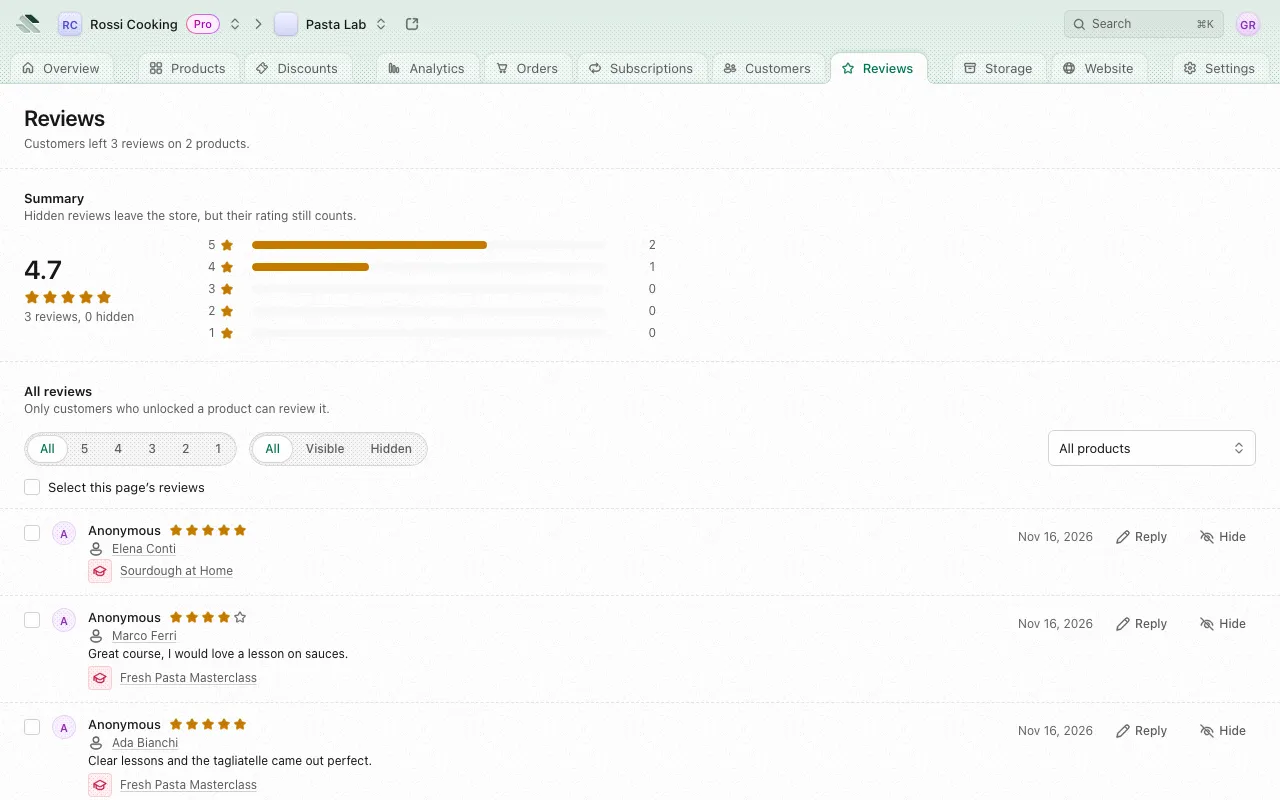
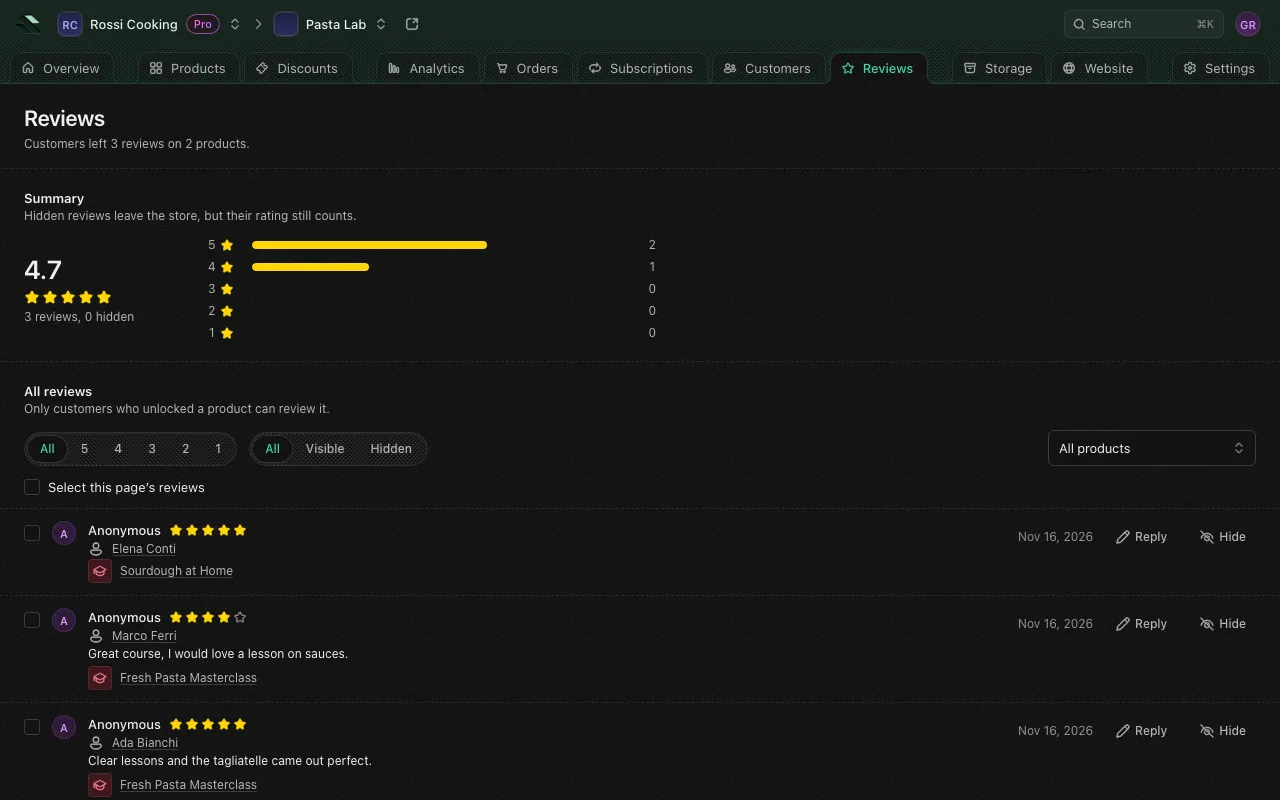
Only customers who unlocked a product can review it. Products in the Coffee and Goals categories take no reviews. For other products, turn reviews on or off with Accept reviews in the product’s settings. See Products.
Summary
The Summary shows the average rating, how many reviews there are and how many are hidden, and Reviews by rating. Hidden reviews leave the store, but their rating still counts.
What reviews mention lists the topics customers bring up (such as Value for money, Quality or Ease of use) with how many positive and negative mentions each has, and What customers say sums up the reviews in a few lines. To show that summary on the product page, turn on Show customers the summary of what reviews say in the product’s settings.
All reviews
The list shows 10 reviews a page, newest first. Use Previous and Next to move between pages. Narrow it with:
- Rating: one star rating, from 1 to 5.
- Visibility: All, Visible or Hidden.
- The product menu (store-wide list only).
A customer filter, from View all reviews on a customer’s page, shows as a chip under Filters.
Reply to a review
- Select Reply on the review.
- Write your reply (up to 4,000 characters). It shows under the review in the store.
- Select Save reply.
Your reply shows on the review as Your reply. Edit reply changes it, and Remove reply takes it off the store.
Hide a review
Hide takes a review off the store; Unhide brings it back. The review stays in your list with a Hidden tag, and its rating still counts in the summary.
To hide or unhide several at once, select them (or select the whole page) and use the bar that appears at the bottom of the list.
You can’t delete a customer’s review. Only the customer can delete it.