Storage holds every file of your store: the videos, PDFs and downloads you sell, and the images your pages show. You upload a file once, then add it from a product, lesson, quiz, certificate or page. Open it from Storage in the store sidebar.
The page has three tabs: Assets (your files), Deliveries (who each file went to) and Usage (how much of your plan’s storage you use).
Browse your files
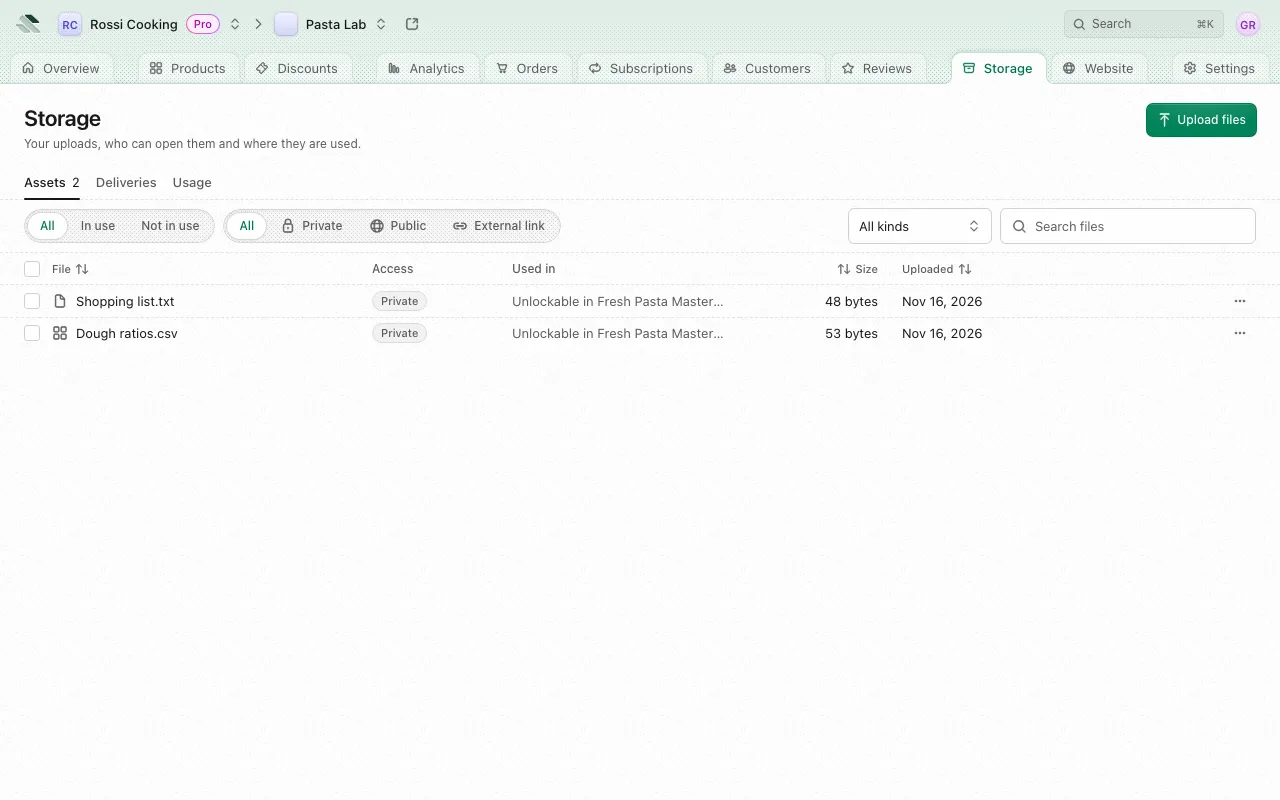
The Assets tab lists every file with these columns:
| Column | What it shows |
|---|---|
| File | The file’s name, its kind and details such as its dimensions or length. |
| Access | Private, Public or External link (see Who can open a file). |
| Used in | The first place the file is used, and how many more. Not in use when nothing uses it. |
| Size | The file’s size. A link to a file stored elsewhere reads Stored elsewhere. |
| Uploaded | When you uploaded it. |
Sort by name, size or upload date from the column headers. To narrow the list:
- Search files finds files by name.
- Use: All, In use or Not in use.
- Access: All, Private, Public or External link.
- Kind: All kinds, Video, Audio, Image, PDF, Document or Other.
Clear filters brings every file back. A file whose upload hasn’t finished shows Processing. One whose upload never finished but was already in use shows Failed: it holds no space. Upload the file again, then pick the new file in each place the failed one is used. Bulk delete leaves out files still Processing.
Upload files
- Click Upload files.
- Under Who can open them, pick Private or Public for the files you add next.
- Drop files on Drop files here, or click Browse files. You can add several at once, and add more while the first ones upload.
- Click Done. Uploads keep going after the sheet closes.
New files aren’t in use until you add them from a product, lesson or page. You can also upload straight from those places: what you upload there lands in Storage too. An upload that finished before you cancelled it, one whose cancel couldn’t remove it, or one the place can’t take after all stays in Storage, and the app says so: delete it there if you don’t need it.
What you can upload
- Private files can be of any type.
- Public files must be images, video, audio or PDFs. SVG images can’t be public.
- Each file can be up to 4.9 GB. An empty file is refused.
- A batch must fit in the storage your plan has left. The sheet shows the space left (for example 8.2 GB free), and a file that doesn’t fit is turned away with the space left, so you can delete files or change plan to make room.
- Folders aren’t uploaded: upload the files inside instead.
- When the app says Storage may list a failed upload as Processing, or that it couldn’t tell whether a file was uploaded, look for the file in Storage. If it’s listed with neither Processing nor Failed, it uploaded after all, and deleting it frees the space. If it shows Processing, its space comes back once the upload expires, so the space left can read lower until then, and it goes away unless something uses it. If it shows Failed, it never uploaded and holds no space. If it isn’t listed with filters cleared, its space is already back.
Some places take only one kind of file, and their upload says so: a stylesheet takes only CSS, a certificate logo only an image, a video block only video, an audio block MP3, M4A, WAV or FLAC, a slideshow block only a PDF.
An audio file plays as uploaded at once. Shortly after, a WAV, FLAC or other recording is usually replaced by an M4A that plays in every browser, in stereo at 192 kbps or mono at 128 kbps, which is what plays and downloads from then on. An MP3 or M4A at 256 kbps or less stays exactly as uploaded. The space a file counts never drops below what you uploaded.
Who can open a file
Every file has an access level, set when you upload it:
| Access | Who can open it |
|---|---|
| Private | Customers with access, through links that expire. This is the default, and what you want for anything you sell. |
| Public | Anyone with the link, without buying or signing in. Use it for what your pages show to everyone, like a cover image. |
| External link | A link to a file stored elsewhere. It opens where the file lives. |
To change it, open the file’s actions menu and choose Make public or Make private, then confirm. Making a file private stops its public link from working.
The app keeps the access a place needs, so a change is refused when:
- The file is used somewhere. Remove it from those places first.
- Customers unlock it somewhere, such as a lesson’s video or slides (it stays private), or your pages show it to everyone (it stays public). A file in a lesson’s or quiz’s text can change either way.
- A tier locks it, or it’s protected (it stays private).
- It is processing, failed to process, or was not uploaded to this store.
- It would become public but isn’t an image, video, audio or PDF.
Each place also takes a given access: a download customers buy takes a private file, and an image on your homepage a public one. A lesson’s or quiz’s text takes either: when you upload straight into it, the app asks which, with Private chosen first. A public file there opens for anyone with its link, even after a refund. Picking a file with the wrong access for a place is refused with the reason.
A file’s actions
Each row has an actions menu:
- Where it’s used: every place the file appears. See Where a file is used.
- AI: on videos and audio files you uploaded, opens the file’s subtitles, transcript, summary and chapters. See AI features.
- Delivery history: opens the Deliveries tab for this file.
- Rename: changes the file’s Title, up to 200 characters. Buyers see this name when they download it, wherever it’s used. The file’s ending (such as
.pdf) stays. - Download: downloads the file to your computer.
- Copy link: on public files and external links, copies a link that keeps working. A private file has no lasting link, as its links expire, so download it instead.
- Replace file: uploads a new file in this one’s place. See Replace a file.
- Make public or Make private.
- Delete file.
Actions you can’t take now are grayed out, with the reason under them (for example Still processing.).
Where a file is used
Where it’s used lists each place, such as Download in a product, Poster of a lesson, Thumbnail of a product or Site stylesheet. From each place you can:
- Remove: takes the file off that place only. It stays in Storage. If the place is something customers buy, its customers lose access to the file.
- Replace: puts another file in that place only, uploaded with Browse files or picked with Choose from Storage. The old file stays in Storage and wherever else it’s used. If the swap fails once a new file has uploaded, the new file stays in Storage too.
A file a Software release ships says so under its place, for example Ships with release 2.0 (current download) or Ships with release 1.0. Removing it from that place takes it out of the release too, and the confirmation says what the release’s holders download after.
Some uses can’t be changed here and say why. For example, a file shown inside a page’s or lesson’s text or a product’s description changes only in that text’s editor, and a file in unpublished changes to a page changes only in its editor.
Replace a file
Replace file in the actions menu swaps the file everywhere at once: every place that uses it gets the new file, its links keep working, and its name stays. If the replace fails once the new file has uploaded, the new file stays in Storage. A file that must keep its kind asks only for that kind before anything uploads: a video for a video, a PDF for a lesson’s slides. If Storage can’t check what may replace a used file, it says why instead, with Try again when trying again may help. A stylesheet’s replace goes on even when that check fails, as does one by a member who may replace files but not read them.
Replacing is refused when the new file can’t do the old one’s job, for example:
- A certificate’s logo takes only an image, a stylesheet only CSS.
- A lesson’s video takes only a video, its slides only a PDF.
- A protected file takes only a type that can be protected (a PDF or a spreadsheet, and only a PDF for full security).
- A file shown inside a page’s or lesson’s text changes only in its editor.
Replacing a video or an audio file deletes its subtitles, transcript, summary and chapters. Generate them again from its AI panel.
Delete files
Choose Delete file from a file’s actions menu. Before you confirm, the app checks where it’s used and tells you what deleting takes:
- Every place it’s used, which loses it. Customers of the products it’s in lose access to it.
- Each Software release that ships it, which it leaves, and what that release’s holders download after: for example Release 2.0 ships this file. Holders will download 1.0’s files instead.
- How many times it was delivered in the last year. The links customers got stop working. Copies they already downloaded stay with them.
- Its processed versions, which go with it.
- How much space it frees.
Deleting can’t be undone.
What blocks a delete
The app refuses the delete, with the reason, when:
- A page’s, product’s, lesson’s or quiz’s text still shows the file. Take it out of the text first.
- Unpublished changes to a page use it. Take it out of them, or discard them, first.
- It’s used where it can’t be removed from Storage, such as a quiz’s own content or a portfolio holding that is no longer followed.
- You can’t take it off every place it’s used. Ask a member of the business with full access to give you access.
To delete several files, select them with the checkboxes and delete them together. A file still in use is kept: delete it on its own to take it off where it’s used.
Deliveries
The Deliveries tab shows every time a file went to someone: each download or stream, with who it went to. It keeps a year of deliveries. Use it to answer questions like “did this customer get the file?” or “who downloaded this PDF?”. A free lesson’s own video or audio is open to anyone, so its plays aren’t listed.
| Column | What it shows |
|---|---|
| When | When the link was issued. |
| File | The file. |
| Who | The customer, linked to their page. Team member for someone on your team, Visitor for someone not signed in, A customer when you can’t see who the customer is, Sherpo support for a file our support team opened to help you or a customer. |
| What | Download, Stream or Preview. |
| Channel | Where it was opened from: Web, API, MCP, Feed or Sherpo support. |
| State | Used (the link was opened), Unused (issued but never opened), Expired (it ran out before anyone opened it) or Revoked (it was cut off and no longer opens). |
By default the tab shows only used deliveries, as links issued but never opened rarely matter. Filter it with:
- Deliveries shown: Used or All (or Include unused when nothing is used yet).
- Intent: Any intent, Download, Stream or Preview.
- From and To: a range of days, in the store’s time zone.
- Customer: one customer’s deliveries.
- Choose file: one file’s deliveries. Delivery history in a file’s menu opens this filter for you.
Download links
Customers never get a lasting link to a private file. Each time a customer opens or downloads it, Sherpo issues a fresh link that expires, and that link is one row in Deliveries. That’s why making a file private stops its public link working, and why Copy link isn’t offered on private files.
Usage and your plan’s allowance
The Usage tab shows where your storage goes:
- Used: how much you store, and its share of your plan (or how far over it you are).
- Available: what’s left, and what your plan includes.
- Files: how many files you have, and how many are links to files stored elsewhere.
- Storage used: a meter of used and free space, by kind of file.
- Storage by destination: the space the files in each kind of place take (Products, Lessons, Pages, Quizzes, Certificates, Portfolio holdings, Site). A file used in several places counts in each.
- By access: how much is private, public and external.
- Largest files: your biggest files first, with Browse all files to go back to the list.
Each plan includes this much storage per store:
| Plan | Storage per store |
|---|---|
| Lite | 10 GB |
| Pro | 100 GB |
| Sherpo One | Set with sales |
When storage is full, Storage says so, and your store’s home shows Storage is full under Needs attention. New uploads don’t fit until you delete files or change plan with Change plan. See Plans for what each plan allows.