Discounts sits under Catalog in the store sidebar. A discount is either a code customers enter at checkout (a coupon) or a discount that applies on its own. Either can carry affiliates, who earn a commission on each sale through it.
How discounts apply
- Each price takes one discount: the one that reaches it most closely wins, then the one with the highest Priority, then the older one. A discount that takes nothing off a price doesn’t count for it.
- A coupon that reaches the price replaces the automatic discount, even one that takes more off. They never stack.
- A renewal takes no coupon.
- Products in the Calendar, Coffee and Goals categories take no discounts.
To check what a customer would pay, use Simulate order on the Orders page. See Orders and subscriptions.
The Discounts page
The figures at the top count Active discounts, Scheduled ones, those Applied automatically, and Total uses.
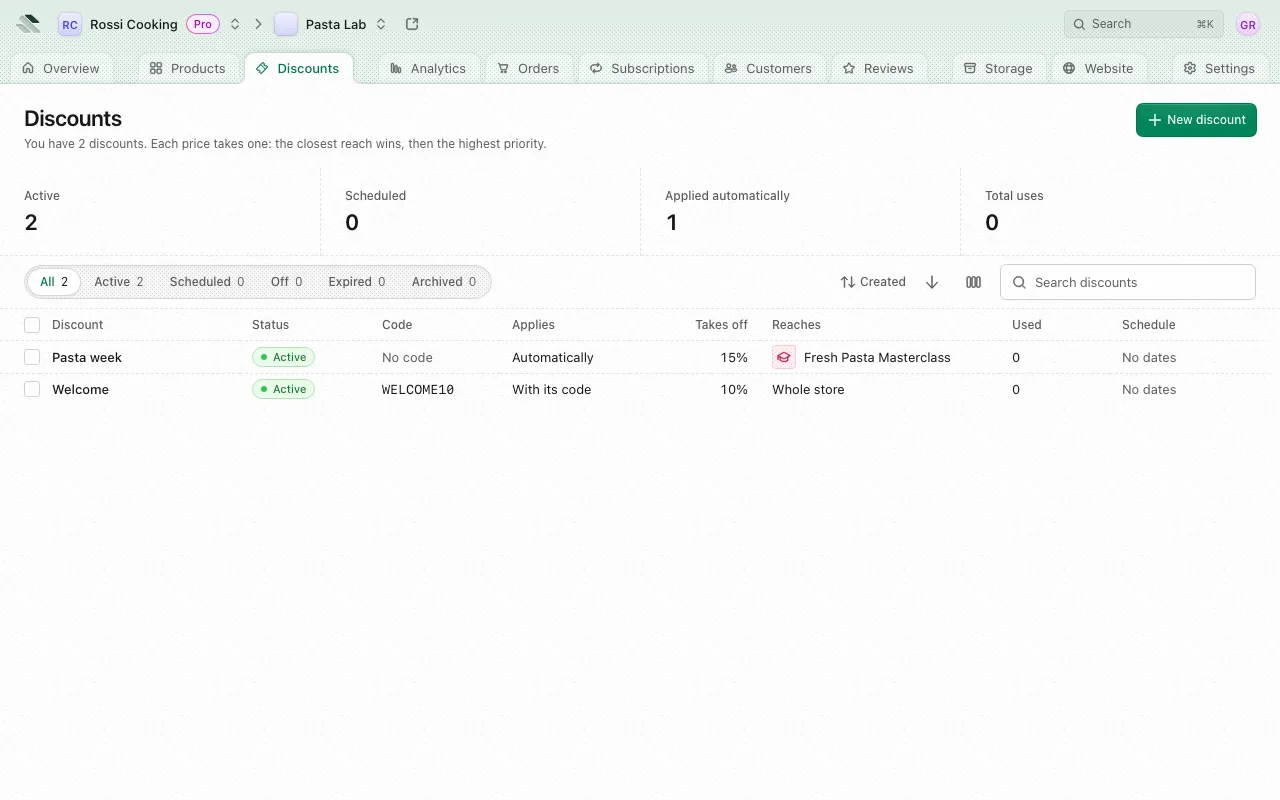
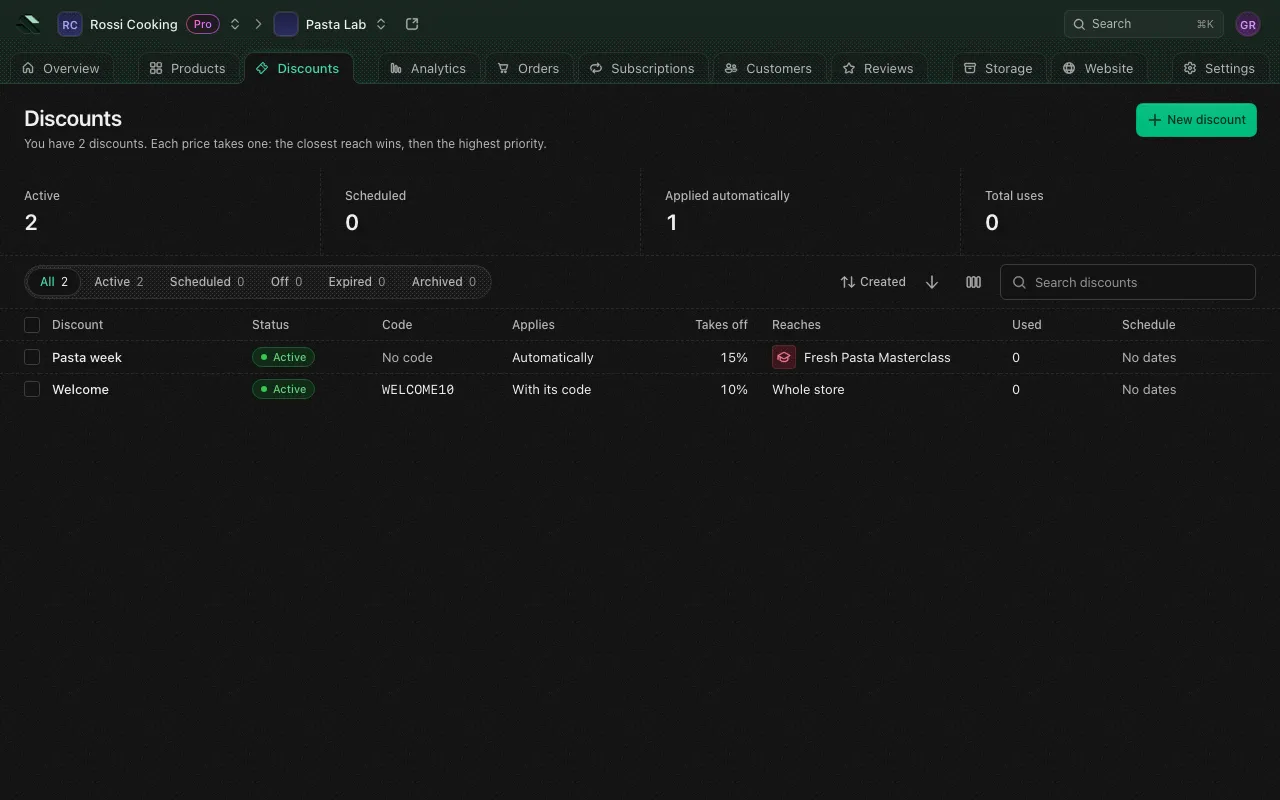
Tabs split the list by status:
| Status | Meaning |
|---|---|
| Active | Customers can use it now. |
| Scheduled | Its start day is still ahead. Customers don’t see it until it starts. |
| Off | You turned it off. |
| Expired | It ended or ran out of uses. |
| Archived | You archived it. Customers can’t use it until you restore it. |
The columns are Discount (its name), Status, Code, Applies, Takes off, Reaches (Whole store or the products, tiers and prices it reaches), Used (for example 12 of 100) and Schedule. Search discounts matches a code or a name.
Each row’s menu offers Edit, Archive or Restore, and Delete. Select several rows to archive, restore or delete them at once.
Create a discount
Select New discount. The form has these sections.
Discount
- Name: only you see it. Without one, the code names it.
- Code: letters, digits, hyphens and underscores, up to 64 characters. Customers enter it at checkout. Generate fills in a random one. Codes are unique in the store, whatever their case.
- Applies:
- Automatically: at checkout on its own. Its code works too.
- With its code: only when a customer enters the code.
- Off: customers can’t use it for now.
A code is required unless the discount applies automatically. An automatic discount can’t take a code once created.
Takes off
The discount comes off each item bought: the fixed amount first, then the percent of what is left. It never takes a price below zero.
- Currency: the fixed amount off and the money limits are in it, so only prices in that currency get them. A percent alone (Any currency) reaches every currency.
- Amount off: a fixed amount off each item.
- Percent off: from 0 to 100.
Set at least one of the two. For example, 5.00 and 10% on a 50.00 price takes 5.00 off first, then 10% of 45.00, so the customer pays 40.50.
Limits
Leave any of them empty for no limit.
- Lowest price: it never takes the price of each item below this.
- Most off: at most this off each item.
- Lowest share of the price: the price never drops below this percent of itself (0 to 99.99).
- Priority: the higher wins among equally close discounts, from -1,000,000 to 1,000,000.
- Uses in total: how many times it can be used across all customers. After it has been used, the limit can’t go below the uses so far.
- Uses per customer: how many times each customer can use it.
- Starts: the date and time it starts. Leave it empty to start right away.
- Ends: the date and time it stops working. Leave it empty to run with no end. The storefront shows when it ends next to the discounted price, counting down while the page stays open, and shows the price without it once it ends.
Times are in the store’s time zone, which the fields show.
Reaches
Choose Whole store, or Chosen products, tiers or prices and pick them under Products, tiers and prices. A price is reached most closely by a discount on that price, then on its tier, then on its product, then on the whole store.
Who can use it
Everyone, or Only chosen customers and pick them under Customers. Picking customers needs a role that can see customers.
Usage
When editing, Usage shows how many Uses the discount had and how many Customers used it.
Archive and delete
- Archive stops customers from using a discount until you Restore it. Orders that used it keep their price.
- Delete removes it for good, with its affiliates and the customers it’s kept to. Orders keep the price they were sold at.
A discount can’t be deleted while a customer is checking out with it, while its affiliates are still owed (settle or void what they are owed first), or while an automation runs on it. Archive it instead to keep it.
A product’s Discounts tab
Products that take discounts have a Discounts tab listing every discount that reaches the product: on it, on one of its tiers or prices, or on the whole store. New discount there starts a discount already reaching that product.
Automations that lower prices
Besides discounts, an automation can Lower a price for a customer when they buy or review something, or check in at an event. Set them up under Automations in the store settings. See Store settings.
Affiliates
An affiliate is someone with a Sherpo account who earns a cut of each sale through one of your discounts. You pay them yourself, then mark the commission paid in the app.
Add an affiliate
- Open the discount from the list and go to its Affiliates section.
- Select Add affiliate.
- Enter the Email of their account. If no account uses it, ask them to sign up first.
- Set what they earn: an Amount per sale (paid once per order, however many items it covers), a Share of each sale (a percent, from 0 to 100), or both.
- Select Save affiliate.
Each affiliate’s line shows what they earn per sale, how much they earned and how much is unpaid. Edit changes their terms for future sales. Remove stops them earning on new sales through this discount; commissions they already earned stay.
Earnings
Select the earnings button on an affiliate’s line to see:
- Unpaid, Paid and Total earned.
- Earnings over a Period (Last 30 days, Last 90 days or Last 12 months), charted by day, week or month.
- Commissions: each sale’s Date, Order, Sale, Commission and Status (Unpaid, Paid or Voided).
- Payouts: every payout to them, whichever discount it settled.
An order’s page also lists its Affiliate commissions.
Mark a commission paid
- On an unpaid commission, select Mark paid (or Record payout on the order’s page).
- Choose the Outcome: Paid, or Void, nothing is owed.
- For a payout, enter the Amount paid. If you sent it with Stripe, turn on Sent with Stripe and add the Transfer reference (the Stripe transfer’s ID, such as
tr_1Nv) so it’s recorded once. - To void, give a Reason. A voided commission can’t be paid out later.
- Save it.
Nothing is sent from the app: this records a payout you already made, or voids the commission. Recording payouts needs a role that can see revenue.
What the affiliate receives
When a sale earns a commission, the affiliate gets the Affiliate commission earned email at their account’s address, with the products and what they earned. You can change or turn off this message in Customer messages in the store settings. See Store settings.