Orders and Subscriptions sit under Sales in the store sidebar. Orders lists every sale with its payment and refunds. Subscriptions lists every plan that renews.
Orders
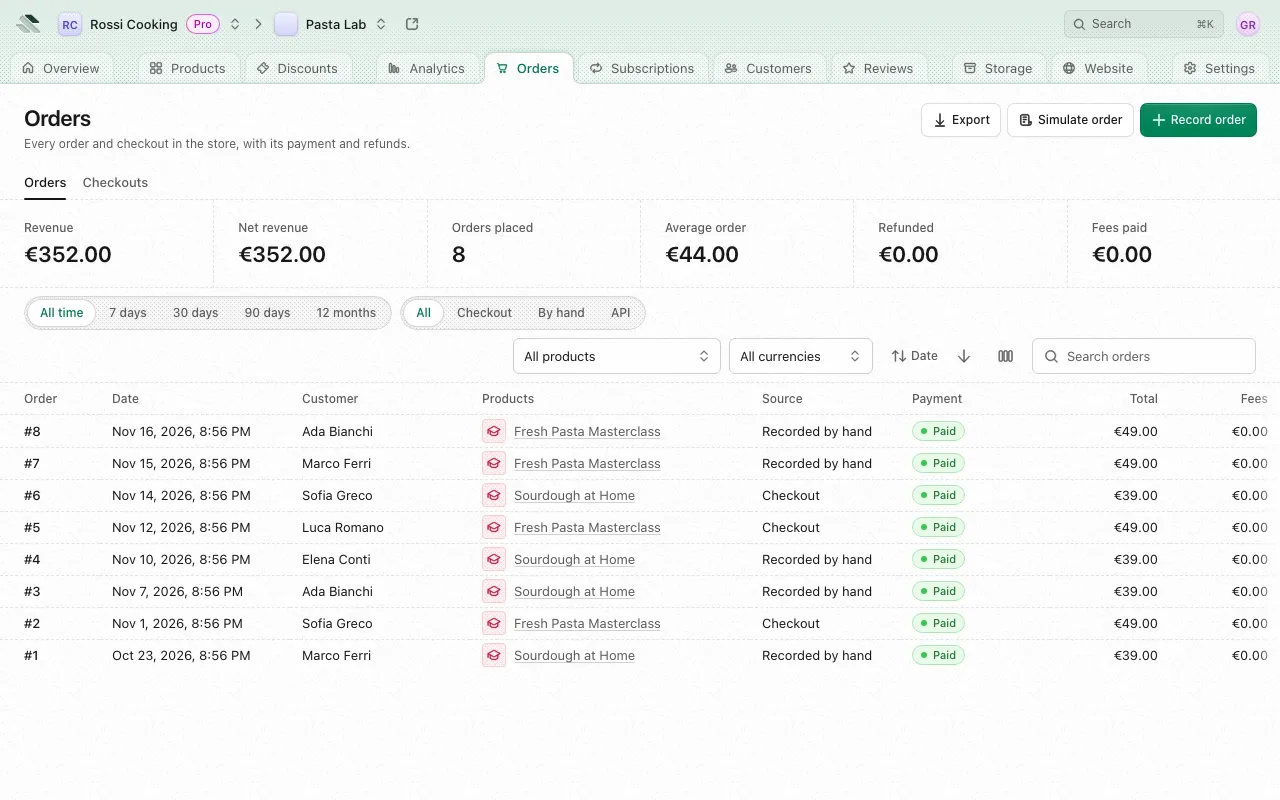
The Orders page has two tabs: Orders (every sale) and Checkouts (carts customers started paying for). Each product also has a Sales tab with the same list, limited to that product.
Figures
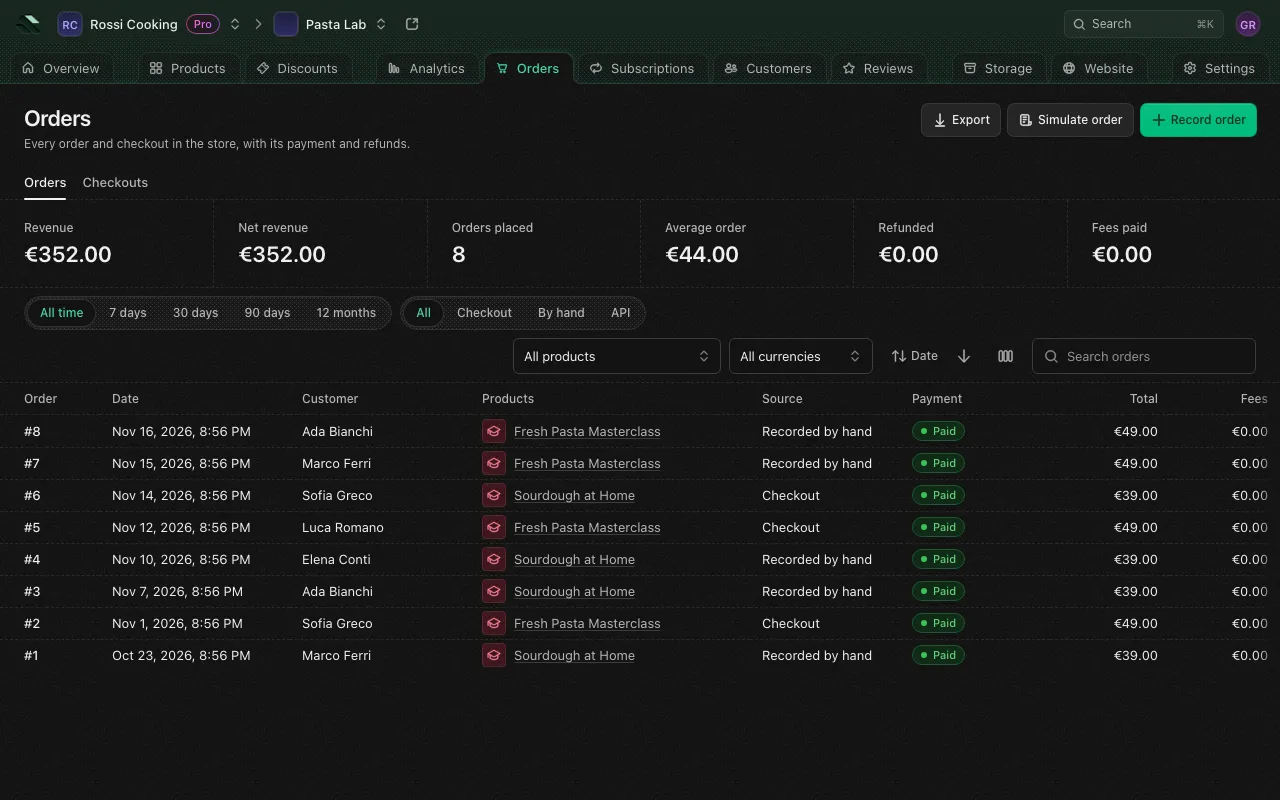
Above the list, the figures cover the period you pick: Revenue, Orders placed, Average order, Refunded, Net revenue and Fees paid. Pick the period with Period: All time, 7 days, 30 days, 90 days or 12 months. Days run in the store’s time zone. Money figures and the Fees column only show to members whose role lets them see revenue.
The list
| Column | What it shows |
|---|---|
| Order | The order number, such as #1042. |
| Date | When the order was placed. |
| Customer | Who bought. |
| Products | What the order sold, with how many more it holds. |
| Source | Checkout (bought in the store), Recorded by hand or API (recorded by an API client). |
| Payment | Paid, Partly refunded, Refunded, Has refunds, Free or No payment. |
| Total | What the customer paid. |
| Fees | Platform and processor fees on the order. |
| Coupon | The coupon code used, if any. |
Use Sort to order the list by Number, Amount before discounts, Customer, Fees or Coupon, besides the newest first.
Search and filters
- Search orders matches an order number, a note or a reference, and the customer’s name, email or phone when your role lets you see customers.
- Period limits the list to orders placed in that period.
- Source keeps one source.
- The product menu keeps orders with a line of that product.
- The currency menu (All currencies by default) keeps one currency.
Checkouts
The Checkouts tab lists carts as soon as a customer starts paying, with Customer, Cart, Status, Started, Expires, Coupon and Total. A checkout is Open, Paying, Paid, Abandoned or Expired. Filter by status or currency. An upgrade or a renewal is tagged Upgrade or Renewal.
A checkout tagged Refund refused holds a payment that went through but never became its order (the cart had closed, the amount didn’t match, or another payment had already paid it), and Stripe refused to refund it, or the refund failed after it went through (the customer’s bank returned it). The money stays in your Stripe account until you sort it out with the customer, for example by refunding it from the Stripe Dashboard; the tag goes away once Stripe reports the refund. Once the checkout has closed, any coupon it used counts as unused again and any event seats it held are free. Pick Refund refused under Refund to list only these checkouts.
Export orders
On the Orders tab, Export downloads the list as orders-<day>.csv, with the same search, filters and sort. The columns are Order, Date, Customer, Email, Products, Source, Payment, Currency, Total, Discount, Fees (only if your role lets you see revenue) and Coupon. An export holds at most 20,000 orders; past that, narrow the list and export again. Checkouts aren’t exported.
An order’s page
Select an order to open it. The header reads Order #number and who it was sold to on which day.
- Items: each line’s Product, Price, Quantity, Unit price, Unit discount, Total and Refunded, then Subtotal, Discount (with the coupon), Total, Refunded and Kept.
- Payment: each payment’s Amount, when it was Paid, who it’s Held by, the Processor, the Processor fee, the Platform fee and the Net. Held by is one of:
- Held by the platform: paid out to you, less the fees.
- Your Stripe account: paid straight into your account.
- Outside the platform: cash, bank transfer or another processor.
- Refunds: every refund with its amount, the items it covers and its reference.
- Affiliate commissions: what is owed to the affiliate whose code the customer used, and whether it is Owed, Paid out or Voided. See Discounts and affiliates.
- Answers: what the customer answered at checkout to the questions of the order’s products, when they answered any.
The Order record panel holds the order’s Number, Customer (with Verified email or Guest, not verified), Source, when it was Sold and Recorded, the Reference, the payment Method (Card, PayPal or SEPA Direct Debit), the Coupon, the Refund policy the customer accepted at checkout, the Note for the customer and the Order ID. Copy buttons sit next to the reference and the ID.
On a Stripe payment, View in Stripe opens Stripe’s own details of that payment over the page, read only. It needs Stripe connected to the store.
If the customer paid twice for the same checkout and Stripe refused to refund the second payment, Payment says so, naming that payment and the amount it keeps, which counts only refunds that went through. When a refund of part of it is still under way, it names that part too, so you settle only the rest, and once a refund of all of it is under way it says there is nothing to settle unless that refund fails. The money stays in your Stripe account until you sort it out with the customer, for example by refunding it from the Stripe Dashboard. Show in checkouts lists every checkout tagged Refund refused.
An order the payment processor wouldn’t charge because the total was under its minimum charge shows as Granted free: the customer got it free, and there is nothing to refund.
Record refund
Record refund writes down money you already gave back, through Stripe or by hand. It doesn’t send money itself. It shows to members whose role lets them change orders and see revenue, while there is money left to refund; a fully refunded order reads Fully refunded.
- Select Record refund on the order.
- Choose the Payment it refunds, if the order has more than one.
- Enter the Amount. The form shows how much is left on that payment.
- Optionally, under Items it covers, spread the amount over the order’s lines. This moves the products’ takings; with no items, it’s a goodwill refund. Together, the items can’t exceed the refund. For an event’s tickets bought for guests, tick the guest tickets the refund ends: each stops working, and its seat is free again.
- Optionally, add a Reason (the customer may see it on their order, though the refund email never shows a reason you wrote) and the Refund reference, the refund’s ID at the processor, so the same refund is never recorded twice.
- Save it.
When you record a refund:
- The customer gets the refund email, unless you turned that message off in Customer messages in the store settings. It goes 2 minutes later, so refunds of one order recorded together reach the customer as one email with their total, and an order sends at most 3 refund emails a day.
- Refunding the whole payment removes access to what it unlocked, unless you turned off Remove access to what a refunded order unlocked under Orders and access in the store’s General settings.
See Store settings.
Revoke access
Revoke access takes away what an order gave, for cause, such as fraud or a breach of your terms. It can’t be undone. It shows to members whose role lets them change orders, while the order still gives access: the customer’s grants or subscriptions to its products, or its guests’ tickets.
- Select Revoke access on the order.
- Pick the Reason: Terms violation, Fraud, Chargeback, Abuse or Other.
- Optionally, add a Note for staff. It shows on the order to your team, never to the customer.
- Optionally, write a Message to the customer. You can format it, color it, and add links, lists, code, quotes and tables, but no images, media, products or files.
- Optionally, turn on Refund, enter the Amount (up to what is left on the payment) and pick the Method:
- Send through Stripe sends the money back to the card it was paid with. Only a payment taken at checkout on Stripe can.
- Record a refund made elsewhere writes down money you already gave back. Nothing is sent.
- Select Revoke access.
When you revoke access:
- Access to the order’s products ends at once, everywhere: the store, the customer’s apps and their private files and feeds. Every grant the customer holds on those products ends, not only this order’s, and their subscriptions to them end now instead of renewing. Tickets they bought for guests end too.
- The customer is always emailed that their access was revoked, with your message and the refund, if there is one. The email goes about two minutes later, so a Stripe refund that goes through at once reads as made. It closes with your business’s contact email, the one your legal pages show, and tells them they can write to it within 30 days about any claim. You can’t turn this email off in Customer messages.
- Without a refund, no money moves. A Chargeback takes no refund: the lost dispute is recorded as one already.
- The order stays in the list, and its page shows Access revoked with the day, the reason, the note and the refund. A refund through Stripe shows as on its way until Stripe confirms it. If it fails, the order says so, and Retry refund sends it again. When nothing more can go back on the payment, because too little is left on it, for instance after another refund, or the order holds as many refunds as it can, the retry says so instead. A refund the email told as on its way, or didn’t tell, gets its own refund email once it goes through.
- A Stripe refund that failed on an earlier revoke of the same order stays on the order’s page under the latest one, each with its own Retry refund, up to 5 at a time. When there are more, Show all failed refunds lists every one of them.
- A refund recorded as made elsewhere that the payment processor later failed shows as taken back.
- The Access revoked for cause webhook event is sent, and Access revoked for each grant that ended.
Revoking a single grant for cause, from the product’s Customers tab or the customer’s page, keeps the order’s own Revoke access for the access it still gives. A guest’s ticket revoked that way takes no refund, as its buyer paid for it: refund the buyer from their order.
To end a single grant without telling the customer, use Revoke on the product’s Access page instead.
Refund policies
What customers accept about refunds at checkout comes from the product’s refund policy (Not set, No refunds, 24 hours, 72 hours, 7 days, 14 days or 30 days), and a price can set its own. The order’s Refund policy row shows what this customer accepted. See Tiers, prices and access.
Record an order
Record order on the Orders page adds a sale settled outside the store, such as cash or a bank transfer. No money moves: it records the order and a payment held outside the platform.
- Choose the Customer and the Currency.
- For each line, pick a Product, optionally a Price (it links the line to that price and its tier), and set the Quantity, Unit amount and Unit discount. Add line adds another, one per product and up to 100 lines.
- Set Sold on, today or earlier.
- Optionally, add a Reference (your own key, such as an invoice number; one order per key) and a Note the customer sees with their order.
- Leave Give the customer access to what they bought on to grant access, or turn it off to record the sale only.
- Save the order.
Simulate an order
Simulate order previews what a customer would be charged, priced by the checkout itself. Nothing is created: no checkout, no coupon use, no payment.
Pick the Buyer (An existing customer, priced from what they already hold and paid, or A new customer), the Product, the Tier and Price, the Quantity, an optional Coupon code and When (Now or On a day). The Result breaks down the list price, any automatic discount or coupon, upgrade credit, and what is Charged, then what it Then renews at for a plan. If the checkout would refuse the purchase, it says why, such as the price being archived or the coupon not reaching it.
A coupon that reaches the price replaces the automatic discount, even one that takes more off; they never stack. A renewal takes no coupon.
Your own tools can ask the same through the merchant API or the merchant MCP server.
Subscriptions
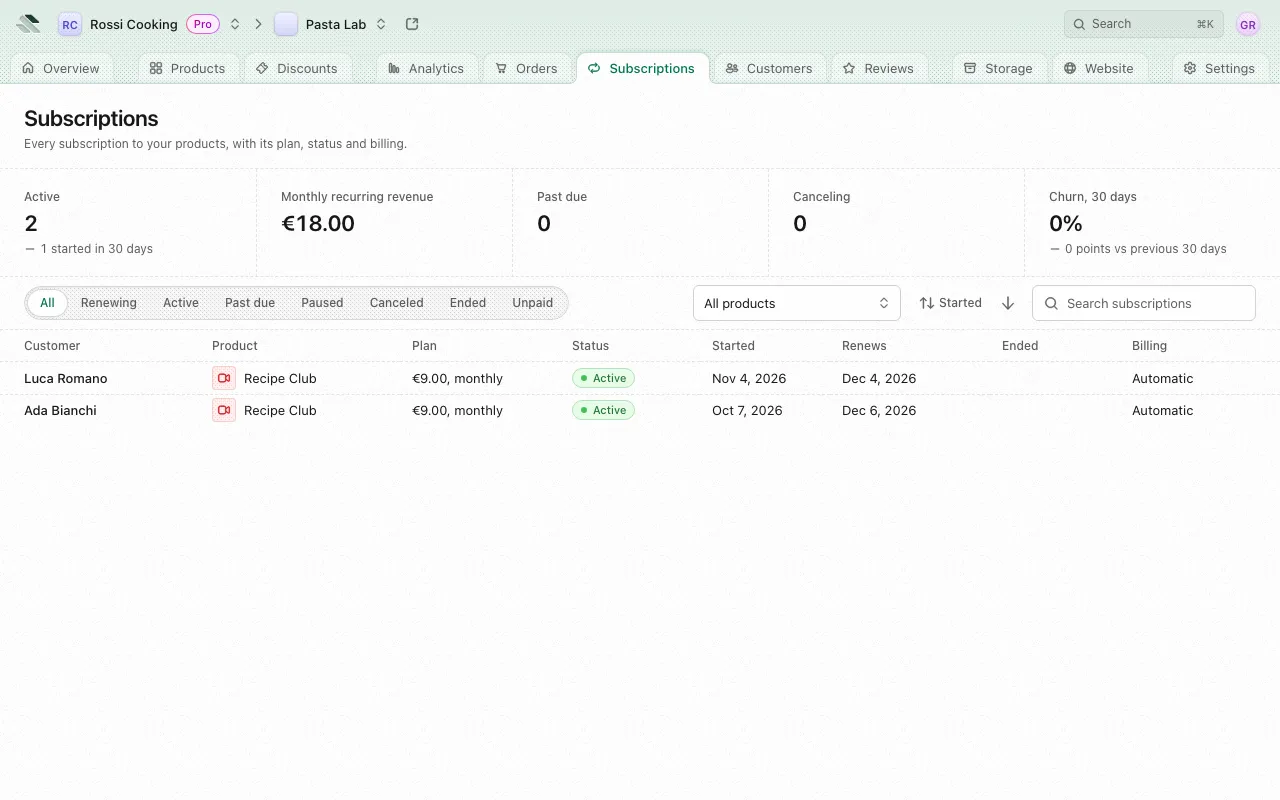
Subscriptions lists every subscription to your products, with its plan, status and billing. Customers show up here once they subscribe to a product that renews.
Figures
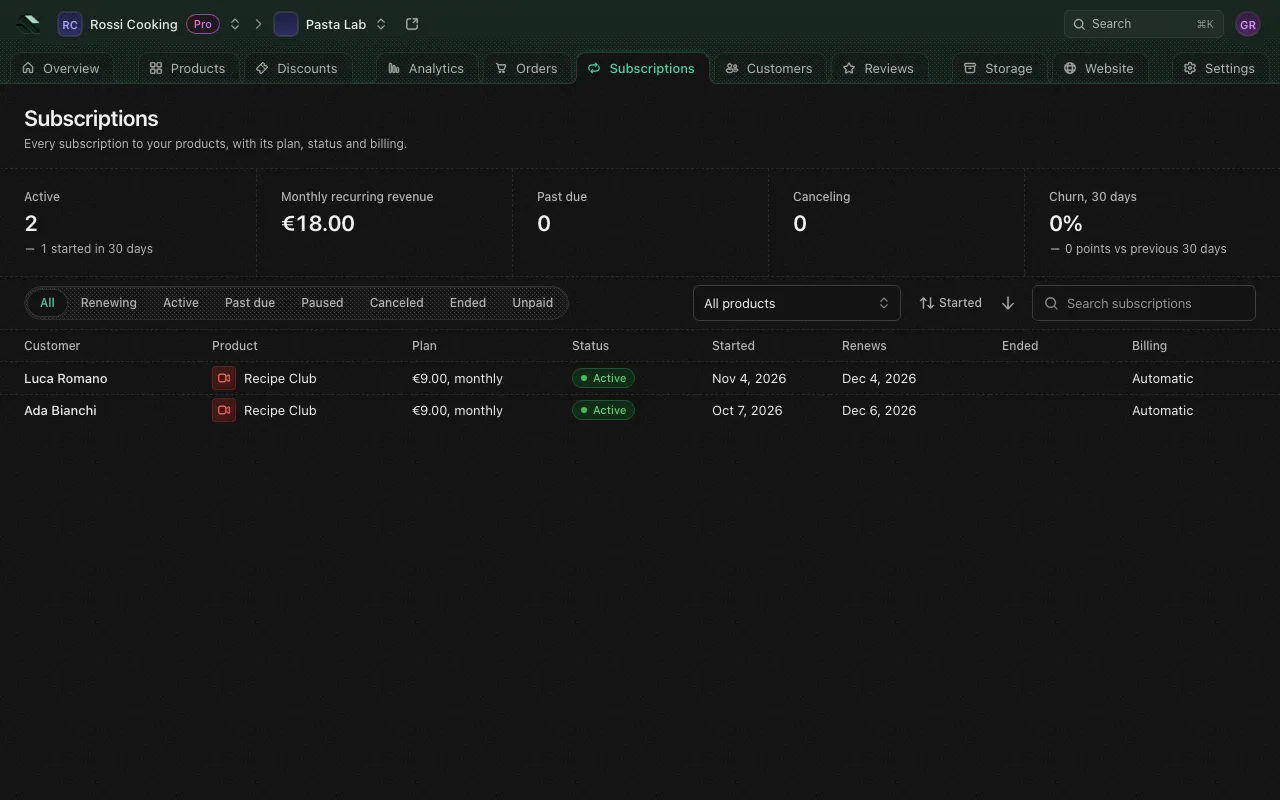
- Active: subscriptions active now, with how many started in 30 days.
- Monthly recurring revenue: the plans’ amounts over one month.
- Past due: subscriptions behind on payment, with the amount a month at risk.
- Canceling: subscriptions set to end, with the amount a month ending.
- Churn, 30 days: compared with the previous 30 days.
The list
The columns are Customer, Product, Plan (the amount and how often it charges), Status, Started, Renews (the next renewal, or the day it ends), Ended and Billing (see Billing).
Search subscriptions matches the customer’s name, email or phone. Filter with Status and the product menu (All products by default). Sort orders by Started, Ended, Status, Tier or Amount per month.
Billing
Billing says who charges the customer for each renewal. The list shows Automatic; a subscription’s panel adds the detail.
| Detail | When and how the customer is charged |
|---|---|
| Automatic, charged by the platform | The platform charges the card the customer saved, through your connected payment account, a day before the period ends. A failed charge is retried when the period ends and 1, 3 and 7 days later, the subscription Past due meanwhile; once the retries run out, it ends as Unpaid. |
| Automatic, with Stripe | Stripe bills it, as a subscription on your connected Stripe account: Stripe picks the day it charges and retries a failed payment, and the platform follows what Stripe reports. The platform sends none of the renewal messages below for it. |
Statuses
| Status | Meaning |
|---|---|
| Active | It renews at the end of each period. |
| Canceling | Still running, set to end with this period instead of renewing. |
| Past due | A renewal payment failed and is being retried. |
| Paused | It doesn’t renew. |
| Canceled | It was canceled and has ended. |
| Ended | It reached its end. |
| Unpaid | It ended because a renewal went unpaid. |
The Renewing status filter shows Active and Past due together.
A subscription
Select a subscription to open it. The panel shows its Status, Customer, Product, Plan, when it Started, Renews, Ends or Ended, the Reason it ended (such as Reached the end of its period, Renewal payment failed or Refunded), Billing with its detail (see Billing) and, for a subscription Stripe bills, the Stripe reference and account.
- Billing periods: each period’s dates and whether it’s Due, Paid, Failed or Refunded, with the charge and its order.
- History: every status change, and who made it (By you, By the customer, By Stripe or Automatically).
Cancel a subscription
- Open the subscription and select Cancel subscription.
- Under When, choose At the end of the period (no more renewals; access lasts until the period ends) or Now (it ends today and takes away the access it paid for). A paused subscription can only end now.
- Optionally, add a Reason, up to 500 characters. At the end of the period, the customer sees it on their subscription until it ends. Now, it shows on the subscription as the reason it ended. The store’s account page stops listing the subscription, so the customer doesn’t see it there. A reason that reads as one the store records itself, such as
refundordispute, is refused. - Select Cancel at period end or Cancel now. Keep subscription leaves it as it is.
Resume renewal
A Canceling subscription can go back to renewing: select Resume renewal. It renews at the end of this period again, and the reason is cleared. It can’t resume if the customer has no saved card to renew on, or if your store isn’t charging through a connected payment account.
You can also cancel and resume from the row menu on a product’s Customers tab. See Products.
Renewals
An automatic subscription renews at the end of each period: the platform charges the saved card a day ahead, or Stripe charges it for one Stripe bills. For one the platform charges, the customer messages Renewal reminder, Subscription renewed, Payment failed, Payment past due, Subscription unpaid and Subscription canceled keep customers informed along the way; set them up in Store settings.