Customers buy into a tier and pay one of its prices, once or on repeat. The tier they hold decides what they can open, on the storefront and through the API, MCP and feeds. This page covers a product’s Pricing, Access and Discounts pages, under Selling in the product’s sidebar.
Tiers
A tier is what customers buy into. Every new product starts with one tier, Base. Add more to sell levels of the same product, such as a standard and a premium edition.
- Tiers are ranked. A higher tier includes everything in the tiers below it, so a customer on the top tier opens everything the lower tiers open.
- Add tier creates a tier above the others. Its Name is required, up to 120 characters.
- Each tier’s menu offers Rename tier, Move up and Move down to change the ranking, and Delete.
- A software product’s tiers offer Edit in place of Rename tier, which also sets the tier’s Activation limit, how many devices one license key activates on it (empty follows the product’s default, set in Settings), and its Features, names your software reads from a license check to turn features on. A tier includes the features of the tiers below it, shown as Included from lower tiers. Each tier’s heading says its devices and the features it adds.
- An event’s tiers are its ticket types. Its Pricing opens with Capacity, how many guests the event takes in all, from 1 to 1,000,000 (empty for no limit), with how many seats are taken. Each ticket type’s Edit sets its own Capacity, within the event’s, and its heading says how many of its seats are taken. A seat is taken while a checkout holds it and once it’s sold. A refund that ends a ticket (a guest’s, or a whole payment’s when refunds remove access) frees its seat; any other refund keeps it, so raise the capacity to sell it again. See Event.
- A tier can be deleted only while no prices, access grants, orders, discounts or access rules use it. Deleting can’t be undone.
Prices whose tier was deleted show under Prices without a tier. Orders on them stand.
Prices
A price sells one tier, in one currency, once or on repeat. Each tier lists its prices with their Price, Billing, Status, Refunds, Order lines and Subscription plans. The count next to Pricing in the sidebar is how many prices are active.
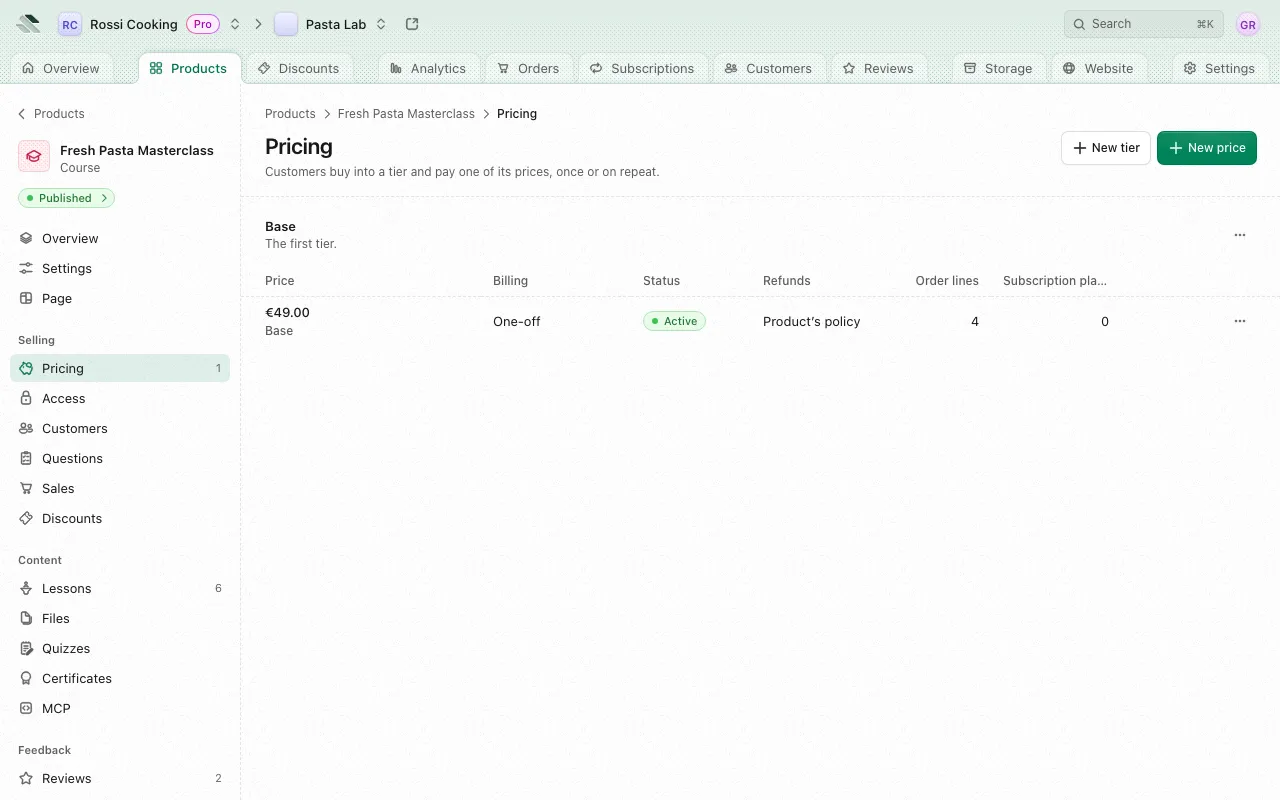
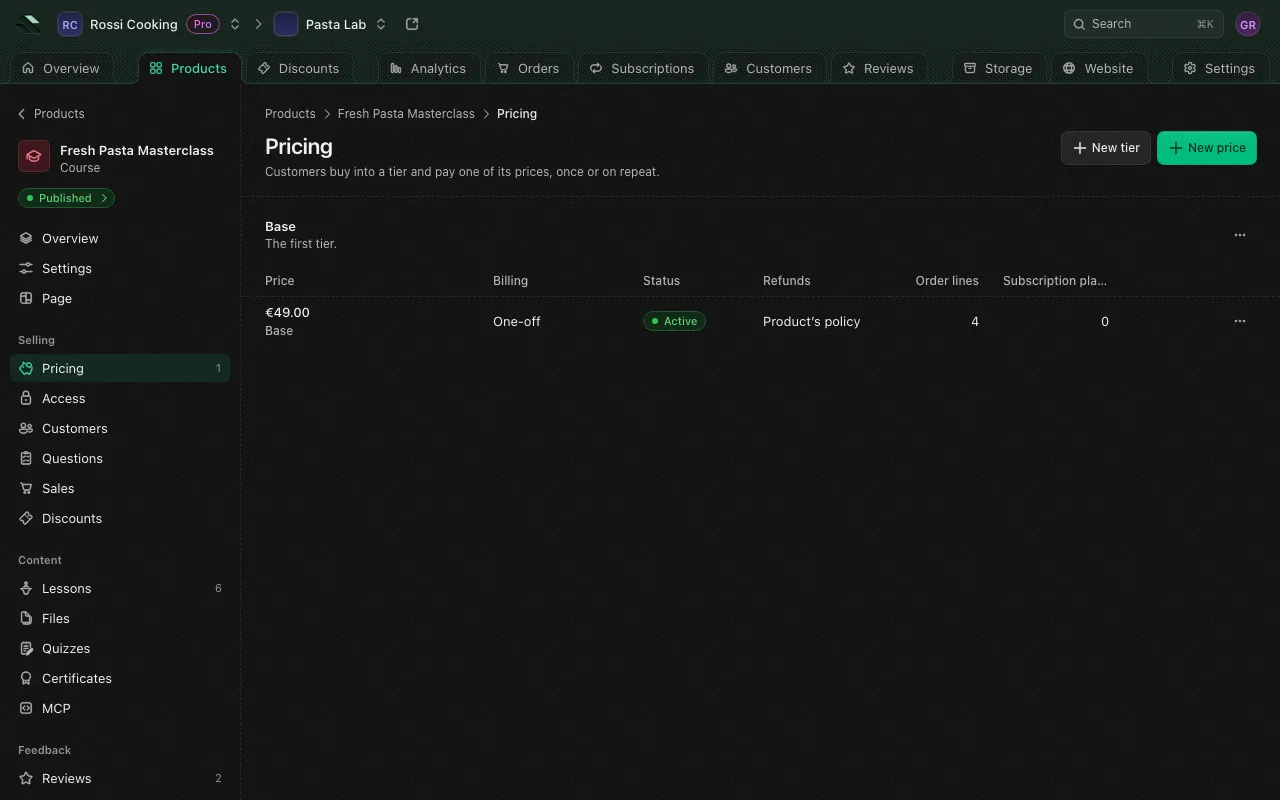
Add a price
- On Pricing, press Add price on a tier.
- Fill in the fields below.
- Press Save price.
| Field | Rules |
|---|---|
| Tier | The tier the price sells. |
| Title | Optional, up to 30 characters. The product page shows it instead of the tier’s name. |
| Description | Optional, up to 50 characters. The product page shows it under the title. |
| Currency | One of the currencies the picker lists. USD, EUR, GBP, AUD, CAD and CHF come first. |
| Amount | Required. Zero makes the price free. |
| Billing | One-off charges once and gives lifetime access. Recurring charges on repeat. |
| Every and Period | Recurring only. A whole number from 1 to 365, and days, weeks, months or years: for example every 3 months. |
| Renew automatically | Recurring only. Renews the subscription at the end of each period. |
| Renewal discount | Recurring only. Optional, a percent from 0 to 100, taken off every renewal after the first period. |
| Upgrade multiplier | One-off only. Optional, from 1 to 10. See Upgrades. |
| Refund policy | The product’s policy, or a policy of its own for this price. See below. |
| Highlight it on the product page | Marks the price as highlighted where the product is sold. |
Coffee and Goals products sell one-off prices only, and their Recurring option is off.
Minimum charge
The card processor has a minimum charge per currency: 0.50 in USD, EUR, AUD, CAD and CHF, and 0.30 in GBP. A checkout whose total, after any discount, is above zero but below that minimum is granted free instead of charged. Keep paid prices at or above the minimum.
Refund policy per price
A price follows the product’s refund policy (set in the product’s Settings) unless you pick its own: No refunds, 24 hours, 72 hours, 7 days, 14 days or 30 days. It sets how long after buying at this price customers can ask for their money back. With no refunds, or a window under 14 days, customers must accept it to complete checkout, and checkout records their consent.
Edit, archive and delete a price
Each price’s menu offers:
- Edit: change the amount, title, description and settings. New orders pay the new amount. The tier, currency and billing are fixed once created, as orders point at them: add a new price to change them.
- Duplicate: start a new price from this one.
- Highlight: highlight this price instead.
- Archive: takes it out of checkout. Past orders keep pointing at it, and an archived price that was highlighted stops being highlighted. If it’s the only active price, customers can’t buy the product until you add or restore one.
- Restore: puts an archived price back on sale.
- Delete: only while nothing was sold on it, and no orders, subscriptions, checkouts, automations or discounts use it. This can’t be undone.
Coffee and Goals options
- A Coffee product has a Coffee section setting how the product page counts what customers buy: an Emoji (one emoji, ☕ when empty) and a Descriptor (3 to 15 characters, “coffee” when empty). Customers see “1 coffee ☕”.
- A Goals product has a Goal section: the Goal amount and its Currency, which the product page shows with its progress. Leave it empty for no goal, or Remove goal to drop one. The buy box shows progress only when the goal is in the same currency as the price.
Press Save to keep the changes.
Upgrades
A customer who holds a lower tier can upgrade to a higher one, in the same currency. They pay the new price less a credit for what they hold. For lifetime access, the credit is the larger of what they paid and today’s price of what they hold, less anything refunded. For a subscription, it’s what they paid for the current period, once paid and less any refund, and it shrinks as the period is used up. Lifetime access credits in full toward a higher one-off price, but moving from lifetime access to a subscription pays the subscription’s full price.
The Upgrade multiplier on a one-off price multiplies what customers on a lower tier pay to upgrade to it, never past the price’s full amount. It takes a value from 1 to 10. Leave it empty to charge the plain difference.
Access
Access chooses the tier that opens the product on each channel, and lets customers in without a purchase.
Requirements
Each channel has a select with the tier a customer needs:
| Channel | What it covers |
|---|---|
| All channels | The base for every channel. |
| Web | The storefront in a browser. |
| API | Apps reading the store API. |
| MCP | Clients using the Model Context Protocol. |
| Feeds | A customer’s private RSS feed of a blog or a podcast, or their private calendar feed of an event. A blog’s public feed lists the abstracts of up to its 50 newest posts, decided as the web decides it. A podcast’s lists the episodes anyone may listen to, decided as the API decides it, the channel podcast apps play its episodes over. See Feeds. |
The options are Same as All channels (every channel but All channels), Everyone, and each of the product’s tiers. MCP also offers Nobody, which closes the product to MCP clients. A product with no rule on All channels is open to everyone. A higher tier includes the ones below.
Only members who may change the product set these rules.
Lesson rules (or Episode rules) lists the lessons or episodes that have a rule of their own, which overrides the product’s on that channel.
Grants
Grants lists access given without a purchase. Ended and revoked grants stay listed. Each row shows the Customer, Tier, Source (such as Granted by hand, Checkout, Subscription, Automation or API), Reason, From and Ends.
To grant access:
- Press Grant access.
- In Customer, search your customers or enter an email. Whoever signs in with that email gets access.
- Pick a Tier. Without a tier, the grant opens only content open to everyone.
- Optionally pick Ends: the date and time access ends, in the store’s time zone. Leave it empty for access that never ends.
- Optionally add a Reason, up to 500 characters. Only your team sees it.
- Press Grant access.
A grant adds to anything the customer bought. Revoke ends a grant now and keeps it in the list. It needs a reason, which isn’t saved with the grant, and no email goes to the customer. A purchase still lets the customer in.
To take a customer’s access away for cause and tell them, use Revoke for cause on the product’s Customers tab, or Revoke access on their order.
Turn on Only grants by a connection to see only access given by an API token or a connected app.
Discounts
The product’s Discounts page lists the discounts that reach this product: on it, on one of its tiers or prices, or on the whole store. From there you can create a code customers enter at checkout, or a discount that applies on its own, starting on this product. Calendar, Coffee and Goals products take no discounts, so they don’t have this page.
Discounts are covered in Discounts and affiliates.