A product is what customers buy: a course, a set of downloads, software, a series, a blog, a podcast, a call, an event, a portfolio, a tip jar or a fundraising goal. Each product has a category, tiers and prices, a page on your store, and the content it delivers.
The product list
Products in the store sidebar lists every product in the store. Above the list, three figures sum up the catalog: Products, Total sales and Average rating.
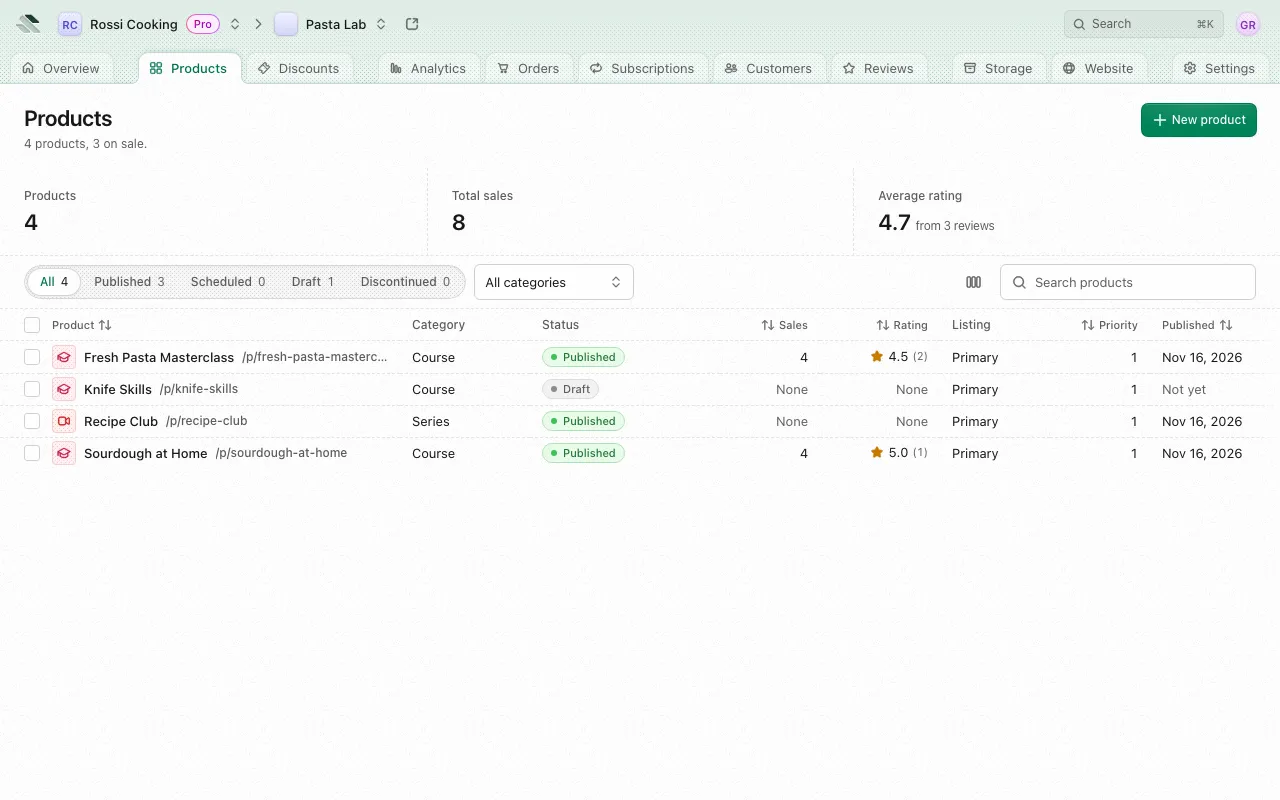
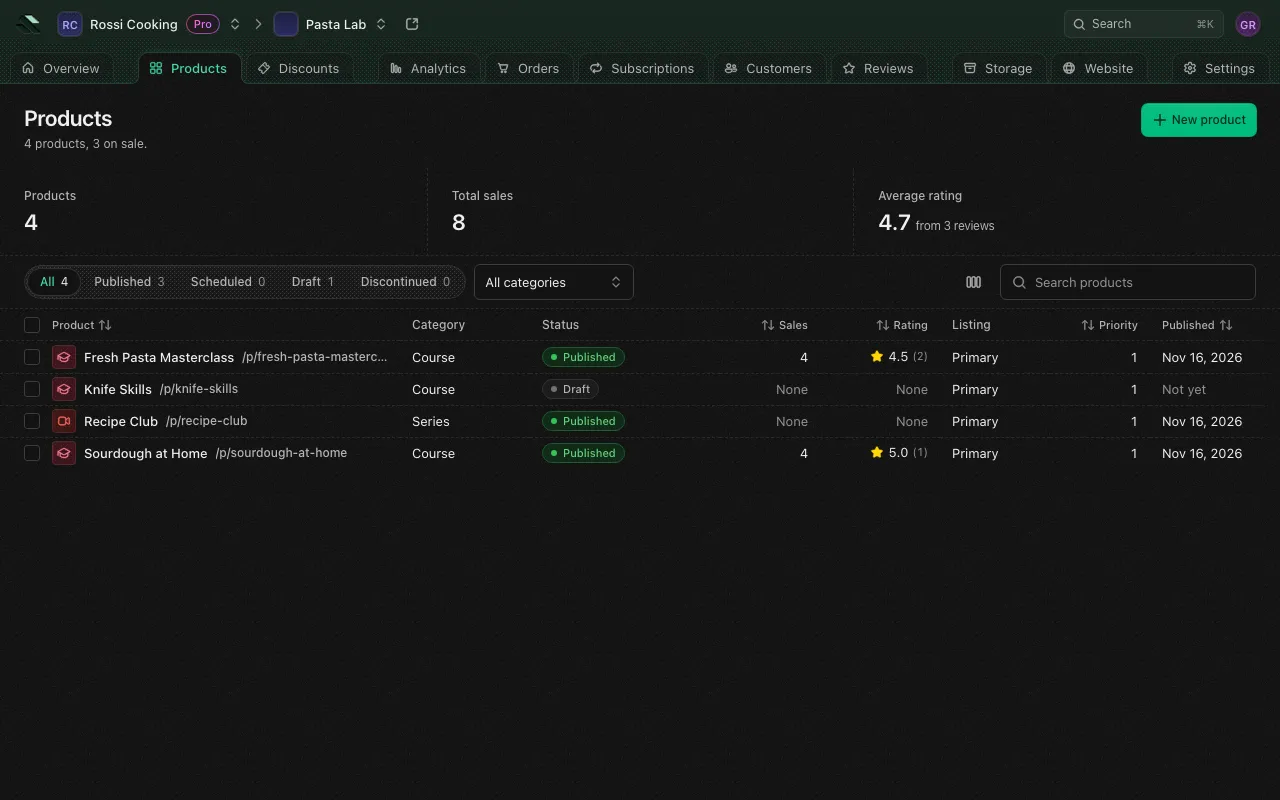
- Search products finds a product by its title, address or subtitle.
- The status tabs narrow the list to Published, Scheduled, Draft or Discontinued products.
- The category menu narrows it to one category, or shows All categories.
- Columns: Product, Category, Status, Sales, Rating, Listing, Priority, Published and Created. Sort by a column by its header.
Select products with their checkboxes (or Select all products) to act on several at once:
| Action | What it does |
|---|---|
| Publish | Puts them on sale now, including any scheduled for later. |
| Unpublish | Moves them back to draft and off sale. |
| Unlist | Takes them out of the catalog and search. Their addresses keep working. |
| Relist | Puts them back in the catalog and search. |
| Delete | Deletes them with their tiers, prices and content. A product something still uses is kept. |
Categories
A product’s category decides what it holds, which pages it has in the app, and which prices, discounts and reviews it can take. You pick it when you create the product and it can’t be changed afterwards.
| Category | What it is for | What it holds | Limits |
|---|---|---|---|
| Course | Lessons people take at their own pace. | Lessons in chapters, files and links, quizzes, certificates and MCP prompts. | None. |
| Files | Downloads people keep, such as e-books, templates or presets. | Files and links, and MCP prompts. | None. |
| Software | Apps, plugins and tools people activate with a license. | Optional files and links, and MCP prompts. | None. |
| Calendar | Calls and appointments people book on your availability. | A Cal.com event and a host card (see Content). | No discounts. |
| Event | Gatherings at set times, in person, online or both, with tickets. | Ticket types as tiers, its sessions, certificates for attending, and its format and location (see Content). | None. |
| Series | Episodes people catch up on as you release them. | Episodes in seasons, and MCP prompts. | None. |
| Blog | Posts and articles people read as you publish them. | Posts, newest first, and MCP prompts. | None. |
| Podcast | Episodes people listen to as you release them. | Episodes, each led by its audio, newest first, and MCP prompts. | None. |
| Portfolio | Holdings and trades people follow as you invest. | Positions, a watchlist, activity and files on each holding. | None. |
| Coffee | Thank-yous people send for your work. | An emoji and a descriptor for what customers buy. | One-off prices only, no discounts, no reviews. |
| Goals | A goal people help you reach, step by step. | A goal amount the product page tracks. | One-off prices only, no discounts, no reviews. |
The app shows the same limits under each category when you choose one, such as “One-off prices only, no discounts, no reviews.”
Create a product
- Open Products and press New product.
- Enter a Title, up to 200 characters.
- Check the Address. The app fills it from the title as you type: lowercase letters, digits and hyphens, up to 120 characters. The product lives at
/p/<address>on your store. The address must not be used by another product or another page of the store, and it can’t be changed after the product is created. - Add a Subtitle if you want one. It is optional, up to 100 characters, and shows under the title on the product’s page and card.
- Choose a Category. Course is picked when your store offers it.
- Press Create product.
The new product starts as a draft with one tier, Base. Add prices on Pricing, add its content, and publish it when it’s ready. A new event opens on its Sessions page, since nobody knows when to come until it has one.
The product’s pages
Opening a product shows its own sidebar, headed by its title, its category and its status. Which pages it lists depends on the category and on your permissions: a page you have no access to doesn’t show.
| Section | Pages |
|---|---|
| (top) | Overview, Settings, Page |
| Portfolio (Portfolio only) | Portfolio, Activity |
| Event (Event only) | Sessions, Attendees, Check-in, Certificates |
| Selling | Pricing, Access, Customers, Questions, Licenses (Software), Sales, Requests (when the product requires approval, an event keeps a waitlist, or it holds requests), Discounts (not for Calendar, Coffee or Goals) |
| Content | Lessons, Episodes or Posts (Course, Series, Blog, Podcast), Files (Course, Files, Software), Quizzes and Certificates (Course), MCP (Course, Files, Software, Series, Blog, Podcast) |
| Feedback | Reviews (not for Coffee or Goals) |
Pricing, Access and Discounts are covered in Tiers, prices and access. The content pages are covered in Content.
Overview
The product’s Overview sums up how it sells.
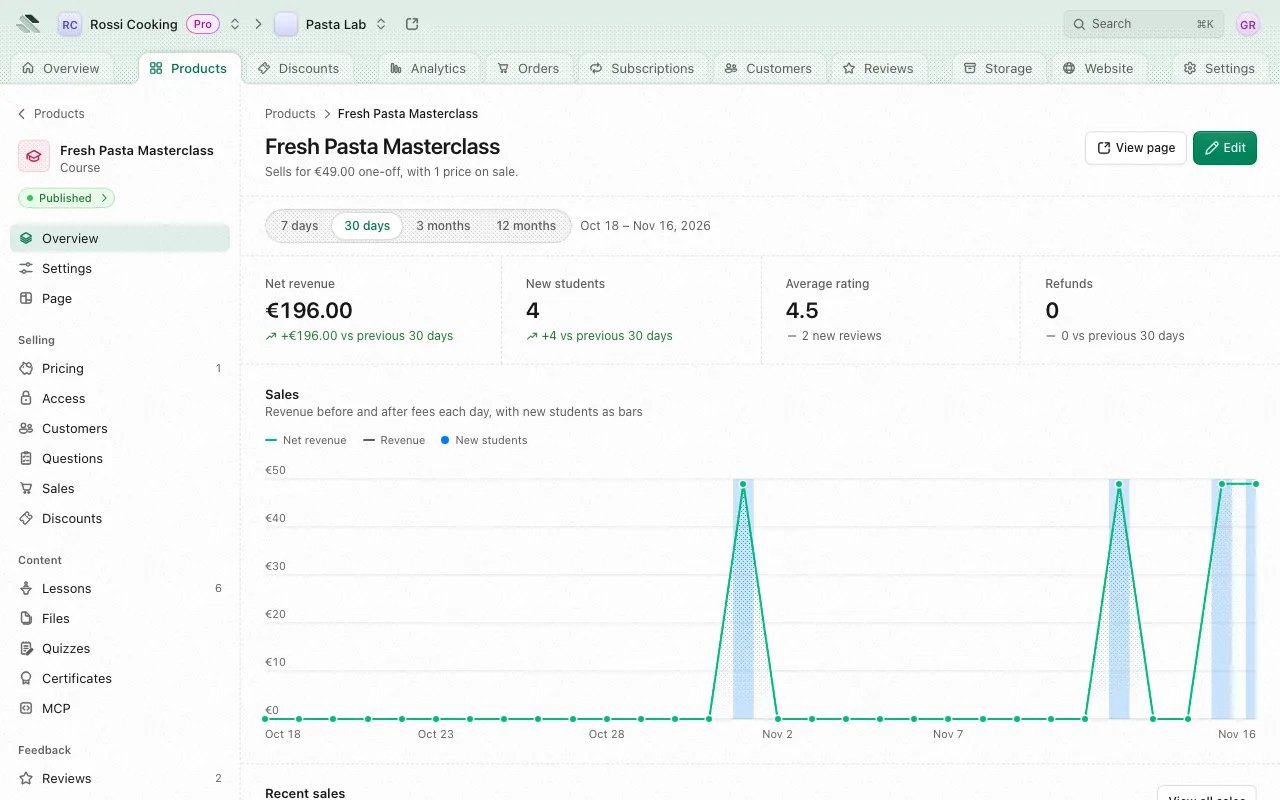
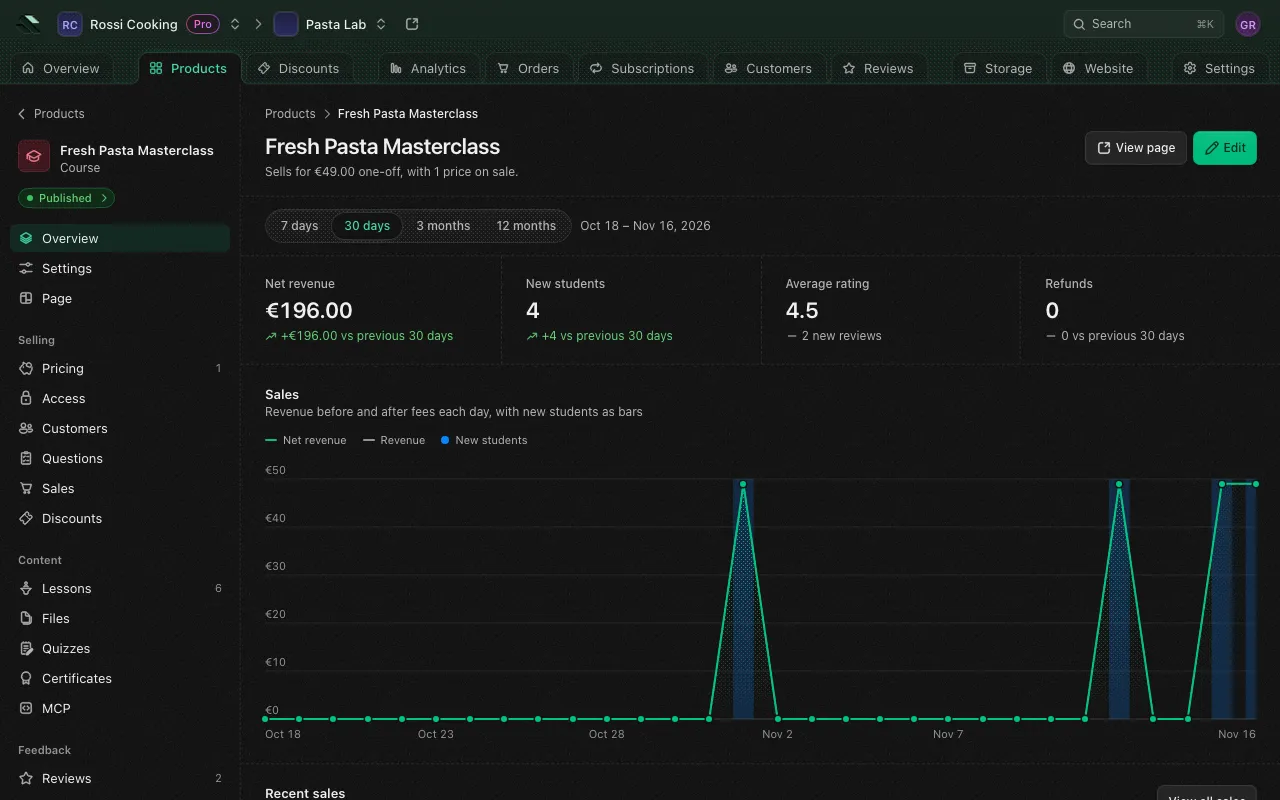
- The header says what it sells for, such as one-off or recurring prices, or “No prices on sale yet.”
- Pick a Range of 7 days, 30 days, 3 months or 12 months. The figures compare against the period before it: Net revenue, New students, Average rating and Refunds.
- Sales charts revenue before and after fees each day, week or month, with new students as bars.
- Recent sales lists the latest orders in the range, with each order’s student and payment (Paid, Partly refunded, Refunded). View all sales opens the Sales page.
- Lifetime takings shows every sale since launch, per currency and by who holds the money (Sherpo, Your account, or Outside Sherpo), with Gross, Fees, Refunded and Net. Fees cover the platform, the payment processor and affiliates.
- All files counts the files the product uses, including cover and page files, with Open files to see them.
An event’s Overview also shows its Next session: when and where it meets next, with Open sessions, or a prompt to add one when none is coming up.
Members whose role doesn’t show amounts see Hidden in place of money.
Settings
Settings holds what customers see, where the product sits in the catalog and when it’s on sale. Edit the fields, then press Save, or Discard to drop your changes.
Details
| Field | Rules |
|---|---|
| Title | Required, up to 200 characters. |
| Subtitle | Optional, up to 100 characters. The short line shown under the title on the product’s page and card, and matched by search. |
| Thumbnail | Shown on the product’s card in the catalog. A JPEG or PNG, at least 480 by 270 pixels, best at 16:9, up to 15 MB. Upload one or choose it from Storage. |
| Address | Read only. Copy address copies the product’s link. |
| Category | Read only. |
Catalog
- Listing: Primary shows the product as a card in the catalog. Secondary shows it as a line beside the cards, as for a call, a coffee or a goal.
- Priority: a whole number from 0 to 1,000,000. A higher priority shows earlier in its listing.
Content (Course, Series and Podcast)
Progress tracking decides how a lesson or episode counts as done:
| Option | What it does |
|---|---|
| Manual | Customers mark each one done with a button. |
| On open | Opening one marks it done. |
| On complete | Reaching its end marks it done, such as the end of its video or its last slide. |
| Off | Courses only. No button, and opening or finishing one doesn’t mark it. Handing in a lesson’s quiz still does. |
A podcast’s episodes count as played at the end of their audio unless you pick another option.
Product page
| Field | Rules |
|---|---|
| Description | Optional, up to 100,000 characters. The page’s long rich text, shown by its Description block. |
| What you get | Optional, up to 100,000 characters. Shown by the page’s What you get block. |
| Purchase note | Optional, up to 2,000 characters. Shown with the buy button, for example when it ships. |
| Accept reviews | Lets customers review the product. Not shown for Coffee or Goals. |
| Show customers the summary of what reviews say | Shows the summary of the reviews on the product page. Not shown for Coffee or Goals. |
| Show the sales counter | Shows the product’s sales counter on its page. |
| Use the thumbnail as the page background | Puts the thumbnail behind the page. |
| Always show the page in dark mode | Shows the page in dark mode whatever the visitor’s setting. |
Description and What you get use the same rich text editor as lessons, with formatting, and images and files uploaded straight from their fields or chosen from Storage.
Calendar products also have a Booking section, Event products Format and Location sections, and Portfolio products a Portfolio section. All are covered in Content.
Feeds (Blog, Podcast, Event)
Every blog has a public RSS feed, linked from its pages, which lists up to the 50 newest posts with their abstracts and never a post in full. It can’t be turned off.
Every podcast has a public feed that podcast apps and directories accept, listing up to the 50 newest episodes anyone may listen to, each with its audio, length, artwork, transcript and chapters where it has them. Locked episodes are never in it. An episode joins its feeds once its audio is an MP3, M4A or AAC file, played on the page rather than downloaded, and not protected; a WebVTT subtitles track is its transcript, and artwork that isn’t a square JPEG or PNG of 1400 to 3000 pixels is left out of the feed. Its settings are what directories read:
- Public feed is the address to submit to Apple Podcasts, Spotify and other directories. It shows once the podcast is published and listed on your store’s domain. Directories show the product’s thumbnail as the show’s artwork when it’s a square JPEG or PNG of 1400 to 3000 pixels. Feeds walks through submitting it.
- Category is the category directories list the podcast under, from Apple’s list. Apple Podcasts lists a podcast only once it has one.
- Explicit marks the podcast as explicit in podcast apps.
- Owner email is the address directories mail to verify you own the podcast. Spotify needs it. It shows in the public feed only, never in a customer’s private one, and marks the feed as yours, so another podcast host can’t take it in without you.
Private feeds lets each customer who holds the blog or podcast follow it in their feed reader or podcast app from an address of their own. A blog’s private feed lists up to its 50 newest posts: the 20 newest of those the customer may read come in full, the rest as abstracts. A podcast’s lists up to the 50 newest episodes they may listen to. Older posts and episodes stay on your store. It’s on unless you turn it off. Turning it off stops every customer’s private feed at once; turning it on again lets them get a new one, and the old addresses stay stopped. A private feed that serves more feed readers in 30 days than its limit, 5 unless you change it on the customer’s page, moves to a new address, and the customer is emailed it. See A customer’s page.
On an event, Private feeds lets each ticket holder subscribe to the event in their calendar app from an address of their own, which carries the location even when you keep it to ticket holders. It stops when their ticket ends, and turning it off stops every one at once, as for a blog. The event’s public calendar file and the store’s schedule always stay on. See Event calendars.
License keys (Software)
A software product’s Settings hold how its license keys work:
- Key prefix is what every new key starts with: up to 16 letters or digits, groups joined by one hyphen or underscore, such as
PASTA. Existing keys keep theirs. New keys look like shows an example. - Default activation limit is how many devices one key can activate when its tier sets no limit, from 1 to 10,000. Leave it empty for no limit.
Verify keys from your software shows the product’s ID, with Copy, and the address your server checks a key at through the merchant API, which answers the key’s status, tier, features, activations and when access ends.
Approval
Require approval has each buyer ask first: a get becomes a request you approve or decline on Requests, and they get the product only once you approve. At a paid price, Paid requests picks how they wait: Save the card saves their card at checkout and charges it once you approve, and Hold the amount holds the total on their card and takes it once you approve. Holds last about 7 days: one you haven’t decided a day before it lapses is released and the request closes as expired, nothing charged. An event keeps their seats while the request waits. A product that requires approval sells one-time prices only, so turning it on while a recurring price is on sale is refused until you archive those prices, and such a price can’t be added while it’s on.
Refunds
Refund policy sets how long after a purchase customers can ask for their money back:
- Not set: no refund policy is shown, and checkout asks for no consent. A price can still set its own.
- No refunds: customers must accept there are no refunds to complete checkout, and checkout records their consent.
- 24 hours, 72 hours or 7 days: customers can ask for a refund within the window. As it’s under 14 days, they must accept it to complete checkout, and checkout records their consent.
- 14 days or 30 days: customers can ask for a refund within the window.
A price can override the product’s policy. See Tiers, prices and access.
Status
The Status section at the bottom of Settings shows when the product is on sale and whether the catalog lists it, with the actions its status allows:
| Status | Actions |
|---|---|
| Draft | Publish now puts it on sale. Schedule picks the date and time it goes on sale, in the store’s time zone: it publishes itself at that moment. Any time later than now works, later today included. |
| Scheduled | Publish now, Reschedule, or Unpublish back to draft. |
| Published (on sale) | Discontinue stops new sales while customers keep access. Unpublish moves it back to draft and off sale. |
| Discontinued | Nobody can buy it, and customers who did keep what they have. Reinstate puts it back on sale. |
Separately from its status, Unlist takes the product out of the catalog and search while its address keeps working, and the product shows an Unlisted badge. Relist puts it back.
Before publishing or scheduling, the app checks the product. If it has no price (“nobody can buy it”) or nothing to deliver yet (“buyers get nothing”, or for an event, no sessions), it says so, with links to Add a price, Add content or Add a session, and lets you Publish anyway or Schedule anyway.
Delete product removes it from the store and its customers lose access, while its orders and payouts stay in your history. Its tiers, prices and content go with it. This can’t be undone, and a product something still acts on can’t be deleted.
The page header repeats the status, with Publish and Reschedule at hand.
Page
Page is the editor for the product’s page on your store. It works like the editor for the store’s other pages (see Website): add and arrange blocks, see them in Preview, then Save and Publish.
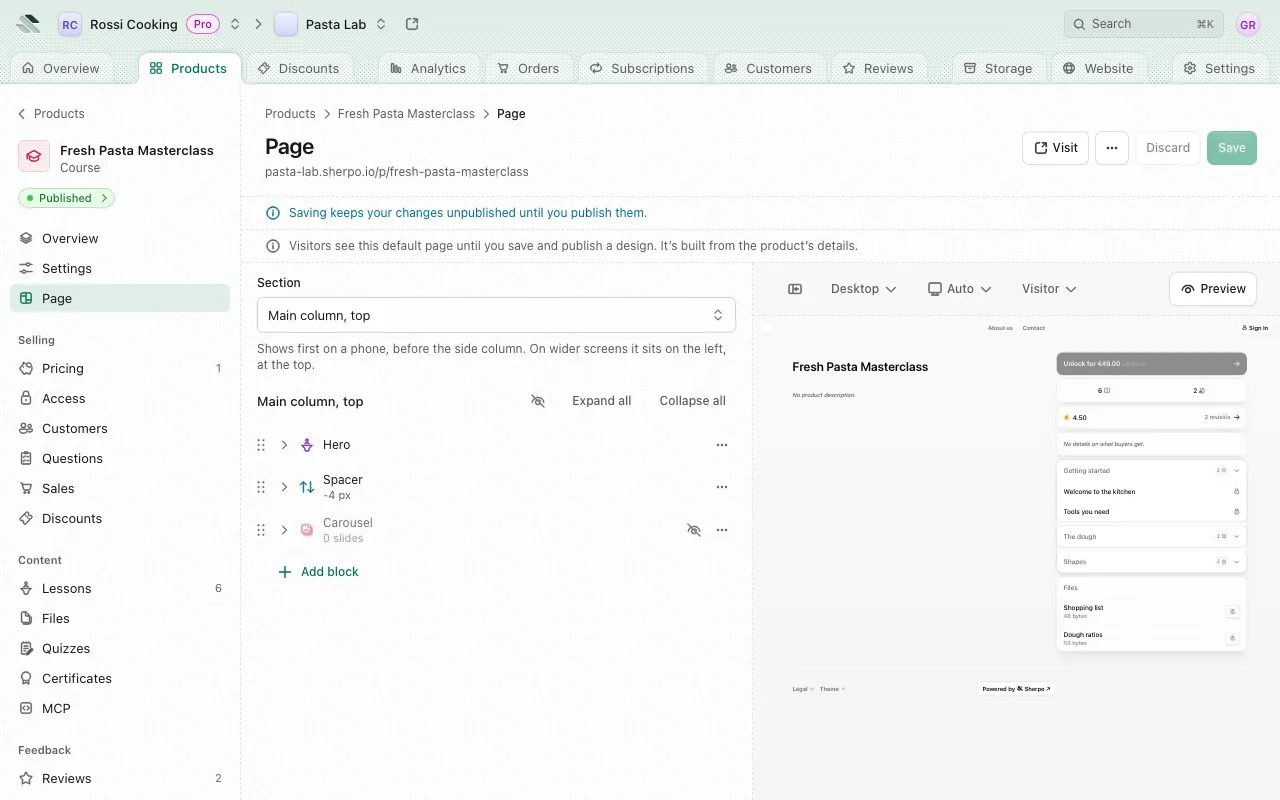
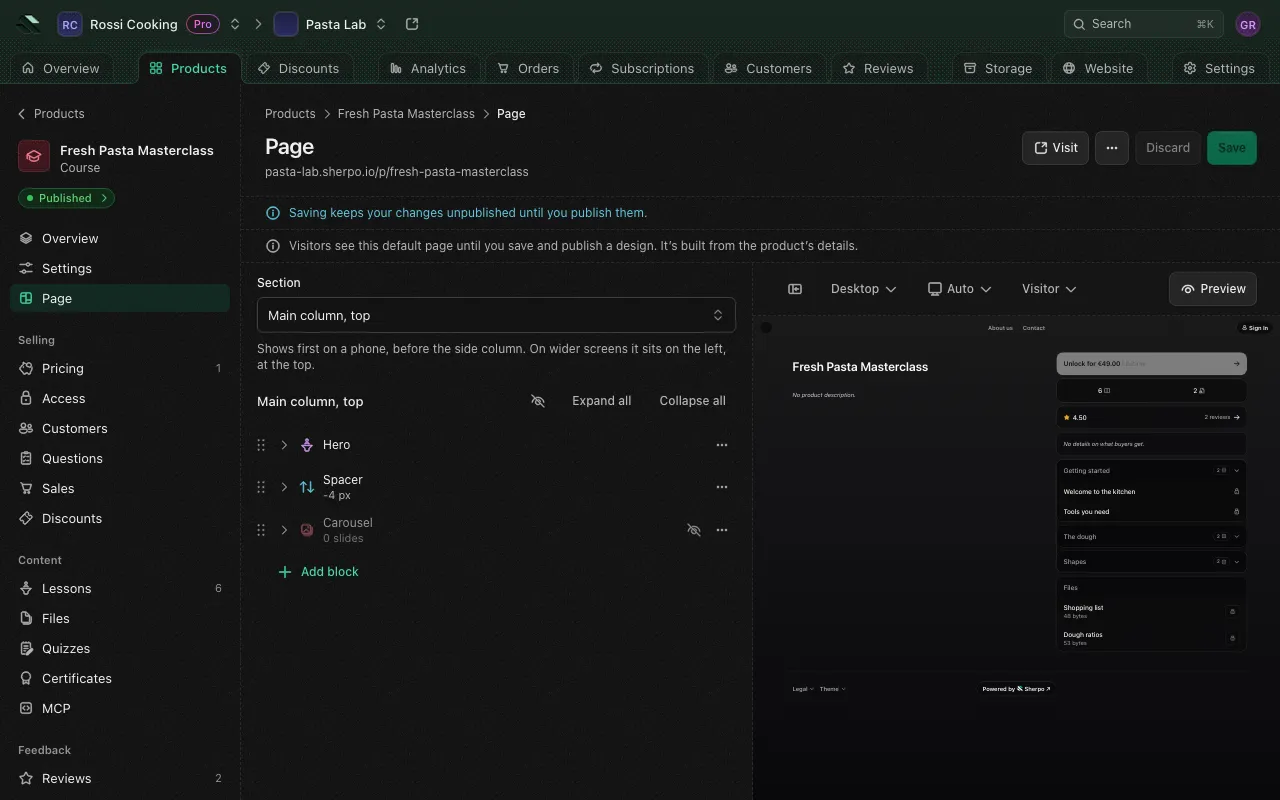
- Until you save and publish a design, visitors see a default page built from the product’s details.
- While the product is a draft or scheduled, Save writes the page straight away, and it goes live when the product does.
- Once the product is published or discontinued, Save keeps your changes unpublished until you Publish them. A page with unpublished changes says so.
- Besides the general blocks, a product page offers blocks that show the product: Buy box (prices and the button to buy), Summary, Description, What you get, Rating, Contents (the lessons, episodes or pages, by section) and Files (the files buyers download). Portfolio products also offer Portfolio chart and Portfolio weights. Event products also offer Event dates (when it takes place, in the venue’s time and the visitor’s, with Add to calendar) and Event location (the venue and its address with a link to open it in maps, the online platform, or a lock with its city, region and country while the place is kept to ticket holders); an event’s page requires both, as it requires the Buy box, and a saved page that lacks them opens with them around the Buy box, on the storefront too.
- A page shows only one Buy box. It must show a Buy box, Contents and Files in both color schemes, light and dark. A Blog or Podcast page must show an Article list (its posts or episodes, newest first) in place of Contents, which Reset to default brings back, and a Portfolio page needs only the Buy box. The editor tells you what to add or remove before it saves.
- More actions holds Export layout, Import layout, Reset to default and Discard unpublished changes.
Members who may not edit products can look around and export the design, but not change it.
Sales
Sales lists every order of this product, sold in the store or recorded by hand, with its payment and refunds. It has the same figures, filters and order records as the store’s orders (see Orders and subscriptions): Orders placed, Revenue, Net revenue, Fees paid, Refunded and Average order, per currency.
Export downloads the orders as shown, with your filters and search, as a CSV file. An export holds up to 20,000 orders: narrow a larger list with a filter or a search first.
Requests
Requests is where you decide who gets the product: the buyers waiting for your approval, and an event’s waitlist. Its count in the sidebar is how many are still waiting.
- Pending (where the page opens): buyers whose get waits for you. Approve gives them the product, on the seats their order holds; Decline gives the seats back. A paid request is charged on the card the buyer saved when you approve it: it reads Charging until the charge goes through, then Approved. If the card refuses, it reads Unpaid and the buyer is emailed a link to pay; Charge again tries their card once more, and Decline still gives the seats back. You can decline one that reads Charging too: its charge is called off, or given back once it lands. A held request reads On hold, with the date its hold is released if you haven’t decided; approving takes the amount held, and declining releases it. One released that way reads Expired.
- Waitlisted (Event only): guests who asked for a ticket once the event was full. Once seats free, from a declined request, a refund that ends a ticket or a higher capacity, Let in records an order that takes their seats and gives them a free ticket at once, or charges a paid one on the card they saved when they joined, else their default saved card (with neither, they’re emailed a link to pay for their seat); while the event is still full it says there aren’t enough seats left. Decline takes them off the list.
- Decided: the requests you approved or declined, and when.
- Columns: Customer, what they Asked for (the ticket or tier, and how many), Requested, Status and Decided. Search by name, email or phone.
Each decision emails the buyer, as do their request and joining the waitlist: see Customer messages. A row’s menu offers View customer, Email and, when the product asks questions, View answers: what the buyer answered in checkout, beside the request you decide. On a phone the list shows each buyer, their status, the decisions, as icon buttons, and the menu, and a row opens the customer. To work requests from your own code, see Approve requests and run a waitlist.
Customers
Customers lists everyone who bought or subscribed to this product, and how they pay for it.
- Figures: Active (split into one-off and subscribed), Canceling, Past due and Paused.
- Status views: All, Active, Canceling, Past due, Paused and Ended.
- Search customers searches by name, email or phone.
- Columns: Customer, Email, Price, Amount, Status, Access (for example “Renews” or “Access until” a date) and Cancel reason.
Each row’s actions, depending on how the customer holds the product:
- View customer and View order.
- View answers, when the product asks questions: each question with the customer’s answer.
- Email customer.
- Cancel subscription: Now ends it today and takes away the access it paid for. At the end of the period stops renewals and keeps access until the period ends. The optional Reason is shown to the customer on their subscription.
- Resume renewal, for a subscription set to stop at the end of its period.
- Revoke access, for access granted without a purchase. Their payment, if any, is kept: refund it from the order if you owe one.
- Revoke for cause, for a customer who broke your terms, committed fraud or abused the product: their access to it ends at once, however they hold it, their subscription ends now, and they’re always emailed, with your message and an optional refund. A guest’s ticket takes no refund, as its buyer paid for it: refund the buyer from their order. See Revoke access.
Everyone going is emailed when they register, when the event’s schedule or place changes, and when it’s canceled, and gets reminders before each session as browser notifications; see Customer messages.
Export downloads the list as shown, in its view, search and sort, as a CSV file with each customer’s Name, Email, Phone, Kind (One-off or Subscription), Price, Status, Started, Ends, Cancel reason and Erased, then one column per question, its answer, a checkbox as Yes or No and several choices joined with ; . An export holds up to 20,000 customers.
To let someone in without a purchase, use Grant access on the Access page.
Questions
Questions are what buyers answer at checkout, before they pay, on any product: a dietary need, a T-shirt size, their company or their consent to be photographed. A free product asks them when it’s claimed, and a subscription once when it starts, never at its renewals. The page lists them in the order checkout asks them, each with its answer type, its choices or pattern, a Required tag when buyers must answer it and a Standard detail tag for a standard detail; the sidebar counts them. A product asks up to 20 questions, and none unless you add them.
Add question opens a form:
- Ask for: Your own question, or a standard detail: Name, Phone, Company or Address, each asked once per product. A standard detail sets its answer type and fills in its question, which you can reword; Phone also fills in a pattern for phone numbers.
- Answer type: Short text, Long text, One choice, Several choices or Checkbox. It can’t change once the question is added.
- Question: what buyers see, on one line, up to 200 characters.
- Choices, for One choice and Several choices: from 2 to 20, each different and up to 100 characters, in the order buyers see them. Add choice adds one, and each has its own move and remove buttons.
- Pattern, for Short text and Long text: optional. The whole answer must match it, such as
^[A-Z]{3}-\d{3}$for a code, and checkout tells buyers in place as they type when it doesn’t. It takes characters and escapes,., classes such as[a-z],\d,\wand\s, groups,|and repeats up to 100; one with anything else, such as a back reference or a lookaround, is refused as it can’t be checked safely, saying why. - Example, beside Pattern: optional, an answer that fits the pattern, such as
ABC-123, up to 100 characters on one line. Checkout shows it to buyers under the question and in the error when an answer doesn’t fit (“Enter it like ABC-123”). It’s refused without a pattern or when the pattern doesn’t match it, and cleared when you remove the pattern or change it so it no longer matches. - Required: buyers can’t pay until they answer it; a required checkbox must be ticked, as for terms they must accept.
Each row’s menu offers Edit, Move up, Move down and Remove. Removing a question deletes every answer to it, from Customers, Attendees and the exports too.
Buyers’ answers show on the product’s Customers (View answers in a row’s menu, and one column per question in its export), on an event’s Attendees, and in an Answers section on a customer’s page and on an order’s page. To manage questions from your own code, see Ask buyers questions.
Attendees
Attendees (Event only) is the event’s guest list: one row per person, whatever tickets they hold, however they got them. Someone is Going while a ticket holds and canceled once none does, with no step of yours. On an event that requires approval or keeps a waitlist, the people waiting are on it too: Pending while you decide their request, Waitlisted while they wait for a seat. The page’s subtitle counts who’s going, of the event’s capacity when it sets one. Scan tickets opens the event’s Check-in on the session shown, for a member with the Check in permission on Event check-in.
- Going, Checked in (who was let in at the session picked, of who’s going), Spots left and Canceled, with how many of those were refunded, and Waiting, split into pending and waitlisted, while anyone waits. Spots left counts the seats left to sell as checkout does, so a ticket you grant takes none. It reads “of” the event’s capacity when the event sets one; with none, it’s still bounded when every ticket type on sale sets its own capacity, and otherwise it reads No limit. While requests waiting for your approval hold seats, it says how many, as in “of 2, 2 held by requests”; declining one gives its seats back.
- Capacity, when the event sets one: a bar of who’s going on each ticket, out of the capacity.
- Guest list views: All, Going (where the page opens), Checked in (who was let in at the session picked), Pending, Waitlisted and Canceled, each with its count under the search and ticket picked. A session picker, when the event has sessions, which opens on the one running now, else the next to start, else the last; a ticket picker, when the event has more than one ticket; and Search attendees, by name, email or phone.
- Columns: Attendee, Ticket (“Added without a ticket” for access you gave with no tier), Status (Going, Pending, Waitlisted, or why they canceled: Refunded, Revoked, Expired, Declined or Event canceled), Checked in (when they were let in at the session picked, or Not yet), How they got it (Bought, Requested while their request waits, Bought outside the store for a sale you recorded, Membership, Automation, Added by you or Waitlist; a guest someone bought a ticket for reads Guest of the buyer, and a buyer with how many guests), Registered and Canceled. Registered and Canceled sort the list; it opens latest registered first.
A row opens the customer, and its menu offers View customer and Email, and View answers when the event asks questions: each question with the attendee’s answer, a checkbox as Yes or No, or Not answered. A guest someone bought a ticket for, with no answers of their own, shows the buyer’s, which the buyer gives once for all their tickets, and the dialog says they were given by the buyer. Anyone else given a ticket outside checkout has no answers, unless you set them through the API. For a member who can check guests in, a going guest’s menu also offers Check in at the session picked, or Undo check-in once they’re in. Customers shows each purchase and how it’s paid.
Cancel event cancels the event, after you confirm: it stops selling, its sessions that haven’t ended come off the schedule (one guests were already checked in at ends there, keeping its check-ins), and every attendee loses their ticket and is emailed that the event is canceled. Paid tickets are refunded in full to the original payment method (for a subscription, its latest paid period), and subscriptions stop billing (the confirmation and the canceled page mention them only when the event has some); Stripe keeps its own processing fee, as for any refund. It can’t be undone. Once canceled, the page says when, with its refunds counted (being refunded, refunded, failed, to refund by hand), and Refunds lists one row per payment for the event, with its attendee, amount and status. A failed refund says why and offers Retry refund, and a buyer whose cancellation email said it was on its way is emailed once that it couldn’t go through and that you’ll refund them directly; a ticket paid outside the store reads Refund by hand, for you to give back yourself. Canceling and retrying need the transactions permission, and seeing the refunds needs permission to read them. To cancel from your own code, see Cancel an event.
Export downloads the list as shown, in its view, ticket, search and sort, as a CSV file with each attendee’s Name, Email, Phone, Ticket, Status, How, Registered, Canceled and Checked in at the session picked, the days in the store’s time zone, then, when the event asks questions, Answered by (the buyer, for a guest showing their buyer’s answers; empty for an attendee’s own) and a column per question, headed by its label: a checkbox reads Yes or No, several choices are joined with ; , and an unanswered question is left empty. Ticket codes never leave the door, so the file holds none. A canceled event’s Going view, which no one is left in, exports everyone. An export holds up to 20,000 attendees. To read the guest list from your own code, see Read an event’s guest list.
Check-in
Check-in (Event only) is the event’s door: a page of its own, made for a phone held at the entrance, that works on a computer too. It needs the Check in permission on Event check-in, and nothing else: a member who holds only that permission reaches it from the store’s Check-in page.
Its header names the event, with a way back to Attendees, or to Check-in for a member who can’t see the guest list. Under it are the session you let people in at, which opens on the one running now, else the next to start, else the last, and how many are checked in of who’s going, with a bar.
Check a guest in three ways:
- Scan reads the QR code on their ticket with the device’s camera. Holding a ticket up keeps it from counting twice, however long it’s held, and the camera stops while the page is in the background. If the browser isn’t allowed the camera, or the device has none, the page says so: use Type code instead.
- Type code takes the 10 letters and numbers under the ticket’s QR code, such as
T7K2M9QXWD, in any case and with or without spaces or dashes. - Find guest searches the guest list by name, email or phone, with Check in beside each going guest and the time beside those already in. It shows only for a member who can view Customers. A guest who left the list since it loaded reads No longer on the guest list, and the list loads again.
Each check-in answers at once:
- Checked in, green, with the guest’s name, ticket and email, and Undo for a mistaken scan.
- Already checked in at the time, amber, saying who let them in: you, another team member or an API token. The same ticket shown twice may be a copy.
- Ticket refunded, Ticket revoked or Ticket expired, red, naming the person: they’re no longer going, so don’t let them in on that ticket.
- Request pending, On the waitlist or Request declined, red, naming the person: they don’t hold a ticket, so don’t let them in.
- Event canceled, red, naming the person: you canceled the event, so don’t let them in.
- Not a ticket for this event, red, for a code that matches no one going to this event.
A guest is checked in once per session, so a scan sent again after a lost connection never counts twice. A check-in runs the store’s automations on the event and issues its certificates earned by checking in, whoever lets the guest in. Offline, the page says tickets can’t be checked until the connection is back, and checks nothing new meanwhile. A check-in or an undo whose answer the connection lost clears the last answer from the screen and is sent again, once, when the connection is back or you press Try again.
Without a session in its address, the door, Attendees and the store’s Check-in page pick the session again as time passes and whenever you come back to the page, so a phone left open moves on to the next session.
Door staff
The store’s Check-in page lists the events with a session held in person (at its own venue, or at the event’s location for an event that isn’t online-only) still to come, and for 12 hours after one ends, soonest first, each with its next session, how many are checked in and Scan tickets. It’s in the store’s sidebar for a member who can check guests in but can’t view products; others open an event’s door from its Check-in page or from Scan tickets on Attendees.
A member who holds only the Check in permission on Event check-in opens the store on Check-in and sees nothing else: no guest list, customers or sales. To check guests in from your own code, see Check attendees in at the door.
Licenses
Licenses (Software only) lists the license key of everyone who holds the product: one key per customer, issued when they buy a tier or are granted access. A key’s status follows the customer’s access, so a refund, a lost dispute or a lapse ends it on its own.
- Status views: All, Active, Expired, Revoked and Disabled, each with its count. Keys replaced by a rotation stay listed under All, so support can look an old key up.
- A tier picker, when the product has more than one tier, and Search licenses, by part of a key or the customer’s name, email or phone.
- Columns: Key (shortened to its last characters), Customer, Status with why a key isn’t active, Tier, Activations (devices used of the limit), Uses and Verified, the last time your software checked it. Uses and Verified sort the list; it opens newest first.
Each row’s menu offers Open, and on an active key Rotate key and Disable, or Enable on a disabled one.
Opening a key shows it in a side panel:
- The whole License key, with Copy.
- Its Status, its Access (for example “Renews”, “Lifetime”, “Ended” once it ran out, or “No access” for a key whose customer never held any; a disabled or replaced key reads its customer’s access the same way), when it was Issued and when it was Last verified.
- Activations: the devices it’s activated on, how many of its limit are used, and a notice once every seat is taken. Free seat signs a device out, so the customer can activate a new one.
- Activation limit overrides the tier’s limit for this key alone; clear it to follow the tier again. Uses sets how many times your software checked it, for example to give uses back. Press Save to keep both.
- Disable stops your software accepting the key on every device while the customer keeps access to the product; Enable turns it back on.
- Rotate key gives the customer a new key and emails it to them: the current one stops working at once and its devices are signed out, so each asks for the new key. The panel then shows the new key, and the old one stays listed as Replaced, linking to its successor.
Revoked, expired and replaced keys can’t be changed.
Export downloads the list as shown, in its view, tier, search and sort, as a CSV file with each key’s Key ending, the customer’s Name and Email, Status, Reason, Tier, Activations, Activation limit, Uses, Issued, Last verified and Source. It never holds whole keys. An export holds up to 20,000 licenses.
Reviews
Reviews lists what customers say about this product. Only customers who unlocked a product can review it.
- Filter by Rating and by Visibility (All, Visible, Hidden).
- Reply to a review, or hide it to take it off the store.
Reviews work the same as on the store’s Reviews page. See Customers and reviews.