

Quizzes
Create graded quizzes inside Courses using multiple choice, true or false, sliders, and open-ended questions, with built-in scoring and response analytics.
Access and setup
- Certificates live under Assessment inside a Course product.
- To create a certificate, you must have at least one quiz in the product, and it must be linked to an existing lesson Page.
Create a certificate
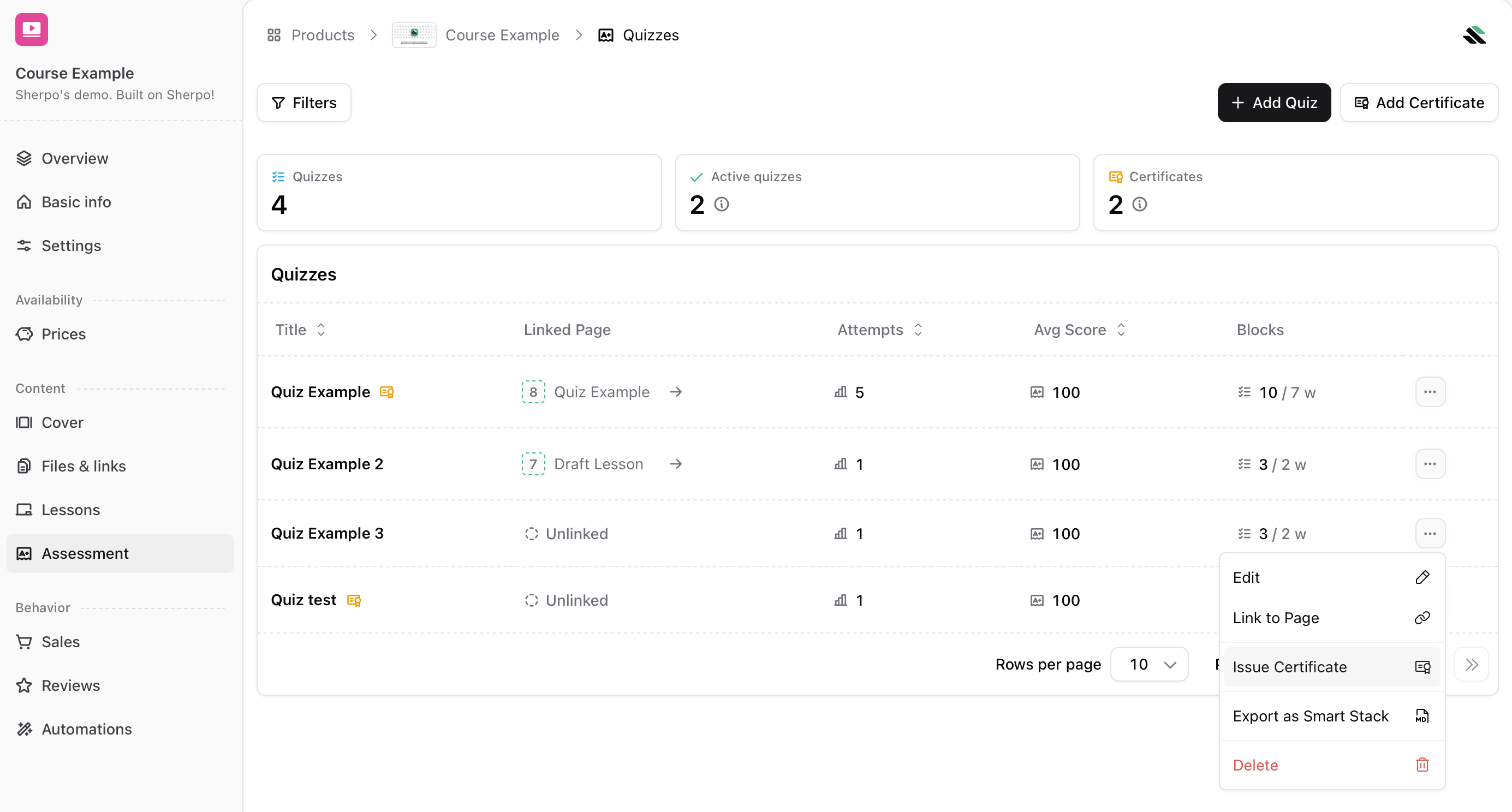
You can create a certificate in two ways:- Click Add Certificate in Assessment.
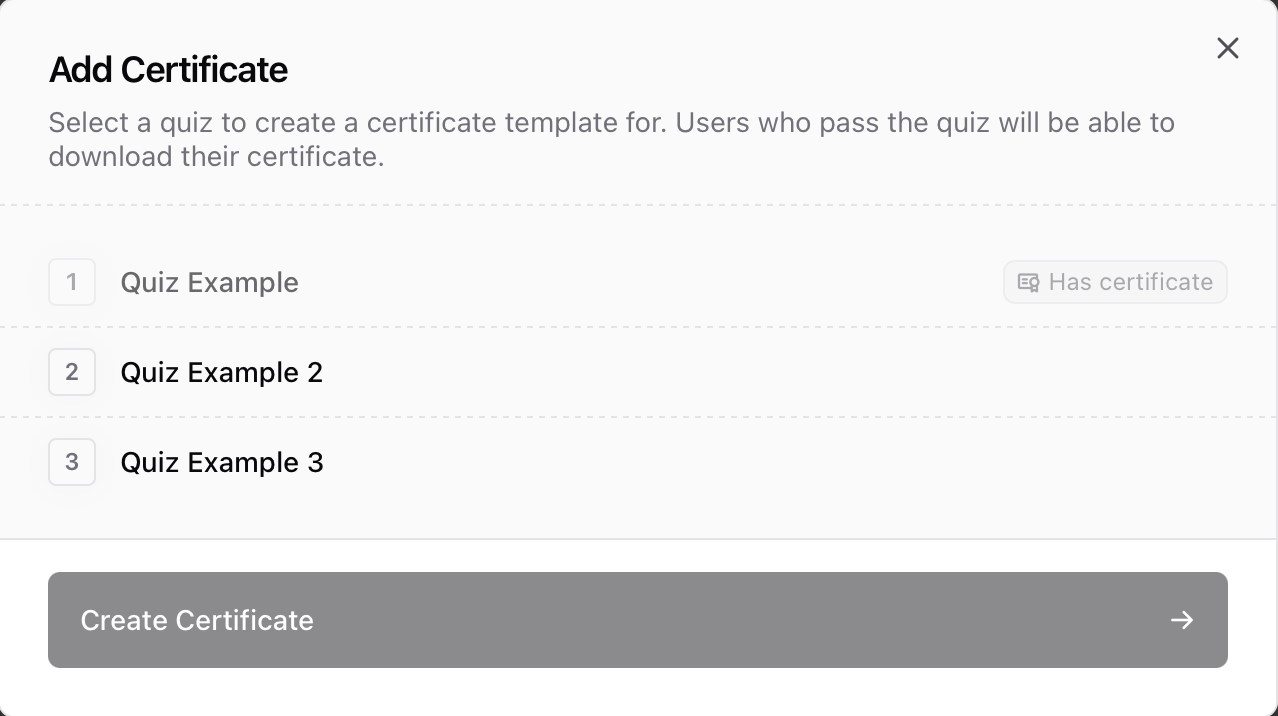
- Or open the quiz overflow menu (•••) and select Issue Certificate.
1
Open certificates
In your Course product, go to Quizzes & certificates and click Add Certificate.
2
Write the certificate copy
Customize the text that appears on the certificate: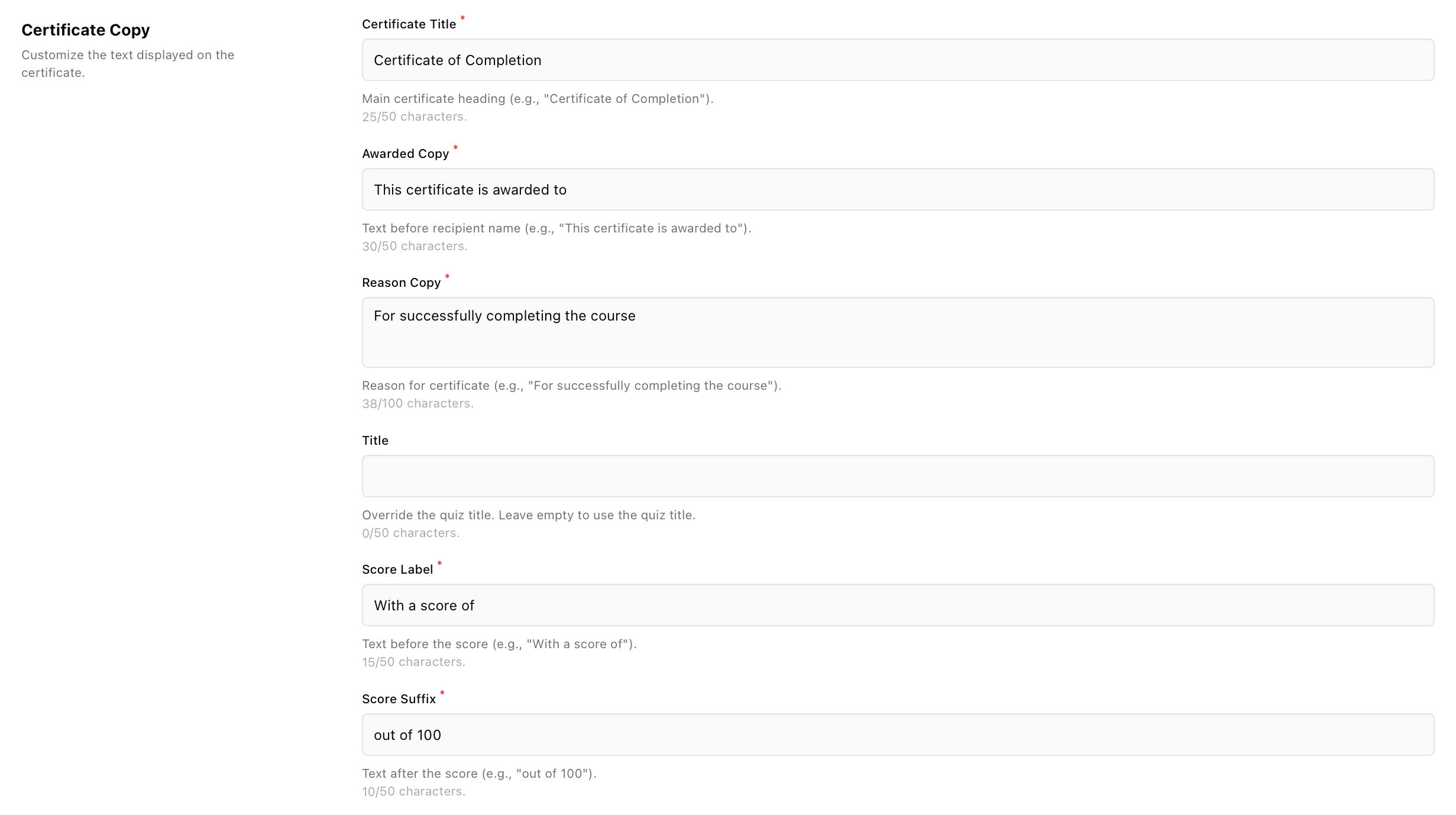
- Certificate Title: the main heading (example: “Certificate of Completion”).
- Awarded Copy: the line shown before the recipient name (example: “This certificate is awarded to”).
- Reason Copy: the line shown before the quiz title (example: “For successfully completing the course”).
- Title (optional): overrides the quiz title shown on the certificate. Leave empty to use the quiz name.
- Score Label and Score Suffix: labels for the score line (example: “With a score of” and “out of 100”).
3
Choose display options
Configure what appears on the PDF and when certificates can be generated: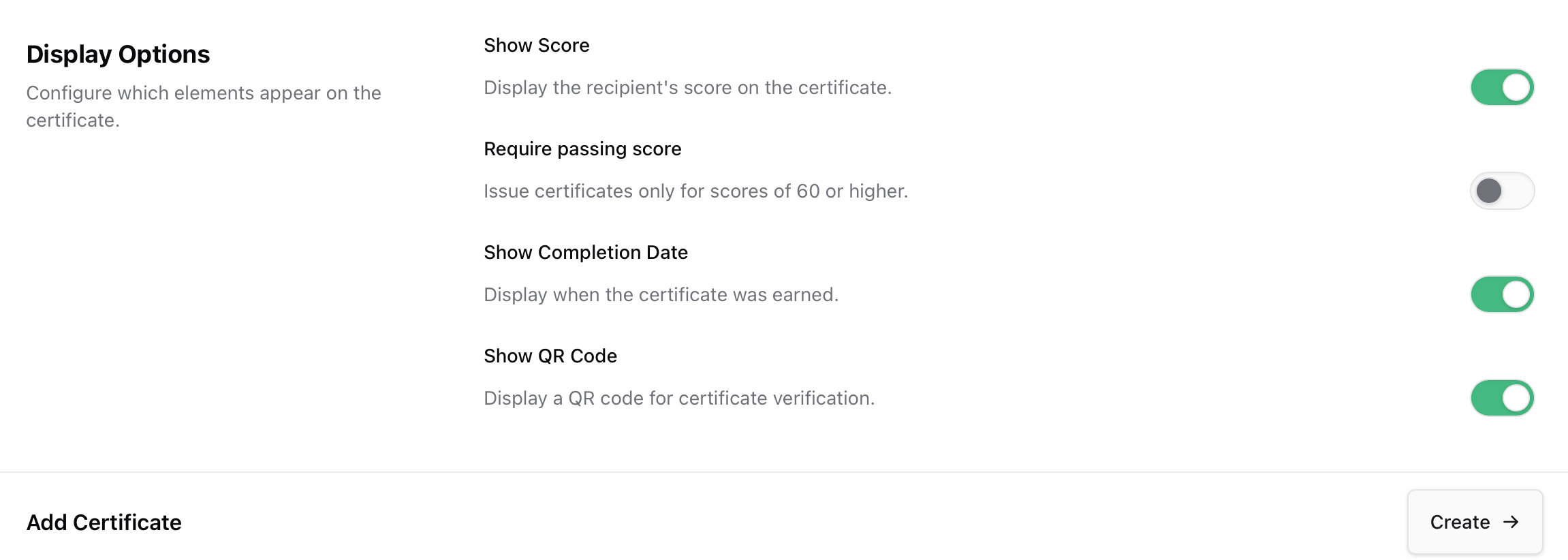
- Show Score: displays the learner’s score on the certificate (scores are normalized to 100).
- Require passing score: only allow certificate generation for scores 60 or higher.
- Show Completion Date: displays when the certificate was earned.
- Show QR Code: adds a QR code that links to the certificate verification page.
4
Create
Click Create to save the certificate template.
Certificate PDF
Certificates render as a clean PDF designed for sharing and printing.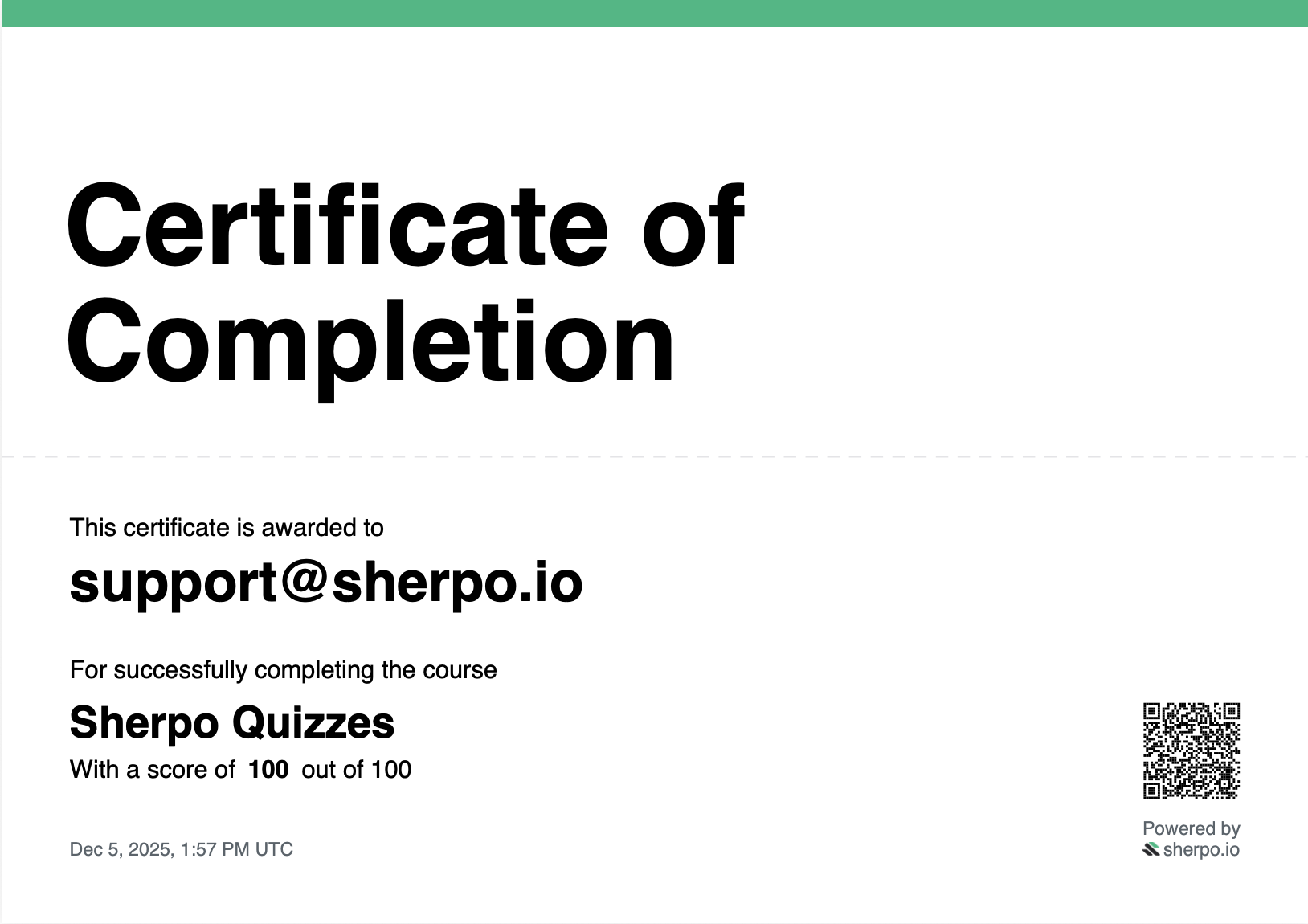
Verification via QR code
If you enable Show QR Code, the certificate includes a QR code that leads to a verification page confirming authenticity and showing key details like recipient, score, course, issue date, and certificate ID.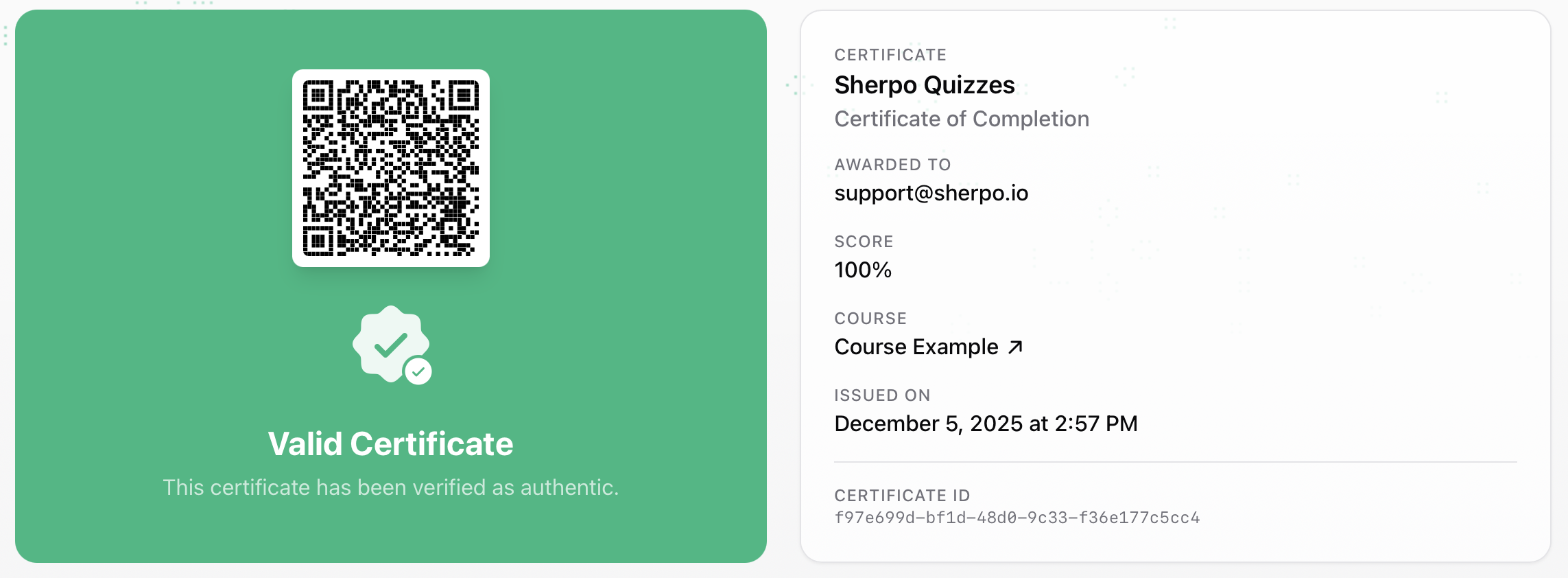
Editing and deletion behavior
- Editing a certificate updates the template used going forward.
- Previously generated certificates remain valid and verifiable, even if you later change the template.
- If you remove a certificate from a quiz (or delete the template link), learners will no longer be able to generate new certificates for that quiz, but existing certificates still verify.
Best practices
- Keep headings and short labels concise for clean layouts (aim for 50 characters or fewer where possible).
- Turn on Require passing score for graded programs, and leave it off for participation certificates.
- Enable Show QR Code if learners will share certificates publicly or you need easy verification.
- If you run multiple quizzes with similar names, use the optional Title override to make the certificate unambiguous.
FAQs
Can I reuse one certificate across multiple quizzes?
Can I reuse one certificate across multiple quizzes?
No. Each certificate template is linked to a single quiz.
What counts as passing?
What counts as passing?
If “Require passing score” has been enabled, learners will have to obtain a score of 60 or higher. Quiz scores are normalized to 100, and question weights can change how points are distributed.
Will learners lose certificates if I edit or remove the template?
Will learners lose certificates if I edit or remove the template?
No. Certificates that have already been generated remain valid and verifiable. Removing the template only affects future generation.
How do I stop showing scores without disabling passing rules?
How do I stop showing scores without disabling passing rules?
Turn off Show Score in the certificate settings. You can still keep Require passing score enabled.
What score is recorded on the certificate?
What score is recorded on the certificate?
The certificate records the learner’s best score at the time they generate it.