

Access and setup
Quizzes live inside each Course workspace and only become visible to customers when placed on a lesson page.- Find them under Assessment in a Course product.
- A quiz appears to customers only after you link it to a lesson page.
- To preview a quiz without publishing it publicly, link it to a draft lesson and open it in your website, using Admin mode by logging in to your site with your Sherpo’s account email.
Create a quiz
1
Open a course
Open a Course product in your dashboard.
2
Go to quizzes
Go to Assessment.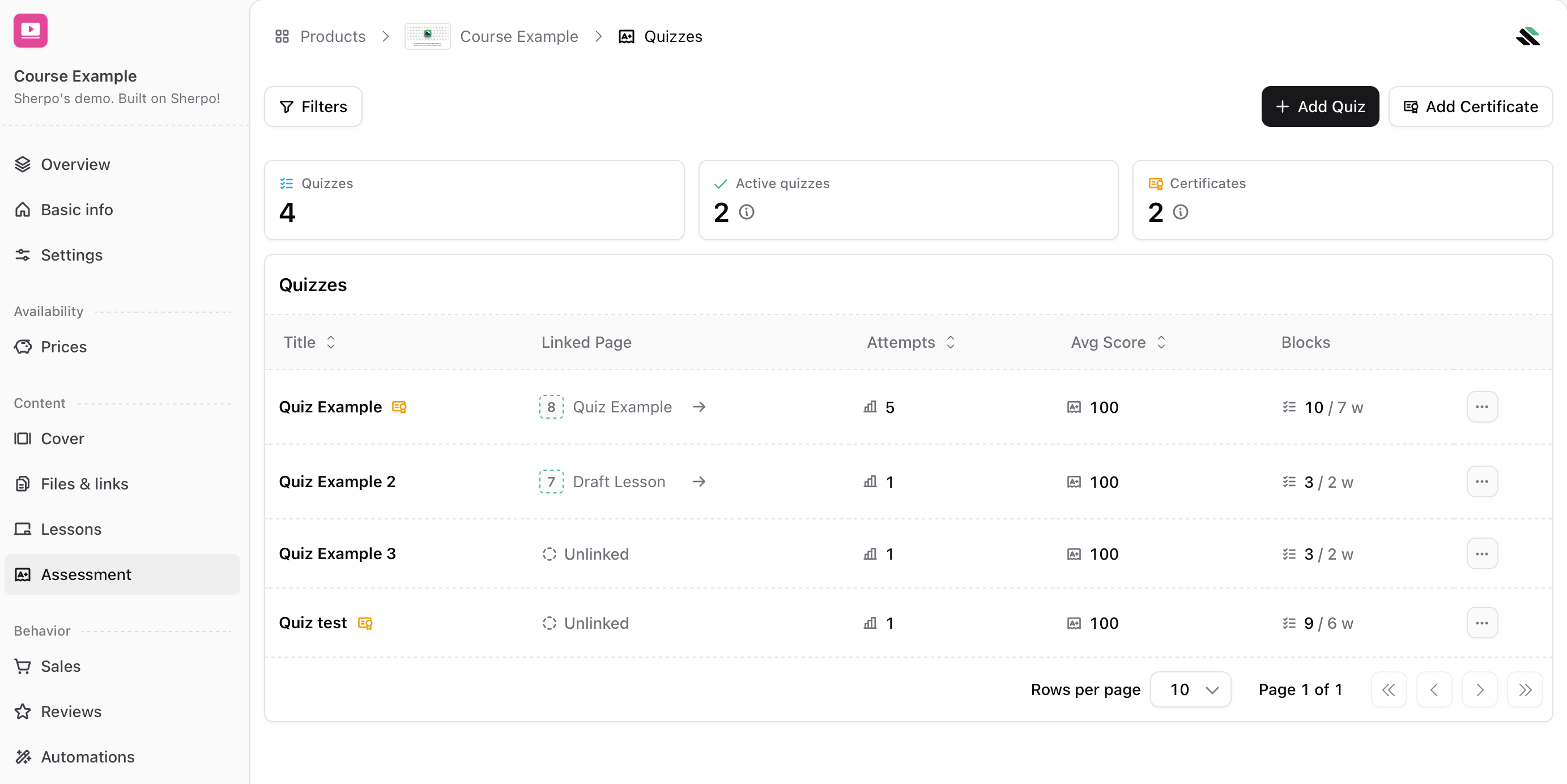
3
Add a quiz
Click Add Quiz.
4
Configure settings
Name the quiz (up to 50 characters) and configure availability settings: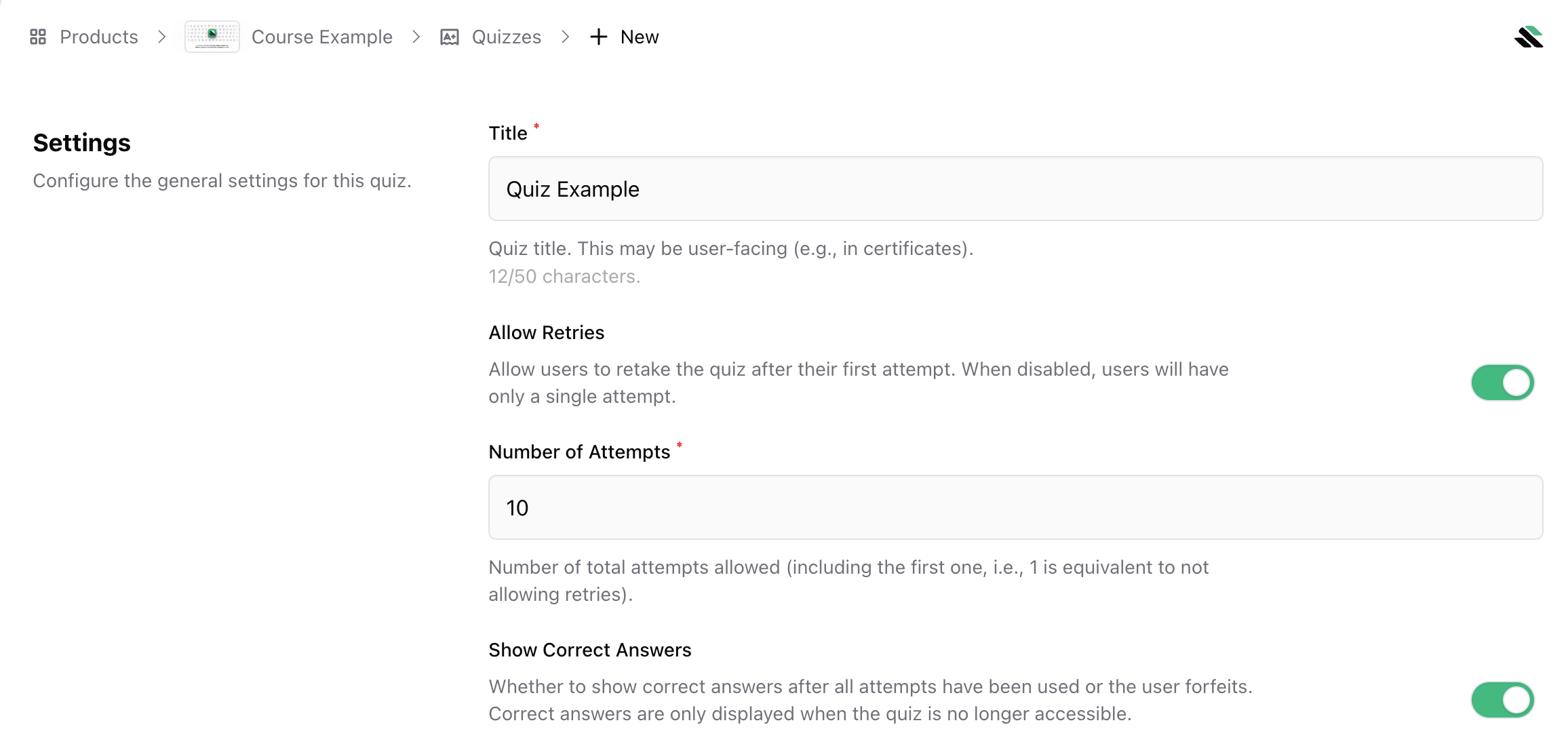
- Retries: keep disabled for a single attempt, or enable and set 1–100 retries.
- Show correct answers: keep enabled to show answers after the quiz is no longer accessible, or disable for blind grading.
5
Build blocks
Build your quiz using blocks (up to 50 total).
6
Create and link
Click Create to publish the quiz to your account. Then link the quiz to a lesson page so students can see it.
Build questions with blocks
Quizzes are built using blocks. Some are for structure, others are graded question types.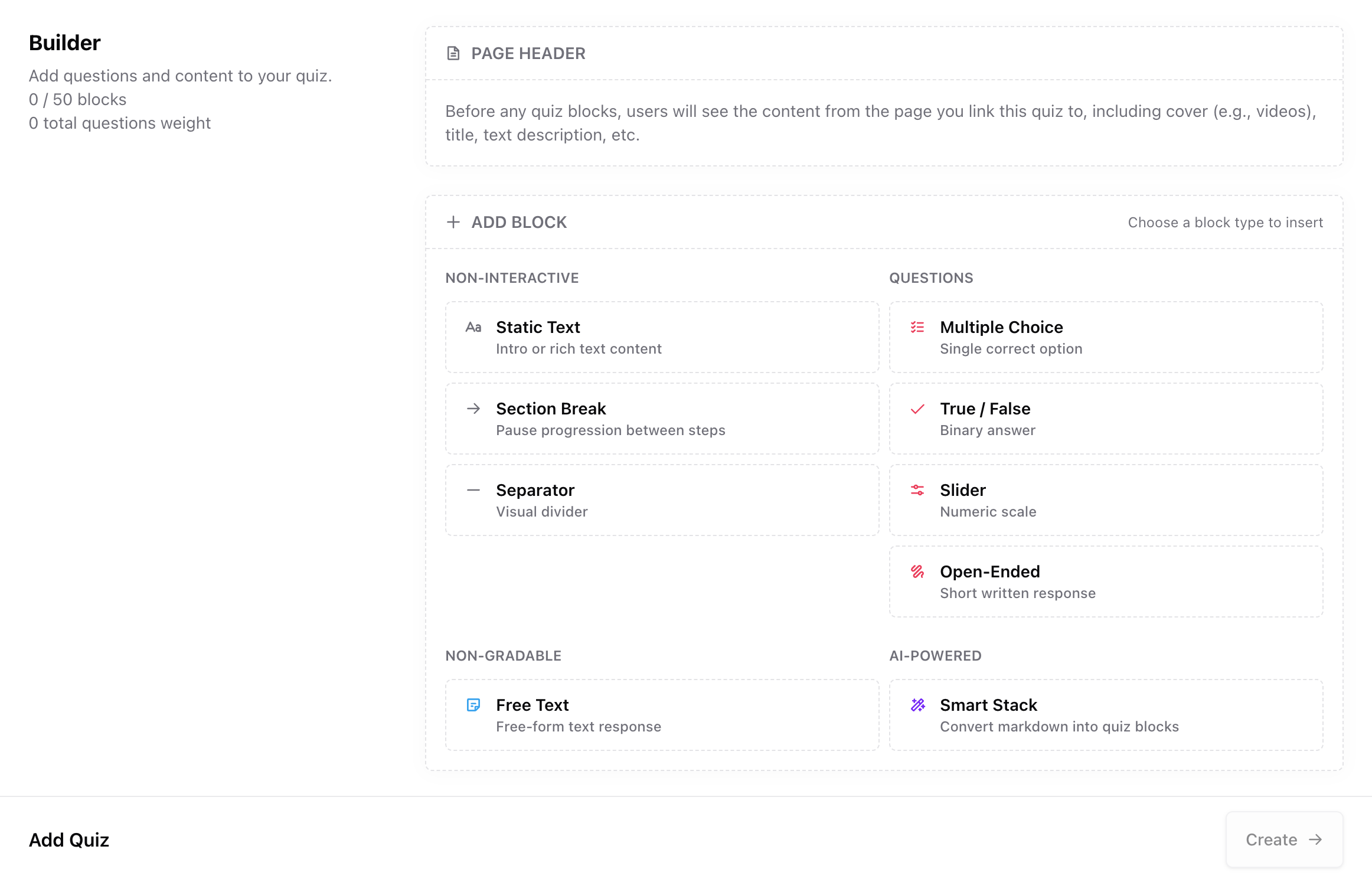
Non-interactive blocks
Use these for layout and guidance. They do not affect scoring.Static textfor introductions, instructions, or contextSection breakto split questions into sections. Learners move forward using the button in the bottom-right, and can still navigate back. This is useful for grouping questions by topic.Separatorfor visual dividers between parts
Auto-graded questions
These blocks contribute to the final score.Multiple choice(one correct option, default weight = 1)
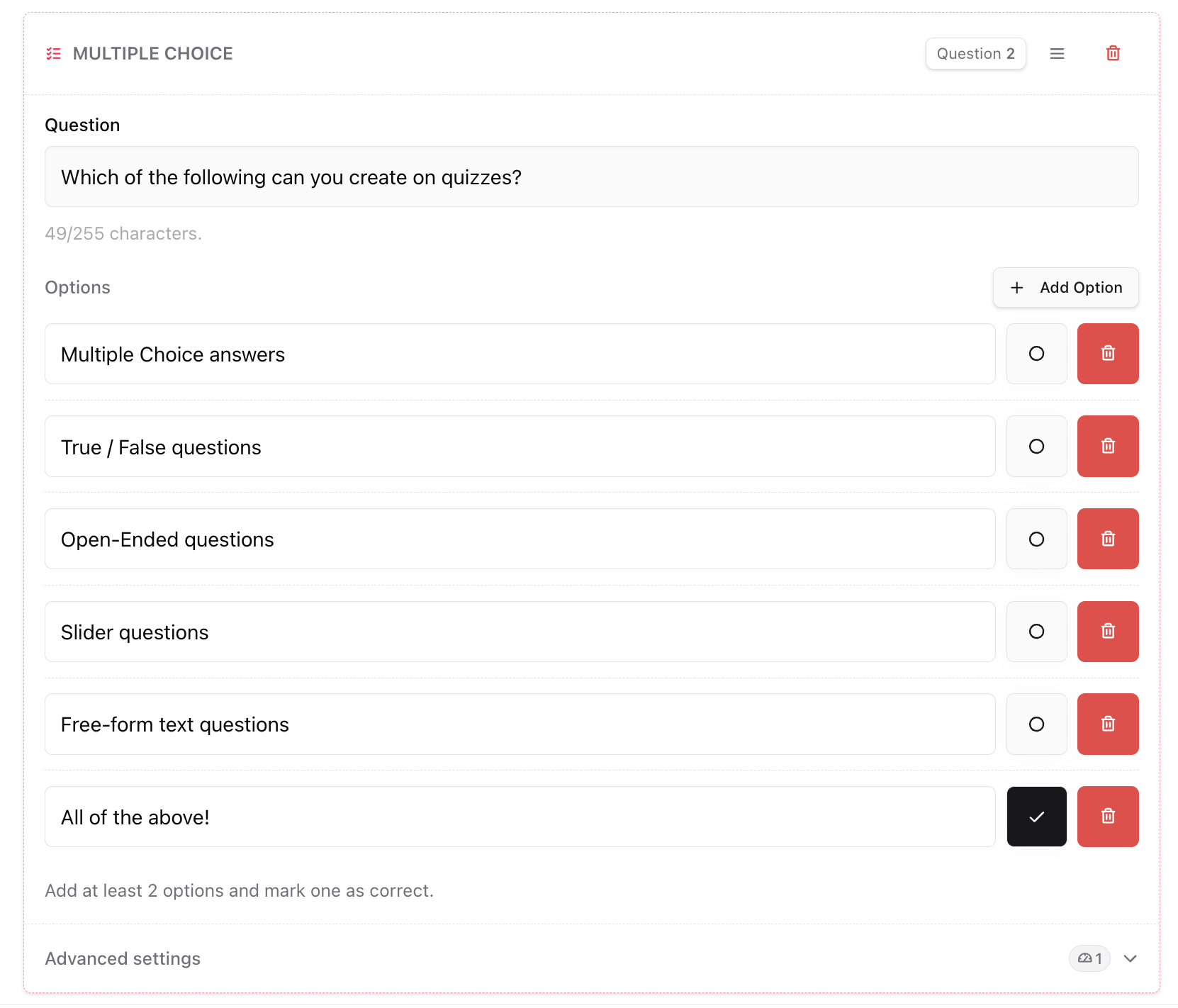
True/False(choose the correct boolean)

Slider(set min, correct value, and max)Open-ended(provide accepted answers, matched case-insensitively)
Feedback-only (not graded)
Free textcollects written responses and does not affect the score.
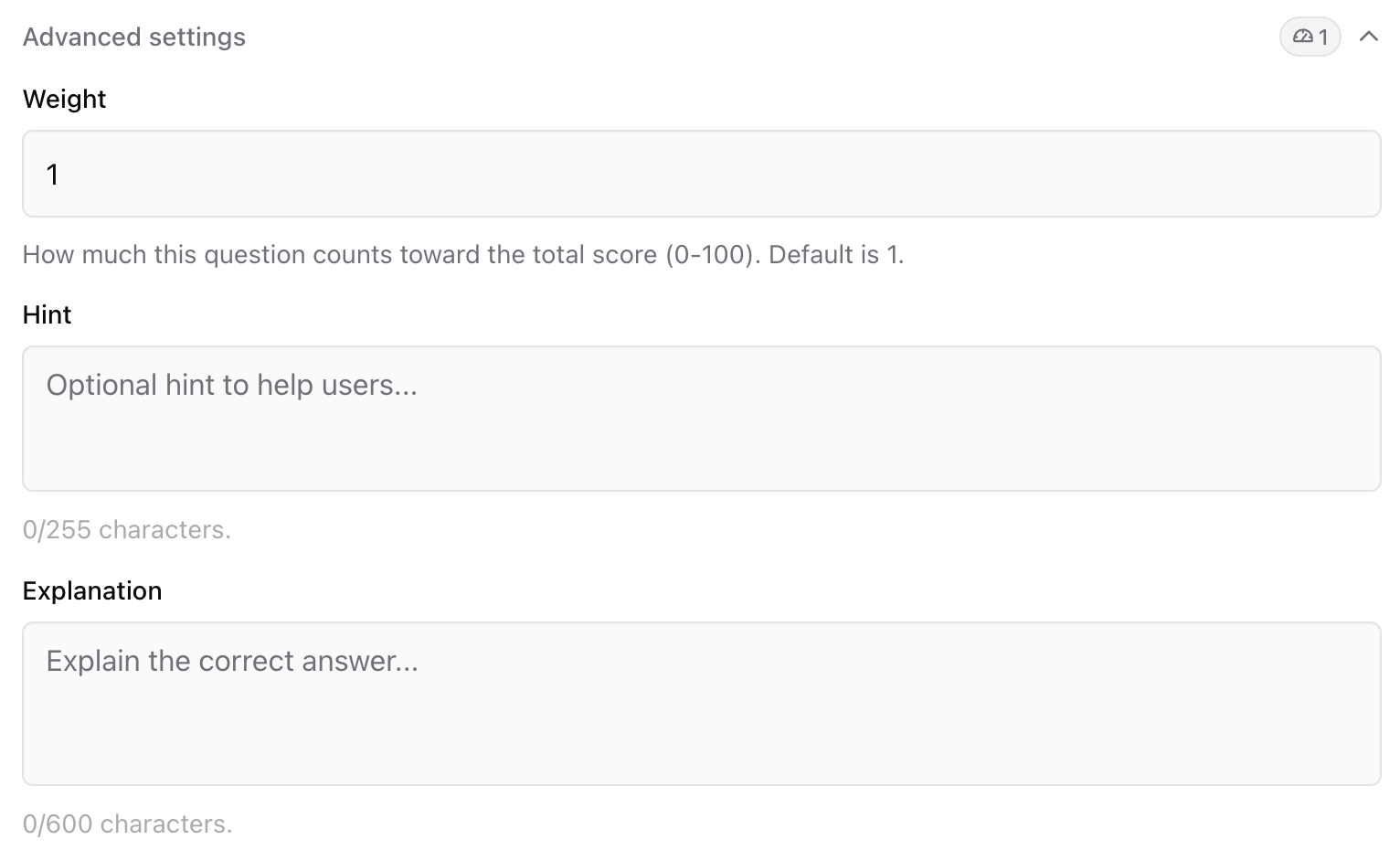
Advanced settings (weight, hints, explanations)
Use advanced settings to control how questions score and what learners see after submitting.- Weight changes how much a question counts relative to others.
- Hint and Explanation can be added per question. Explanations are shown only when Show correct answers is enabled for the quiz. They will appear to customers only once they get a 100%, complete the final attempt, or forfeit the quiz.
Smart Stack
Smart Stack converts pasted Markdown into quiz blocks automatically, which is useful for fast drafting and AI-assisted quiz creation. A fast workflow is to give your written quiz and the prompt below to an AI assistant, then paste the AI output into Smart Stack (you can copy this prompt straight from the dashboard too!).Use this prompt to create Smart Stack quizzes!
Link the quiz to a lesson Page
A quiz is not visible to students until you place it on a lesson Page.- In Assessment, open the quiz overflow menu and select Link to Page.
- Choose the Lesson where the quiz should appear. The picker will show all your lessons in order, so you can confirm placement.
- You can always unlink later. Unlinked quizzes remain saved but won’t render for customers.
Quiz example
Want to give a try to a live quiz? Check out our sample quiz here!Monitor responses and scoring
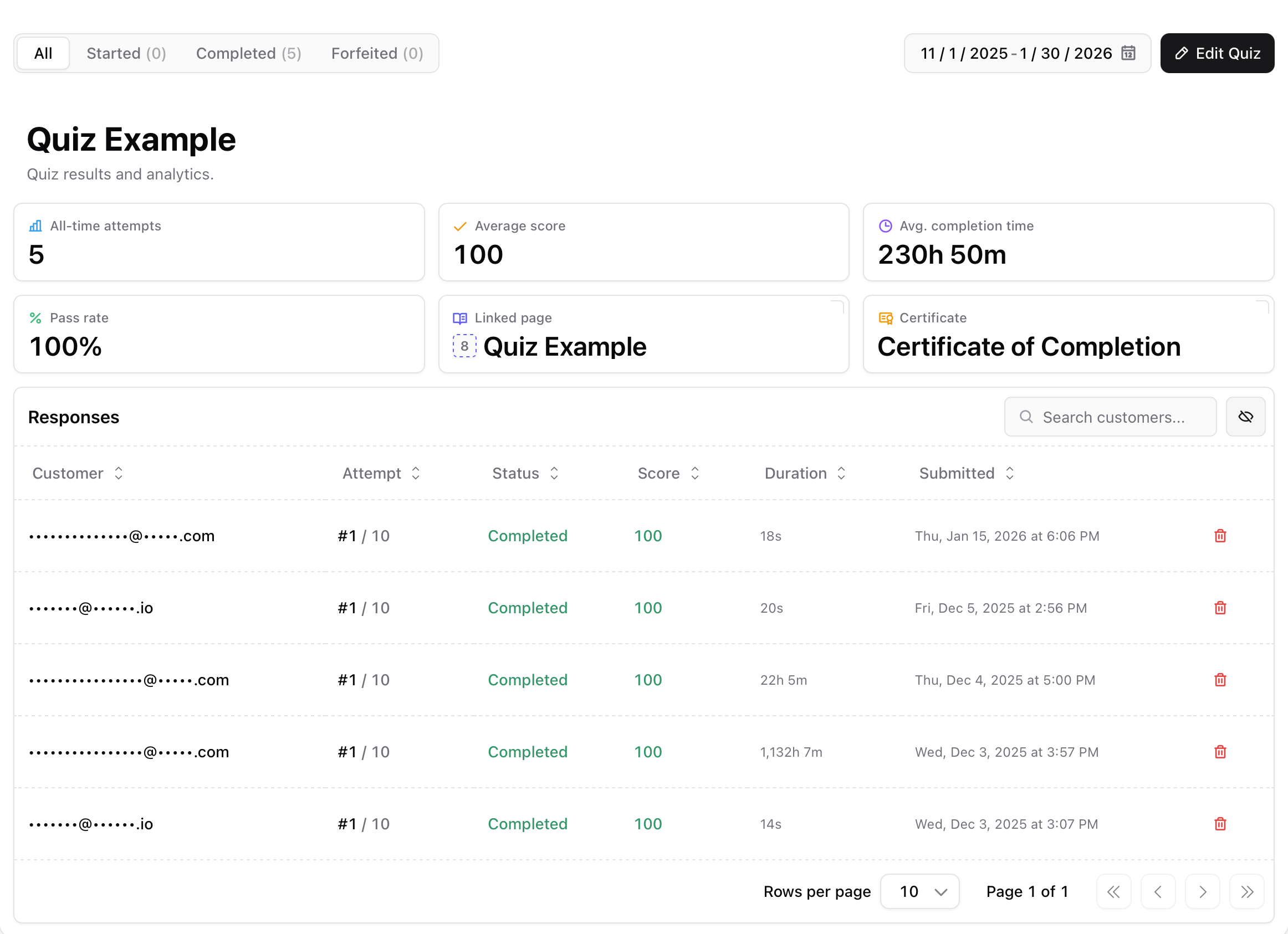
Open a quiz and go to Responses to review performance and attempt-level detail. Top metrics include:- Committed attempts (completed or forfeited)
- Average score
- Average completion time
- Pass rate (attempts scoring 60%+)
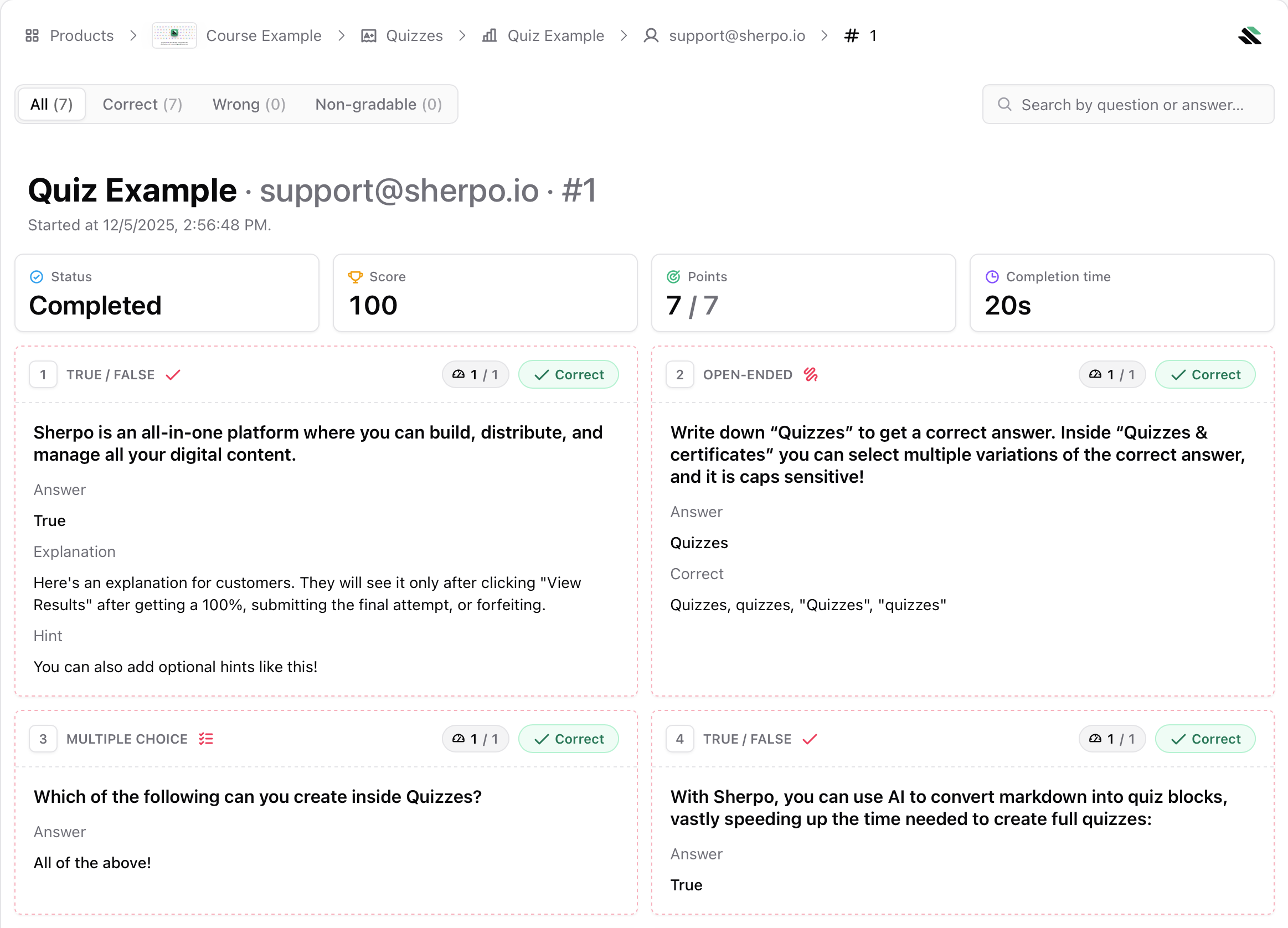
- Status (in progress, completed, forfeited)
- Attempt number
- Score (normalized to 100)
- Duration
- Timestamp
If you’re looking for a guide about how to create Certificates, you can find it here:
Certificates
Create branded completion certificates for quizzes, control what appears on the PDF, and decide when students can generate them.
FAQs
How are scores calculated?
How are scores calculated?
Correct answers contribute their assigned weight. Sherpo normalizes the final total to 100. Pass rate includes attempts scoring 60% or higher.
Can customers retry a quiz?
Can customers retry a quiz?
Yes. Enable Allow retries and set the maximum number of attempts. If retries are disabled, students only get one try.
A student forfeited but I would like them to retake the quiz, what can I do?
A student forfeited but I would like them to retake the quiz, what can I do?
You have two options: increase the allowed attempts (even temporarily) or delete the student’s attempt from the quiz responses table.
Do free-text questions affect scoring?
Do free-text questions affect scoring?
No. Free text is feedback-only and excluded from grading.
Why can’t I see my quiz on the product page?
Why can’t I see my quiz on the product page?
The quiz must be linked to a Page. Unlinked quizzes never render for customers.
What happens if I delete a quiz?
What happens if I delete a quiz?
Deleting a quiz removes it from any linked pages and deletes its configuration. Previously recorded attempts may no longer be accessible from the quiz.