

Overview
Your organization settings are split into three tabs:- Info: Update your organization’s name and description.
- Members: Invite people, manage access, and assign roles.
- Danger Zone: Permanently delete the organization with safeguards.
Info
Use Info to control how your organization appears across the dashboard and, where applicable, on receipts and other touchpoints. You can edit:- Title: The organization name. Minimum 3 characters, up to 100.
- Description: A short description. Up to 250 characters.
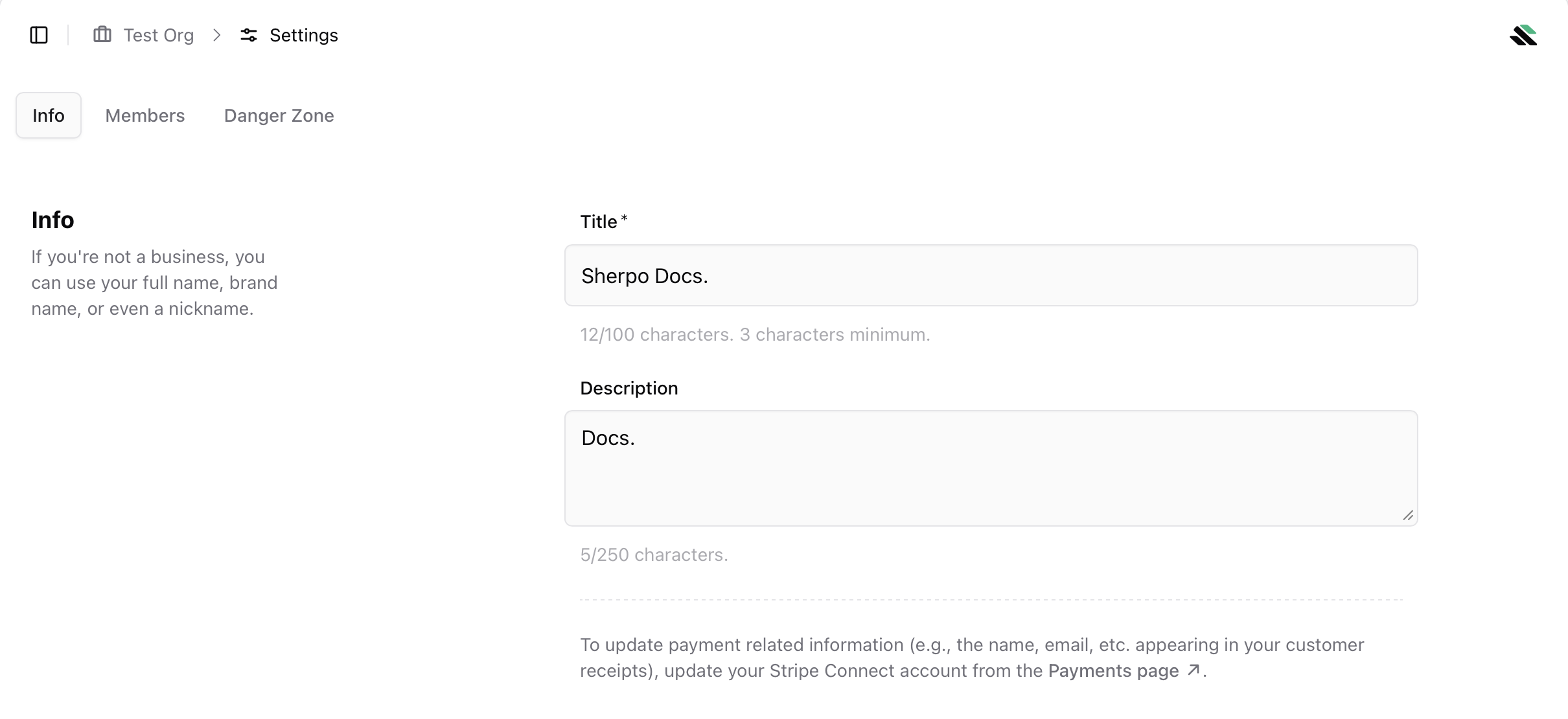
To update payment-related details that appear on customer receipts, such as legal name or email, use the Payments page and update your Stripe Connect account.
Members
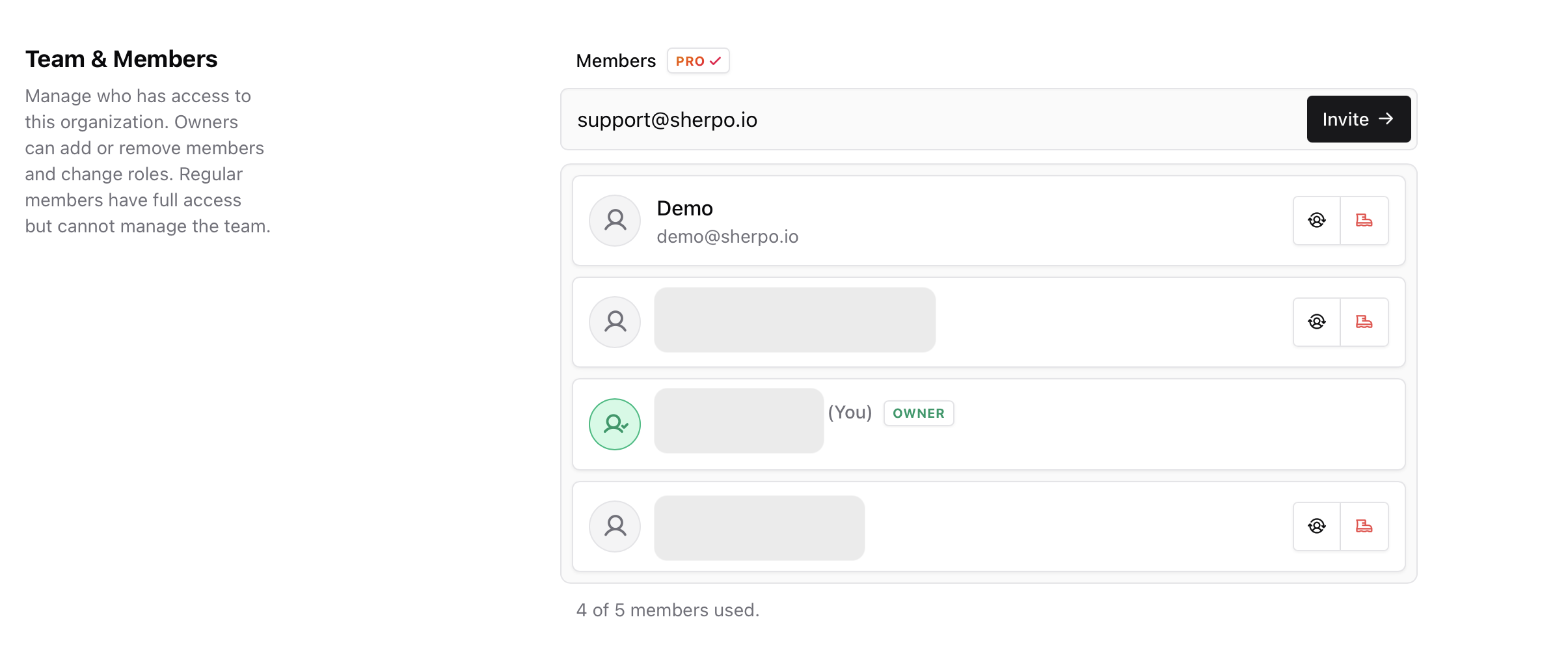
The Members tab lets you control who can access your organization.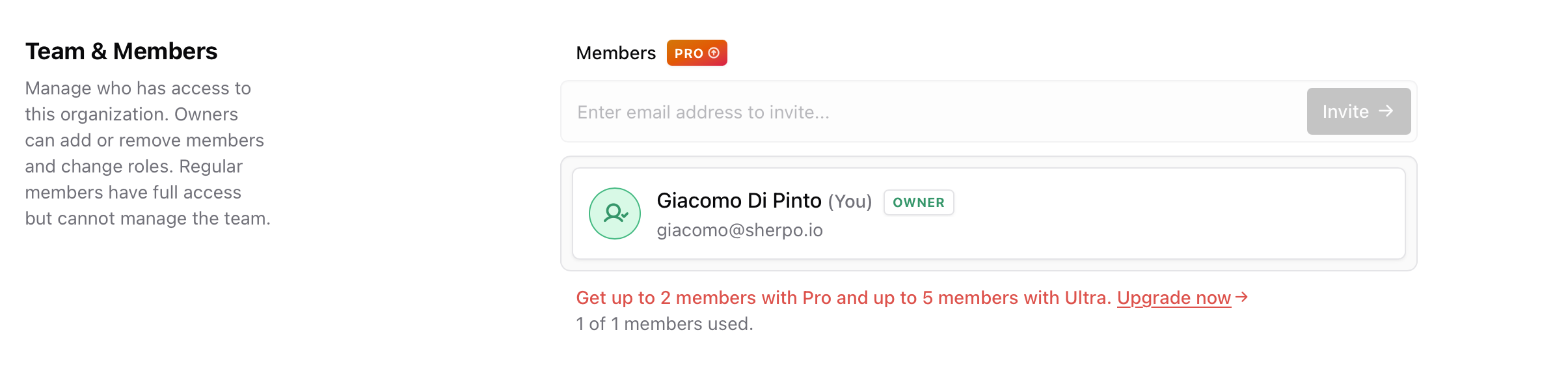
Invite members
To invite someone:- Enter their email address.
- Click Invite.
Roles and permissions
Organizations support role-based access:- Owner: Full access. Can manage members, change roles, and access deletion controls.
- Regular member: Full access to the organization, but cannot manage the team.
If you are the only member, you will still appear as Owner in the member list.
Member limits
Member limits depend on your plan:- Pro supports up to 2 members.
- Ultra supports up to 5 members.
Danger zone
The Danger Zone contains irreversible actions that affect the entire organization.Delete organization
Deleting an organization permanently removes it and all team members. This action cannot be undone.
This operation cannot be undone.
Email confirmation
To prevent accidental or unauthorized deletions, organization deletion requires email confirmation. After clicking Delete:- You receive an email titled Confirm Organization Deletion.
- The email clearly states that the action is permanent and lists what will be removed, including stores, pages, products, team members, customer access, and transaction history.
- Click Confirm Deletion in the email to proceed.
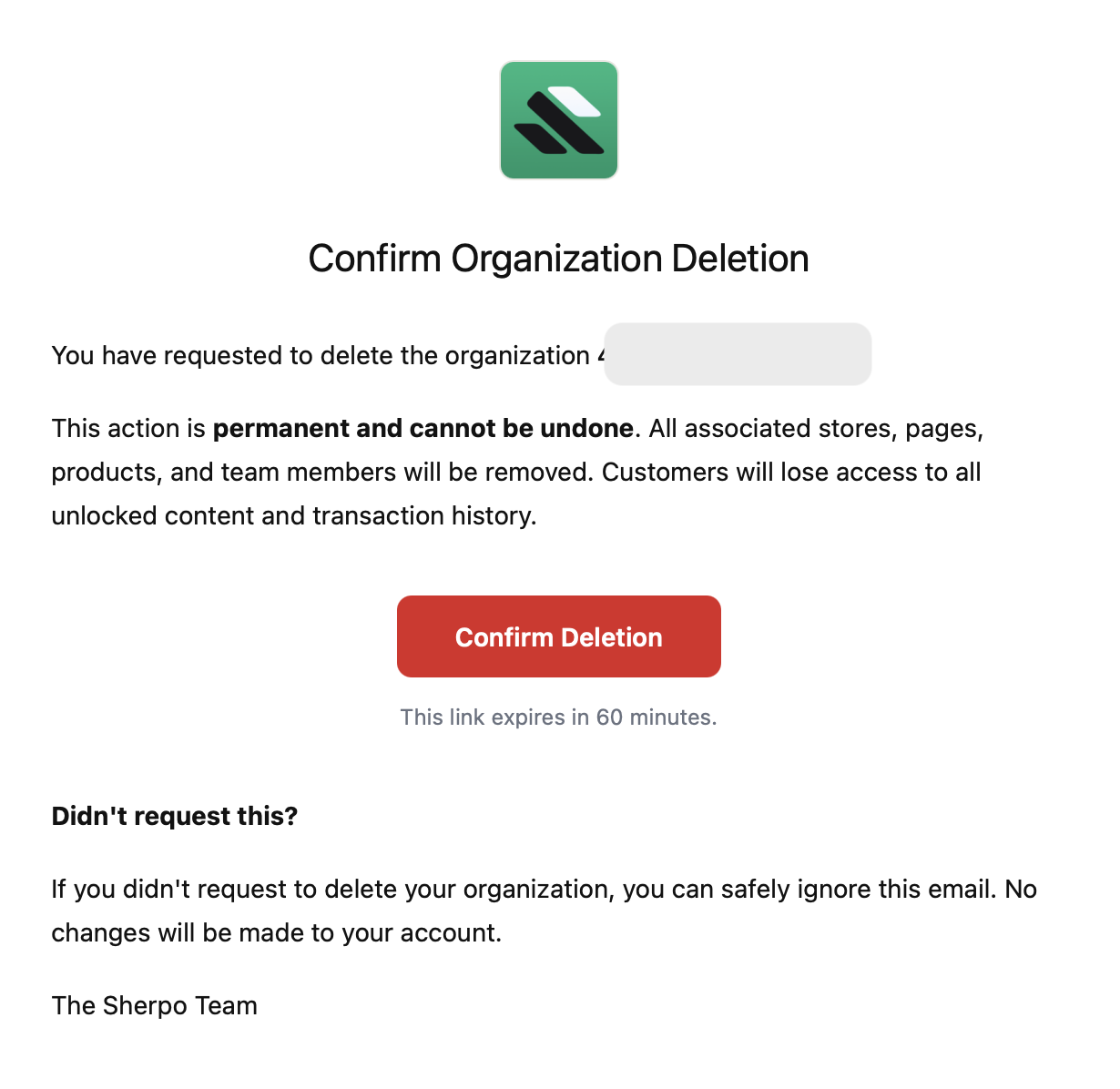
If you did not request the deletion, you can safely ignore the email. No changes will be made to your organization.
Subscription requirement
If the organization has an active subscription, you must cancel it before deletion. The delete button will be disabled until the subscription is canceled.
FAQ
Can I change the organization name later?
Can I change the organization name later?
Yes. You can update the title and description at any time from the Info tab.
What is the difference between Owner and Regular member?
What is the difference between Owner and Regular member?
Owners can manage the team and access the Danger Zone. Regular members can use the organization but cannot manage members or roles.
Why can’t I add more members?
Why can’t I add more members?
You have reached your plan limit. Pro supports up to 2 members and Ultra supports up to 5. Upgrade your plan to add more.
Can I restore a deleted organization?
Can I restore a deleted organization?
No. Deleting an organization is permanent. Make sure you export anything you need before proceeding.
What happens if I do not confirm the deletion email?
What happens if I do not confirm the deletion email?
Nothing. If you do not click the confirmation link within 60 minutes, the deletion request expires and your organization remains unchanged.